
Clipy
What is Clipy?
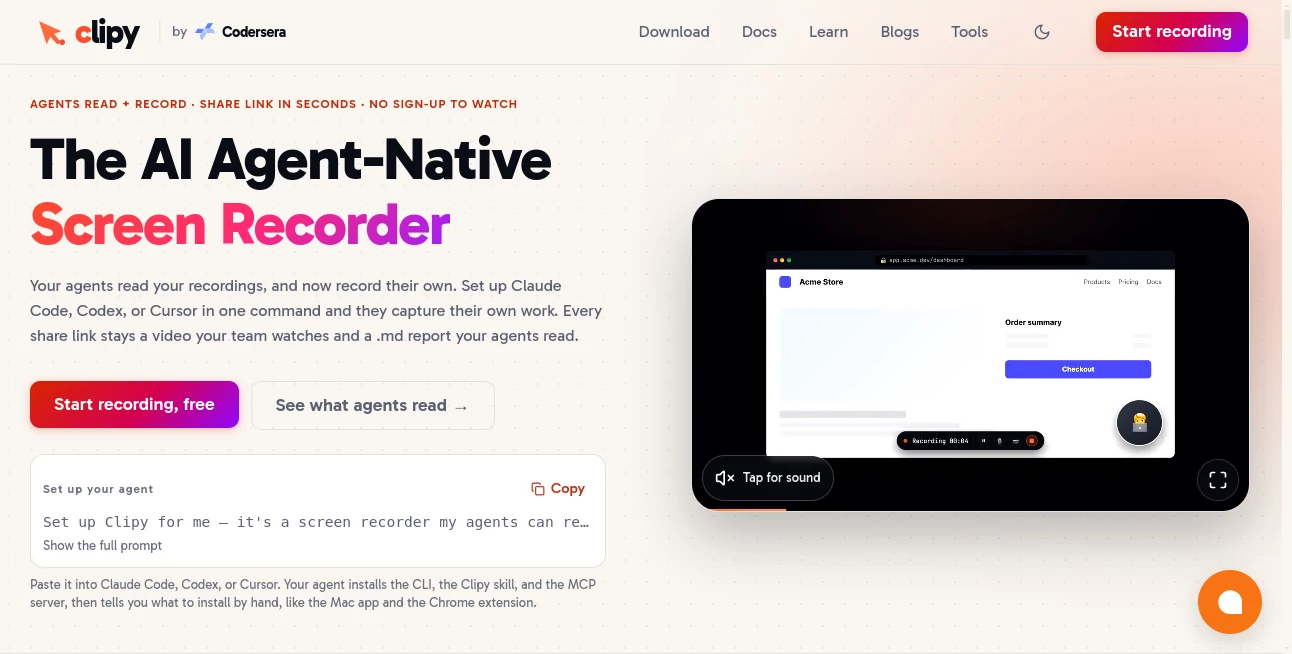
Clipy is an AI agent-native screen recorder built around a simple idea: a screen recording should be useful to both people and AI agents. Instead of creating a video that someone has to watch from beginning to end, each recording can also provide structured context that an AI coding or workflow agent can understand.
The service lets users record a browser tab, application window, or full screen directly from the web, with webcam and microphone options available. Once recording stops, a shareable link is created quickly, making it easy to send a visual explanation through everyday communication tools.
What makes the approach particularly interesting is the connection between video and machine-readable context. Recordings can include transcripts, summaries, key moments, frames, and cursor or click information. For developers, QA teams, product managers, marketers, and support teams, that can turn a simple “let me show you” video into something an AI agent can actually work with.
Key Features
- AI-readable screen recordings with structured context.
- Screen, browser tab, and window recording.
- Optional webcam and microphone capture.
- Unlimited recording length.
- HD recording with quality up to 4K.
- Automatic transcripts and AI-generated summaries.
- Key moments with visual frames and interaction context.
- Shareable links that viewers can open without creating an account.
- No watermark on recordings.
- Browser-based recording with no application installation required.
- Support for AI-agent workflows through skills, CLI, and MCP.
- Tools for importing and moving existing Loom video libraries.
User Interface
The interface keeps the recording process deliberately straightforward. Users choose what they want to capture, start recording, and stop when they have finished explaining the issue or demonstrating a workflow. The browser-based recorder removes much of the friction normally associated with desktop recording software.
The experience is especially convenient when the goal is to explain something quickly. There is no need to prepare a complicated project, configure a timeline, or edit a presentation before sharing it. Record, stop, and send the resulting link.
Accuracy & Performance
Performance is one of the strongest parts of the workflow. The service is designed to make the recording available quickly after capture, while processing continues around the transcript, summary, and other contextual information.
The AI-generated information is useful because it is not limited to a generic video description. Spoken explanations can become searchable transcript content, while important moments can preserve visual context. For technical teams, captured clicks, cursor positions, and relevant frames can make a bug report considerably easier to understand.
For example, instead of writing several paragraphs about a broken dashboard button, a developer can record the problem while demonstrating exactly what happens. The resulting context can then be passed to an AI coding agent for further investigation.
Capabilities
The platform goes beyond conventional screen recording by treating recordings as a source of information for AI agents. Its workflow can connect recordings with agents such as Claude Code, Codex, and Cursor, allowing those systems to retrieve the information contained in a recording.
The agent-readable format can include a summary, transcript, key moments, frames, and interaction details. This is particularly useful for software development because a visual bug report can contain information that would be difficult to communicate accurately with text alone.
There is also a command-line interface for users who prefer terminal-based workflows. The CLI can list, search, and read recordings, retrieve transcripts and summaries, identify key moments, download videos, and create new recordings. An MCP integration provides an additional route for authenticated access to private recordings and library searches.
Security & Privacy
Privacy information published by the service explains that account information, recordings, screenshots, transcripts, AI summaries, and certain processing metadata may be stored. Google sign-in information is used when an account is created through Google authentication.
The service also states that it does not sell user data, use advertising pixels, or train models on users' recordings. Recordings are unlisted by default, while access to private libraries and authenticated workflows can be controlled through its account and agent integrations.
As with any screen-recording platform, users should still avoid capturing passwords, private customer information, financial details, or other sensitive material unless the recording workflow is appropriate for that information.
Use Cases
Software development: Developers can record a bug exactly as it happens and provide an AI coding agent with the visual and spoken context needed to investigate it. This can reduce the back-and-forth that often happens when a developer receives a vague bug description.
Quality assurance: QA teams can record a manual test while demonstrating each interaction. The resulting transcript and key moments can help turn a manual test into more structured documentation or provide useful material for automated testing workflows.
Design review: Designers can walk through a website or application and point directly at spacing problems, layout issues, or unexpected behavior. The visual context is much clearer than a comment such as “the button looks slightly too far to the right.”
Product teams: A product manager can demonstrate a feature, explain what should change, and share the recording with developers or an AI assistant. The recording becomes a reusable reference rather than a one-time conversation.
Marketing: A single product demonstration can become source material for documentation, launch content, internal notes, or other marketing workflows.
Customer support: Support specialists can demonstrate a solution once and share the recording with customers. Because viewers do not need to install an application or create an account simply to watch, the experience is convenient for recipients.
Team communication: When a written explanation would take several minutes, a short screen recording can communicate the situation immediately. The same link can then serve both a human viewer and an AI agent.
Pros and Cons
Pros
- Free to start with no viewer signup requirement.
- No watermark on recordings.
- No fixed recording-length limit.
- Recording can reach up to 4K quality.
- Works directly in the browser.
- Combines video with transcripts, summaries, and key moments.
- Designed specifically for AI-agent workflows.
- Useful integrations for developers using modern coding agents.
- Share links are simple for teammates and customers.
Cons
- The agent-focused features may be more than casual users need from a basic screen recorder.
- Some advanced workflows require technical setup involving CLI or MCP.
- Users working with highly sensitive recordings need to review the privacy and sharing model carefully.
- The strongest benefits are aimed at teams already using AI-assisted development or automation workflows.
Pricing Plans
The core recording experience is available for free. The service currently promotes free recording without requiring a credit card, and viewers can watch shared recordings without signing up.
The free workflow includes important features such as unlimited recording length, high-quality recording up to 4K, sharing, transcripts, AI summaries, and agent-readable recording context. There is also no watermark applied to recordings.
For users evaluating it as an alternative to a conventional screen recorder, the absence of a recording-length cap and the ability to share recordings without forcing recipients through a signup process make the free offering particularly attractive.
How to Use It
- Open the browser-based recorder.
- Choose whether to capture a browser tab, window, or the full screen.
- Enable the microphone or webcam if your explanation needs voice or camera footage.
- Start recording and demonstrate the task, bug, feature, or workflow you want to explain.
- Stop the recording when you are finished.
- Wait for the recording information to finish processing.
- Copy the generated share link and send it to your teammate, customer, or AI agent.
- For AI development workflows, connect the recording to a supported coding agent or use the available CLI and MCP integrations when deeper access is required.
Comparison with Similar Tools
Traditional screen recorders are primarily designed around human viewers. They capture a video, host it, and provide a link for someone else to watch. That model works well for demonstrations, but it can become inefficient when the recipient is an AI system that needs structured information rather than several minutes of video.
This platform takes a different approach by making the recording useful in two formats. A teammate can watch the video normally, while an AI agent can work with the associated transcript, summary, frames, and interaction context.
Compared with conventional screen-sharing tools, it also removes several common points of friction. Viewers do not need an application installation or an account just to watch a shared recording, and recordings are not restricted by a short time limit.
For developers, QA professionals, and teams building AI-assisted workflows, the agent-readable layer is the main differentiator. For someone who only needs to record an occasional video and send it to a friend, a simpler recorder may be enough.
Conclusion
Screen recording has traditionally been treated as a visual communication tool. This product pushes the idea further by making the recording useful as structured context for AI agents as well.
The combination of fast browser recording, unlimited length, high-resolution capture, automatic transcripts, summaries, key moments, and agent integrations creates a compelling workflow for modern technical teams. A developer can demonstrate a bug instead of describing it. A QA tester can show exactly how a problem occurs. A product manager can point through a feature. An AI agent can then use that information as part of the next step.
For teams already working with AI coding assistants and automation, this is where the platform becomes particularly interesting. It is not simply another way to record a screen; it treats the recording as information that both humans and machines can understand.
Frequently Asked Questions (FAQ)
Is the screen recorder free?
Yes. The core recording experience is available for free, and the service states that users can start recording without providing a credit card.
Do viewers need an account?
No. People receiving a shared recording can open the link in a browser and watch without creating an account or installing an application.
Can I record my entire screen?
Yes. The recorder supports full-screen capture as well as browser tabs and individual windows.
Does it support webcam recording?
Yes. Webcam and microphone capture can be enabled when you want to include your camera or voice in a recording.
Is there a recording time limit?
The service advertises unlimited recording length, so users are not restricted to a short five- or ten-minute recording window.
Can AI agents read my recordings?
Yes. Recordings can provide machine-readable context including transcripts, summaries, key moments, and visual information. Integrations are available for AI development agents and advanced workflows.
Which AI coding agents are supported?
The platform provides workflows for agents including Claude Code, Codex, and Cursor. Its CLI and MCP tooling can also be used for more advanced agent-based workflows.
Can I use it without installing an app?
Yes. The browser recorder works without installing a desktop application. A native macOS option and Chrome extension are also available for users who prefer those recording methods.
Does it add a watermark?
No. The service states that recordings are created without watermarks.
Is it useful for software development?
Yes. Software teams can record bugs, demonstrate reproduction steps, capture visual context, and provide the resulting information to an AI coding agent. This can make technical handoffs much clearer than text-only bug reports.
Can existing Loom videos be moved over?
Yes. The platform provides tools for downloading Loom videos and moving Loom libraries into its workflow, making it possible to bring existing recordings into an agent-readable environment.
What makes it different from a normal screen recorder?
The key difference is the agent-readable layer. Instead of treating the recording only as a video for humans, the system also creates structured information that AI agents can retrieve and use.
AI Recording , AI Productivity Tools , AI Developer Tools , AI Video Recording .
These classifications represent its core capabilities and areas of application. For related tools, explore the linked categories above.
Clipy details
Website unavailable — View Alternatives
Pricing
- Free
Apps
- Web App
- Chrome Extensions
- Mac App
Categories

Clipy Alternatives Product

Sourcetable

gpt-plus.ai

SalaryHow

Productivity…

DemoDash

Resyfy AI

Keepmind
GameClick.io

ShipBoost