


















ScanToExcel
What is ScanToExcel?
There’s something incredibly satisfying about taking a messy stack of receipts, invoices, or printed tables and watching them transform into a clean, perfectly organized Excel file in seconds. No more manual typing, no more copy-paste errors, no more spending your evening fixing rows and columns. This tool makes that tedious process feel almost effortless. I’ve seen small business owners go from dreading monthly bookkeeping to finishing it during their morning coffee because the heavy lifting is finally handled intelligently.
Introduction
Paper documents and scanned PDFs are still everywhere—invoices from suppliers, bank statements, expense reports, research tables. Turning them into usable data has always been a painful bottleneck. ScanToExcel changes that by using smart AI to read, understand, and structure the information accurately. Whether it’s a wrinkled receipt or a multi-page financial report, it extracts the data cleanly and delivers it in a ready-to-use spreadsheet. It respects the original layout while making everything editable and sortable. For anyone who deals with documents regularly, it feels like finally getting a reliable assistant who never gets tired of numbers.
Key Features
User Interface
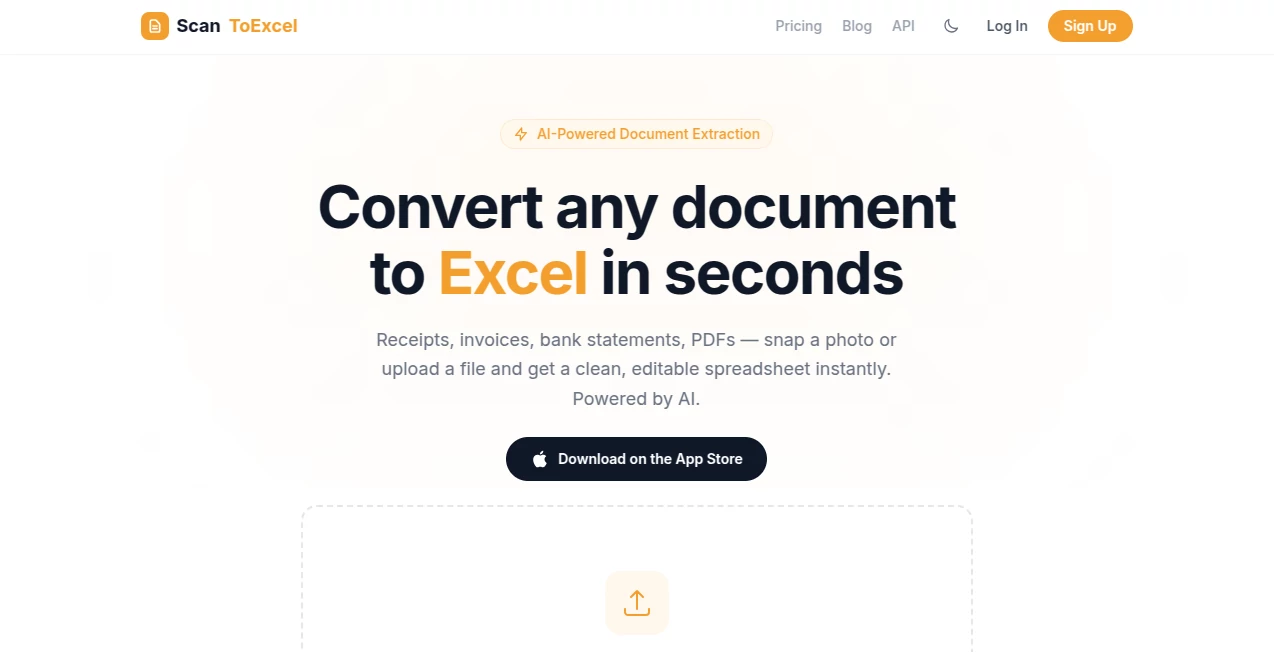
The design is refreshingly straightforward. You drag and drop your scanned file or photo, choose the output format, and hit convert. No complicated menus or hidden settings. The preview shows exactly what was extracted so you can spot any adjustments quickly. Everything happens in one clean window, making the whole experience feel light and focused instead of overwhelming. Even non-technical users finish their first conversion in under a minute.
Accuracy & Performance
The real strength lies in how well it handles real-world messiness—handwritten numbers, varying table formats, faded ink, or angled phone photos. It maintains row and column structure remarkably well, catches totals and subtotals intelligently, and rarely misreads dates or currency symbols. Processing is fast, even with multi-page documents, and the results are consistent enough that most users only need minor tweaks. It’s the kind of reliability that turns a once-frustrating task into something you actually trust.
Capabilities
It works with scanned PDFs, photos of documents, invoices, receipts, bank statements, inventory lists, research tables, and more. You can convert single pages or entire multi-page files, extract only specific tables if needed, and choose between Excel, CSV, or JSON output. The AI understands context—distinguishing between headers, totals, and item lines—so the resulting spreadsheet feels thoughtfully organized rather than raw data. It even handles multiple languages and different currencies without breaking a sweat.
Security & Privacy
Your documents are processed securely and deleted shortly after conversion. No permanent storage unless you explicitly save the output. For businesses handling sensitive financials or client data, that peace of mind matters. The tool was clearly built with real-world privacy concerns in mind, which builds quiet confidence every time you upload something important.
Use Cases
A small retailer snaps photos of daily receipts and converts them into a monthly expense report in minutes instead of hours. An accountant processes dozens of supplier invoices at the end of the quarter without the usual headache. A researcher extracts data from printed survey results and gets clean tables ready for analysis. A freelancer turns client-provided spreadsheets (scanned versions) into editable files for project tracking. Wherever data is trapped on paper or in scans, this tool sets it free quickly and accurately.
Pros and Cons
Pros:
- Remarkably accurate even with imperfect scans and handwriting.
- Saves hours of manual data entry every week.
- Simple enough for non-technical users, powerful enough for professionals.
- Fast processing that keeps your workflow moving.
- Multiple output formats that fit different needs.
Cons:
- Extremely poor quality or heavily damaged documents may still need some manual correction.
- Free tier has reasonable limits; high-volume users benefit from paid plans.
Pricing Plans
The free plan gives you a generous number of conversions per month—more than enough to test the quality and handle occasional needs. Paid tiers unlock unlimited processing, higher priority during busy times, batch uploads, and advanced features like custom templates. Pricing is practical and scales with usage, making it accessible for freelancers and valuable for growing businesses.
How to Use ScanToExcel
Upload your scanned document or take a clear photo directly in the tool. Let it process for a few seconds. Review the extracted preview—make small corrections if anything looks off. Choose your preferred format (Excel is usually best) and download. For regular use, you can batch multiple files at once on paid plans. The entire process is designed to be quick and repeatable so you can build it into your weekly routine without friction.
Comparison with Similar Tools
Many OCR tools stop at plain text extraction and leave you to rebuild the table structure yourself. Others produce messy results that require heavy cleanup. This one stands out by understanding table logic and delivering ready-to-use spreadsheets with proper columns, rows, and formatting. It combines speed, accuracy, and simplicity better than most alternatives, especially for everyday business and personal document needs.
Conclusion
Data trapped in paper or scans is data you can’t easily use. This tool frees that information cleanly and quickly, turning a traditional pain point into a smooth part of your workflow. Whether you’re running a small business, managing personal finances, or handling research, it gives you back hours every month while reducing errors. In a world that still runs on both digital and paper documents, having a reliable bridge between them feels essential. Once you start using it, you’ll wonder how you ever managed without it.
Frequently Asked Questions (FAQ)
How accurate is the extraction on handwritten documents?
Surprisingly good on clear handwriting; very messy writing may need light manual review.
Can I process multiple pages at once?
Yes—multi-page PDFs and batch uploads work smoothly on paid plans.
Is my data kept private?
Yes—documents are processed securely and not stored long-term.
What file formats can I upload?
PDFs, JPG, PNG, and clear photos of documents all work well.
Do I need to create an account to start?
No—you can try it immediately without signing up.
AI Document Extraction , AI PDF , AI Documents Assistant , AI Spreadsheet .
These classifications represent its core capabilities and areas of application. For related tools, explore the linked categories above.

ScanToExcel Alternatives Product

PDFgear

The #1 Text …

PDF to MD

Markdown to …

Flowmata AI

Certificate …

Docubix

Meet Submind

JFIF to JPG …