












Caspian
What is Caspian?
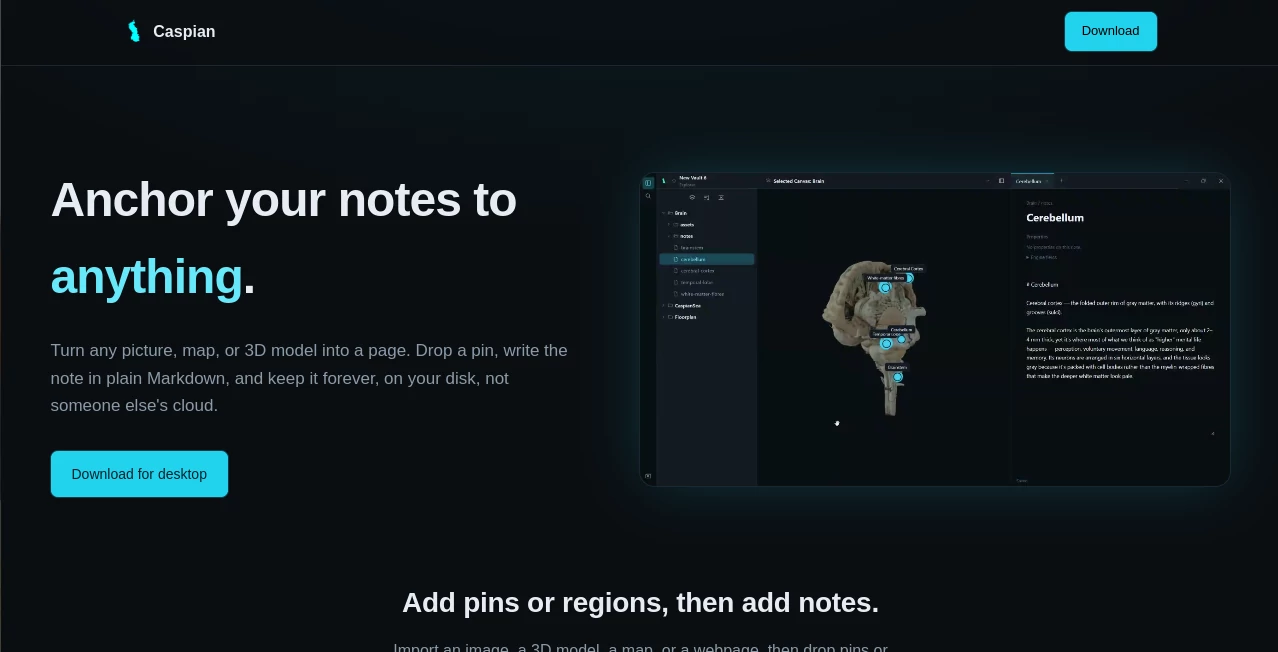
Caspian takes a refreshingly practical approach to digital note-taking by connecting notes directly to the visual material they describe. Instead of keeping information in a separate folder and trying to remember where a particular detail belongs, you can place a note exactly where it matters.
The application lets users work with pictures, maps, 3D models, and webpages, then add pins or draw regions to connect specific parts of those materials with plain Markdown notes. This makes it particularly interesting for researchers, designers, students, planners, developers, and anyone who regularly works with visual information.
Another important difference is its local-first philosophy. Notes are stored as ordinary Markdown files on your own disk rather than being locked inside a proprietary cloud service. There is no account requirement, and the setup is deliberately simple.
Key Features
- Anchor notes directly to images, maps, 3D models, and webpages.
- Add pins or regions to specific areas of a visual canvas.
- Write notes using plain Markdown.
- Store notes locally as readable Markdown files.
- Use the same anchoring approach across both 2D and 3D content.
- Work without an account or mandatory cloud storage.
- Create or select a local vault folder during the first launch.
- Available for 64-bit Windows and Linux systems.
User Interface
The interface is built around the idea of visual anchors rather than conventional folder navigation. Users can open a canvas, identify the relevant area, and place a pin or region directly on it. The approach feels especially natural when the information being documented already has a visual structure.
For example, a student studying anatomy can place definitions directly on an anatomical diagram. Someone working with geography can attach research notes to precise locations on a map, while an interior designer can mark areas of a floor plan with planning notes.
This visual relationship between an object and its documentation can make complex projects easier to revisit later.
Accuracy & Performance
Performance is supported by the application's local-first architecture. Notes are kept on the user's own disk instead of depending on a remote cloud workspace, which also makes the underlying files easy to access independently.
The anchoring model is designed to work across different types of canvases. A simple 2D floor plan and a rotating 3D model can use the same underlying concept, giving users a consistent way to connect observations and documentation with visual material.
Capabilities
The most useful capability is the ability to turn visual content into an organized workspace for contextual notes. Rather than writing something like “check the upper-left section of the diagram,” users can place the note directly on that section.
The system also supports both pins and larger regions. Pins are useful when a note belongs to a precise point, while regions make more sense when documenting an area such as a room, section of a diagram, or geographic zone.
Because the notes are plain Markdown files, they remain readable outside the application as well. This is a practical advantage for people who care about long-term access to their notes.
Security & Privacy
Privacy is one of the strongest aspects of the product's design. There is no account required, and the application does not require a cloud service to keep notes available. Users select a vault folder on their own computer, and the notes created there are stored as plain Markdown files.
This local storage model gives users direct ownership of their information and reduces dependence on a third-party hosted workspace. It also means the files can be opened with a standard text editor when needed.
Use Cases
Research and Education: Students and researchers can attach explanations, references, and observations to exact locations on diagrams, maps, or other visual material.
Anatomy and Scientific Study: Complex diagrams become more useful when definitions and observations can be attached directly to the structures being studied.
Geographic Research: Maps can become contextual research surfaces, allowing notes to remain connected to the locations they describe.
Interior Design and Floor Planning: Designers can mark individual rooms or areas with ideas, measurements, reminders, and planning notes.
3D Projects: People working with 3D models can connect documentation to parts of a model instead of maintaining a completely separate reference system.
Personal Knowledge Management: Anyone who prefers local files and Markdown can use visual anchors to create a more contextual note collection without moving their information into a cloud-based platform.
Pros and Cons
Pros:
- Notes can be attached directly to visual content.
- Supports images, maps, webpages, and 3D models.
- Uses plain Markdown files for notes.
- No account is required.
- Local storage provides strong ownership over personal notes.
- Works with both 2D and 3D canvases.
- Simple setup with a local vault folder.
Cons:
- The macOS version is not yet available.
- Users looking for a conventional cloud-based collaboration platform may find the local-first approach limiting.
- Its strongest value is tied to visual and contextual note-taking rather than general-purpose document creation.
- The desktop-focused approach may not suit people who expect a browser-first workspace.
Pricing Plans
The official website does not present a conventional subscription or multi-tier pricing structure. The application is offered as a desktop download, with Windows and Linux versions currently available and macOS listed as coming soon.
The absence of an account requirement is also worth noting because users can begin by selecting or creating a vault folder on their own computer rather than signing up for a hosted workspace.
How to Use It
Getting started is straightforward. Download the desktop application for a supported operating system and launch it. On the first launch, choose an existing vault folder or create a new one on your computer.
Once the vault is ready, import an image, map, 3D model, or webpage. Place pins or draw regions over the relevant areas, then add your notes in Markdown. From that point forward, the visual canvas and the related notes work together as a contextual workspace.
A useful workflow is to keep each project in its own vault folder. For example, a research project could contain its diagrams, location-based observations, and Markdown notes in one organized local space.
Comparison with Similar Tools
Traditional note-taking applications generally organize information around pages, folders, tags, or search. That works well for text-heavy knowledge, but it can become less convenient when the information has a strong visual relationship.
This approach is different because the canvas itself becomes part of the organizational system. Instead of searching through notes to discover what belongs to a particular part of an image or map, users can start from the visual object and follow its anchors.
It also differs from cloud-first knowledge management platforms through its local storage model. Plain Markdown files remain on the user's disk, which makes the system appealing to people who prioritize ownership, portability, and independence from a hosted service.
Conclusion
Caspian offers a focused solution to a problem that conventional note-taking tools do not always solve elegantly: keeping information connected to the exact visual context where it belongs. Its combination of visual anchors, Markdown notes, local storage, and support for both 2D and 3D content gives it a distinctive place among productivity and knowledge-management applications.
It is particularly compelling for anyone who works with diagrams, maps, floor plans, images, or 3D models and wants their notes to remain attached to the material they explain. The local-first design is another strong point for users who want their information stored on their own computer rather than inside a proprietary cloud.
Frequently Asked Questions (FAQ)
What can I attach notes to?
You can work with images, maps, 3D models, and webpages, then add pins or regions to connect notes with specific areas.
Does it require an account?
No. The application is designed to work without an account. Users choose or create a local vault folder when starting for the first time.
Are the notes stored in the cloud?
No cloud storage is required. Notes are stored locally as plain Markdown files inside the selected vault folder.
Can I use it with 3D models?
Yes. The anchoring system is designed to work with both 2D canvases and 3D models.
Which operating systems are supported?
A 64-bit Windows 10/11 installer and a portable 64-bit Linux package are available. The macOS version is currently listed as coming soon.
Is Markdown supported?
Yes. Notes are created as plain Markdown files, making them readable with standard text editors outside the application.
Who would benefit most from this type of tool?
Students, researchers, designers, planners, and other users who regularly work with visual information can benefit from connecting notes directly to images, maps, diagrams, floor plans, and 3D models.