
Bay Compress
What is Bay Compress?
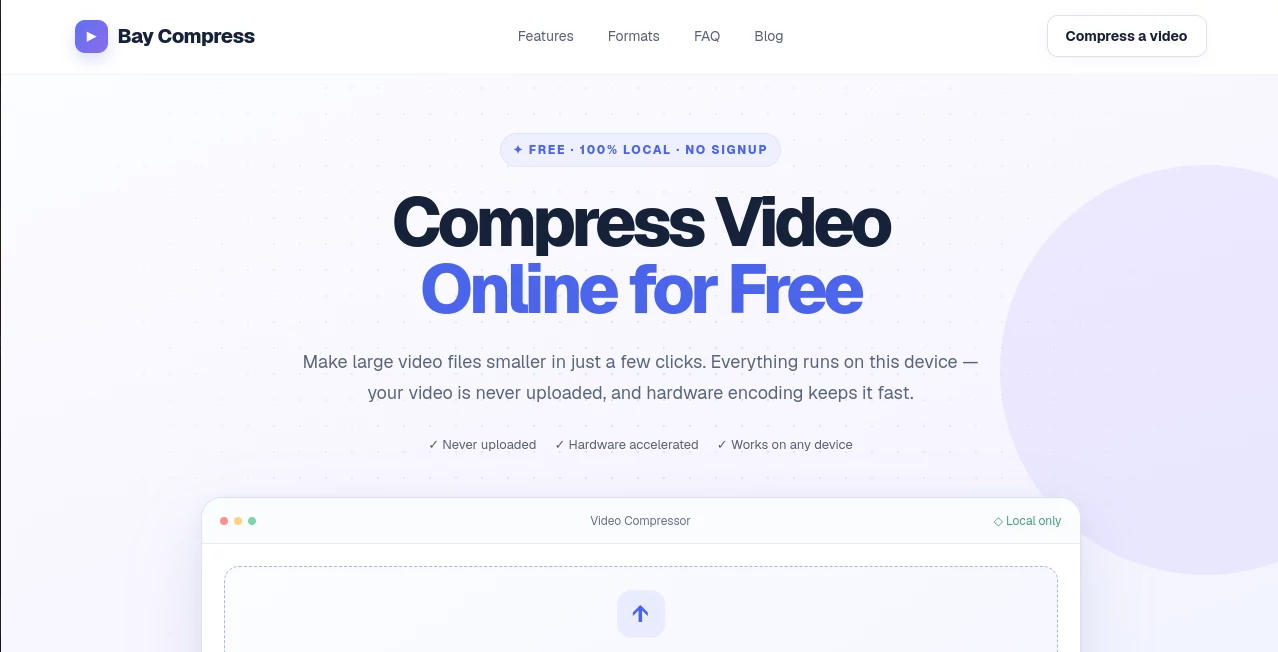
Compressvideo.to is a free browser-based video compressor designed for people who want to reduce large video files without sending them to a remote server. The biggest difference is how the compression is handled: video processing takes place directly on the user's device, using browser-based encoding rather than uploading the original file to a cloud service.
There is no account to create, no software to install, and no watermark added to the exported video. A user can simply select a video, choose a compression level and resolution, check the estimated output size, and start the conversion. This makes it particularly practical when a large recording needs to be prepared for email, messaging platforms, social networks, storage, or other services with file-size limits.
Key Features
- Free video compression directly in the browser
- Local processing without uploading the original video
- Hardware-accelerated encoding when supported by the device
- Software fallback through FFmpeg.wasm when WebCodecs is unavailable
- Basic, Balanced, and Strong compression levels
- Original, 1080p, 720p, and 480p output resolution options
- Estimated output size and savings shown before encoding
- Support for MP4, MOV, WebM, MKV, AVI, and other compatible formats
- H.264 MP4 output for broad playback compatibility
- No signup and no watermark
- Works on desktop computers, tablets, and supported mobile browsers
User Interface
The interface keeps the process refreshingly simple. A large upload area lets users drag in a video or select one from their device, after which the available compression choices appear without forcing them through a long configuration screen.
The three compression presets are easy to understand. Basic prioritizes quality, Balanced provides a practical middle ground, and Strong focuses on producing a smaller file. Resolution can also be adjusted independently, which gives users more control when a particularly large recording needs to fit within a specific upload limit.
One especially useful detail is the size estimate displayed before compression begins. Instead of waiting for a lengthy encoding process just to discover that the result is still too large, users can compare the available settings first.
Accuracy & Performance
Compression performance depends heavily on the device being used because the encoding takes place locally. When hardware encoding is available, the browser can use the device's supported media-encoding capabilities to speed up the process. The system also measures actual encoding performance rather than relying entirely on a generic estimate.
If WebCodecs is unavailable or cannot complete the operation, the software can fall back to FFmpeg.wasm. That approach makes the service more broadly compatible, although software encoding can take considerably longer on less powerful hardware.
The expected file size is calculated from factors such as resolution, frame rate, and video duration. As a practical example, a 248 MB source can potentially be reduced to around 62 MB under suitable settings, representing a 75% reduction while retaining a useful level of visual quality.
Capabilities
The compressor is built around everyday video-sharing problems rather than complicated professional encoding workflows. Users can reduce the size of recordings from phones, cameras, screen recorders, editing applications, and other common sources.
For compatibility, supported source containers include MP4, MOV, WebM, MKV, and AVI, provided the browser can decode the video's track. The resulting file is encoded as H.264 MP4, a format that works well across a wide range of devices and platforms.
Compression and resizing can also be used separately or together. Keeping the original resolution focuses on reducing file size while preserving the source dimensions, whereas moving to 1080p, 720p, or 480p can create a much smaller file when resolution is not critical.
Security & Privacy
Privacy is one of the strongest reasons to use a local browser-based approach. The selected video is processed on the user's own device rather than being uploaded to a server for remote conversion.
The site states that the original video never leaves the device. Nothing is placed in a server queue and there is no need to wait for a cloud processing job to finish. Even when the browser needs the FFmpeg.wasm fallback encoder, the video itself remains local.
This setup can be particularly appealing for private recordings, internal presentations, personal footage, client material, and other videos that users would rather not transfer to a third-party processing service.
Use Cases
There are plenty of situations where reducing a video's file size makes an immediate difference. Someone preparing a gaming clip for Discord may want a smaller 720p version, while a person sending a recording through email may need to reduce it substantially to work within an attachment limit.
Social media is another practical use case. Reducing the file size before uploading can make transfers faster and easier, especially when working from a slower connection. The available settings also make it possible to retain 1080p resolution while using a more moderate compression level when visual quality matters.
The tool is equally useful for freeing local storage, sharing videos through messaging services, preparing screen recordings for colleagues, and making large camera or smartphone recordings easier to move between devices.
Pros and Cons
Pros
- Completely free to use
- No registration or account required
- No watermark on compressed videos
- Videos remain on the user's device
- Hardware acceleration can improve encoding speed
- Software fallback improves browser compatibility
- Useful compression presets for different quality requirements
- Output size can be estimated before encoding
- Supports several popular video formats
- Works directly from a browser
Cons
- Encoding speed depends on the user's hardware and browser
- Software encoding may be noticeably slower on weaker devices
- Exact target sizes such as precisely 10 MB or 25 MB cannot be entered as a fixed compression target
- Very large or high-resolution videos can still require substantial processing time
Pricing Plans
There is no paid plan required to use the compression features. The service is presented as completely free, with no signup requirement and no watermark added to exported videos.
Users can compress multiple videos without purchasing a subscription or installing desktop software. That makes the service particularly attractive for occasional users who only need to shrink a file before sharing it rather than paying for a full video-editing application.
How to Use the Compressor
- Open the video compression page in a supported browser.
- Drag a video into the upload area or choose a file from your device.
- Select Basic, Balanced, or Strong compression depending on the desired quality and file size.
- Choose Original, 1080p, 720p, or 480p resolution if resizing is required.
- Review the estimated output size and expected savings.
- Start the compression process.
- Wait for the local encoding process to finish.
- Download the resulting H.264 MP4 file.
Comparison with Similar Tools
Many online video compressors rely on uploading the source file to a remote server before processing it. That model can be convenient, but it also introduces upload times, server processing queues, file-transfer limits, and privacy considerations.
This browser-first approach takes a different route. The video stays on the user's device, while the browser handles the encoding. For someone with a modern computer or phone, this can eliminate the otherwise unnecessary step of uploading a large private file before compression.
It also avoids the restrictions commonly associated with free online converters, such as mandatory accounts or watermarked output. The trade-off is that performance is tied directly to the user's own hardware. A powerful modern device can provide a smooth experience, while an older machine may take longer, particularly when software encoding is required.
Conclusion
For anyone who simply needs to make a video smaller without installing an application or uploading personal footage, this compressor offers a straightforward solution. The combination of local processing, hardware acceleration, multiple compression levels, resolution controls, and pre-encoding size estimates gives users useful control without turning a simple task into a technical project.
Its strongest advantage is arguably the local workflow. The original video remains on the device, while the service still provides the convenience of an online tool. Whether the goal is fitting a recording into an email attachment, preparing a clip for Discord, reducing storage requirements, or speeding up a social media upload, it handles the essential job with very little friction.
Frequently Asked Questions (FAQ)
Is the video uploaded to a server?
No. The video is processed inside the browser, so the original file does not need to be uploaded to a remote server.
Is the video compressor free?
Yes. The compression service is available for free, with no account or subscription required.
Does it add a watermark?
No. Compressed videos are provided without a watermark.
Which video formats are supported?
Common formats including MP4, MOV, WebM, MKV, and AVI can be read when the browser supports decoding their video tracks. The resulting file is exported as H.264 MP4.
Can I compress a video without changing its resolution?
Yes. The Original resolution option allows users to retain the source dimensions while focusing the compression on encoding settings such as bitrate.
Can I compress a video to exactly 10 MB?
There is no fixed target-size field. Instead, the available compression levels provide estimated output sizes before encoding, allowing users to select a setting that is likely to fit their required limit.
Will compression reduce video quality?
Some reduction in visual information is normally necessary when substantially shrinking a video. Basic is designed to preserve more detail, while Balanced and Strong prioritize greater reductions in file size.
Can I use it on an iPhone or Android phone?
Yes. The compressor can be opened from a mobile browser and used with videos stored on the device. Depending on browser capabilities, encoding may use hardware-supported processing or a slower software fallback.
Why does compression take longer on some devices?
Because processing happens locally, the available CPU, media encoder, browser capabilities, video resolution, frame rate, and duration can all affect encoding speed. Hardware acceleration can make a significant difference when supported.
Does compression also resize the video?
It can. Users can keep the original resolution or choose 1080p, 720p, or 480p. Compression and resizing can therefore be performed independently or together.
Other .
These classifications represent its core capabilities and areas of application. For related tools, explore the linked categories above.

Bay Compress Alternatives Product

GoDices

Black Screen

Judgement Ta…

Aback Tools

Flyback.ai

TwitterXVideo

SciDraw AI

Teahose

Meme.Center