
Flixier
What is Flixier?
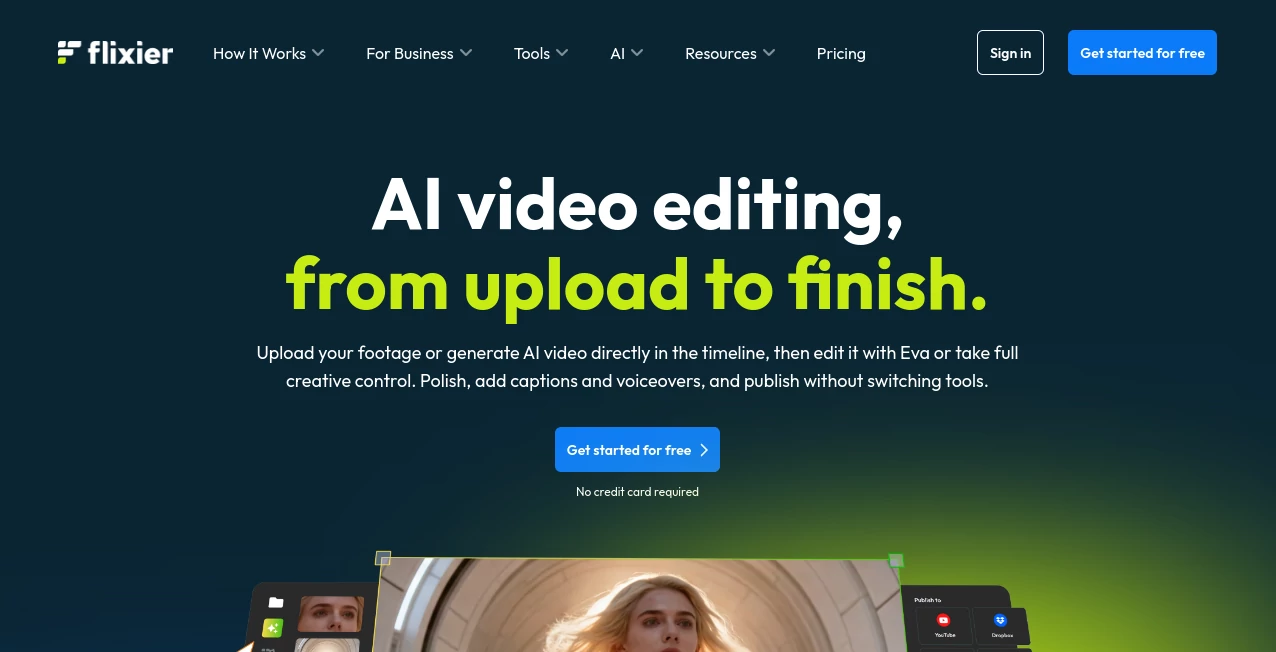
Creating a polished video usually means moving between several different tools: one for generating visuals, another for editing, another for subtitles, and perhaps a separate service for voiceovers. Flixier takes a different approach by bringing these stages into a browser-based video editing workspace. Users can upload their own footage, generate AI visuals inside the timeline, edit clips, add captions and voiceovers, improve audio, and prepare the finished project for publishing without constantly switching applications.
The platform is particularly interesting for creators who want AI generation to be part of the actual editing process rather than the final destination. Its workflow is designed around turning raw recordings and generated clips into finished videos, which makes it useful for social content, product demonstrations, training material, tutorials, and other regular video production tasks.
Key Features
- AI video generation directly inside the editing timeline.
- Support for multiple AI video generation models, allowing creators to test different visual results.
- AI image generation that can be brought directly into video projects.
- Transcript-based editing for cutting unwanted words and pauses more quickly.
- AI-powered subtitles and translation for multilingual video production.
- AI voice generation with more than 100 voices across more than 130 languages.
- AI audio enhancement for reducing background noise and improving speech clarity.
- Cloud-based video editing that works directly in a web browser.
- Screen and webcam recording for tutorials, demonstrations, and educational content.
- Real-time collaboration, timeline comments, and shared brand assets for teams.
- Large stock media libraries on higher subscription plans.
- 4K video export on Creator and Business plans.
User Interface
The interface follows a familiar timeline-based editing approach, so users who have worked with conventional video editors should feel comfortable fairly quickly. The important difference is that AI generation sits inside the same workflow. Instead of generating a clip somewhere else, downloading it, and importing it into an editor, a creator can generate footage where it is actually needed in the project.
This approach can make a noticeable difference during production. For example, a creator working on a product video can generate a short visual, place it on the timeline, trim it, add narration, and caption it without creating a chain of separate files and applications.
Accuracy & Performance
Performance is one of the strongest parts of a browser-first workflow. Video processing is handled in the cloud, which means users do not need an expensive workstation just to begin editing. The platform is designed to work on devices ranging from modern computers to lower-powered systems and Chromebooks.
AI results naturally depend on the selected model, prompt, source material, and requested output. Rather than treating one generated clip as the final answer, the multi-model workflow makes it practical to compare different generations and select the version that fits the project best.
Capabilities
The platform goes well beyond basic trimming and transitions. AI generation can create new scenes, extend visuals from existing frames, and help produce transitions between shots. Transcript editing is another useful feature because spoken footage can be edited almost like a written document.
Creators can also generate subtitles, translate video content, create voiceovers, enhance audio, and work with images and stock assets. For teams, shared branding tools allow logos, fonts, and colors to be applied consistently across projects.
Security & Privacy
Because the service is cloud-based, media files and projects are processed through an online infrastructure rather than entirely on the user's local computer. This makes accessibility easier, but it also means creators should review the provider's privacy policy and terms before uploading confidential, sensitive, or proprietary material.
For ordinary marketing videos, tutorials, social media content, and similar projects, the browser-based model is convenient. Businesses handling confidential recordings should still evaluate their organization's data-handling requirements and the applicable privacy documentation before adopting any cloud video platform.
Use Cases
- Social media videos: Create short-form content for platforms such as TikTok, Reels, and Shorts from existing footage or newly generated visuals.
- Product demonstrations: Combine screen recordings, generated scenes, voiceovers, captions, and branded elements into product-focused videos.
- Training and onboarding: Turn presentations, recordings, and instructional material into structured training videos with subtitles and narration.
- Screen tutorials: Record a screen or webcam and then refine the footage with transcript editing, captions, audio improvements, and visual elements.
- Content repurposing: Transform longer recordings into shorter clips suitable for social platforms and other publishing channels.
- Marketing teams: Collaborate on video projects while maintaining consistent logos, fonts, and brand colors.
- Educational content: Produce lessons, explainers, and course material without requiring traditional desktop editing software.
- AI-assisted production: Generate supporting B-roll and visual scenes when original footage does not cover every part of a story.
Pros and Cons
Pros
- Combines AI generation and conventional video editing in one workflow.
- Runs directly in a browser without requiring traditional video editing software.
- Cloud processing makes the platform accessible on lower-spec devices.
- Supports multiple AI video models.
- Transcript-based editing can significantly simplify spoken-video editing.
- Includes AI subtitles, translation, voice generation, and audio enhancement.
- Strong collaboration and brand management features for teams.
- A free plan is available without requiring a credit card.
Cons
- The free plan has limited export time, storage, resolution, and AI credits.
- Free exports include a watermark.
- Advanced AI and collaboration features are concentrated in the higher plans.
- AI generation consumes credits, so frequent generation can require additional usage capacity.
- Users working with sensitive media should consider the implications of cloud-based processing.
Pricing Plans
The service provides a free tier as well as paid plans aimed at different levels of video production. The Free plan costs $0 and includes 500 AI credits, 10 minutes of video export per month, five minutes of subtitles, 720p export, and 2 GB of storage. Free exports include a watermark.
The Starter plan is listed at $19 per seat per month when billed monthly. It includes 2,000 AI credits, 60 minutes of video export per month, 120 minutes of subtitles, 1080p export, 20 GB of storage per seat, and watermark-free exports.
The Creator plan costs $39 per seat per month on monthly billing and is aimed at regular creators. It adds 10,000 AI credits, unlimited video exports, 4K resolution, 250 GB of storage per seat, a large stock asset library, transcript editing, AI video generation inside the timeline, brand tools, and unlimited collaborators.
The Business plan is listed at $69 per seat per month on monthly billing. It increases AI credits to 30,000, provides unlimited storage and subtitle exports, retains 4K output and advanced AI features, and adds priority chat support. Annual billing is also available with substantial savings compared with monthly pricing.
How to Use It
- Open the online editor and create a new project.
- Upload existing video, audio, and image files or start by generating AI content.
- Add your clips to the timeline and arrange the story in the desired order.
- Use AI generation when you need additional scenes, B-roll, extensions, or transitions.
- Edit spoken footage through the transcript to remove unnecessary words or pauses.
- Add subtitles, translated captions, background music, or an AI-generated voiceover.
- Improve the audio by reducing unwanted background noise and adjusting speech quality.
- Apply branding elements such as logos, fonts, and colors when appropriate.
- Review the completed project and export it in the resolution available with your plan.
Comparison with Similar Tools
Traditional desktop editors remain a strong choice for professionals who need extremely detailed manual control and advanced post-production workflows. Standalone AI video generators, meanwhile, can be excellent at creating individual clips but often require another editor for assembling a complete project.
The main advantage here is the combination of both approaches. A creator can generate an AI scene, place it directly on a timeline, extend or trim it, add narration and subtitles, improve its audio, and combine it with real footage. That makes the workflow particularly attractive to people who want AI to assist the entire production process rather than simply generate a clip.
Compared with lightweight browser editors, the addition of multiple AI models, transcript editing, AI voice tools, cloud rendering, collaboration, and higher-end export options gives the platform a broader role in the production pipeline. The trade-off is that heavy AI usage can consume credits, while some of the most advanced capabilities require a paid subscription.
Conclusion
For creators who want to move from an idea or raw recording to a finished video without constantly jumping between applications, this platform offers a compelling workflow. Its biggest strength is not simply AI generation; it is the decision to put generation, editing, audio, captions, voiceovers, collaboration, and publishing preparation into the same environment.
The free plan is a sensible way to test the workflow, while the Creator tier is likely to be the more interesting option for people producing videos regularly and needing 4K exports, generous storage, advanced AI features, and unlimited exports. Teams with heavier production requirements can benefit from the additional storage, collaboration, and support available on the Business plan.
Frequently Asked Questions (FAQ)
Is there a free plan?
Yes. The free plan costs $0 and can be used without a credit card. It includes limited AI credits, storage, subtitles, and video export time, with exports limited to 720p and carrying a watermark.
Can I generate AI videos inside the editor?
Yes. AI video generation is integrated directly into the timeline, allowing users to create clips and then immediately edit, extend, arrange, caption, and enhance them as part of the same project.
Can I edit videos using a transcript?
Yes. Transcript-based editing allows spoken footage to be refined by editing the text, making it easier to remove filler words, unwanted sections, and awkward pauses.
Does it support AI voice generation?
Yes. The platform provides AI voice generation with more than 100 voices across more than 130 languages, making it useful for narration, localization, and multilingual content.
Can I create subtitles automatically?
Yes. AI-powered subtitling can automatically generate synchronized captions, and paid plans provide substantially larger subtitle allowances.
Can teams collaborate on video projects?
Yes. Team-oriented features include project collaboration, timeline comments, shared brand assets, and collaboration options designed to reduce back-and-forth during production.
Does it work on a low-end computer?
Because the editor runs in a browser and video processing is performed in the cloud, it can be used on lower-powered computers and Chromebooks without installing traditional desktop editing software.
Does AI video generation use credits?
Yes. AI generation and transcription consume AI credits, with the amount required depending on the model and the type or length of content being generated.
Can I export videos in 4K?
Yes. 4K export is available on the Creator and Business plans, while the Free plan is limited to 720p and the Starter plan supports 1080p.
AI Image to Video , AI Video Generator , AI Video Editor , AI Text to Video .
These classifications represent its core capabilities and areas of application. For related tools, explore the linked categories above.

Flixier Alternatives Product

seedance 3.0

Wan 2.7

MiniMax H3

Ltx AI - Ltx…

LipPulse

Trump AI Vid…

Genmi AI

Seedance 2.0

vei4 ai