


















FocaUpscaler
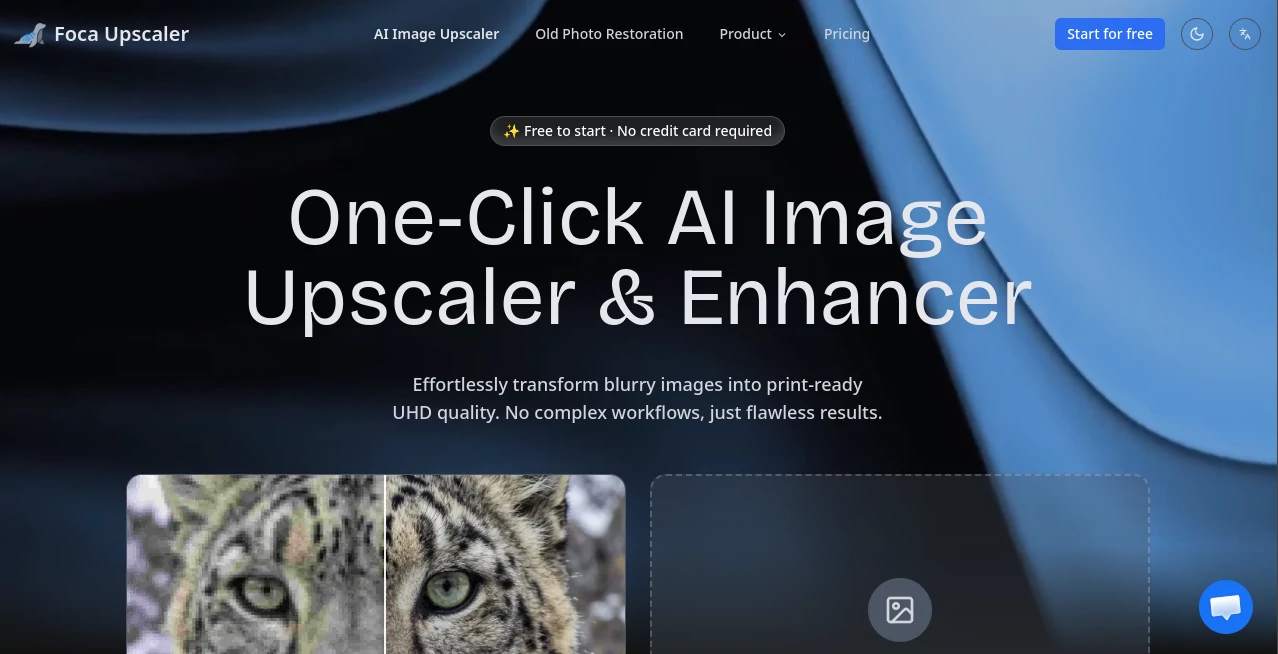
What is FocaUpscaler?
I’ve lost count of how many times I’ve taken a great photo only to realize later it’s too small or blurry for what I needed. Whether it’s an old family picture, a product shot for my shop, or a graphic for social media, the frustration is the same. FocaUpscaler takes that disappointment away. You upload the image, choose how much to enlarge, and get back a version that looks sharper, cleaner, and more detailed than you expected. It doesn’t just make things bigger — it genuinely improves them in a way that feels smart and natural.
Introduction
AI image upscaling has been around for a while, but many tools still produce artifacts, weird textures, or overly smooth results that look fake. FocaUpscaler stands out by focusing on real quality. It understands what the image should look like — preserving edges, textures, skin details, and fine elements while intelligently filling in the extra pixels. The result is the kind of upscale you’d expect from professional editing software, but without the hours of work or steep learning curve. For photographers, e-commerce sellers, content creators, and anyone working with images, it’s become one of those quietly essential tools.
Key Features
User Interface
The design is wonderfully straightforward. A large upload area invites you to drop your image or click to select one. You choose the upscale factor (2x, 4x, etc.) and, if you want, pick a specific model for different types of content. The preview appears quickly, and you can compare before and after side by side. No complicated menus or technical jargon — just a clean, fast experience that lets you focus on the result rather than the tool.
Accuracy & Performance
What impresses most is how well it maintains the original character of the photo. Skin textures stay natural, architectural lines stay crisp, and fine details like hair or fabric patterns don’t turn into mush. Processing is fast even on larger images, and the AI rarely introduces the common problems like extra limbs or strange patterns. In real use, the first upscale is often good enough to use directly, which is rare in this category.
Capabilities
It supports significant upscaling (up to 8x in some cases) while keeping file quality high. You can enhance portraits, landscapes, product photography, anime-style art, and even old low-resolution scans. Additional tools like noise reduction, sharpening, and face refinement give you extra control. The output is always high-resolution and ready for print, web, or further editing. It handles a wide variety of image types without forcing everything into the same generic look.
Security & Privacy
Your images are processed securely and not stored after the upscale is complete. No account is forced for basic use, and the platform respects your privacy by focusing on delivering great results without unnecessary data collection. For personal photos or client work, that approach builds real confidence.
Use Cases
A photographer enlarges old film scans for a new print series without losing the original character. An online store owner turns smartphone product photos into crisp, professional listings that increase conversions. A social media creator upscales and cleans up content for better engagement. A designer restores and enlarges low-res client assets for presentations. It fits naturally into almost any workflow where image quality matters but time is limited.
Pros and Cons
Pros:
- Excellent balance between sharpness and natural appearance.
- Fast processing even on higher upscale factors.
- Works well across different image types and styles.
- Simple interface that delivers professional-looking results quickly.
- Generous free tier to test quality on your own images.
Cons:
- Extremely low-quality or heavily compressed originals may still show limitations.
- Unlimited high-resolution batch processing requires a paid plan.
Pricing Plans
It offers a useful free tier so you can try it on real images and see the improvement for yourself. Paid plans unlock higher upscale limits, faster processing, batch uploads, and priority access during busy times. The pricing is reasonable for the consistent quality and time it saves — many users find they recover the cost quickly through better visuals for their projects or business.
How to Use FocaUpscaler
Go to the site and drag your image into the upload area. Select your desired upscale level and any specific enhancement options. Click upscale and wait a short moment while it processes. Review the before-and-after comparison, then download the enhanced version. For multiple images, paid users can process them together. The entire flow is quick and satisfying, letting you focus on creativity instead of technical details.
Comparison with Similar Tools
Some upscalers make images bigger but add noise or unnatural smoothing. Others are too slow or require technical knowledge. FocaUpscaler finds a sweet spot — delivering noticeable, natural-looking improvements with speed and simplicity that most competitors can’t match. It’s particularly strong at preserving the original feel of the photo while making it sharper and cleaner.
Conclusion
Your images deserve to look their best, whether they’re personal memories, business assets, or creative projects. FocaUpscaler makes that possible without complexity or compromise. It turns “good enough” into genuinely impressive, giving you sharper, cleaner, more vibrant visuals in seconds. Once you see what your photos can become, you’ll wonder why you waited so long to try it.
Frequently Asked Questions (FAQ)
How much can I upscale an image?
Most images can be safely enlarged 2x to 4x with excellent results; higher factors are available depending on the original quality.
Will it make my photo look artificial?
No — the AI is designed to enhance naturally while preserving the original character and details.
Can I use it for commercial work?
Yes — paid plans support commercial use for business and client projects.
Do I need an account to start?
You can try it immediately without signing up, though an account unlocks more features and history.
What file types are supported?
Common formats like JPG, PNG, and WebP work very well.
Photo & Image Editor , AI Photo Enhancer , AI Design Generator , AI Image to Image .
These classifications represent its core capabilities and areas of application. For related tools, explore the linked categories above.

FocaUpscaler Alternatives Product

ai banana
Circle Crop …

WatermarkZero

Nano Banana 2

Uni-1

AIImageEdit

Remove Water…

Remove Handw…

Seedream 5.0
