Jotted
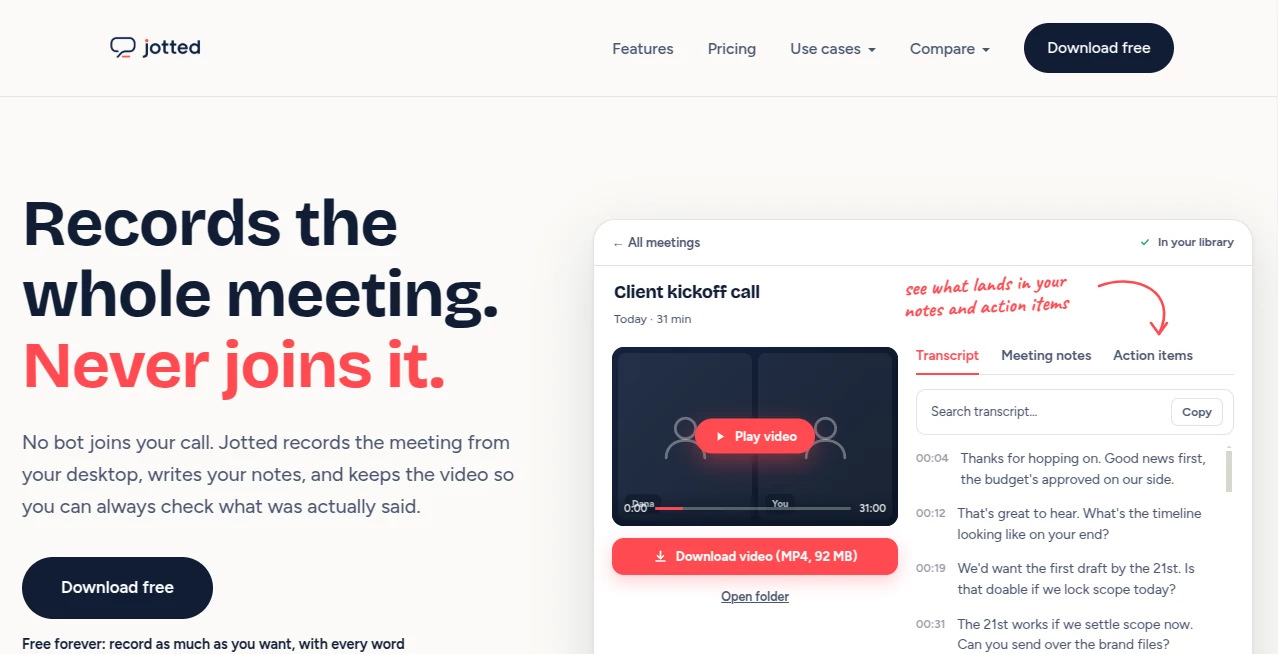
What is Jotted?
Jotted is a desktop meeting recorder designed for people who want a reliable record of online conversations without sending a bot into the call. Instead of appearing as another participant in Zoom, Google Meet, Microsoft Teams, Slack huddles, Discord, or other meeting software, it records directly from the computer.
That small difference can make meetings feel much more natural. Clients do not have to wonder why an unfamiliar participant has joined, and teams do not need to configure a separate integration for every meeting platform. The result is a straightforward workflow: record the conversation, keep the original video, and turn the discussion into useful notes afterward.
The approach is particularly appealing to freelancers, consultants, coaches, founders, sales professionals, and small agencies who regularly attend client calls and need to remember exactly what was discussed.
Key Features
- Bot-free desktop meeting recording
- Full HD meeting video saved for later reference
- Word-for-word transcripts with timestamps and speaker labels
- AI-generated meeting summaries
- Action items with owners and deadlines
- Shareable meeting links
- Local transcription on the free plan
- Unlimited recording length and no recording time caps
- AI assistant for asking questions about recorded meetings on the Pro plan
User Interface
The interface follows a practical desktop-first approach rather than trying to turn meeting management into another complicated workspace. Recording is the central task, so users can focus on capturing the conversation instead of setting up integrations, inviting bots, or configuring individual meeting services.
After a meeting, recordings, transcripts, summaries, and action items provide a much more useful reference than a simple video file. For someone handling several client calls in a day, having those pieces connected can save considerable time when preparing follow-ups.
Accuracy & Performance
Transcription is designed to capture the conversation word for word, with timestamps and speaker labels making it easier to locate specific moments. On the free plan, transcription runs locally on the computer, so the recording does not need to be uploaded simply to produce a transcript.
The full video is also retained rather than being discarded after transcription. This is valuable when a written summary leaves out a small but important detail. Instead of trying to reconstruct the conversation from memory, you can return to the original recording.
Capabilities
The strongest part of the workflow is the combination of recording, transcription, summaries, and action items. A typical client meeting might produce the complete video, a searchable transcript, a concise summary, and a list of responsibilities that came out of the discussion.
The Pro plan adds an AI assistant called Quill that can work across recordings and answer questions about them. Answers can point back to timestamps, which makes it easier to verify information rather than blindly trusting a generated response.
Because recording happens at the desktop level, the workflow is not tied to one particular meeting service. This makes it useful when your day involves different platforms or when you are attending a meeting hosted by someone else.
Security & Privacy
Privacy is an important part of the product's design. Local transcription on the free plan means the audio does not need to leave the computer for transcription. The product also keeps the original recording as a file rather than making the cloud the only place where your meeting exists.
For cloud features on the Pro plan, encrypted cloud backup is available. Users should still follow applicable recording and consent laws because the legal requirements for recording conversations vary by location and situation.
Use Cases
Client meetings: Freelancers and agencies can keep a complete record of conversations, then use summaries and action items when preparing follow-up emails.
Sales calls: Sales professionals can revisit important statements, pricing discussions, objections, and commitments instead of relying entirely on handwritten notes.
Consulting sessions: Consultants can preserve the full discussion and quickly identify recommendations, decisions, and tasks that emerged during a session.
Remote teamwork: Teams working across different meeting platforms can record conversations without requiring a meeting bot to join every call.
Personal reference: Sometimes the reason for recording is simply accuracy. When a discussion contains detailed requirements or decisions, having the original video alongside the transcript provides a useful safety net.
Pros and Cons
Pros
- Does not require a bot to join meetings
- Keeps the complete meeting video
- Local transcription is available on the free plan
- Unlimited recording length
- No watermark on recordings
- Provides transcripts, summaries, and action items
- Works across different meeting applications
- Pro includes an AI assistant for searching recordings
Cons
- The desktop application is currently focused on Windows
- Some advanced AI and cloud features require the Pro plan
- Users remain responsible for obtaining consent when recording is legally required
- People looking for a mobile-first meeting app may prefer a different type of solution
Pricing Plans
The free plan is particularly generous for users who primarily need recording and transcription. It offers unlimited recording length, no monthly recording cap, no watermark, and local transcription, making it possible to use the core workflow without immediately committing to a subscription.
The Pro plan costs $14 per month and adds AI-generated summaries, action items, encrypted cloud backup, sharing capabilities, and the Quill assistant. For professionals who handle meetings regularly, these features can turn a collection of recordings into a more practical knowledge base.
How to Use the Tool
- Install the desktop application on a supported Windows computer.
- Open the application before starting your online meeting.
- Start a recording when the conversation begins.
- Make sure everyone involved has provided any consent required by applicable laws.
- Continue the meeting normally without adding a recording bot to the call.
- Stop the recording when the meeting ends.
- Review the generated transcript and recorded video.
- Use the available AI features to review summaries and action items.
- On the Pro plan, use the AI assistant to ask questions about previous recordings.
Comparison with Similar Tools
Many popular meeting assistants take a bot-based approach. They join Zoom, Meet, or another service as a participant, record the conversation, and generate notes. That can work well, but it introduces an additional participant into the meeting and may require integrations or host permissions.
Another group of tools focuses on transcription while keeping little or none of the original meeting video. This can be convenient for routine calls, but it becomes less helpful when you need to verify exactly what someone said.
This solution takes a different route by combining desktop recording, local transcription, complete video preservation, AI notes, and action-item extraction. That combination makes it especially interesting for professionals who care about having both a convenient summary and the original conversation available for verification.
Conclusion
For anyone who spends a large part of the working week in online meetings, the value of a recording tool is not simply pressing a record button. The real benefit comes afterward, when a long conversation needs to become something usable.
This product handles that transition thoughtfully. It keeps the original meeting, produces a detailed transcript, extracts useful information, and can turn the conversation into summaries and action items. The bot-free approach is another strong advantage, particularly for client-facing professionals who want meetings to remain natural.
The free plan is also a good starting point because users can test the core recording and transcription workflow without a subscription. Professionals who need cloud backup, sharing, and deeper AI-powered access to their recordings can move to Pro when those features become useful.
Frequently Asked Questions (FAQ)
Does the tool require a meeting bot?
No. It records directly from the desktop rather than joining the online meeting as a participant.
Which meeting platforms can it record?
The desktop recording approach can be used with meeting and communication applications such as Zoom, Google Meet, Microsoft Teams, Webex, Slack huddles, and Discord.
Does the free plan have a recording limit?
The free plan supports unlimited recording length and does not impose a monthly recording limit.
Does it save the original meeting video?
Yes. The complete meeting video can be retained, giving users the option to return to the original conversation rather than relying solely on the transcript or summary.
Can it create meeting summaries?
Yes. AI-generated summaries and action items are available with the Pro plan.
Can I ask questions about previous meetings?
Yes. The Pro plan includes an AI assistant that can answer questions about recorded meetings and provide timestamped references.
Is transcription performed locally?
On the free plan, transcription runs locally on the computer, so the recording does not need to be uploaded for the transcription process.
Is it available for Mac?
The application is currently Windows-focused, while macOS support is in development.
Do I need permission to record a meeting?
Recording laws differ between countries, states, and circumstances. Users should obtain consent whenever required by the applicable laws and policies.
AI Recording , AI Transcription , AI Meeting Assistant , AI Notes Assistant .
These classifications represent its core capabilities and areas of application. For related tools, explore the linked categories above.

Jotted Alternatives Product
SongFromShort

VideoText

Myjourney

SuperAI

Meet Submind

Riverside.fm
UPDF AI

Meet-Ting
Read