
Image to Layers
What is Image to Layers?
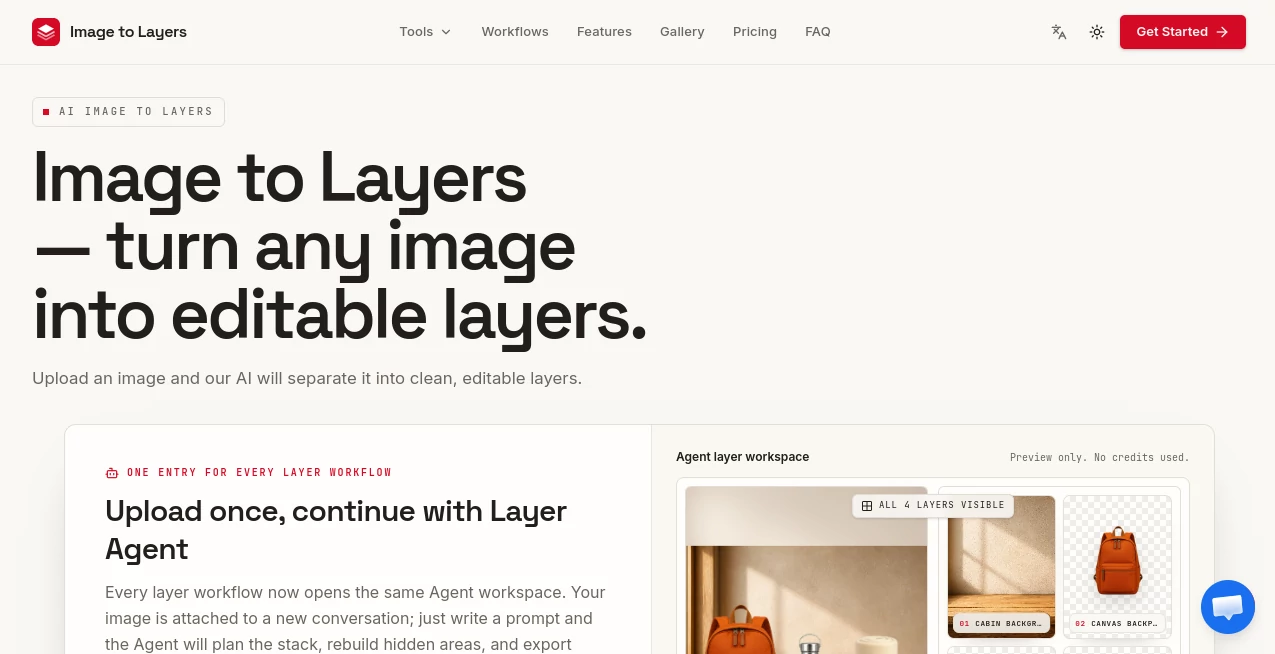
Image to Layers is an AI-powered solution for turning a flat image into a collection of editable visual layers. Instead of spending a long time masking objects, tracing edges, and rebuilding hidden areas manually, users can upload a JPG, PNG, or WebP image and let the AI separate the scene into individual elements.
The idea is refreshingly practical. A product photo can be separated into its background and objects, an illustration can be broken into visual components, and a scene can be prepared for motion or parallax work. Each resulting layer is delivered as a transparent image, making it easy to continue working in familiar creative software.
For designers, content creators, motion artists, game developers, and anyone who regularly works with layered graphics, this approach can remove one of the more repetitive parts of image editing.
Key Features
- AI-powered layer separation: Converts a single flat image into separate editable elements.
- True RGBA layers: Each output layer has transparency and an alpha channel rather than simply being a rectangular crop.
- Flexible layer counts: Users can choose between 2 and 6 output layers depending on the complexity of the project.
- Prompt-guided separation: A short description can help the AI understand which elements should receive attention.
- PNG and WebP export: The resulting assets can be downloaded and used in common creative workflows.
- Hidden-area reconstruction: When an object is separated from the original composition, the system can reconstruct areas that were previously hidden behind it.
- Reproducible processing: Splits record a seed, which can make repeated processing more consistent for production workflows.
User Interface
The workflow is deliberately straightforward. Users begin by uploading an image and can then describe what they want the layer structure to look like. The workspace is designed around the actual task rather than filling the screen with complicated editing controls.
This is particularly useful for people who know what they want to create but do not want to spend time learning another complicated graphics application. A designer can upload a product shot, for example, and move directly toward separating the product, background, and supporting objects.
The service accepts PNG, JPG, and WebP files, with uploads currently supported up to 10 MB. The resulting layers can then be taken into applications such as Photoshop, Figma, or After Effects.
Accuracy & Performance
Layer separation is more demanding than ordinary background removal because the system needs to understand several elements within the same composition. The service is designed to identify subjects, objects, backgrounds, and other meaningful parts rather than simply producing a foreground cutout.
Processing is intended to take roughly a minute for a typical image. Results can vary depending on image quality, overlaps, transparency, and how clearly different objects can be distinguished. For complicated artwork, choosing an appropriate layer count and adding a useful description can help guide the desired result.
One particularly useful detail is the ability to reconstruct portions of the image hidden behind separated elements. This matters when layers are going to be moved, animated, or recombined rather than simply displayed as isolated cutouts.
Capabilities
The system is useful for much more than separating a person from a background. It can work with photographs, illustrations, product imagery, posters, food photography, and other visual compositions.
For motion designers, separated layers can become depth planes for parallax effects and 2.5D animation. Designers can independently modify objects without rebuilding the entire composition. Developers can also use separated RGBA assets as part of an image or game-asset workflow.
There is also a practical benefit for e-commerce. A lifestyle product image can be decomposed into individual components, allowing the product and surrounding elements to be rearranged for different listings, advertisements, or promotional graphics.
Security & Privacy
Privacy depends on the plan being used. New accounts receive starter credits, but results created under the free starter allowance are public and may be featured on the website. Paid plans include commercial-use licensing and make generated results private.
This distinction is important for professional users. If the uploaded material contains confidential client work, unreleased designs, or commercial assets, checking the applicable plan and privacy terms before processing the files is a sensible step.
Use Cases
- Photo compositing: Separate subjects and objects so they can be repositioned or combined with a new background.
- Motion and parallax: Turn a flat illustration or photograph into multiple depth planes for animation.
- E-commerce: Isolate products and supporting objects from lifestyle photography for new marketing compositions.
- Graphic design: Break posters, illustrations, and promotional images into editable components.
- Game development: Extract sprites, objects, and background plates from concept artwork or reference images.
- Stickers and collages: Create transparent individual elements that can be reused in creative compositions.
- Print and DTF design: Prepare transparent image elements for apparel, stickers, decals, and related print projects.
- Animation preparation: Separate characters, foreground elements, and backgrounds before bringing them into an animation workflow.
Pros and Cons
- Pros: Simple upload-based workflow, genuine transparent layers, prompt-guided separation, support for common image formats, useful reconstruction of hidden areas, and compatibility with established creative applications.
- Pros: Paid plans include commercial-use licensing and private results, while credits do not expire on paid credit packs.
- Cons: Complex overlaps and highly detailed images may still require manual cleanup.
- Cons: The current workflow limits each image to between 2 and 6 output layers, so extremely complex compositions may need multiple passes.
- Cons: Starter results are public, making the free allowance less suitable for confidential commercial material.
Pricing Plans
The pricing model is credit-based. One output layer currently uses 10 credits, so a two-layer split consumes 20 credits while a six-layer split consumes 60 credits.
- Free Starter: $0 with 20 starter credits, enough for two output layers. Starter results are public, processing is queued, and the credits expire seven days after signup.
- Starter: $9.90 for 600 credits, covering up to 60 output layers. It includes commercial-use licensing, private results, PNG and WebP export, and credits that do not expire.
- Creator: $39 for 2,600 credits, covering up to 260 output layers. It adds priority processing alongside commercial use, private results, and non-expiring credits.
- Studio: $99 for 7,000 credits, covering up to 700 output layers. This plan offers the highest processing priority, commercial use, private results, early access to new tools, and non-expiring credits.
How to Use Image to Layers
- Upload a JPG, PNG, or WebP image within the supported file size.
- Choose how many layers you want the final composition to contain.
- Add a short description if you want to guide how important objects or parts should be separated.
- Review the planned layer structure before starting the generation.
- Let the AI process the image and reconstruct relevant hidden areas.
- Download the resulting transparent layers and continue editing them in your preferred creative software.
Comparison with Similar Tools
Traditional background-removal tools are excellent when the goal is simply to obtain a foreground subject and a transparent background. That is not the same task as decomposing an entire image into multiple editable components.
Manual Photoshop workflows offer much greater control, but they can require considerable time, especially when objects overlap or hidden areas need to be recreated. The AI-based approach sits between these two options: it automates much of the repetitive separation work while leaving the final creative decisions to the user.
For someone who only needs a basic cutout, a conventional background remover may be enough. For someone who needs several independent elements from one flat composition, a dedicated layer-separation workflow is considerably more relevant.
Conclusion
Turning a finished image back into editable pieces has traditionally been one of those jobs that looks simple until you actually start doing it. Masking, edge cleanup, object separation, and rebuilding hidden areas can quickly consume an afternoon.
This AI-powered workflow offers a much faster starting point. Its strongest advantage is that it treats the image as a composition rather than just a foreground-and-background problem. Transparent RGBA output, adjustable layer counts, prompt guidance, and compatibility with established design tools make it a useful addition to a modern creative workflow.
It will not eliminate the need for human judgment on every difficult image, and complex artwork can still benefit from manual refinement. But for designers, animators, marketers, and developers who frequently need editable layers from finished images, it can turn a tedious preparation task into a much more manageable step.
Frequently Asked Questions (FAQ)
What types of images can be uploaded?
The service supports JPG, PNG, and WebP images. The current upload limit is 10 MB.
Are the generated layers actually transparent?
Yes. The output layers are RGBA images with transparency, rather than simple rectangular crops around individual objects.
How many layers can one image have?
The current workflow allows users to choose between 2 and 6 output layers for a single image.
Can the layers be used in Photoshop or After Effects?
Yes. The exported image layers are designed for use in common creative applications, including Photoshop, Figma, and After Effects.
Can hidden parts of an image be reconstructed?
Yes. The AI can reconstruct areas that were hidden behind objects when those objects are separated. Extremely complicated or heavily occluded areas may still need manual correction.
Is there a free option?
Yes. New accounts receive 20 starter credits at no cost. These credits cover two output layers and expire seven days after signup.
Are commercial projects allowed?
Paid plans include a commercial-use license. The free starter allowance does not include a commercial-use license.
Are free results private?
No. Results generated with the starter allowance are public and may be featured on the website. Paid plans make generated results private.
Do paid credits expire?
Credits purchased through the paid plans do not expire, including the credits provided with the Starter, Creator, and Studio plans.
Photo & Image Editor , AI Graphic Design , AI Image Segmentation .
These classifications represent its core capabilities and areas of application. For related tools, explore the linked categories above.
Image to Layers details
Website unavailable — View Alternatives
Pricing
- Free
Apps
- Web App
Categories

Image to Layers Alternatives Product

AI Thumbnail…

Banana AI

Free HD Phot…

Image to STL

SurgePix

Image Unblur

AI Picture G…
Nano Banana …
RenderQuill