














Photo to Text
What is Photo to Text?
Photo to Text is a practical OCR solution for turning photos, screenshots, scanned pages, and PDF documents into editable text. Instead of manually retyping information from an image, users can upload a file and extract its contents in seconds. The service is designed for everyday tasks as well as more demanding document work, with Simple and Advanced OCR modes available depending on the quality and complexity of the source.
The workflow is refreshingly straightforward. There is no need to install desktop software, and users can start converting without creating an account. Extracted content can be copied directly into notes, email, Word, or other applications, while dedicated Word and Excel conversion options make the process more useful when the original file contains structured information.
Key Features
- Extract text from JPG, PNG, WEBP, GIF, BMP, HEIC, TIFF, and PDF files.
- Simple OCR for clear photos, screenshots, and printed documents.
- Advanced OCR for difficult images, handwriting, tables, tilted pages, and crowded layouts.
- Copy extracted text with formatting or download results as DOCX, Markdown, or TXT.
- Convert image-based documents into editable Word files.
- Extract tables, receipts, invoices, and other structured information into Excel.
- Process multiple images or PDF pages in a batch.
- Use the service without signing up for basic conversions.
- Support for clipboard pasting, file uploads, and adding files from a URL.
User Interface
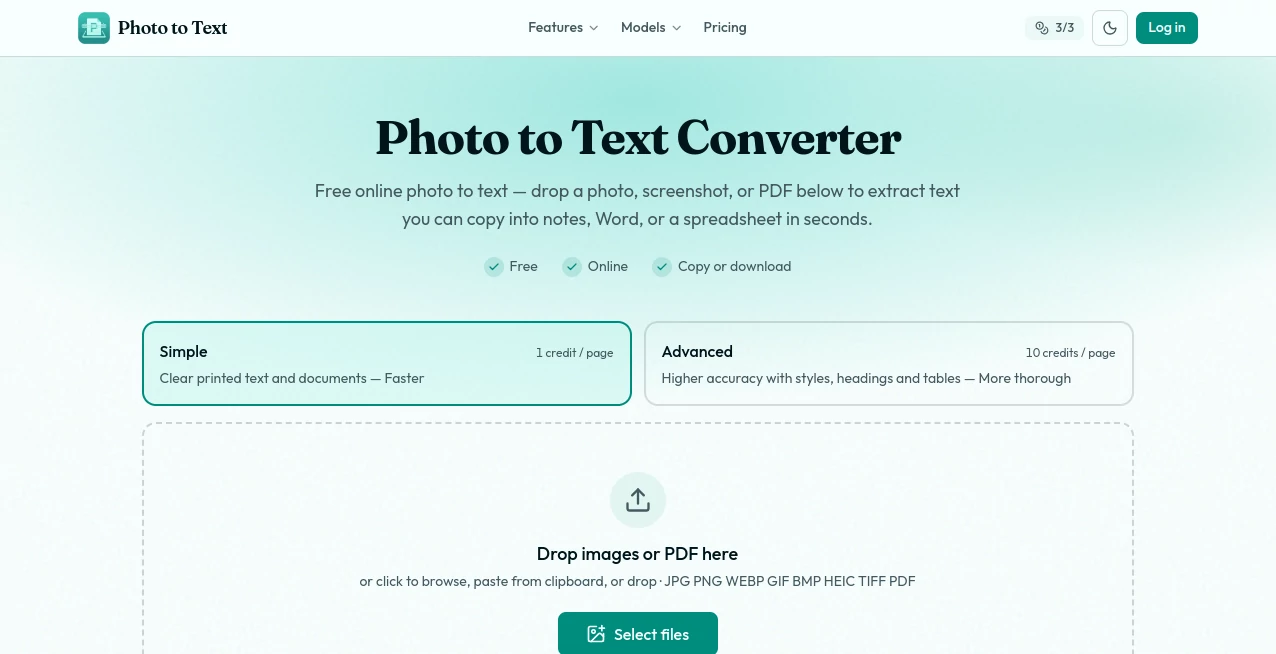
The interface keeps the main task front and center. A large upload area lets users drop files directly into the converter, while browsing, clipboard pasting, and URL input provide additional ways to supply a document. Supported formats are clearly displayed, so there is little guesswork before starting a conversion.
The two OCR modes also make the experience easier to understand. Simple is intended for clean, readable material, while Advanced is better suited to situations where the source image is less cooperative. This distinction is particularly useful when working with photographs taken from an angle or documents containing tables and handwritten material.
Accuracy & Performance
Performance depends naturally on the quality of the original document, but the service is built around two different OCR approaches to accommodate both straightforward and challenging files. Simple OCR uses 1 credit per image or PDF page and is aimed at clear printed text. Advanced OCR uses 10 credits per page and is designed for harder cases such as blurry photographs, tilted pages, handwriting, dense layouts, and tables.
For someone converting a clean screenshot, the Simple mode can be the sensible choice. A photographed receipt or a busy scanned page is a different story; using Advanced OCR gives the system more room to handle the structure of the document rather than treating everything as a basic block of text.
Capabilities
This is more than a basic picture-to-text converter. The platform connects image OCR with practical document workflows. Users can extract text from an image, move the result into Word, or turn photographed tables and receipts into editable spreadsheet data.
Its document-specific tools are particularly useful for real-world paperwork. Bank statements, invoices, receipts, screenshots, scanned pages, and handwritten material can all be part of an OCR workflow. For larger jobs, paid accounts can process up to 100 images or PDF pages in one batch, while free accounts can process up to 10 pages per run.
Security & Privacy
Privacy is addressed differently depending on how the service is used. Guest conversions do not transmit or store data for account history, and guest results are not retained as saved history. Users who sign in and save results can delete them, while unused saved results are automatically cleared after approximately 14 days.
For sensitive documents, users should still consider the nature of the information before uploading anything to an online service. The stated guest-storage policy is reassuring for occasional conversions, particularly when the goal is simply to extract text and move on.
Use Cases
There are plenty of situations where OCR saves more time than it first appears. A student can photograph a printed worksheet and turn it into editable text. An office worker can extract information from a scanned document instead of typing it line by line. Someone working with receipts can move table-like information into a spreadsheet rather than rebuilding the columns manually.
- Students: Convert photographed notes, worksheets, and textbook pages into editable text.
- Office workers: Extract information from scanned documents and screenshots.
- Businesses: Process invoices, receipts, and financial documents more efficiently.
- Researchers: Turn scanned pages and PDF documents into searchable text.
- Content creators: Recover text from screenshots and images that cannot normally be selected.
- Freelancers: Convert client-provided scans into editable Word documents.
- Data entry teams: Extract tables and structured information for spreadsheet processing.
Pros and Cons
- Pros: Free to start, no sign-up required for initial conversions, supports many image formats, accepts PDFs, offers Simple and Advanced OCR, provides Word and Excel workflows, and supports batch processing on paid plans.
- Pros: Credit packs never expire, making them useful for users who only need OCR occasionally.
- Pros: The interface is uncomplicated and focuses on getting from an image to usable text quickly.
- Cons: Advanced OCR and document conversions consume substantially more credits than Simple OCR.
- Cons: OCR quality can still vary depending on image quality, handwriting, layout, and the condition of the source document.
Pricing Plans
The service uses a credit-based pricing system alongside monthly subscriptions. Simple image or PDF-to-text conversion costs 1 credit per page, while Advanced OCR and Word or Excel conversion cost 10 credits per page.
- Starter: $7.50 per month when billed monthly, with 10,000 credits per month.
- Pro: $10.83 per month when billed monthly, with 20,000 credits per month.
- Max: $20.83 per month when billed monthly, with 40,000 credits per month.
Annual billing is also available, with the listed annual prices of $89.99 for Starter, $129.99 for Pro, and $249.99 for Max. For users who do not need a recurring subscription, one-time credit packs are available in 5,000, 10,000, 20,000, and 40,000-credit quantities. These packs do not expire, which is a useful option for occasional projects.
How to Use Photo to Text
- Upload or drop a JPG, PNG, PDF, or another supported file into the converter.
- Choose Simple OCR for clear material or Advanced OCR for more difficult images and layouts.
- Start the extraction process and wait for the OCR result.
- Review the extracted text and copy it into your preferred application.
- When a downloadable document is needed, use the Word or Excel conversion workflow.
The process is intentionally short. For example, someone with a screenshot containing text can upload it, run OCR, and copy the resulting content without first installing an application or manually transcribing the screenshot.
Comparison with Similar Tools
Many OCR services focus primarily on extracting plain text. This solution takes a broader document-conversion approach by combining image-to-text extraction with dedicated Word and Excel workflows. That difference matters when the goal is not simply to read text from an image but to continue working with the information afterward.
The Simple and Advanced modes are another practical distinction. Users dealing mostly with clean screenshots may not need a sophisticated workflow, while people processing photographs, handwriting, tables, or crowded pages have a dedicated higher-accuracy option. The credit system also gives occasional users an alternative to committing to a subscription.
Conclusion
For anyone who regularly encounters text trapped inside photographs, screenshots, scans, or PDF pages, an OCR tool can remove a surprisingly tedious part of the workflow. This platform does a good job of keeping that process accessible while adding useful paths into Word and Excel when a simple text copy is not enough.
Its biggest strength is the balance between simplicity and flexibility. A clear screenshot can be converted quickly with Simple OCR, while more complicated documents can be handled with Advanced mode. Add the ability to process tables, use batch conversion, and purchase non-expiring credit packs, and it becomes a practical choice for both occasional users and people who deal with document extraction regularly.
Frequently Asked Questions (FAQ)
Is the photo-to-text converter free?
Yes. Users can start converting images and PDF pages for free without signing up. Paid plans and credit packs are available for higher-volume use and additional capabilities.
What file formats are supported?
Supported formats include JPG, PNG, WEBP, GIF, BMP, HEIC, TIFF, and PDF.
Can it extract text from screenshots?
Yes. Screenshots are one of the intended use cases, particularly when the text cannot be selected or copied directly from the original application.
Can handwritten text be converted?
Yes. Handwriting is supported through the Advanced OCR workflow, although results can vary depending on how clear and legible the handwriting is.
Can I convert an image into Word?
Yes. The dedicated Word workflow can turn scanned documents, screenshots, and document photographs into editable Word files.
Can tables be converted to Excel?
Yes. Tables, receipts, invoices, and similar structured documents can be processed with Advanced OCR and exported into spreadsheet formats such as XLSX, CSV, or TSV.
Do I need an account?
No. You can start extracting text without signing up. An account becomes useful when you want saved results or need to purchase credits.
Do credit packs expire?
No. One-time credit packs do not expire. Subscription credits, on the other hand, expire at the end of their billing period.
How many pages can I process at once?
Free accounts can process up to 10 images or PDF pages per run, while paid accounts can process up to 100 pages in a single batch.
Which OCR mode should I choose?
Simple OCR is a good fit for clear screenshots and printed pages. Advanced OCR is better for blurry or tilted photos, handwriting, crowded layouts, and tables.