


















Speedpaint
What is Speedpaint?
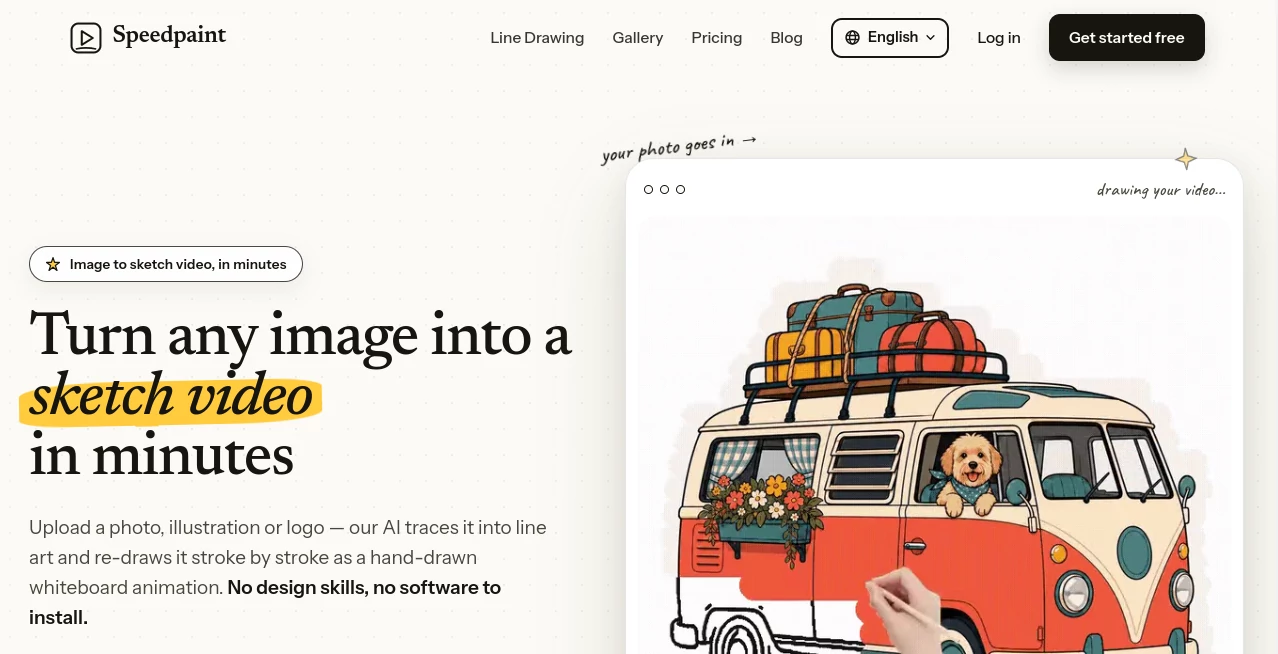
Turning a finished image into an engaging video usually means opening a video editor, creating a timeline, adding motion, and spending time making the animation feel natural. This tool takes a much simpler approach. Upload a photo, illustration, logo, comic, or drawing and it transforms the image into a hand-drawn sketch video that appears to be created stroke by stroke.
The result has the familiar feel of a whiteboard animation without requiring users to manually trace an image or learn complicated editing software. The workflow is particularly appealing for creators who already have visual material and simply want to give it some movement.
Images can be converted into short videos with different hand styles, drawing details, and coloring effects. The service supports JPG, PNG, WebP, and SVG files up to 10MB, making it suitable for everything from personal artwork and portraits to logos and product images.
Key Features
- AI-powered image-to-sketch video conversion
- Automatic line-art extraction from uploaded images
- Stroke-by-stroke hand-drawn animation
- Multiple realistic hand styles
- Optional hand-free animation mode
- Several coloring and filling effects
- Video durations from 5 to 60 seconds
- Adjustable stroke detail
- 1080p MP4 export on paid plans
- GIF export for short looping animations
- Landscape, vertical, and square video formats
- Shareable video pages
User Interface
The interface is designed around a straightforward three-step process: upload an image, customize the drawing, and render the result. There is no traditional editing timeline to manage, which makes the experience much less intimidating for someone who has never worked with animation software.
After uploading an image, users can review the extracted line art before spending credits on the final render. They can then select the video duration, hand appearance, stroke detail, and the way color is introduced. This preview-first approach is a useful touch because it reduces the chance of wasting credits on a result that needs adjustment.
Accuracy & Performance
The automatic line-art system is designed to identify the important contours in an uploaded image and convert them into clean drawing strokes. It can handle photographs, illustrations, portraits, anime artwork, logos, handwriting, and other visual material.
Performance naturally depends on the source image and the selected output settings. A typical render can take several minutes, while higher resolutions and longer videos require additional processing. The service also allows users to preview the sketch before confirming a paid render, which makes experimentation more practical.
For particularly detailed artwork, the stroke-detail control provides another useful way to balance visual complexity and the simplicity of the final animation.
Capabilities
One of the strongest aspects of the platform is its flexibility beyond simple black-and-white sketching. Users can choose from realistic, darker-tone, child-style, and fountain-pen hand appearances, or remove the hand entirely.
Color can also return to the artwork in different ways. Hand paint, contour wipe, block fill, and fade-in effects create noticeably different visual styles. A product image, for example, can first appear as a line drawing and then gradually regain its original colors, while an educational illustration can be revealed section by section.
The output can be rendered as an MP4 or GIF, with resolutions reaching 1080p on paid plans. Square, vertical, and landscape formats make the results suitable for different publishing environments.
Security & Privacy
The service states that uploaded images and rendered videos are private by default and stored in access-controlled object storage. Public access is created when a user deliberately generates a share link, and that link can be revoked.
The privacy policy also states that uploaded images and videos are not used to train models or for advertising. Free-plan videos are deleted 30 days after rendering, while deleting a video removes both the video and its source image. Account deletion permanently removes the user's images, videos, and personal data after the stated deletion period.
Users should still make sure they have the necessary rights to any photos, artwork, logos, or other material they upload, particularly when creating commercial content.
Use Cases
Content creators: YouTube creators can turn an illustration, thumbnail, or visual concept into a short hand-drawn intro or transition. The effect can add a more personal touch than simply placing a static image on screen.
Teachers: Educational diagrams and illustrations can be animated so that the information appears to draw itself. This works especially well for lessons where a visual explanation is easier to follow when it is revealed gradually.
Marketers: Product photos, logos, and promotional artwork can become short sketch animations for advertisements and social media campaigns. The hand-drawn appearance gives otherwise familiar product imagery a different presentation.
Designers and illustrators: Finished artwork can be transformed into a drawing-timelapse style presentation without having to record the original drawing process.
Social media creators: Vertical and square outputs make the generated clips useful for short-form social content, while GIF export can work well for lightweight looping visuals.
Businesses: A company can turn a logo or product image into a simple visual reveal for presentations, landing pages, online courses, or promotional content.
Pros and Cons
- Pros: Very simple image-to-video workflow
- Pros: Automatic line-art extraction eliminates manual tracing
- Pros: Several hand and coloring styles
- Pros: Supports photos, illustrations, logos, anime, portraits, and handwriting
- Pros: 1080p output available on paid plans
- Pros: MP4 and GIF export options
- Pros: Free credits are available without requiring a credit card
- Cons: The free plan is limited to 720p and includes a watermark
- Cons: Free usage is limited to personal use
- Cons: Rendering costs increase with video length and resolution
Pricing Plans
The platform uses a credit-based pricing system. New users receive 10 free credits, with the free plan supporting 720p videos up to 15 seconds and adding a watermark. Paid plans remove the watermark, increase output quality, and provide commercial usage rights.
Free: $0 with 10 one-time credits, 720p output up to 15 seconds, watermark, and personal-use licensing.
Starter: $4.50 per month when billed yearly, including 30 credits each month, 1080p output up to 30 seconds, watermark-free exports, and a commercial license.
Pro: $9.50 per month when billed yearly, including 200 monthly credits, 1080p videos up to 60 seconds, priority rendering, and the option to purchase additional credits.
Studio: $34.50 per month when billed yearly, with 1,000 monthly credits, 1080p output up to 60 seconds, the highest rendering priority, and priority support.
Credit consumption depends on resolution and duration. This makes the system more flexible than a simple per-video price because short, lower-resolution projects can consume fewer credits than longer high-definition renders.
How to Use It
Start by uploading a JPG, PNG, WebP, or SVG image. Files can be up to 10MB, with supported images reaching 4096 by 4096 pixels.
Once the image has been processed, review the automatically extracted line art. If the result looks right, choose the desired video duration and customize the drawing style. You can select a hand appearance, adjust stroke detail, and choose how the original colors return to the artwork.
Preview the animation before confirming the final render. When everything looks good, generate the video and export it as an MP4 or GIF. Paid plans allow watermark-free exports and commercial use.
Comparison with Similar Tools
Traditional whiteboard animation software generally works like a conventional editor. Users select assets, arrange scenes, manage a timeline, and often spend considerable time preparing the animation. That approach is useful when building a longer presentation from many separate elements.
This platform takes a different route. Instead of starting with a library of animation assets, it starts with an image that the user already owns. The system extracts its line art and builds the drawing sequence automatically.
That distinction makes it particularly attractive for someone who has a finished logo, photograph, illustration, product shot, or diagram and wants a short hand-drawn animation quickly. For a complex multi-scene explainer, a traditional whiteboard editor may still provide more control. For turning one existing image into an animated drawing, the streamlined workflow is the stronger proposition.
Conclusion
For creators who want to turn static artwork into something more engaging, this image-to-sketch approach is refreshingly direct. There is no need to recreate the artwork manually or learn a full animation workflow. Upload the visual, review the line extraction, choose a drawing style, and let the system handle the animation.
The combination of automatic tracing, realistic hand styles, flexible coloring effects, multiple aspect ratios, and HD exports gives the tool enough range for creative, educational, marketing, and social media projects. The free credits also make it easy to test the workflow before committing to a subscription.
If your starting point is already an image and your goal is a convincing hand-drawn reveal rather than a complicated multi-scene animation, this is a particularly practical option worth trying.
Frequently Asked Questions (FAQ)
What can I turn into a sketch video?
You can upload photos, illustrations, logos, comics, portraits, anime artwork, product images, diagrams, and handwriting. Supported file formats include JPG, PNG, WebP, and SVG.
Is there a free plan?
Yes. New accounts receive 10 free credits without requiring a credit card. Free exports are limited to 720p, up to 15 seconds, include a watermark, and are intended for personal use.
Can I remove the watermark?
Yes. Paid plans provide watermark-free exports and support output resolutions up to 1080p.
Can I use the generated videos commercially?
Paid plans include a worldwide, non-exclusive commercial license for the generated videos. The free plan is intended for personal, non-commercial use. Users remain responsible for having the appropriate rights to the original images they upload.
What video formats are available?
Generated projects can be exported as MP4 videos or GIFs. Videos can be created in landscape, vertical, or square formats, with paid plans supporting resolutions up to 1080p.
Are uploaded images private?
Uploaded images and generated videos are private by default. A video becomes publicly accessible when the user creates a share link. The service states that uploaded images and videos are not used for model training or advertising.
AI Animated Video , AI Image to Video , AI Video Generator .
These classifications represent its core capabilities and areas of application. For related tools, explore the linked categories above.

Speedpaint Alternatives Product

LTX 2.3 AI V…
Seedance 2.0

bridger west…
Voe4 AI Video
Sora AI Vide…

Banana 2 Edi…
Veo 3.2 AI V…
v04 ai

HappyHorse A…
