

















Ai Remove Text from Image
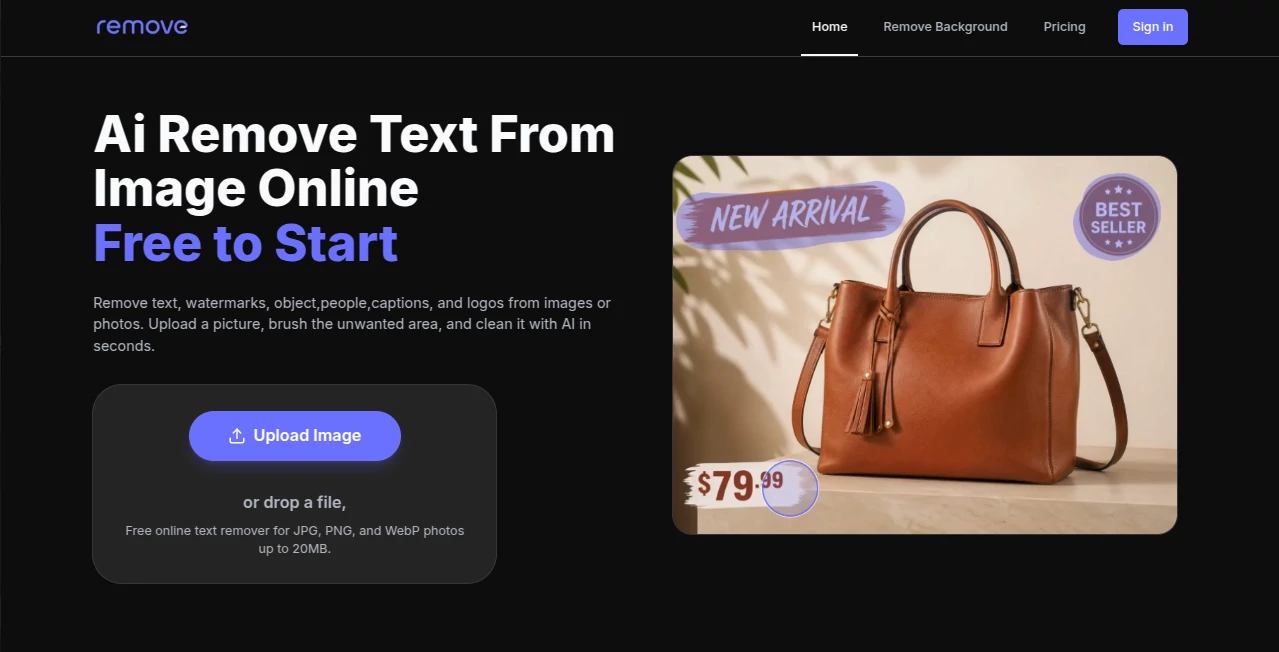
What is Ai Remove Text from Image?
You know that feeling when you find the perfect photo — great lighting, great composition — and then there's a watermark stamped right across the middle of it? Or a price tag baked into a product shot that you need clean for an ad campaign? These small visual headaches used to mean opening Photoshop, fiddling with the clone stamp tool, and spending twenty minutes on what should be a thirty-second fix.
That's exactly the gap this browser-based AI tool fills. Upload your image, brush over whatever you want gone — text, watermarks, captions, logos, timestamps — and the AI reconstructs the area using the surrounding pixels. No software to install. No account required to get started. Free 720p downloads available right away.
It handles JPG, PNG, and WebP files up to 20MB, which covers the vast majority of images people actually work with day to day. For anyone who regularly cleans up product photos, social media visuals, real estate images, or scanned documents, this is the kind of tool that quietly saves a significant amount of time.
Key Features
User Interface
The editor is deliberately simple, which is a feature, not a limitation. There's no toolbar overload, no confusing panel layout, and no steep learning curve. You upload an image, use the brush to mark the area you want cleaned, and hit apply. The whole interaction takes under a minute for most straightforward jobs.
The brush control is manual, which matters. You're not asking the AI to guess what you want removed — you're painting exactly the region that needs to go. That precision makes a real difference on complex images where text sits close to important visual elements you want to preserve. There's also undo and redo support for mask edits before you commit to the cleanup, so experimenting is risk-free. You can also toggle between the original and the cleaned version to compare results before downloading.
Accuracy & Performance
The AI inpainting model fills selected areas by analysing the surrounding pixel context — colours, textures, gradients, patterns — and reconstructing what's most likely to sit behind the removed element. On images with relatively uniform backgrounds (product photos on white, real estate exteriors, plain-background posters), the results are clean enough that you'd genuinely struggle to tell anything had been removed.
More complex backgrounds — busy street scenes, intricate textures, detailed fabric — require a bit more care with the brush selection, but the model handles these cases considerably better than manual clone-stamp work for most users. The speed is also worth noting: cleanup runs in the browser with no noticeable queue or processing delay, which makes iterating on a mask quick and practical.
Capabilities
The core use case is text removal, but the brush-based selection means you can use it on anything you want gone from an image:
- Watermarks and logos: Remove branded overlays from stock images, sample files, or shared assets.
- Captions and subtitles: Strip text overlays from screenshots, social media reposts, or video thumbnails.
- Price tags and sale labels: Clean promotional text from product images before republishing on marketplaces or in ads.
- Timestamps and date stamps: Remove camera-generated dates from older photos without cropping.
- Signs and labels in scenes: Erase distracting signage from travel photos, real estate shots, or editorial images.
- Scanned document cleanup: Remove selected printed text from bill scans, receipts, or document images when a cleaner visual is needed.
There's also a separate background removal tool available on the platform for when you need transparent cutouts — a useful companion feature for product photography workflows where you might need both text cleaned and backgrounds removed in sequence.
Security & Privacy
The platform handles files with a straightforward privacy approach: images are processed in your browser and sent only for the cleanup request itself. Files are not written to any server storage, not added to a history log, and not displayed in any public gallery. Once the session ends, nothing is retained on the server side.
For anyone working with client images, proprietary product photography, or documents containing sensitive information, that's a meaningful assurance. The terms of service and privacy policy are both accessible directly from the site footer for anyone who wants to review the specifics.
Use Cases
The breadth of situations where this kind of tool is genuinely useful is wider than it might first appear.
E-commerce sellers are probably the heaviest users. When you're pulling product images from supplier catalogues or manufacturer assets, they often come with pricing, model numbers, or branded watermarks baked in. Cleaning those before uploading to Amazon, Shopify, or Etsy is a near-daily task — and this cuts the time for each image down dramatically.
Social media managers face a different version of the same problem: reposting or repurposing visual content that has captions, usernames, or platform-specific stickers overlaid. Removing those before republishing keeps the visual clean and avoids visual clutter that screams "this was taken from somewhere else."
- Real estate photographers removing listing text, agency watermarks, and signage from property photos
- Graphic designers refreshing poster and flyer templates by erasing outdated event dates and slogans
- Travellers and photographers cleaning up holiday shots where signs or timestamps distract from the scene
- Small business owners quickly cleaning supplier images for their own storefronts without needing a designer
- Content creators sanitising screenshots and meme formats before sharing or posting
- Administrative teams cleaning scanned bills and receipts for documentation purposes
The free tier makes it a practical option for one-off jobs too — a user who needs to clean a single photo for a one-time project doesn't need to subscribe to anything, which keeps the barrier very low.
Pros and Cons
What works well:
- No installation or account required to start — genuinely free to use with 720p download included
- Manual brush control gives precise selection, which produces better results than fully automatic text detection approaches
- Fast processing with no visible queue — iterate on your mask quickly without waiting
- Supports JPG, PNG, and WebP up to 20MB, covering almost all practical use cases
- Files are not stored server-side, which is important for anyone handling sensitive or proprietary imagery
- Undo/redo for mask edits makes the workflow forgiving and non-destructive until you commit
- Background removal tool available as a companion feature for product photography workflows
Limitations to keep in mind:
- Free downloads are capped at 720p — original resolution requires credits or a Pro plan
- Manual brush selection means you're doing the marking work yourself; there's no automatic text detection or one-click removal
- Complex, highly textured backgrounds can occasionally require multiple passes to get a clean result
- No batch processing — images are handled one at a time, which adds up for high-volume workflows
Pricing Plans
The pricing structure is tiered to match different levels of usage:
- Free: Full access to the brush editor and AI cleanup, with downloads capped at 720p resolution. Good for personal use, quick one-off jobs, and testing the tool before committing.
- Credits: Pay-per-use credits for original-resolution downloads. The right option if you need HD output occasionally but don't process images at high enough volume to justify a subscription.
- Pro: Subscription access with original-quality downloads included. Designed for e-commerce sellers, designers, and anyone cleaning images regularly as part of a workflow.
The free tier is genuinely useful rather than a heavily restricted preview — 720p is adequate for social media sharing, internal documents, and many web use cases. The step up to credits or Pro is primarily about getting the cleaned image at its original dimensions for print, advertising, or professional client delivery.
How to Use AI Remove Text From Image
The workflow is three steps, and it really is that straightforward:
- Step 1 — Upload your image: Drag and drop or select a JPG, PNG, or WebP file from your device. Files up to 20MB are supported. The image opens directly in the browser editor.
- Step 2 — Brush over the text: Use the brush tool to paint over the watermark, caption, price label, timestamp, logo, or any other element you want removed. You can adjust brush size for precision work and use undo/redo to refine your mask before applying.
- Step 3 — Apply AI cleanup and download: Hit the cleanup button, preview the result, and compare it against the original. If the result looks right, download the cleaned file. Free users get a 720p version; credits or Pro unlocks the original resolution.
The whole process for a straightforward image takes less than a minute. For trickier jobs with complex backgrounds or multiple text elements to remove, you might spend a few minutes refining the brush mask — but that's still a fraction of what manual editing would take.
Comparison with Similar Tools
The main alternatives in this space fall into a few categories.
Desktop software like Photoshop has the most powerful inpainting capabilities and handles complex backgrounds more reliably. But it costs significantly more, requires installation, has a steep learning curve for non-designers, and is overkill for the majority of quick cleanup tasks. For someone who needs to clean one product photo, opening Photoshop is not a reasonable solution.
Other browser-based inpainting tools (Cleanup.pictures, IOPaint, Magic Eraser) offer similar brush-select-remove workflows. The differences come down to interface simplicity, processing speed, file size limits, and free tier generosity. This tool's browser-first, no-account-required approach and transparent privacy handling put it in a strong position for users who want to get in, do the job, and leave without friction.
Mobile apps like TouchRetouch offer on-device processing with no upload step, which is convenient for phone photography but less practical when working with high-resolution assets on a desktop workflow. The browser tool works on any device with a modern browser, which gives it flexibility without the limitation of a specific platform.
Where this tool genuinely stands out is the combination of manual precision, fast processing, honest free tier, and no-storage privacy handling — packaged in an interface that requires zero prior experience to use effectively.
Conclusion
Not every image problem needs a complicated solution. Sometimes you just need a watermark gone, a price tag cleaned up, or a timestamp removed from an otherwise good photo — and you need it done in the next two minutes, not after a Photoshop tutorial.
That's the real value this tool delivers. It's fast, it's precise enough for professional use cases, it handles privacy sensibly, and it starts free. For e-commerce sellers, social media managers, designers, photographers, and anyone else who regularly runs into unwanted text in images, it's the kind of browser tool that earns a permanent place in a workflow rather than a one-time use.
The free 720p tier is a genuine starting point, not a teaser. And for anyone who needs original resolution output regularly, the credits and Pro options are priced reasonably for the time they save.
Frequently Asked Questions (FAQ)
Can AI really remove text cleanly from any image?
It works very well on images with relatively uniform or simple backgrounds. On complex, textured backgrounds the results are still good but may occasionally benefit from a second pass with a refined brush selection. The quality of the mask you paint directly affects the quality of the result.
Do I need to create an account to use it?
No account is required to use the tool or download free 720p results. Sign-in is only needed for credits or Pro features.
What file formats and sizes are supported?
JPG, PNG, and WebP files up to 20MB are supported. This covers the vast majority of photos, screenshots, and design assets people work with.
Are my images stored or shared?
Images are processed for the cleanup request and not written to server storage, history logs, or public galleries. The file stays in your browser session and is not retained after you leave.
What's the difference between the free tier and Pro?
Free downloads are capped at 720p resolution. Credits and Pro plans unlock original-resolution downloads for professional, print, and advertising use where full image quality matters.
Can I remove things other than text?
Yes. The brush-based selection works on any visual element — watermarks, logos, stickers, timestamps, signs, people, objects, or anything else you want removed. The tool name focuses on text, but the underlying inpainting works on whatever you select.
Is there a background removal tool as well?
Yes. A separate AI background remover is available on the platform for transparent cutouts, portrait isolation, and product photography cleanup.
AI Background Remover , Photo & Image Editor , AI Photo Enhancer , AI Image to Image .
These classifications represent its core capabilities and areas of application. For related tools, explore the linked categories above.
Ai Remove Text from Image details
Website unavailable — View Alternatives
Pricing
- Free
Apps
- Web App
Categories

Ai Remove Text from Image Alternatives Product

Normal Map G…

XIMAGIN

VIGGLE

Nano Banana 2

Nano Banana …

ds image
Niji V7

SwapAnything

Just Christm…