ChangeTextImage
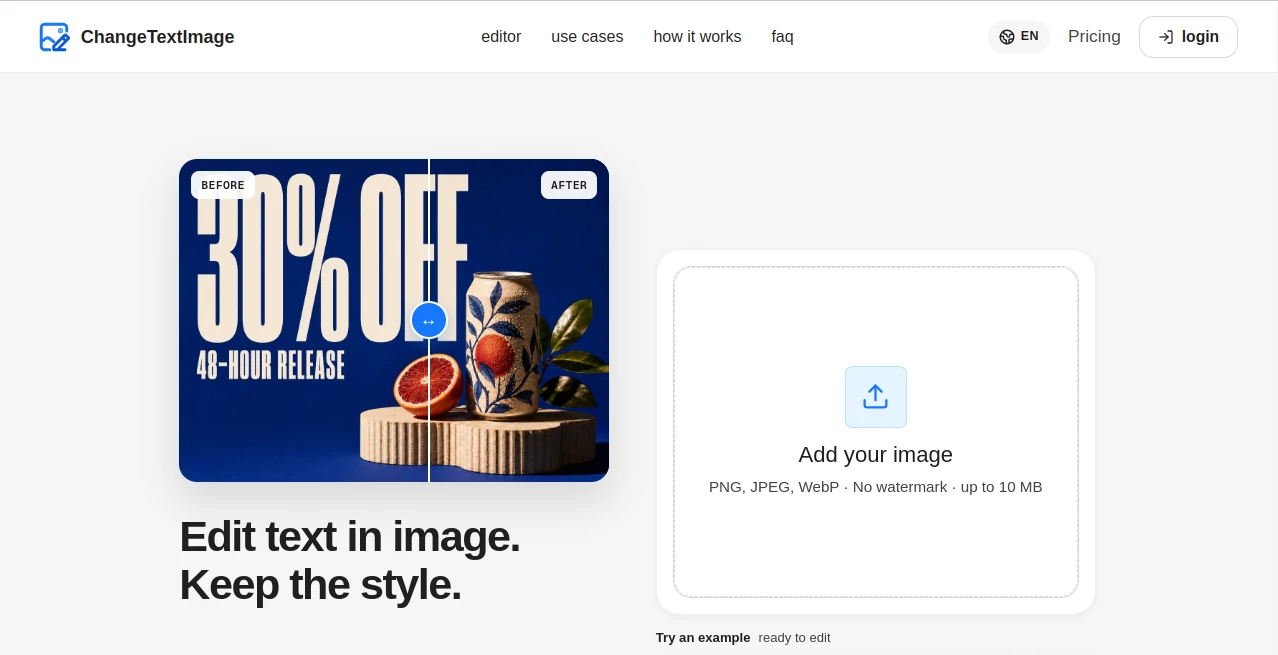
What is ChangeTextImage?
Changing a few words inside a finished image can be surprisingly frustrating. Once text has been flattened into a JPG, PNG, WebP file, photo, or screenshot, the original text layer may no longer exist. Rebuilding the entire design just to correct a price, date, headline, product name, or short message can take far more time than the actual change.
ChangeTextImage is designed specifically for this situation. Instead of simply placing a new text box over the picture, its AI-assisted workflow replaces visible words while attempting to preserve the surrounding font style, spacing, lighting, texture, perspective, and background. This makes it particularly useful for finished marketing assets, posters, product images, menus, app screenshots, and other flattened graphics.
The service supports JPG, JPEG, PNG, and WebP uploads up to 10 MB. A first signed-in session includes one preview credit, while paid credits are available for repeated work and higher-resolution exports. Generated images do not carry a site watermark.
Key Features
- AI-assisted replacement of existing text inside images
- Support for JPG, JPEG, PNG, and WebP files
- Images up to 10 MB can be uploaded
- Attempts to preserve nearby font style, color, spacing, lighting, and texture
- Optional brush targeting for more precise editing
- 512px preview output for the included preview credit
- Paid output available at up to 2K resolution
- No site watermark on generated downloads
- Browser-based workflow without requiring Photoshop or another desktop editor
- Credit-based pricing without automatic recurring subscriptions
User Interface
The interface keeps the process focused on the actual text change. Users upload an image, provide the existing wording and replacement wording, and can use a brush to identify the target area when additional precision is needed.
This approach is helpful for people who do not want to navigate through layers, masks, typography settings, and manual cloning tools. The workflow feels closer to correcting a sentence than rebuilding a graphic.
Accuracy & Performance
The quality of the result depends heavily on the source image. Clear, readable, high-resolution text with a reasonably visible surrounding background generally provides better results. Straight text is also easier to process than heavily distorted or extremely small lettering.
The AI attempts to recreate the replacement text in a style that fits the original area rather than simply pasting a generic font. It considers characteristics such as font weight, color, spacing, lighting, texture, and background. However, exact recovery of the original font is not guaranteed, particularly when the source is a compressed or low-resolution flattened image.
For professional design files where the original PSD, Figma, Canva, or another layered source is available, editing the actual text layer remains the cleaner option. This workflow is most useful when that source is unavailable.
Capabilities
The strongest part of the service is its narrow focus. It is not trying to be an all-purpose image editor. Instead, it addresses one common problem: replacing words that are already embedded in an image.
For example, an online store could correct an outdated discount on an approved product graphic. A marketing team could change a campaign headline after the creative has already been exported. An event organizer could update a date or venue on an existing poster. Product teams can also revise text in app screenshots without recreating every device mockup.
There is an important distinction between this workflow and OCR. OCR extracts text from an image, while this service changes the visible lettering inside the image itself. Likewise, adding text creates a new overlay, whereas this process is intended to replace text that is already part of the picture.
Security & Privacy
The service places clear limits on acceptable use. It is intended for legitimate creative revisions and should not be used to alter IDs, passports, bank statements, receipts, payment records, official seals, private conversations, or other materials in a way that could deceive someone.
Uploaded images and related processing data may be temporarily handled by the service and its image-processing providers. According to its privacy information, raw uploads and processing instructions can be retained temporarily for processing and recovery, while generated outputs can remain available privately for a limited download period. Users should therefore avoid uploading sensitive documents or images they do not own or have permission to modify.
Use Cases
E-commerce: Correct product prices, discounts, offers, or product wording after an image has already been approved.
Marketing campaigns: Create alternative headlines, calls to action, or promotional wording without rebuilding an entire creative.
Posters and flyers: Update dates, locations, speaker information, or headlines when the original design file is no longer available.
App screenshots: Replace outdated interface wording before publishing new screenshots or product documentation.
Product packaging: Update product names or marketing copy in existing photography when a new photoshoot would be unnecessary.
Menus and signs: Make legitimate wording corrections to finished visual assets while retaining the surrounding design.
Localization: Adapt short pieces of text in existing campaign graphics for different audiences without recreating the complete artwork.
Pros and Cons
- Pros: Focused specifically on replacing existing image text
- Pros: Supports common image formats including JPG, PNG, and WebP
- Pros: Attempts to preserve the visual characteristics surrounding the original text
- Pros: Optional brush targeting provides additional control
- Pros: No watermark on generated outputs
- Pros: Useful when original layered design files are unavailable
- Pros: One-time credit packs rather than automatic subscriptions
- Cons: Exact font reproduction cannot be guaranteed
- Cons: Results can vary depending on image quality and text complexity
- Cons: The free entry point is limited to one preview credit rather than unlimited free editing
- Cons: It is not intended to replace a full professional image editor
Pricing Plans
The pricing model is based on one-time credit packs rather than an automatically renewing subscription. A first signed-in account receives one preview credit, which provides a limited preview of the editing workflow.
- Starter: $9.90 for 30 edit credits, including paid 2K exports.
- Professional: $19.90 for 66 edit credits, with a lower per-edit cost than the Starter package.
- Studio: $29.90 for 120 edit credits, aimed more at campaign and localization work with a lower cost per edit.
Credits are purchased as one-time packs and do not automatically renew. Failed generations caused by confirmed provider or technical failures may have the consumed credit returned according to the service's refund policy.
How to Use It
Step 1: Upload an image. Select a JPG, JPEG, PNG, or WebP file up to 10 MB. A clear image with readable text is usually the best starting point.
Step 2: Enter the text change. Provide the existing visible wording and the replacement wording. If automatic targeting needs help, use the brush option to identify the area that should be edited.
Step 3: Generate the edit. Start the AI-assisted process and wait for the edited result to appear.
Step 4: Review carefully. Check the replacement text, spelling, alignment, background repair, and overall appearance. This is especially important when working with curved, textured, small, or perspective-heavy text.
Step 5: Download the result. Once the image looks correct, download the available preview or paid-resolution output according to your credit level.
Comparison with Similar Tools
Traditional image editors offer much greater control, but they generally require more manual work when the original text layer has been lost. An AI text-replacement workflow is more convenient when the objective is a small correction rather than a complete redesign.
OCR applications solve a different problem by extracting text from images. Add-text editors also work differently because they place new captions or text layers over an image. Watermark-removal tools are another separate category and should not be confused with legitimate text replacement.
The main advantage here is specialization. When a finished image contains one piece of text that needs to change, a focused workflow can be considerably faster than opening a full design application and reconstructing the affected area manually.
Conclusion
For anyone who regularly works with finished graphics, the ability to change embedded wording without rebuilding an entire image can save a surprising amount of time. The service is particularly practical for marketers, e-commerce teams, designers, product teams, event organizers, and content creators who frequently deal with flattened visual assets.
Its focused approach, common image-format support, optional precision targeting, style-aware replacement, and credit-based pricing make it a useful option for quick image-text revisions. The best results still come from clean source images, and users should always review the generated output before publishing it.
Frequently Asked Questions (FAQ)
Can I replace existing text in an image?
Yes. Upload an image, enter the existing visible wording and its replacement, and generate the edit. The workflow is designed specifically for changing text that is already embedded in the image.
Does it work with JPG and PNG files?
Yes. JPG, JPEG, PNG, and WebP files are supported, with an upload limit of 10 MB.
Can I use it without Photoshop?
Yes. The browser-based workflow is designed for quick text replacements when you do not have or do not want to use a layered design file.
Will the replacement use the exact same font?
Not necessarily. The AI attempts to match the surrounding font style, color, spacing, lighting, texture, and background, but exact recovery of a font from a flattened image cannot be guaranteed.
Is there a free option?
A first signed-in account receives one preview credit. This is a limited preview rather than an unlimited free editing plan. Repeated edits and higher-resolution outputs require paid credits.
Does the output have a watermark?
No. Generated downloads do not include a site watermark.
Can I edit screenshots?
Yes. Screenshots are among the supported use cases, particularly for legitimate product demonstrations, app visuals, help documentation, and similar content. Private conversations, payment records, and deceptive alterations are not permitted.
Is this an OCR tool?
No. OCR extracts text from an image. This workflow is designed to change the visible text inside the image itself.
What type of images produce the best results?
Clear, readable images with sufficient resolution and a visible surrounding background tend to work best. Posters, product images, menus, labels, signs, screenshots, and similar graphics are suitable examples.
Should I use it if I still have the original design file?
If you still have a PSD, Figma, Canva, or other layered source file, editing the original text layer is generally preferable. AI-assisted replacement is most useful when the image has already been flattened or the original source is unavailable.
Photo & Image Editor , AI Image to Image .
These classifications represent its core capabilities and areas of application. For related tools, explore the linked categories above.
ChangeTextImage details
Website unavailable — View Alternatives
Pricing
- Free
Apps
- Web App
Categories

ChangeTextImage Alternatives Product

WatermarkZero

Professional…

qwen image 2…

Image To Ima…

PhotoEditorAI

Banana 2
BeadPattern
Niji V7

Before After…