

















Fill PDF from Sheet
What is Fill PDF from Sheet?
Filling the same PDF form over and over can quickly become one of those small office tasks that quietly consumes hours every week. When the information already exists in an Excel spreadsheet, CSV file, or Google Sheet, manually copying each value into a PDF makes even less sense. Fill PDF from Sheet takes a much more practical approach: connect your spreadsheet data to a PDF template, map the fields, and generate a separate completed document for every row.
The workflow is designed around everyday document processing rather than complicated software setup. Users can upload a PDF together with an Excel, XLS, or CSV file, review the automatically detected field mappings, and generate completed PDFs in batches. Google Sheets users can also work through the dedicated add-on and send data from the active spreadsheet into the browser-based workflow.
It is particularly useful for teams that deal with repetitive forms, applications, certificates, employee paperwork, client documents, invoices, registrations, or other records where the document layout stays the same but the information changes from one person or record to another.
Key Features
- Automatic matching between spreadsheet columns and PDF form fields.
- Support for Excel files, CSV files, and Google Sheets exports.
- Batch generation with one completed PDF for each spreadsheet row.
- Preview and review options before generating the final documents.
- Individual or bulk PDF downloads.
- Support for single-document workflows as well as large batches.
- Google Sheets integration through an official add-on.
- No formulas, VBA, macros, Adobe Acrobat, or mail-merge configuration required.
- Automatic detection of fillable PDF fields.
- A drag-and-drop editor is available when a PDF does not contain fillable fields.
User Interface
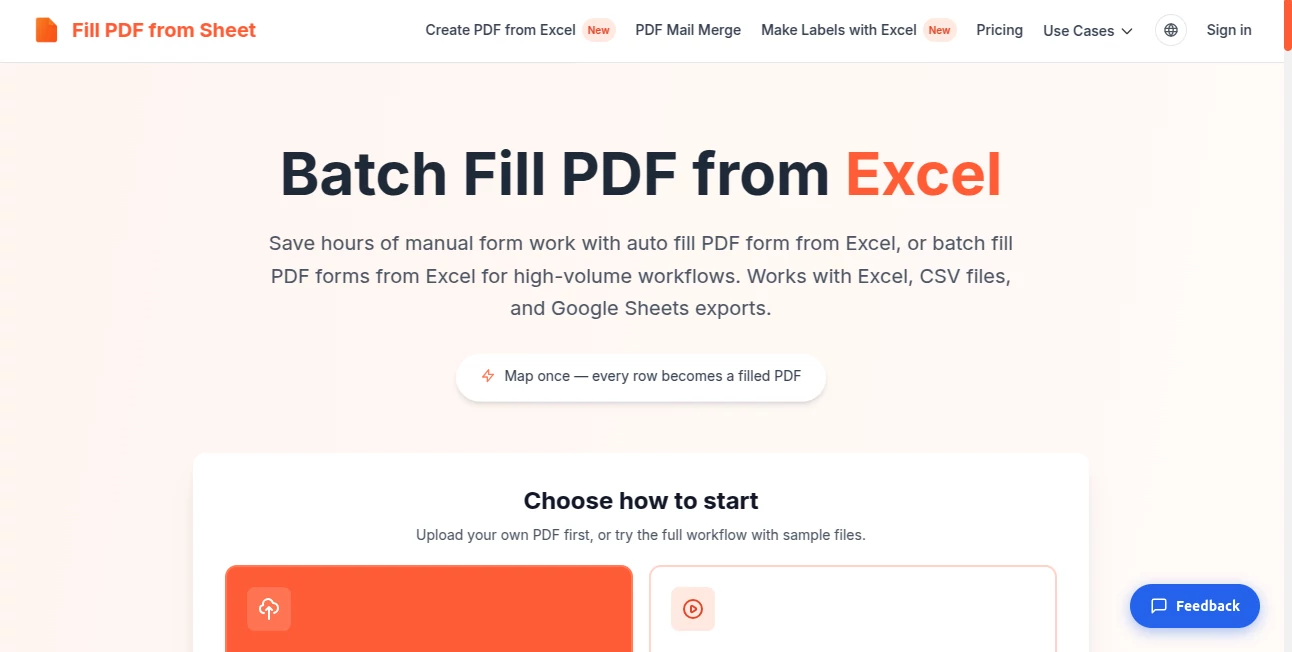
The interface keeps the process focused on the three things that matter: the PDF template, the spreadsheet data, and the field mapping. A typical workflow starts by uploading the PDF and the spreadsheet. The system then identifies the available fields and attempts to match them with the spreadsheet column headers.
That approach is helpful for users who do not want to spend time building complicated document automation rules. Instead of configuring a traditional mail merge or writing formulas, you can review the proposed mapping and make adjustments before generating the files.
The service also provides example files so users can understand the workflow before committing their own documents. For a first-time user, that is a nice touch because the process can be tested without having to prepare a complicated project in advance.
Accuracy & Performance
The main strength of the workflow is its field-mapping system. Spreadsheet column headers are matched with PDF form fields automatically, while users retain the ability to review and adjust those mappings. This is especially useful when processing a large spreadsheet where checking every document manually would defeat the purpose of automation.
Batch processing is another practical advantage. Each row of the spreadsheet becomes a separate completed PDF, meaning a list containing hundreds of records can be turned into individual documents in one run. The service states that hundreds of rows can be processed at once.
Performance naturally depends on file size and the amount of data being processed. The site recommends keeping very large files reasonably sized, since large PDFs and spreadsheets can take longer to process.
Capabilities
The workflow goes beyond simply replacing text in a PDF. It can work with existing fillable PDF forms, automatically detect their fields, and connect those fields to spreadsheet columns. This makes it suitable for recurring administrative workflows where the document structure rarely changes.
There is also an alternative workflow for PDFs that do not contain fillable fields. Through the drag-and-drop editor, users can place spreadsheet columns directly onto a flat, scanned, or otherwise non-fillable PDF. This makes the overall service more flexible than a traditional form filler that requires every PDF to contain interactive fields.
Another useful capability is dynamic output organization. Generated PDFs can be downloaded individually or in bulk, while custom download settings and file names are available on paid plans. This can make a noticeable difference when a batch contains dozens or hundreds of documents.
Security & Privacy
Document privacy is an important consideration whenever forms contain personal, financial, legal, or business information. According to the service's privacy policy, uploaded files are not stored on its servers or written to a database. They are processed to generate the requested PDFs and deleted once the results are returned.
The Google Sheets integration is also designed around limited access. The add-on requests access to the active spreadsheet rather than the user's entire Google Drive. The service states that spreadsheet information is not stored by the add-on.
For organizations working with sensitive documents, it is still sensible to review the current privacy policy and internal data-handling requirements before processing confidential information.
Use Cases
HR and administration: Human resources teams can use spreadsheet records to populate employee forms, personnel documents, internal paperwork, and other recurring documents without repeatedly entering the same information.
Finance and accounting: Accountants and tax professionals can prepare batches of standardized documents from structured spreadsheet data. This is particularly useful when the template stays unchanged while names, amounts, dates, or other values vary.
Legal and professional services: Legal assistants, notaries, and professional service providers can automate repetitive applications, client forms, certificates, and administrative documents.
Education: Schools and training organizations can prepare student forms, certificates, registration documents, and other paperwork for multiple people from a single spreadsheet.
Healthcare administration: Clinics and healthcare offices can use structured records to prepare recurring administrative documents while reducing repetitive data entry.
Real estate and rental businesses: Property managers and rental companies can create standardized documents for multiple clients, properties, or transactions from spreadsheet records.
Certificates and events: When many certificates, badges, invitations, or personalized documents need to be produced from a list of names and other details, batch PDF generation can save substantial manual work.
Pros and Cons
Pros
- Simple browser-based workflow.
- Works with Excel, XLS, CSV, and Google Sheets data.
- Automatic field mapping reduces manual setup.
- Can process hundreds of spreadsheet rows in a batch.
- Supports both individual and bulk PDF downloads.
- Does not require Excel formulas, VBA, macros, or Adobe Acrobat.
- Provides an alternative editor for PDFs without fillable fields.
- Uploaded files are not retained according to the site's privacy policy.
- Free access is available for testing the workflow.
Cons
- The free output includes a watermark.
- Large files can take longer to process.
- The classic automated mapping workflow works best with PDFs that already contain fillable fields.
- Users with very high document volumes may need a paid plan or additional credit packs.
- Advanced document workflows may still require manual review before producing a final batch.
Pricing Plans
The pricing structure is designed to let users test the workflow before paying for clean document output. The Free plan costs $0 and allows testing with watermarked PDFs.
The Starter plan costs $9.90 per month and includes 100 clean PDFs each month. It also adds batch downloads, custom download settings and file names, and custom fill font-size options.
The Pro plan is listed at $29 per month and provides 500 clean PDF processing operations along with the paid workflow features. For users who prefer not to maintain a subscription, one-time credit packs are also available.
- Free: $0, with watermarked output.
- Starter: $9.90/month for 100 clean PDFs.
- Pro: $29/month for 500 clean PDF processing.
- Small credit pack: $9.90 for 50 clean PDFs.
- Medium credit pack: $19.90 for 150 clean PDFs.
- Large credit pack: $49 for 500 clean PDFs.
Credit packs are one-time purchases and are valid for one year. This gives occasional users an option that may make more sense than maintaining a monthly subscription.
How to Use the Tool
Start by preparing a PDF template and a spreadsheet containing the information you want to insert. The first row of the spreadsheet should contain the column headers, with each following row representing one document.
- Upload your PDF form template.
- Upload an Excel, XLS, or CSV file containing your data.
- Let the system detect the PDF fields and suggest column mappings.
- Review the mappings and make any necessary adjustments.
- Preview the generated information when needed.
- Generate the completed PDFs.
- Download the documents individually or in bulk.
If the PDF has no fillable fields, the drag-and-drop editor can be used to position spreadsheet columns directly on the document. This is useful for certificates, scanned forms, letters, badges, and designed PDFs that were never created as interactive forms.
Comparison with Similar Tools
Traditional PDF form filling usually requires users to open each document, type the information manually, and repeat the process for every record. That method can be manageable for one or two files but becomes tedious when the same task needs to be repeated dozens or hundreds of times.
Traditional mail merge tools can automate part of the process, but they often require additional configuration, templates, desktop software, formulas, or specific document formats. The workflow here is more focused: spreadsheet data goes into a PDF template, fields are mapped, and the resulting documents are generated in batches.
It also has an advantage over PDF form fillers that only work with interactive fields because the companion drag-and-drop workflow can handle flat or scanned PDFs as well. In practical terms, the best choice depends on the type of document being processed. Existing fillable forms are ideal for automatic mapping, while visually designed or scanned PDFs can be handled through direct placement.
Conclusion
For anyone who regularly moves information from spreadsheets into PDF documents, this workflow solves a very specific problem in a straightforward way. Instead of repeatedly opening forms and copying information by hand, users can prepare their data once and turn each spreadsheet row into a finished PDF.
The combination of automatic field mapping, batch generation, Excel and CSV support, Google Sheets integration, and a fallback editor for non-fillable PDFs makes it useful across administration, HR, finance, education, legal services, events, and other document-heavy environments.
The free plan also makes it easy to test the process with real files before deciding whether a subscription or credit pack is worthwhile. For recurring PDF paperwork, that ability to automate the repetitive part of the job can translate into a much cleaner and faster daily workflow.
Frequently Asked Questions (FAQ)
What file formats are supported?
The workflow supports PDF templates together with Excel files in XLSX or XLS format, CSV files, and Google Sheets exports.
Can I generate hundreds of PDFs at once?
Yes. Each spreadsheet row can produce a separate completed PDF, and the service states that hundreds of rows can be processed in a single run.
Do I need Adobe Acrobat?
No. The workflow is browser-based and does not require Adobe Acrobat, VBA, macros, formulas, or traditional mail-merge configuration.
Can I use a PDF without fillable fields?
Yes. A separate drag-and-drop editor allows users to place spreadsheet columns directly onto flat or scanned PDFs when interactive form fields are not available.
Are uploaded files stored?
According to the privacy policy, uploaded files are processed to generate the PDFs and then deleted. The service states that copies are not stored on its servers or in a database.
Can I generate only one PDF?
Yes. A spreadsheet containing a single data row can produce one completed PDF. The workflow does not require a minimum batch size.
Is there a free option?
Yes. The Free plan allows users to test the workflow, although generated PDFs include a small watermark.
Can I use it for commercial documents?
Yes. The service states that it can be used for personal and commercial workflows, including employee documents, client forms, and certificates.
Does it work with Google Sheets?
Yes. A dedicated Google Sheets add-on can send data from the active spreadsheet into the PDF workflow. The integration is designed to request access to the active spreadsheet rather than the user's entire Google Drive.
AI PDF , AI Productivity Tools , AI Forms & Surveys , AI Spreadsheet .
These classifications represent its core capabilities and areas of application. For related tools, explore the linked categories above.
Fill PDF from Sheet details
Website unavailable — View Alternatives
Pricing
- Freemium
Apps
- Web App
Categories

Fill PDF from Sheet Alternatives Product

Agent Grid

AnyToURL

CursiveKit

BetterAntisp…

Markdown to …

PDF to MD

TierCove

gemini omni …

Syncity AI
