

















What is FreeUpscaler?
FreeUpscaler is a browser-based image and video enhancement platform designed for people who want better-looking media without dealing with complicated software, upload limits, or unnecessary sign-up steps. It can upscale videos by 2×, 3×, or 4×, while also providing tools for improving photos, reducing noise, fixing blur, smoothing pixelated images, and changing image DPI.
What makes the platform particularly interesting is where the processing happens. Its free tools run directly on the user's own GPU inside the browser, meaning files do not need to be sent to a remote server. For someone working with private photographs, personal footage, or a large number of files, that makes the workflow considerably more convenient.
Key Features
User Interface
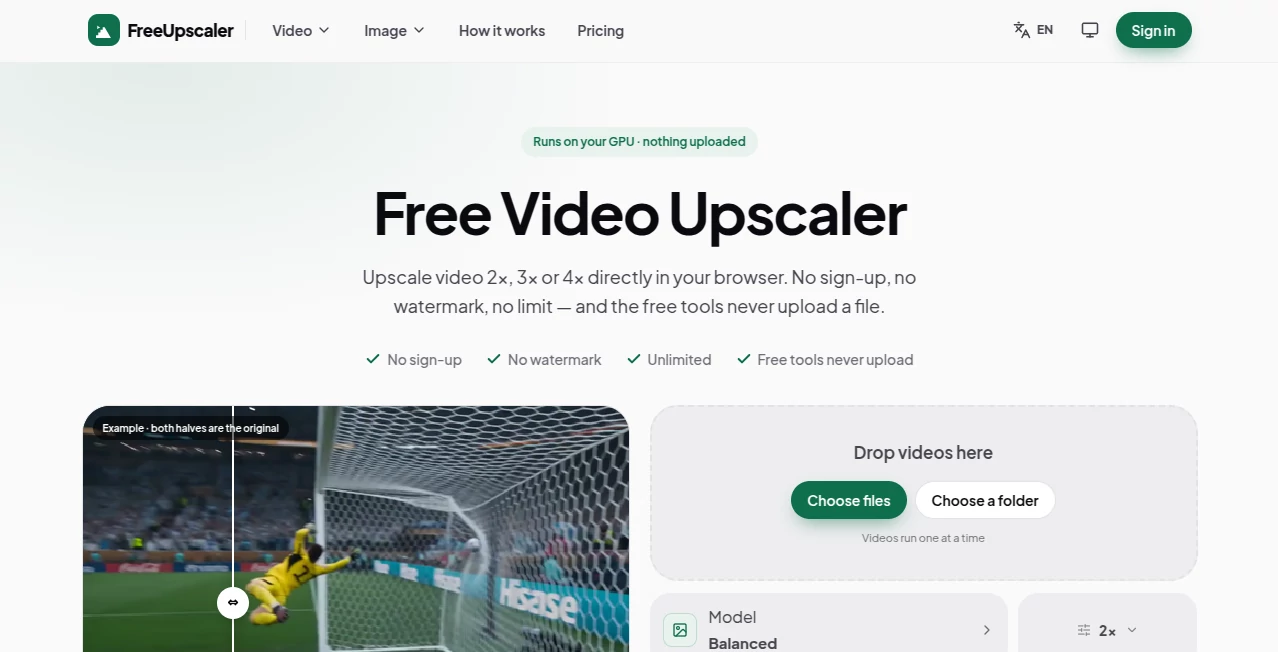
The interface keeps the process straightforward. Users can drag a file into the processing area or choose files from their device, select the required operation, compare the result, and download the finished media. There is no need to install desktop software for the local tools.
The platform also checks what the user's device can handle before processing. This is useful for larger video jobs because performance depends on the available browser and graphics hardware rather than a remote queue.
Accuracy & Performance
Performance is one of the strongest parts of the platform. The default video upscaling method can process a 1080p frame in roughly 6 milliseconds on the tested laptop GPU, while the site reports around 29% more edge contrast than standard browser scaling. Different processing methods are also available for animation and softer live-action footage.
The platform takes a refreshingly practical approach to image quality. It does not claim that enlarging a low-resolution video magically creates information that was never captured. Instead, it reconstructs the available information at a larger size and makes the limitations clear.
For example, a 480p video can be enlarged to a 1080p output, but that does not make it equivalent to footage originally recorded in native 1080p. This distinction is important for anyone choosing an upscaling tool for professional or archival work.
Capabilities
The service covers both video and image enhancement. Video users can upscale footage to 2×, 3×, or 4×, fix blurry video, and sharpen soft footage. Image users can enhance photo quality, remove noise, repair blurry pictures, smooth pixelated images, and change image DPI.
- 2×, 3×, and 4× video upscaling
- Photo quality enhancement
- Image denoising
- Blurry photo correction
- Pixelated image correction
- Video sharpening
- Blurry video correction
- Image DPI adjustment
- Support for common image and video formats
- Local GPU-based processing for free tools
The video upscaler supports formats including MP4, WebM, MOV, and MKV, while the image tools accept formats such as PNG, JPEG, and WebP. Audio from supported videos can also be carried through the processing workflow.
Security & Privacy
Privacy is a major selling point. The free processing tools work locally in the browser, so the original files are not uploaded to the service. There is no account requirement, watermark, or usage counter for these local tools.
The privacy approach can even be tested in a simple way: after loading the required page, a user can disconnect from the internet and continue using the local processing functionality. That is a useful practical distinction compared with services that require every image or video to be uploaded before processing.
Optional cloud-based AI models work differently. Cloud processing requires an account and sends the selected file to the service and its model provider. The platform states that cloud providers retain uploaded files for a limited period, while processed results are retained for a longer period to allow another download.
Use Cases
There are several situations where this type of browser-based workflow can be useful. A creator may have an older 720p clip that needs to look cleaner on a modern display. Someone working with family photographs may want to remove noise or improve a soft image without uploading personal files to an external server.
- Improving low-resolution videos before publishing
- Preparing older footage for modern displays
- Cleaning noisy photographs
- Improving slightly blurry pictures
- Reducing visible pixelation in small images
- Sharpening footage that looks soft
- Preparing images for printing by adjusting DPI
- Enhancing media for social media and content creation
- Working with private media that should remain on the user's device
For example, a creator who receives a compressed video through a messaging application can first upscale it locally and compare the result before deciding whether a more intensive cloud model is necessary. That gives the user more control instead of forcing every file through a paid processing pipeline.
Pros and Cons
Pros
- Free local processing is unlimited.
- Files processed by the free tools stay on the user's device.
- No account is required for the local tools.
- No watermark is added to free outputs.
- Video can be enlarged by 2×, 3×, or 4×.
- Both image and video enhancement tools are available.
- Processing can continue offline after the required page has loaded.
- Optional cloud AI models are available for more demanding jobs.
Cons
- Local processing performance depends heavily on the user's GPU and browser.
- Very large video outputs can take considerably longer to process.
- Upscaling cannot recover genuine detail that was never captured.
- Some advanced cloud models require credits and an account.
- Browser and codec compatibility can affect which video files can be processed.
Pricing Plans
The local processing tools are available at no cost and are designed to be used without an account. They include unlimited runs, no watermark, and local processing on the user's GPU.
For users who need more advanced cloud-based processing, the platform also provides a credit-based option rather than a recurring subscription. New accounts start with 10 free credits, while paid credit packages begin at $10 for 300 credits. The first paid top-up receives an additional 20% in credits.
Cloud models include options such as AI Restore, AI Crisp, and Topaz Standard. Different models consume different amounts of credits per processing run, allowing users to pay according to actual usage rather than committing to a monthly plan.
How to Use the Tool
Using the platform is straightforward, particularly when working with the free local tools.
- Open the required image or video enhancement tool in a supported browser.
- Drag a file into the upload area or select it from the device.
- Choose the desired scale or processing method.
- Wait while the browser processes the file using the available hardware.
- Compare the original and processed result where a before-and-after preview is available.
- Download the finished file when the result looks right.
For video upscaling, starting with the default Balanced method and 2× enlargement is a sensible approach. If the footage still looks soft, another processing method can be tested. For very large outputs, users should expect longer processing times, especially on laptops or integrated graphics.
Comparison with Similar Tools
Many online enhancement services rely entirely on cloud processing. That approach can provide powerful models, but it usually means uploading the original file, waiting for server processing, and dealing with credits, queues, subscriptions, or export restrictions.
This platform takes a different route for its free tools by putting the processing workload on the user's own hardware. That makes it particularly attractive for unlimited everyday enhancement and for people who prefer not to upload their media.
Cloud AI processing remains available when a stronger reconstruction model is needed. This creates a useful middle ground: simple jobs can be handled locally at no cost, while demanding jobs can be sent to optional cloud models on a pay-per-use basis.
Conclusion
For users who regularly need to enlarge, clean, sharpen, or repair images and videos, this browser-based approach offers an unusually practical workflow. The combination of unlimited local processing, no watermark, no mandatory account, and local file handling makes it appealing for everyday media enhancement.
Its biggest strength is also its honesty about image and video reconstruction. Upscaling can make small footage more usable and improve its presentation, but it cannot recreate genuine information that was never recorded. For straightforward enhancement, the local tools are a strong starting point; when more sophisticated reconstruction is needed, the optional cloud models provide another level of processing.
Frequently Asked Questions (FAQ)
Is the video upscaler free?
Yes. The local video and image tools are free and unlimited. They do not require an account and do not add a watermark to the result.
Are my files uploaded?
Files processed by the free local tools remain on the user's device and are processed inside the browser. Optional cloud AI processing is different and requires files to be sent to the cloud processing service.
Can I upscale a video to 4K?
Yes, a suitable source can be enlarged to a 4K-sized output. However, producing a 4K file does not mean that the original footage contained genuine 4K detail. The final quality depends heavily on the source material.
Does video upscaling work offline?
The local processing methods can continue working after the required page has loaded and the internet connection is disconnected. This is possible because the processing takes place on the user's own hardware.
Does the service add a watermark?
No watermark is added to output from the free local tools.
Do I need an account?
No account is required for the free local processing tools. An account is only needed when using the optional cloud-based AI models.
What video formats are supported?
The video tools support common containers including MP4, WebM, MOV, and MKV, although the exact codec supported can depend on the browser and its available decoding capabilities.
Is there a limit on how many files I can process?
The local tools do not impose a credit counter or daily usage limit. The practical limitations are mainly the processing capability of the user's device, browser support, file size, and output resolution.
Can it restore details that were completely lost?
No image or video upscaler can reliably recover information that was never captured. The tools can reconstruct pixels, improve edge definition, and make existing information more useful, but the original source quality still matters.