


















ImageToVideoAI
What is ImageToVideoAI?
You know that feeling when you have the perfect shot—a crisp product photo, a breathtaking landscape, or a hilarious selfie—but it just sits there? Static. Silent. Begging for a little life. We have all been there, staring at an image, wishing it could tell just a tiny bit more of the story.
That is exactly where this platform steps in. I have tested a fair share of video generators over the years, and most of them either ask for a degree in film editing or spit out weird, glitchy clips that look nothing like the original picture. But this one? It actually feels different. Built on a robust deep learning architecture, it breathes motion into your visuals without stripping away the soul of the original image. Whether you need a smooth pan across a product catalogue or a dynamic clip for your next social media drop, this tool handles the heavy lifting so you can focus on the creative part.
It is not just about moving pixels around. The AI respects the lighting, the textures, and the vibe of your upload. You describe the motion in plain English, hit generate, and within moments, you have a high-definition, professional-grade video ready to export. No watermarks, no headaches, and honestly, no steep learning curve. Let me walk you through why this has quickly become a favourite in my own content stack.
Key Features
When you strip away the technical jargon, this tool really shines in four specific areas that matter to regular creators like us. You do not need to be a tech wizard to figure these out, but they pack a serious punch under the hood.
User Interface
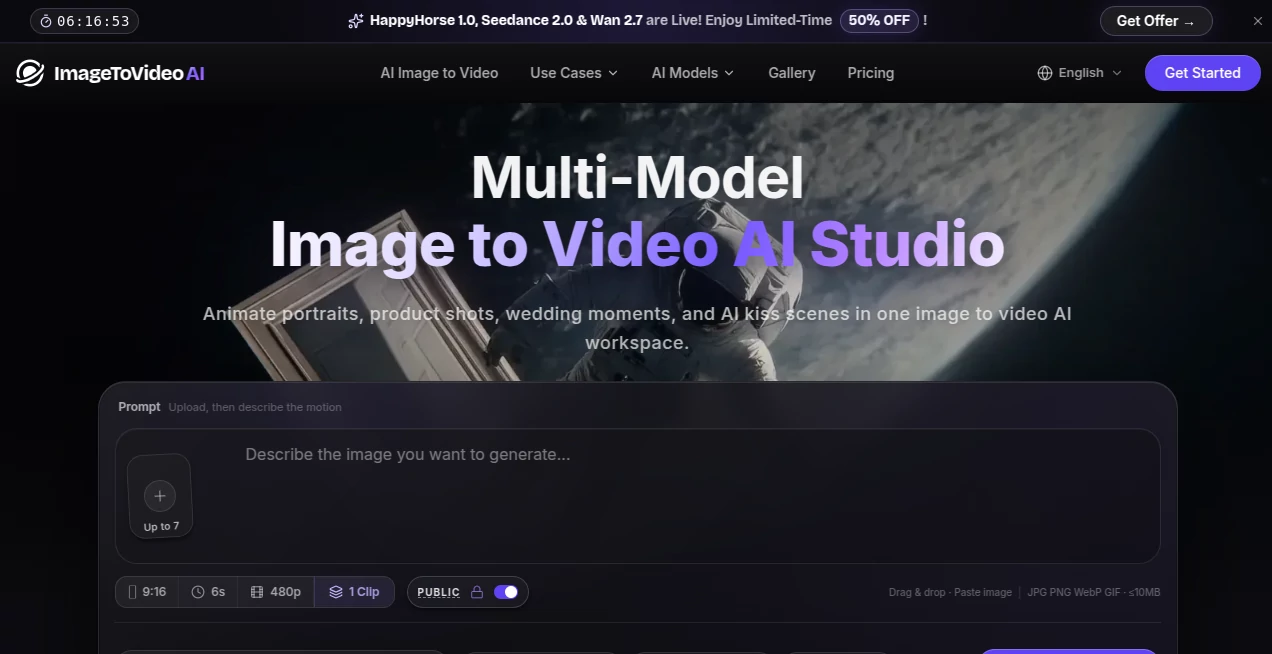
I cannot stress enough how refreshing it is to open a tool that doesn't look like a spaceship cockpit. The dashboard is clean, minimal, and surprisingly intuitive. You have a central drop zone for your images, a simple text box for your prompt, and a big button to start the magic. On the right side, you will find quick toggles for aspect ratio—whether you need a vertical 9:16 for TikTok Reels, a square 1:1 for Instagram posts, or a wide 16:9 for YouTube.
There is also a handy dropdown for resolution settings. You can pick 480p for quick drafts, 720p for standard web use, or crisp 1080p for those high-stakes projects. In my experience, the learning curve is basically non-existent. If you have ever used Canva or a basic photo editor, you will feel right at home within the first two minutes.
Accuracy & Performance
This is usually where a lot of AI tools fall flat. They either ignore your instructions completely or add random limbs to your subjects. However, the engine here handles motion detection with surprising grace. When you tell it to "zoom in slowly on the eyes" or "create a gentle breeze through the hair," it actually listens. The physics feel natural, the transitions are smooth, and there is very little of that nasty "morphing" effect that haunts other generators.
Speed is another strong suit. Most clips render in under two to three minutes depending on server load. I threw a complex architectural shot at it recently, and the output preserved the straight lines and shadows perfectly, without the warping you often see in the corners. For a web-based tool, the performance is rock solid.
Capabilities
While the core function is obviously image-to-video, the platform offers a few extra tricks up its sleeve. You can generate videos from text alone if you do not have a starting image, which is great for conceptual work. There is also a suite of creative effects available—think fun additions like the AI Kissing or Twerk generators for those moments when you want to go viral with something a bit quirky.
But the real bread and butter is the customisation. You can define the duration of the clip (typically 5 to 10 seconds), set camera movements like orbiting or trucking, and even add transition styles. It supports multiple image formats, including JPG, PNG, and even GIFs as input. For most content creators, this range of control is more than enough to keep the feed fresh for weeks.
Security & Privacy
Let us be real—uploading your original images to a random website can feel a bit nerve-wracking. What happens to your files after you hit generate? The platform takes this seriously. They use industry-standard encryption to protect your uploads, and crucially, the data is automatically purged from their servers once the processing is complete.
Nobody likes the idea of their unreleased product photos floating around on a training database. The privacy policy is straightforward: your content stays yours. Furthermore, all generated videos, whether you are on the free tier or a paid plan, come without a watermark. That is a huge win for professionals who want to keep their branding clean.
Use Cases
I have found that this tool slides into almost any creative workflow, but here are three scenarios where it genuinely saves the day.
Social Media Managers: You need to pump out hooks fast. Instead of shooting new footage every day, take that static product flat lay and add a subtle zoom or a floating element. I used it recently to turn a boring screenshot into a engaging "wait for it" style reel, and the engagement rate tripled compared to the static post.
E-commerce Store Owners: Video sells better than photos. Period. You can take your existing catalogue images—shoes, watches, furniture—and turn them into 360-degree rotation videos or lifestyle clips with moving shadows. It adds that premium feel without hiring a videographer.
Educators & Presenters: If you are trying to explain a complex diagram or a historical map, animating it makes a massive difference. You can take a static infographic and add a motion path to guide the viewer's eye. It turns a boring slide into a compelling visual story in about five minutes.
Pros and Cons
No tool is perfect, and it is only fair to look at both sides of the coin before you commit to a workflow.
What Works Well (The Pros):
First, the watermark-free policy on the free plan is almost unheard of these days. Most competitors plaster their logo all over your exports unless you pay up, but here you get clean MP4s even at the entry level. Second, the speed is a major time-saver. You are not waiting around for ten minutes hoping the server doesn't crash. Third, the prompt adherence is genuinely better than average; the AI seems to understand cinematography terms like "dolly in" or "pan left" very well.
Room for Improvement (The Cons):
On the flip side, the maximum duration is currently capped at around 10 seconds per clip. If you need longer narrative scenes, you will have to stitch clips together in another editor. Also, while the AI handles slow motions beautifully, very fast, complex actions (like a skateboard trick) can sometimes result in a bit of blur or artifacting. It struggles a little with extremely complex multi-subject scenes where a lot is happening at once.
Pricing Plans
The pricing structure is refreshingly transparent. You do not need to book a demo or talk to sales to figure out what you get.
The Free Tier is surprisingly generous. You receive a daily allotment of credits (often around 15-20 free actions) to test the waters. You get access to 540p video quality, no watermark, and commercial usage rights. It is perfect for hobbyists or testing if the tool fits your vibe.
If you need more juice, the Basic/Standard plans (usually ranging from $20 to $35 per month) bump you up to 720p or 1080p resolution, increase your monthly credit limit significantly, and give you faster queue times. The Pro plans offer the highest resolution, priority support, and massive credit pools for heavy daily usage. One thing to note is that they operate on a credit system where each generation costs a certain amount of credits based on duration and resolution. It feels fair, and you rarely burn through credits as fast as you think you will.
How to Use ImageToVideoAI
Getting started takes literally sixty seconds. Here is the walkthrough based on my own routine.
First, head to the website and either create a quick account or simply click the "Upload" button if guest mode is available. You want to drag and drop your starting image into the canvas. The tool supports JPG, PNG, and WebP formats, so you are covered.
Next, look for the prompt box. This is where you tell the AI what you want to happen. Do not just write "move." Be specific. Try "Slow zoom out revealing the forest background" or "The character turns their head slightly to the left and smiles." The more detail about the camera movement or the subject's actions, the better the result.
Before you hit generate, check the settings bar. Select your aspect ratio—vertical for Stories, horizontal for YouTube. Choose your quality setting; I recommend 720p for drafts and 1080p for final exports. Finally, click "Generate." The magic happens in the background. Once the notification pops, you can preview the clip and hit the download button. You will have an MP4 file saved locally, ready to upload.
Comparison with Similar Tools
How does it hold up against the big dogs like Sora or Runway? Honestly, it occupies a very specific sweet spot. High-end tools like Veo 3.1 or Seedance 2.0 offer incredible cinematic quality and audio sync, but they often come with hefty price tags or restrictive API access. They are built for studios.
This tool is built for the solopreneur and the content creator. While it might not offer the 15-second hyper-realistic physics of WAN 2.7, it offers something arguably more important for daily use: reliability and simplicity. You do not need to wrestle with complex negative prompts or first-frame/last-frame controls. It just works.
Compared to Midjourney's video offering, which is capped at 5 seconds and requires Discord gymnastics, this web-based tool is much more accessible for a typical marketer. It is not trying to replace Hollywood; it is trying to make your Tuesday afternoon content creation a little less painful, and it succeeds at that.
Conclusion
Look, AI video generation is still a young industry. There are plenty of flashy tools out there that promise the world but deliver glitchy nightmares. This one feels different because it respects the source material. It enhances your images rather than mutating them.
The lack of watermarks, the commercial rights, and the dead-simple interface make it a no-brainer for anyone who regularly posts visual content. Whether you are just trying to keep your Instagram Reels alive or you are a small business owner trying to boost ad engagement, this tool will save you hours of editing time. It turns your "idea" into a "video" before you even have time to second-guess yourself. Give it a shot with one of your old photos first—I think you will be pleasantly surprised by what comes out.
Frequently Asked Questions (FAQ)
Q: Do I really own the videos I make?
A: Yes. This is a big one for me. You retain full commercial rights to the videos you generate. You can post them on YouTube, sell them to a client, or use them in an ad without paying royalties.
Q: Is there a watermark on the free videos?
A: Nope. Unlike pretty much every other tool out there, the free tier still exports clean, watermark-free MP4s. The only difference is the resolution cap.
Q: Can I generate videos from text only, or do I always need a picture?
A: You can do both! The platform includes a text-to-video generator. If you have a vivid description in mind but no starting image, just type it out, and the AI will build the visuals from scratch.
Q: Why does my video look a little blurry or warped sometimes?
A: Usually, this happens if the background is very chaotic or if you are asking for a huge amount of movement in a very short time. Try shortening your prompt or sticking to slower camera movements like "slow drift" for the best results.
Q: Do I need to install software on my computer?
A: Not at all. It runs entirely in your web browser, whether you are on a laptop, a PC, or even a tablet. Just open the site, and you are ready to roll.
AI Image to Video , AI Video Generator , AI Social Media Assistant , AI Productivity Tools .
These classifications represent its core capabilities and areas of application. For related tools, explore the linked categories above.

ImageToVideoAI Alternatives Product

Wan 2.7

Wurt.app

Image 2 AI

Seedance 2.0

LTX 2.3

Happy Oyster

Seedance 2.5

Monkey Eatin…

Wan 2.7
