
SlideRebuild
What is SlideRebuild?
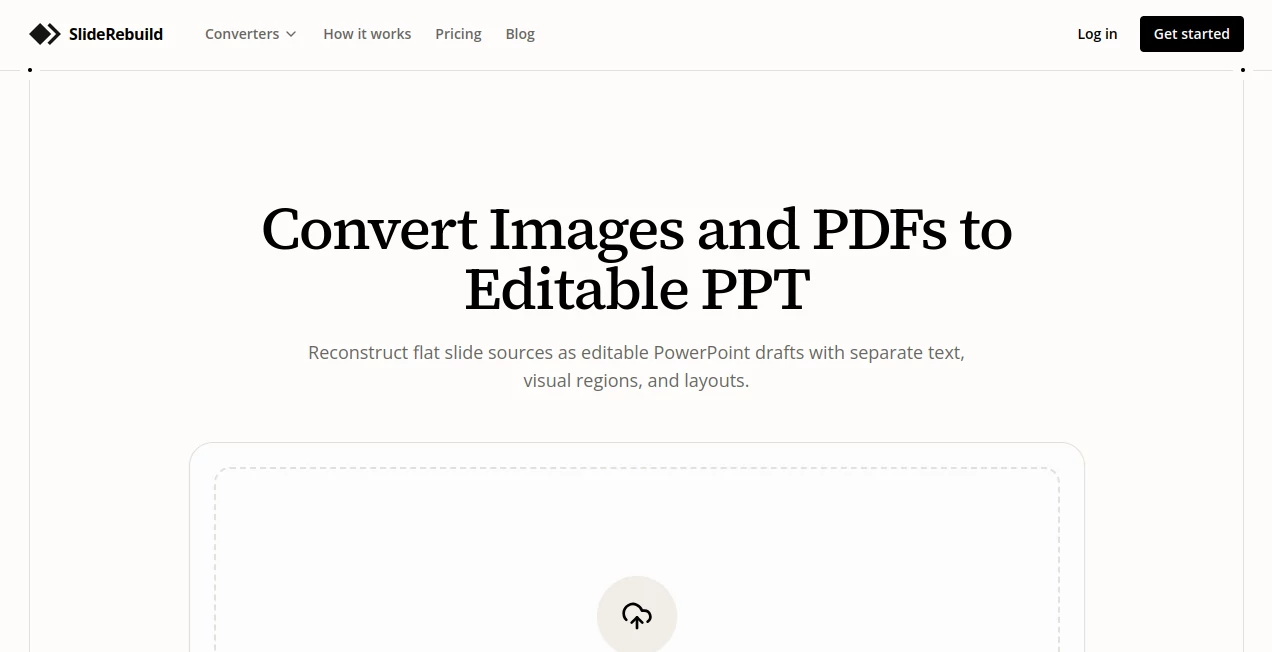
Turning a screenshot, PDF, or exported slide back into a usable PowerPoint file can be surprisingly frustrating. The information may still be there, but the original text boxes, graphics, tables, and layout are no longer available for editing. SlideRebuild takes a practical approach to this problem by reconstructing flat slide sources as editable PowerPoint drafts.
The service accepts images and PDF files and analyzes the visible content of each page before rebuilding it as a presentation. Instead of leaving the source as a single picture, it separates elements such as text and visual regions so they can be adjusted later. This makes it particularly useful when the original presentation file has disappeared or when a team needs to reuse material that only exists as a visual export.
It is also useful for newer AI-assisted workflows. A presentation concept created as an image with an AI tool does not automatically become a properly editable PowerPoint file. Converting that visual into an editable deck provides a much more practical starting point for revisions, localization, and collaboration.
Key Features
The platform focuses on recovering useful presentation components rather than simply placing an image inside a PowerPoint slide. It supports PDF, PNG, JPG, and WebP sources, including multi-page documents and batches of images.
- Convert static slide images into editable PowerPoint drafts.
- Convert multi-page PDFs into ordered presentation slides.
- Reconstruct visible text as editable PowerPoint text boxes.
- Separate graphics, icons, logos, and other visual elements where possible.
- Rebuild tables and structured slide layouts.
- Match source typography using a library of more than 1,000 font styles.
- Process multiple images as an ordered presentation.
- Support screenshots, scanned slides, presentation photos, and exported slides.
- Handle specialized sources such as AI-generated slide images, NotebookLM PDFs, diagrams, and infographics.
- Export editable PPTX files along with PDF and image formats on supported plans.
User Interface
The interface is built around a straightforward upload-and-convert workflow. Users can start by selecting a PDF or image source rather than navigating through a complicated presentation editor. The homepage also provides dedicated conversion paths for different source types, which is useful when you already know whether you are working with a screenshot, scan, PDF, or generated image.
For someone working under a deadline, this simplicity matters. You upload the material, let the reconstruction process run, and then download the resulting presentation for further editing. There is no need to manually recreate every text box and graphic before getting started.
Accuracy & Performance
Reconstruction quality naturally depends on the quality of the source material. A clean, sharp slide image with readable text gives the system more information to work with than a heavily compressed screenshot or a poorly photographed presentation screen.
The service is designed to identify wording, visual regions, spacing, and page structure. It can also attempt to find a close font match, with the website stating that more than 1,000 font styles are available for matching. Tables can be reconstructed with their rows, columns, and sections, while text can be placed into editable boxes instead of remaining permanently embedded in an image.
It is best to treat the resulting file as an editable draft rather than assuming that every tiny design detail will be perfectly reproduced. A quick review in PowerPoint after conversion is still sensible, especially for complex graphics, unusual typography, or low-quality source images.
Capabilities
The range of supported workflows is one of the strongest parts of the service. A user can rebuild an old presentation from a PDF, recover slides from screenshots, convert presentation photos, process scanned pages, or turn a collection of images into an ordered deck.
There are also more specialized workflows. AI-generated slide images can be reconstructed into editable presentations, while PDFs exported from NotebookLM can be turned into PowerPoint drafts. Diagram and infographic conversion provides another useful option for people who need to reuse visual information without recreating the entire composition manually.
The resulting PPTX can then be opened and refined in presentation software. This makes the service less about creating a presentation from nothing and more about recovering an editable foundation from material that was previously difficult to reuse.
Security & Privacy
Because the workflow involves uploading presentation files, privacy should be considered before processing confidential business material. Users working with sensitive client decks, internal reports, or unreleased presentations should review the service's current privacy policy and terms before uploading those files.
File history also varies by plan. The pricing information currently lists 30 days of file history for the Starter plan and 90 days for Pro, so users handling important projects should keep their own copies of exported files rather than relying solely on the online project history.
Use Cases
One of the most obvious uses is recovering an old presentation when the original PowerPoint file has been lost. A company may still have the PDF that was emailed to a client, but editing that PDF directly is often inconvenient. Reconstructing it as a PowerPoint draft gives the team a much better starting point.
Marketing teams can also reuse old pitch decks, campaign presentations, partner materials, and promotional slides. Instead of rebuilding an entire presentation from scratch, they can recover the existing structure and change the parts that need updating.
Training departments have another practical use case. Archived training decks often survive as PDFs or screenshots long after their original presentation files have disappeared. Rebuilding these materials makes it easier to update lessons, replace outdated wording, and prepare the content for a new training cycle.
There is also a useful workflow for AI-generated presentations. Imagine creating a strong slide concept with an AI image generator and liking the visual direction, but needing actual editable text and presentation elements afterward. Converting the image into a PPTX draft can bridge that gap without manually tracing the entire design.
For designers and presentation specialists, screenshots supplied by clients can become editable starting points. That can save considerable time when the client has a visual reference but cannot provide the original source file.
Pros and Cons
- Pros: Supports images and PDFs, handles multi-page sources, reconstructs editable text, can separate visual elements, supports tables and layouts, offers specialized conversion workflows, and provides PPTX exports.
- Pros: Useful for recovering archived presentations and reusing material from screenshots, scans, and exported files.
- Pros: Font matching with more than 1,000 styles can help the rebuilt presentation stay closer to the source design.
- Cons: Reconstruction results can vary depending on image quality, typography, and slide complexity.
- Cons: The generated presentation should still be reviewed and polished before being used as a final client-facing deck.
- Cons: Larger projects consume more credits, so frequent users need to choose a plan that matches their workload.
Pricing Plans
The pricing structure is designed for both one-off projects and recurring presentation work. A One-Day Pass costs $3.90 as a one-time payment and provides 30 credits valid for 24 hours. Each credit represents one page, and up to 10 pages can be uploaded at once.
The Starter plan is listed at $6 per month when billed yearly. It includes 100 credits per month, uploads of up to 10 pages at once, editable PPTX, PDF and image exports, 30-day file history, and priority support.
The Pro plan is listed at $15 per month when billed yearly. It raises the allowance to 300 credits per month and supports uploads of up to 50 pages at once. Pro also includes 90-day file history, priority processing, and priority support.
For someone recovering a single presentation, the One-Day Pass is a convenient option because it does not introduce recurring billing. Regular users who frequently convert decks, screenshots, or PDF material may find the subscription plans more suitable.
How to Use SlideRebuild
Start by preparing the slide images or PDF you want to reconstruct. Clear, high-resolution sources generally provide a better foundation for detecting text, graphics, and layout.
Upload the file through the appropriate conversion workflow. A PDF can contain multiple presentation pages, while image-based workflows can accept formats such as PNG, JPG, JPEG, and WebP. Ordered image batches can also be used to create a multi-slide presentation.
The reconstruction process then analyzes each page and creates an editable PowerPoint draft. Once the conversion is complete, download the PPTX and open it in your preferred presentation software.
Finally, review the reconstructed slides. Correct any small typography, spacing, positioning, or graphic details that need adjustment, then continue editing the presentation as you normally would.
Comparison with Similar Tools
Traditional PDF-to-PowerPoint converters usually focus on changing the document format. That can be useful, but presentation recovery often requires more than simply changing the file extension or importing a page as an image.
The approach here is more focused on reconstructing the visible components of a slide. Text is intended to become editable, graphics can be separated into individual regions, and structured layouts such as tables can be rebuilt for further modification.
This distinction becomes particularly useful when the original presentation is unavailable. If the only source is a screenshot, scanned page, infographic, or flattened image, a conventional presentation editor would leave much of the manual reconstruction work to the user. A reconstruction-focused workflow can provide a more useful first draft.
It is also worth noting that this is not necessarily a replacement for a full presentation design application. PowerPoint, Keynote, and Google Slides remain the places where the final presentation can be refined. The main advantage is getting from a flat source to an editable starting point much faster.
Conclusion
Recovering a presentation from a screenshot or PDF used to mean accepting a flat image or spending a long time rebuilding the slide by hand. This service offers a much more practical middle ground by turning those static sources into editable PowerPoint drafts.
Its strongest appeal is the variety of situations it covers. Lost PowerPoint files, archived decks, client screenshots, presentation photos, scanned slides, AI-generated visuals, NotebookLM exports, diagrams, and infographics can all become potential sources for an editable presentation.
For occasional users, the inexpensive one-day option makes sense for a single recovery project. For teams that regularly work with presentation assets, the monthly plans provide a larger credit allowance and higher upload limits. Either way, the most useful mindset is to see the output as a strong editable foundation that can be reviewed and polished before delivery.
Frequently Asked Questions (FAQ)
What does the tool convert into PowerPoint?
It can reconstruct presentations from PDF files, PNG, JPG, JPEG, and WebP images, as well as screenshots, scans, presentation photos, infographics, diagrams, and other flat slide sources.
Can text in a converted slide be edited?
Yes. The service is designed to recover visible text as editable PowerPoint text so users can change wording, numbers, formatting, position, and size after conversion.
Can multiple images be converted into one presentation?
Yes. Ordered batches of images can be processed so that each image becomes a slide in the resulting presentation.
Can PDF presentations be converted into editable PowerPoint files?
Yes. Multi-page PDFs can be uploaded, with each page reconstructed as a presentation slide.
Does it preserve graphics and icons?
The reconstruction process is designed to separate icons, logos, images, and other visual regions where possible, allowing them to be moved, resized, or replaced in the resulting presentation.
Can tables be edited after conversion?
Tables and structured content can be reconstructed so that rows, columns, sections, and their text can be updated rather than remaining part of a single flat image.
What affects reconstruction quality?
Source quality is an important factor. Clear, sharp, well-aligned images with readable text generally provide better material for reconstruction than blurry screenshots, compressed images, or difficult presentation photographs.
How much does it cost?
The current pricing includes a $3.90 One-Day Pass with 30 credits, a Starter plan at $6 per month when billed yearly with 100 monthly credits, and a Pro plan at $15 per month when billed yearly with 300 monthly credits.
Can the exported presentation be edited in Google Slides?
Yes. The resulting PPTX can be imported into Google Slides for browser-based editing and collaboration.
Is the converted PowerPoint always a perfect copy?
No reconstruction system should be assumed to reproduce every detail perfectly. Complex graphics, unusual fonts, low-resolution sources, and intricate layouts may require some manual cleanup after conversion.
AI Documents Assistant , 3D , AI Presentation Generator , AI Image to Image .
These classifications represent its core capabilities and areas of application. For related tools, explore the linked categories above.
SlideRebuild details
Website unavailable — View Alternatives
Pricing
- Freemium
Apps
- Web App
Categories

SlideRebuild Alternatives Product

BookTranslat…

Trilo 3D

outfitswap

OutfitSwap S…

Just Christm…

seedream 6

AI Interior …

Better Image

Nano Banana 2