
















Supercut
What is Supercut?
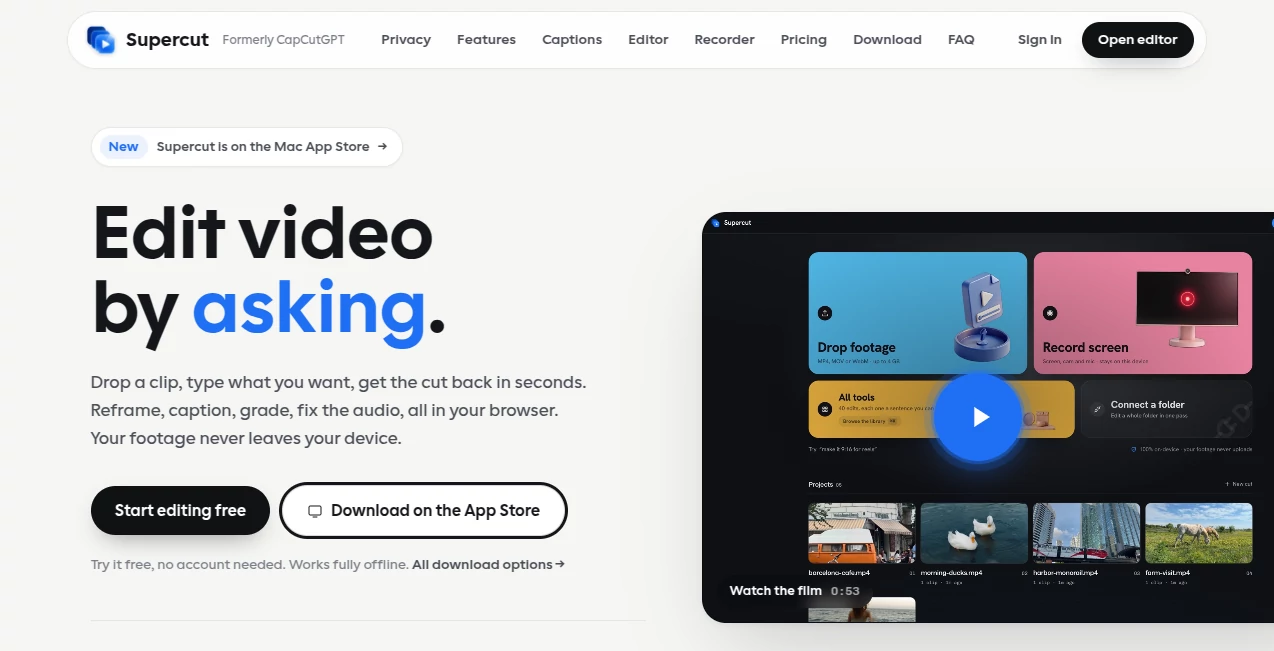
Supercut is a private AI video editor designed for people who want to edit footage without wrestling with complicated menus and timelines. Instead of searching through dozens of editing controls, users can describe an edit in plain English and let the editor turn that request into a practical video operation.
The biggest difference is how the editing process is handled. Video files stay on the user's device rather than being uploaded to a remote server for processing. The platform can handle common jobs such as trimming, cropping, resizing, captions, audio cleanup, color adjustments, face blurring, speed changes, and format conversion.
It is particularly appealing for creators who regularly prepare content for TikTok, YouTube, Instagram Reels, Shorts, X, and other social platforms. A quick request such as making a clip vertical, adding captions, or removing unwanted background noise can replace several manual editing steps.
Key Features
- Plain-English video editing commands
- More than 40 video editing operations
- On-device automatic captions powered by Whisper
- Face-tracked smart reframing
- Audio cleanup and noise reduction
- Multiple color grading styles
- Face detection and blur
- Speed control from slow motion to fast playback
- Multitrack timeline editing
- Screen recording with automatic zoom effects
- Batch processing for folders of video clips
- Export presets for popular social platforms
User Interface
The interface takes a deliberately simple approach. A prompt bar sits at the center of the editing experience, allowing users to describe what they want rather than hunting through menus. This makes the first few edits feel much less intimidating, especially for someone who has never been comfortable with traditional video software.
For users who prefer more control, the Studio editor provides a conventional multitrack timeline. Video, audio, text, and captions can be arranged independently, while clips can be trimmed or split with frame-level control. This combination gives beginners an easier starting point without taking away the tools experienced editors expect.
Accuracy & Performance
Because processing takes place locally, there is no need to wait for a large video file to finish uploading before editing can begin. The editor uses FFmpeg technology running on the user's machine, while captions are generated locally with Whisper.
Automatic captions can recognize multiple languages and provide word-level timing. Users can also correct individual words, adjust timing, change the caption style, or export subtitle files when they do not want captions permanently burned into the video.
Performance naturally depends on the computer being used and the size of the footage. The desktop application is designed to provide a smoother experience for heavier projects, including native 4K playback and rendering.
Capabilities
The editing range goes well beyond simple trimming. Users can reframe footage for different aspect ratios, change playback speed, rotate or reverse clips, stabilize footage, normalize audio, reduce noise, apply visual grades, add captions, blur faces, combine multiple clips, and create alternate versions of an edit.
The version-based workflow is also useful. Instead of permanently replacing the original edit, changes can be treated as new versions. This makes it easier to experiment with different formats or creative directions without losing the previous result.
The screen recorder adds another practical layer. It can capture the screen, microphone, and camera, while automatic zooming can follow cursor activity. The camera remains editable as a separate layer, making the resulting recording suitable for tutorials, software demonstrations, product walkthroughs, and launch videos.
Security & Privacy
Privacy is one of the strongest reasons to consider this editor. Video footage is processed locally, so the actual pixels of a user's video do not need to be uploaded to a cloud rendering service.
The AI editing assistant receives the user's written request together with basic clip information such as duration, dimensions, and filename. The video itself remains on the user's device. Captions are also processed locally after the required speech model has been installed.
This approach can be useful for sensitive recordings, unreleased product demonstrations, internal company material, or any footage that a user would rather not place on a third-party server.
Use Cases
Content creators can use the editor to quickly transform a horizontal recording into a vertical social clip, add captions, clean up the audio, and prepare multiple export versions.
Marketing teams can use it for short promotional videos, product demonstrations, social advertisements, and campaign variations without sending raw footage to an online rendering service.
Educators and software companies can benefit from the screen recorder when creating tutorials. Automatic zooming, webcam layers, captions, and editable timelines make ordinary screen recordings feel considerably more polished.
Interviewers and podcasters can also use transcript-based editing to remove unwanted sections and tighten long recordings. For users working with many similar clips, folder-based batch processing can save a substantial amount of repetitive work.
Pros and Cons
Pros:
- Video processing happens locally on the user's device
- No traditional upload-and-wait workflow
- Plain-English editing makes common tasks easier
- More than 40 editing operations
- Automatic captions with local processing
- Useful multitrack timeline for detailed editing
- Screen recording and automatic zoom features
- Batch processing for multiple clips
- Watermark-free exports on paid plans
- Free testing is available without creating an account
Cons:
- Complex projects still require a capable computer
- Some advanced recording features require the desktop application
- The AI assistant requires an internet connection for its request-processing step
- Users accustomed to large professional editing suites may need time to adapt to the prompt-based workflow
Pricing Plans
The service can be tried for free, with the first export available without an account or payment card. Paid access provides the complete editing toolkit, including unlimited watermark-free exports, automatic captions, smart reframing, face blur, screen recording, batch processing, and the full collection of editing tools.
The current paid options include a monthly plan listed at ₹899 per month, a yearly plan at ₹4,999 per year, and a lifetime option at ₹16,999 as a one-time payment. The lifetime option is particularly interesting for frequent editors who prefer to avoid recurring subscriptions.
Paid plans do not charge separately for individual exports, and the service also offers a refund window according to its current billing policy.
How to Use It
Start by opening the editor and adding a video file from your device. Supported footage can then be edited directly without first uploading it to a cloud server.
Next, describe the desired change in ordinary language. For example, you can ask to make the video vertical, add captions, remove background noise, change the speed, blur faces, or apply a particular visual style.
Review the generated version and make another request if something needs changing. Each edit can create a separate version, allowing you to experiment without destroying the original footage.
When the result is ready, export it using the format or platform preset that matches your intended destination. For more detailed work, switch to the multitrack Studio editor and make manual adjustments to the timeline.
Comparison with Similar Tools
Traditional desktop editors generally provide enormous control, but that flexibility often comes with a steep learning curve. Cloud-based editors are convenient, yet they commonly require users to upload their footage before processing can begin.
This editor takes a different route by combining natural-language instructions with a local editing engine. Someone can start with a simple sentence, while experienced users can move into the timeline when a more precise edit is needed.
The local-processing approach is especially notable for people working with confidential footage. There is no need to upload the original video merely to perform basic operations such as trimming, cropping, captioning, or resizing.
Conclusion
For creators who want a faster way to handle everyday video editing, this tool offers an appealing balance between automation and manual control. The prompt-based workflow makes simple edits approachable, while the Studio timeline provides enough flexibility for more involved projects.
Its local processing model is arguably its strongest advantage. Users can work with private footage without relying on a cloud rendering pipeline, and the ability to edit offline adds another layer of convenience.
Whether the goal is preparing short social videos, producing tutorials, cleaning up recordings, or processing a folder of clips, the combination of natural-language editing, conventional timeline controls, captions, recording, and privacy-focused processing makes it a compelling option for modern video workflows.
Frequently Asked Questions (FAQ)
Does the editor upload my videos?
No. Video processing and exporting are performed on the user's device. The actual video frames are not uploaded to a remote server for editing.
Can I use it without creating an account?
Yes. The free experience allows users to make an initial export without an account or payment card, making it possible to test the editing workflow before subscribing.
Does it support automatic captions?
Yes. Automatic captions use Whisper locally and support multiple languages. Captions can be edited, styled, repositioned, and exported as subtitle files.
Can I edit videos manually?
Yes. The Studio interface provides a multitrack timeline where users can trim, split, move, crop, and arrange video, audio, text, and caption elements.
Can I record my screen?
Yes. The recording tools can capture the screen, microphone, and camera. The desktop application also adds features such as automatic zooming that follows cursor activity.
Is it suitable for social media videos?
Yes. Export presets are available for platforms and formats such as TikTok, Reels, Shorts, X, GIF, and other common destinations.
Can I process multiple videos?
Yes. Batch processing allows an editing instruction to be applied across a folder of clips, which can be useful for repetitive content-production workflows.
AI Video Editor , AI Video Enhancer , AI Video Recording .
These classifications represent its core capabilities and areas of application. For related tools, explore the linked categories above.

Supercut Alternatives Product

Gemini Omni …

Sora Waterma…

Fast Wan

FinalLayer

CinemaDrop

Zeemo AI
Subclip

Riverside.fm

Quso AI