
MagicPixel
What is MagicPixel?
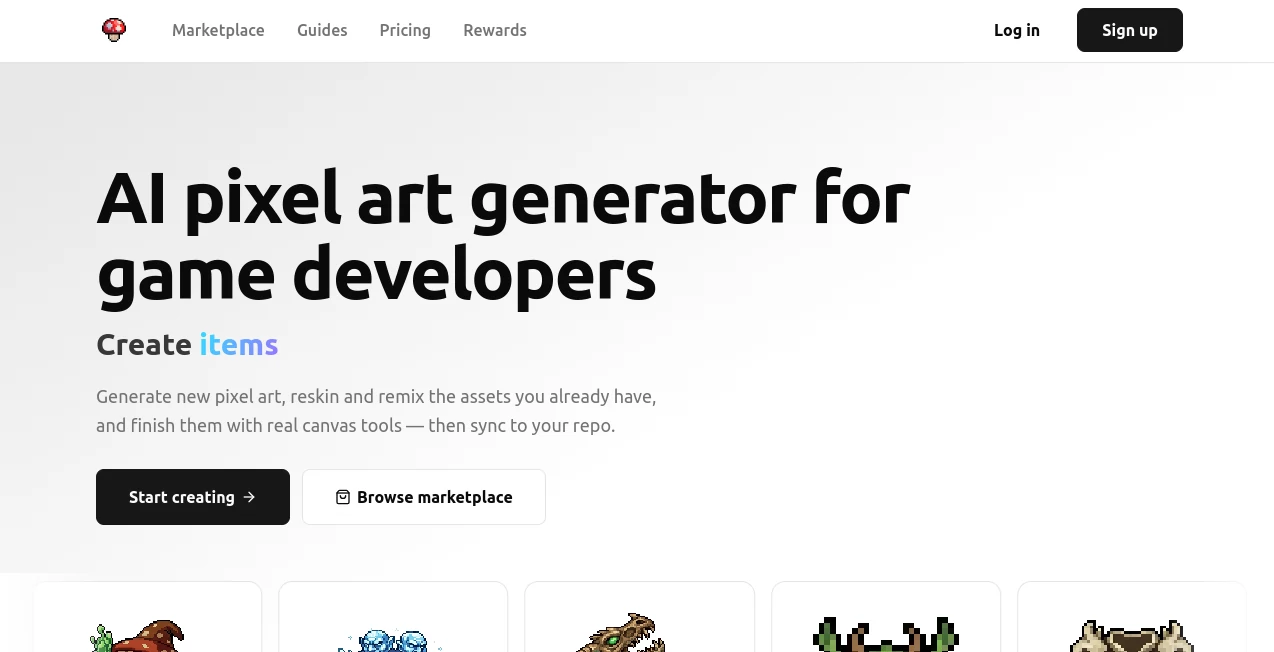
Creating pixel art for a game can be surprisingly time-consuming. A single character may need several directions, animation frames, alternate outfits, and matching props before it is ready for production. MagicPixel brings AI generation and a proper pixel art workspace together, giving game developers a practical way to create, edit, recolor, animate, and organize game-ready assets in one place.
The platform is designed specifically around pixel art rather than treating it as another style option inside a general image generator. Sprites are created on a real pixel grid and remain editable, which makes the workflow much more useful for developers who need consistent assets rather than attractive but difficult-to-use images.
It can generate characters, enemies, weapons, props, tiles, UI icons, textures, avatars, and environments from text prompts. Existing artwork can also be imported and used as a foundation for new variations, making it easier to build a complete visual system around an established game style.
Key Features
- AI generation of game-ready pixel art sprites from text prompts.
- AI-powered editing for changing existing sprites while maintaining their visual structure.
- Reskinning and variant generation for characters, buildings, equipment, and other assets.
- Matching item sets that maintain consistent palette, lighting, scale, and rendering style.
- Custom palette importing and color remapping.
- Support for Aseprite, PNG, GIF, GPL, HEX, and PAL files.
- Frame-by-frame pixel art animation tools.
- Reusable components for artwork that appears in multiple locations.
- CLI synchronization with game projects.
- MCP support for AI assistants such as ChatGPT, Claude, Cursor, and GitHub Copilot.
User Interface
The editor feels closer to a dedicated pixel art application than a typical AI image-generation interface. The canvas uses a real pixel grid, while familiar tools such as the pencil, eraser, line, shape, bucket fill, magic wand, and lasso are available for manual refinement.
Layers, artboards, palettes, animation frames, and reusable components can live inside the same workspace. This is especially convenient when a developer wants to generate an asset with AI and immediately clean up a few pixels instead of exporting the image into another application.
Importing existing work is straightforward as well. Aseprite files can retain their frames, layers, and animation tags, while sprite sheets and GIFs can be broken into individual frames for further editing.
Accuracy & Performance
The biggest advantage is not simply generating pixel-style images. The system is built around maintaining the characteristics that make pixel art usable in an actual game. Generated artwork lands on a real pixel grid and can be produced at resolutions ranging from 16×16 to 1024×1024.
Reference sprites can also be used to maintain a particular silhouette, palette, pixel density, and overall visual direction. For a developer building a game with a recognizable art style, this can save considerable time compared with creating every new asset independently.
The platform also offers Quality and Quantity generation approaches. Quality is useful when fewer, more detailed options are preferred, while Quantity can be more practical when exploring several ideas for simple icons or assets.
Capabilities
The range of workflows goes well beyond generating a single character. A developer can create a base sprite, produce alternate versions, generate matching equipment, build directional sheets, and then add animation frames while keeping the artwork organized in the same environment.
Palette control is another particularly useful feature. Custom palettes can be imported from sources such as Aseprite, Lospec, or GIMP using GPL, HEX, or PAL files. AI generations can be restricted to palettes containing 8, 16, 32, 64, 128, or 256 colors, helping maintain a consistent visual identity across a project.
For development teams, the CLI can synchronize saved assets directly into a project folder. The workflow supports projects using Godot, Unity, GameMaker, Lovable, and other environments that work with PNG assets. There is also REST API support for integrating assets into development workflows.
Security & Privacy
The platform includes an automated content safety filter that checks prompts and reference images before AI generation. Certain requests involving identifiable real people, trademarked characters, logos, brands, or graphic content may be blocked.
For developers working with their own artwork, the service supports controlled references and imported assets rather than requiring every project to begin from a text prompt. Commercial usage is also supported for generated assets, including games, applications, marketing materials, and asset resale, according to the platform's stated terms.
Use Cases
Indie game development is one of the clearest use cases. A solo developer can start with a simple character concept and quickly explore different outfits, expressions, equipment, and animation states without drawing every variation from scratch.
It can also help when building RPGs and strategy games that require large collections of visually consistent assets. Weapons, potions, creatures, buildings, tiles, and UI elements can be generated as matching sets rather than being created as unrelated images.
Another useful scenario is prototyping. A developer who wants to test a new game mechanic does not necessarily need final artwork on day one. AI-generated sprites can provide usable temporary assets, which can later be refined manually as the project develops.
For an existing game, reskinning is particularly practical. Imagine having a finished medieval building and needing versions for winter, nighttime, damage, or another faction. Instead of starting each asset from zero, the original can become the visual reference for new variations.
Artists can benefit too. The built-in editor makes it possible to treat AI output as a starting point rather than a finished product. A generated sprite can be cleaned up pixel by pixel, recolored, animated, and incorporated into a larger asset library.
Pros and Cons
- Pros: Purpose-built for pixel art and game assets.
- Pros: AI generation and manual pixel editing are available in the same workspace.
- Pros: Strong palette and style-consistency controls.
- Pros: Supports Aseprite files, sprite sheets, GIFs, PNGs, and common palette formats.
- Pros: Useful tools for variants, matching sets, directional sprites, and animation.
- Pros: CLI and API options make it more suitable for real development workflows.
- Pros: MCP integration can connect the workflow with modern AI coding assistants.
- Cons: Integrated AI features require a paid subscription after the trial.
- Cons: AI generations consume credits, so heavy production use requires monitoring usage.
- Cons: The specialized focus on pixel art means it is not intended to replace a general-purpose image generator.
Pricing Plans
The editor itself is free to use, while AI generation, AI editing, cloud synchronization, and marketplace features require a subscription.
- Hobby: $10 per month when billed yearly, with 200 credits per month, 1.5 GB of cloud storage, one sync project, and standard support.
- Indie: $20 per month when billed yearly, with 450 credits per month, 3 GB of cloud storage, three sync projects, and priority support.
- Studio: $50 per month when billed yearly, with 1,200 credits per month, 9 GB of cloud storage, ten sync projects, and priority support.
- Credit top-up: 400 additional credits are available for a one-time $20 purchase.
Each subscription currently includes a one-day free trial with 32 credits for testing the AI features. Annual billing provides a 20% saving compared with the regular monthly rate, and unused credits can roll over up to a two-times cap.
How to Use MagicPixel
Start by opening the editor and choosing an appropriate artboard size. For many individual characters and props, 128×128 can be a useful starting point, while larger assets may benefit from a larger canvas.
Next, describe the subject, its view, and the desired style. A prompt such as “side-view knight with a round shield, dark fantasy, limited palette” gives the generator a clear structure to work with. Keeping the subject, viewpoint, and style in that order can produce more focused results.
Once a suitable sprite has been generated, refine it directly on the pixel grid. You can adjust individual pixels, work with layers, change colors, or create a project palette based on the artwork.
For additional assets, use the original sprite as a reference. This makes it possible to create variants and matching sets while keeping the same visual language. Directional sheets and animation frames can then be added when the base asset is ready.
Finally, export the artwork as PNG files or synchronize it with the development project using the available CLI workflow.
Comparison with Similar Tools
General-purpose AI image generators are excellent when the goal is to create attractive artwork quickly, but game developers often need more than a finished image. Pixel dimensions, palette restrictions, animation frames, sprite consistency, editable layers, and engine-ready exports can become important very quickly.
This platform takes a more specialized approach. Instead of generating an image and leaving the developer to handle the pixel-art cleanup afterward, generation happens inside an editor designed around the pixel grid. The combination of AI generation, palette management, animation, imports, variants, and development synchronization makes it particularly appealing for people building games rather than simply creating pixel-art illustrations.
It also occupies an interesting space between AI generation and traditional pixel-art software. Someone who already uses Aseprite does not necessarily have to abandon that workflow, since Aseprite files can be imported while AI generation and additional editing happen in the browser.
Conclusion
For game developers, the real value here is the workflow rather than AI generation alone. Creating a sprite is only the beginning; turning that sprite into a consistent collection of characters, objects, animations, palettes, and production assets is where much of the work normally happens.
By bringing generation, editing, palette control, animation, asset variations, imports, and project synchronization into one environment, the platform offers a focused solution for modern pixel-art game development. It is especially worth considering for indie developers and small studios that want to move quickly without giving up control over the final artwork.
The free editor also makes it possible to explore the workflow before committing to a subscription. For developers who regularly need game-ready pixel assets, that combination of AI assistance and hands-on editing can make the production process considerably more manageable.
Frequently Asked Questions (FAQ)
Is the editor free to use?
Yes. The pixel art editor is free to use. AI generation, AI editing, cloud synchronization, and marketplace features require a paid subscription.
What pixel sizes are supported?
The platform supports pixel-art sizes from 16×16 up to 1024×1024, with brush controls for different logical pixel densities.
Can I import Aseprite files?
Yes. Aseprite and ASE files can be imported while preserving frames, layers, and animation tags. PNG, GIF, and sprite sheet files are also supported.
Can I create matching pixel-art assets?
Yes. A reference sprite can be used to generate cohesive sets of characters, creatures, weapons, potions, tiles, or UI icons while maintaining a consistent palette, lighting, scale, and rendering style.
Can I use custom color palettes?
Yes. GPL, HEX, and PAL palette files can be imported, and artwork can be remapped to a selected palette. AI generations can also be limited to specific color counts.
Can the generated artwork be used commercially?
According to the platform's stated terms, generated assets can be used commercially in games, applications, marketing projects, and resale.
Does it work with game engines?
Yes. PNG sprite sheets and individual frames can be exported for engines such as Godot, Unity, GameMaker, Phaser, LÖVE, and Bevy. The CLI can also synchronize assets directly into supported project folders.
Can AI assistants connect to the platform?
Yes. MCP support allows compatible assistants such as ChatGPT, Claude, Cursor, and GitHub Copilot to work with projects and assets, generate sprites and variants, and check credit balances.
How much does the Hobby plan cost?
The Hobby plan is $10 per month when billed yearly and includes 200 credits per month, 1.5 GB of cloud storage, and one sync project.
Is there a free trial?
Yes. Current paid plans include a one-day free trial with 32 credits for testing the AI features.
AI Pixel Art , AI Illustration Generator , AI Graphic Design , AI Game .
These classifications represent its core capabilities and areas of application. For related tools, explore the linked categories above.

MagicPixel Alternatives Product

PaperBanana
6 Letter Wor…

StarBattle O…
Roblox The F…
TierCove

RPGGO.AI
Gamelabs Stu…
Ai logo maker
PatchDesign.…