













meigen ai
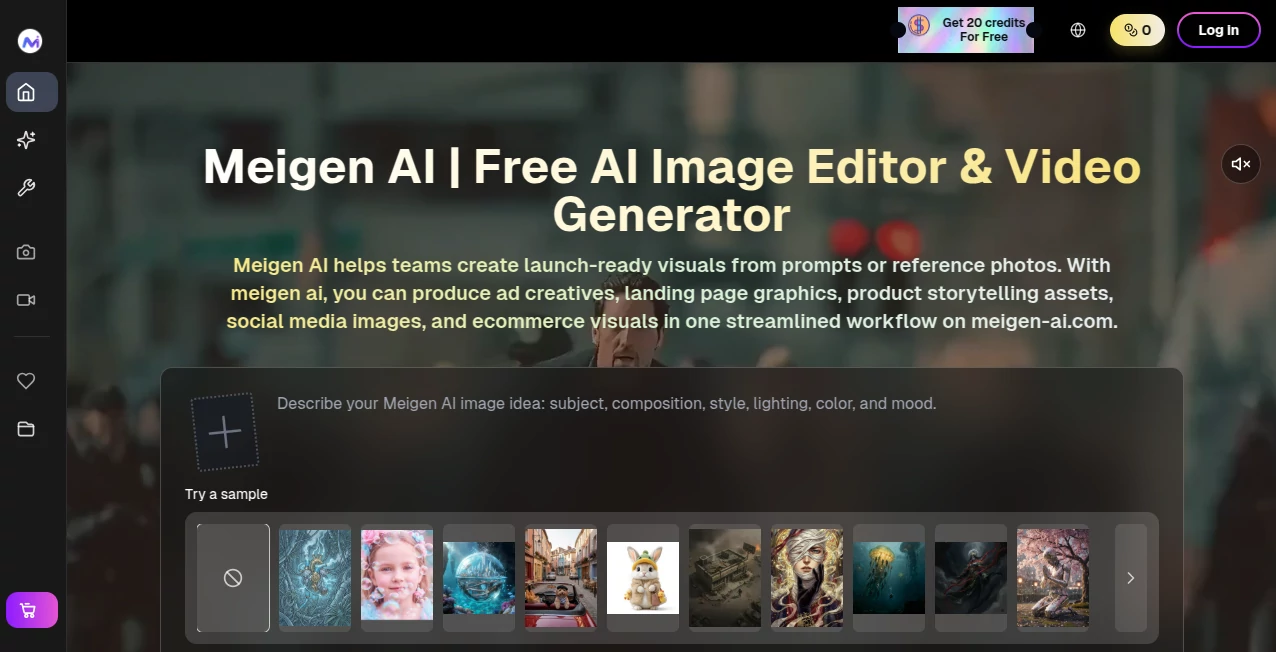
What is meigen ai?
You know that feeling when you see an amazing AI-generated image on social media and think, "I wish I could make something like that"? Most of us don't have hours to learn the perfect prompt formula or test dozens of word combinations. And honestly, that shouldn't stop anyone from creating great visuals.
That's exactly why this platform was built. It takes the frustration out of AI image generation by giving you something far more valuable than just another editing tool: a constantly updated collection of prompts that have already proven they work. We're talking about thousands of real, high-performing prompts pulled from trending content across social platforms, all organized and ready for you to use with just one click.
What makes this different from typing into Midjourney or DALL-E on your own? Simple. You're not guessing anymore. Every prompt in the gallery has actual engagement data behind it — likes, shares, views — so you know it resonates with real people before you even hit generate. The platform supports multiple top-tier models like Nanobanana Pro and Seedream, handles everything from 4K images to transparent-background icons, and even throws in video generation as a bonus. New users get 40 free credits to start, plus daily login rewards. Let's dig into what this thing can actually do.
Key Features
User Interface
Open the gallery and you'll notice something right away: it doesn't feel like another complicated creative suite. There are no intimidating sliders, no hidden panels, no learning curve that takes a weekend to climb. You land on a clean grid of images, each one showing you exactly what the prompt produced. Click anything you like, copy the prompt text with one button, and paste it into your preferred generator. That's it.
The platform works both as a standalone web tool and as plugins for design environments like Figma and Framer. If you're already working in those spaces, you can generate images, remove backgrounds, or convert raster graphics to vectors without ever leaving your design file. The interface adapts to what you need — quick inspiration browsing when you're stuck, or direct generation when you know exactly what you want.
One thing worth mentioning: the search and filter system actually works. You can look for images by style, subject, or mood instead of scrolling endlessly. Want cyberpunk cityscapes? Type it in. Looking for clay aesthetic character designs? It's there. The gallery organizes over 3,000 curated examples, and the weekly updates mean fresh content keeps showing up.
Accuracy & Performance
Here's where things get interesting. Because every prompt in the gallery is sourced from real social media posts that gained traction, you're not dealing with theoretical "this should work" suggestions. These are battle-tested combinations of words and settings that delivered results people actually responded to.
In testing, prompts pulled from the gallery consistently outperformed manually written ones, especially for niche styles like 3D figurine renders, sticker designs, and product mockups. The platform's prompt enhancement feature takes things further — it rewrites your rough ideas into more detailed, professionally structured prompts using a design knowledge base. What might take you ten minutes of tweaking gets compressed into seconds.
For image generation, the platform routes your request to the best available model based on what you're trying to create. Icons go to the specialized icon model, which outputs transparent PNGs ready to use. Complex illustrations get routed to high-res models capable of 4K output. Video generation via Veo 3.1 takes a few minutes but delivers smooth results. The system isn't the fastest thing on the market, but the quality-to-speed trade-off feels fair for what you're getting.
Capabilities
The toolset covers more ground than you might expect from a prompt gallery. Sure, the core feature is finding and using proven prompts, but there's a full creative toolkit hiding underneath:
- Icon generation with automatic prompt optimization and transparent backgrounds — no manual cleanup needed
- Image editing and creation at 2K or 4K resolution, including reference-based modifications like "put this pattern onto that t-shirt"
- Background removal that actually handles complex edges like hair and fur reasonably well
- Vector conversion from raster images — not perfect for everything, but solid for logos and simple illustrations
- Video generation (Beta) using Veo 3.1, supporting both text-to-video and first/last frame control
- Multi-model support including GPT Image 2, Nanobanana 2, Seedream 5.0, and Midjourney
What surprised me most was the "edit mode" functionality. You can select an existing image, adjust the canvas proportion, and generate variations or modifications while keeping the original composition intact. It's not Photoshop-level control, but for quick iterations on AI-generated content, it works beautifully.
Security & Privacy
The platform operates on a credit-based system, which means you're not linking a credit card for every small transaction. New users get 40 free credits upfront, and daily check-ins add another 20 each day. For most casual creators, that's enough to test features thoroughly before deciding whether to pay.
Regarding your actual images and prompts: the platform doesn't claim ownership of anything you generate. Your outputs are yours. The prompts in the gallery are publicly curated from social media, so they're meant to be shared and reused. If you're using the Figma or Framer plugins, your design files stay in those environments — the tool only accesses what you explicitly send to it.
One privacy-conscious option worth highlighting: the open-source MCP server version lets you run everything locally through ComfyUI. That means no external API calls, no data leaving your machine, full control over models and workflows. It requires more technical setup but gives you complete ownership of the entire process from prompt to final image.
Use Cases
Social media content creators will find the most immediate value here. Instead of spending an hour wrestling with prompts to get one decent Instagram graphic, you can browse trending styles, grab a proven prompt, and generate something on-brand in five minutes. The viral prompt library is basically a shortcut to what's already working on each platform.
Designers working in Figma or Framer can integrate the plugin directly into their workflow. Generate custom icons for a client project without leaving the design file. Create product mockups by uploading a reference image and letting the AI handle the lighting and perspective. Remove backgrounds from stock photos with a single click. For fast-paced agency work, those seconds saved add up fast.
E-commerce shop owners can use the product photo enhancement features to create consistent, professional-looking images without hiring a photographer. The reference-based editing is particularly useful here — take one good product shot, then generate variations on different backgrounds, with different models, or in different settings while keeping the product itself accurate.
Marketing teams running A/B tests on ad creatives can rapidly generate multiple visual directions from a single prompt. Need ten variations of a Facebook ad image? Run batch generation with slightly tweaked prompts and let the AI handle the volume. The engagement data attached to each gallery prompt gives you a reasonable guess at which style will perform before you spend ad budget.
One user shared how they built an entire brand identity in an afternoon: started with a logo concept using the icon generator, created social media headers using the same prompt as a base, then generated product mockups for their Shopify store — all without switching tools or learning new software. That's the kind of workflow this platform enables.
Pros and Cons
Pros:
- Zero prompt engineering required — just copy, paste, and generate
- Thousands of social-verified prompts updated weekly
- Works across multiple models including Midjourney, Nanobanana, and Seedream
- Free tier with 40 starting credits plus 20 daily
- Plugins for Figma and Framer keep you in your design environment
- Open-source option with local ComfyUI support for privacy-focused users
- Handles video and vector conversion alongside standard image generation
Cons:
- Video generation takes 3-5 minutes and is still in beta
- Manual editing controls are minimal compared to dedicated design software
- Some advanced features require paid credits beyond the free tier
- The platform is relatively new, so community resources and tutorials are still growing
- Vector conversion works best on simple graphics; complex images may need manual cleanup
One trade-off worth noting: you sacrifice granular creative control for speed and ease of use. If you're someone who likes to tweak every parameter, adjust the seed value, and fine-tune the CFG scale, this might feel limiting. But if you value getting from idea to finished image in under a minute, the convenience outweighs the lack of deep controls.
Pricing Plans
The platform keeps pricing refreshingly simple. When you sign up, you get 40 free credits to start — enough to test icon generation, a few image creations, or a video generation attempt. On top of that, daily check-ins add 20 free credits every single day, which means casual users might never need to pay.
For heavier usage, paid plans unlock higher-resolution outputs, priority access to new models, and watermarked-free downloads. The exact pricing is best checked on the official website since promotional offers change, but the model generally follows a credit-based system where you pay only for what you use rather than a rigid monthly subscription.
Pro tip: The daily free credits add up fast if you're consistent. Checking in every day for a week gets you 140 free credits on top of your initial 40. For most social media creators posting a few times per week, that's genuinely enough to handle normal usage without opening your wallet.
How to Use This Platform
Getting started takes about two minutes. Here's the simplest path:
First, head to the website and create a free account. You'll get your 40 starting credits immediately — no credit card required. Take a minute to browse the gallery. The images are organized visually, so just scroll until something catches your eye.
Found something you like? Click on it. You'll see the full prompt that created that image, along with metadata showing which model was used, the engagement stats from social media, and the original creator if available. Copy the prompt with the handy "copy" button next to the text.
Now you have two choices. If you want to generate directly on the platform, paste the prompt into the generation box, select your preferred model (the system will recommend one based on your prompt type), and click generate. Your credits will be deducted based on the complexity — standard images cost fewer credits than 4K outputs or video generations.
Alternatively, if you prefer using your own tools, just paste the copied prompt into whatever AI image generator you already use. Midjourney, DALL-E, Stable Diffusion, Nanobanana — the prompts are written to work across platforms, though results will vary slightly depending on which model you use.
For designers using Figma or Framer, search for the plugin in your tool's marketplace, install it, and you'll see a new panel where you can generate images, remove backgrounds, or convert graphics without leaving your design file. The interface is essentially the same as the web version but embedded into your workspace.
If you're technical and want complete privacy, the open-source MCP server version lets you run everything locally. Set up ComfyUI on your machine, install the MCP server, and your AI assistant can search the gallery, enhance prompts, and generate images directly through your local GPU — no cloud dependencies, no API costs, and no data leaving your computer.
Comparison with Similar Tools
PromptBase is the closest competitor — a marketplace where creators sell prompts for various AI models. The key difference is that this platform gives prompts away for free. You're not paying per prompt; you're paying for generation credits if you exceed the free tier. For someone who just wants inspiration without another subscription, that's a meaningful distinction.
Midjourney on its own is more powerful for raw image quality but requires learning its specific parameter system and style references. This platform acts as a layer on top of Midjourney (and other models), letting you skip the learning curve entirely. If you already know Midjourney inside and out, you might not need this. But most people don't, which is where the value comes in.
Leonardo.ai offers similar generation capabilities with its own prompt library, but it doesn't pull from real social media engagement data. The prompts are either user-submitted or AI-generated, not validated by actual performance in the wild. That validation layer is what makes this platform different — you're not just getting prompts that sound good, you're getting prompts that have already proven they can stop a scroll.
Where this platform falls short compared to dedicated tools is fine-tuned control. Photoshop with Firefly gives you layers and masks and precise adjustments. This gives you speed and simplicity. Choose based on what matters more for your specific project — refinement or velocity.
Conclusion
After spending real time with the gallery, generating everything from logo concepts to product mockups to weird experimental art, here's the honest take: this platform isn't trying to replace professional creative tools. It's solving a different problem — the gap between having an idea and being able to execute it visually when you're not a prompt engineering expert.
For someone posting daily on Instagram, running a small e-commerce store, or designing client work on deadline, the time savings are real. Browsing proven prompts instead of writing your own from scratch cuts the creative process down dramatically. The daily free credits mean you can test it thoroughly without risk. And the plugins keep you working where you already work instead of jumping between tabs.
Is it perfect? No. The video generation needs patience, the manual controls won't satisfy control freaks, and the platform is still building its reputation. But for what it sets out to do — make great AI imagery accessible to everyone regardless of prompt engineering skills — it genuinely delivers. Try the free credits, generate a few images, and see if the workflow clicks for you. Chances are, it will.
Frequently Asked Questions (FAQ)
Is there a completely free way to use this?
Yes. The 40 starting credits plus 20 daily login credits are genuinely free. You never have to enter payment information to use those. For casual users making a handful of images per week, that's often enough. The gallery browsing and prompt copying are completely free regardless of credits.
Do I need to know how to write prompts?
Not at all. The whole point is skipping that step. Browse the gallery, find an image style you like, copy the prompt that made it, paste it into your generator. That's it. The platform also has a prompt enhancement feature that rewrites your rough ideas into more effective prompts if you do want to write something original.
Which AI models does this work with?
The platform supports Nanobanana Pro, Nanobanana 2, Seedream 5.0, GPT Image 2, Midjourney, and Veo 3.1 for video. You can generate directly on the platform using any of these, or copy prompts to use in your own instance of these tools.
Can I use this for commercial projects?
Yes. Images you generate are yours to use commercially. The prompts in the gallery are publicly curated and meant to be reused. Always check specific model terms if you're generating through external tools, but the platform itself doesn't claim ownership of your outputs.
What's the difference between the web version and the plugins?
The web version is the full gallery and generation experience. The Figma and Framer plugins are streamlined versions focused on generation, background removal, and vector conversion — designed to keep you inside your design environment without tab-switching. The MCP server version is for developers who want local, API-driven generation with full privacy.
How often is the gallery updated?
New prompts and images are added weekly, pulled from trending content across social platforms. The gallery currently has over 3,000 curated examples and grows every week.
What can I do if generation doesn't look right?
Try the prompt enhancement feature first — it rewrites your prompt to be more specific and detailed. You can also switch between different models, since each model has different strengths. For major adjustments, find a different prompt in the gallery that's closer to what you want and use that as a starting point instead.