


















RemoveText.video
What is RemoveText.video?
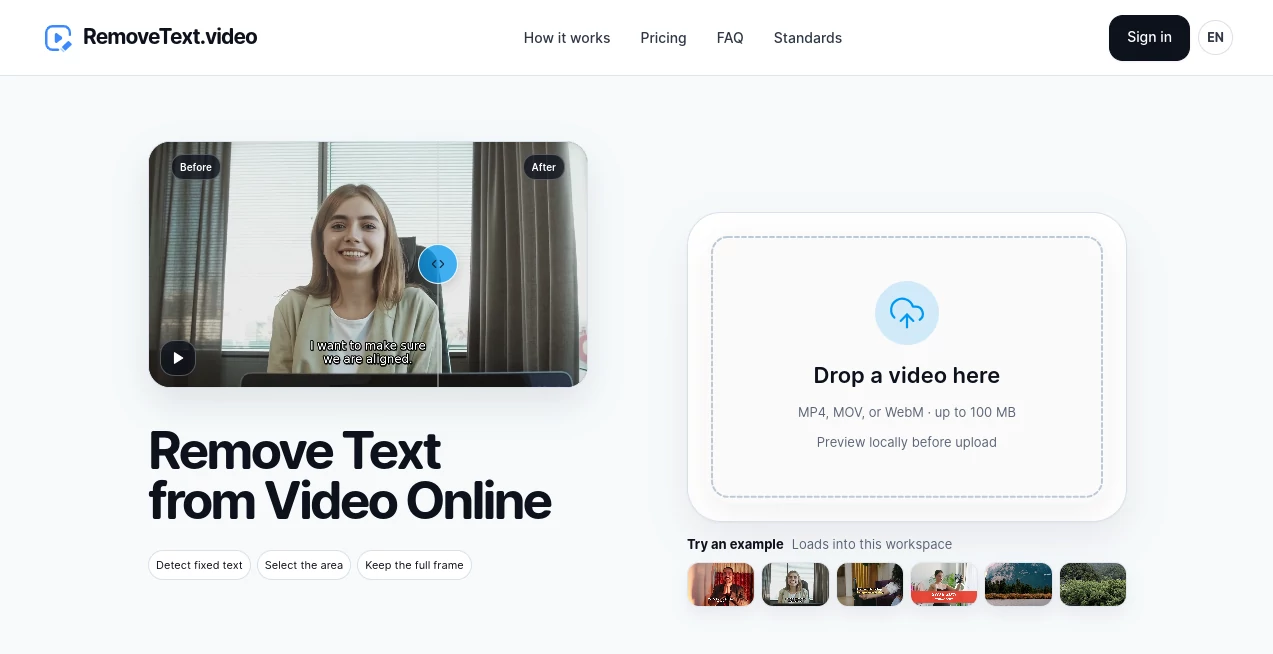
Removing unwanted text from a finished video can be surprisingly frustrating. Cropping the frame may cut away something important, while covering the text with another element often looks obvious. This is where RemoveText.video offers a practical alternative. It is designed to clean text that is already embedded in video footage, including captions, subtitles, labels, logos, and authorized watermark overlays, while keeping the original framing intact.
The workflow is straightforward: choose a video, identify what needs to disappear, review the target area, and let the system reconstruct the affected part of the frames. There is no need to rebuild the entire edit simply because an old caption or overlay is no longer wanted.
Key Features
- Removes hardcoded text directly from video frames.
- Supports subtitles, captions, labels, dates, timestamps, and other embedded wording.
- Handles authorized logos and watermark overlays.
- Offers automatic fixed-text detection for suitable footage.
- Allows manual selection of up to three target areas.
- Preserves the original video framing instead of requiring a crop.
- Supports MP4, MOV, and WebM files.
- Provides 720p and 1080p processing options depending on the plan and available credits.
- Shows estimated processing costs before the job starts.
- Provides a preview of the selected video locally before server processing begins.
User Interface
The interface focuses on the task rather than surrounding the user with unnecessary editing controls. You can select a video and preview it directly in the browser before processing begins. After choosing the type of content to remove, you can either rely on automatic detection or define the area yourself.
The manual selection option is particularly useful when an overlay changes position or when automatic detection would cover more of the scene than necessary. Being able to review the selected region before spending credits is a thoughtful touch for anyone working with valuable footage.
Accuracy & Performance
The system does more than simply place a blur over unwanted words. For text, subtitles, and captions, the selected region is reconstructed across the video. This can produce a much cleaner result when the surrounding background is relatively consistent.
Performance naturally depends on the footage. Fixed text over a simple background is generally easier to repair than text crossing a face, hand, reflection, rapidly changing scenery, or fine texture. Moving overlays may also require a tighter manual selection. For that reason, checking the complete processed video before publishing is an important part of the workflow.
Capabilities
The tool is built around several common video-cleanup situations. A creator can remove a burned-in caption before adding a corrected version, a marketing team can clean an outdated product label, or an editor can prepare a master clip without an old internal review mark.
It also supports different cleanup methods for logos and watermarks. Basic cleanup softens the selected area, while the advanced approach attempts a more natural reconstruction. This gives users some control over how aggressively the unwanted element should be treated.
Security & Privacy
One of the more useful privacy details is that selecting a file does not immediately upload it. The browser first creates a local preview, and the upload begins only after the user confirms the processing details and starts the job.
Current retention controls state that free-trial originals and outputs can remain available for up to 24 hours. Paid originals are retained for up to 7 days, while paid outputs can remain for up to 30 days. Users should also make sure they have the necessary rights to edit any footage, particularly when removing logos, watermarks, attribution, or other ownership-related elements.
Use Cases
- Social media creators: Remove outdated captions or overlays before publishing a revised version of a clip.
- Video editors: Clean a working master without cropping away important parts of the frame.
- Marketing teams: Prepare product footage after changing promotional text or labels.
- Content repurposing: Create a cleaner version of an existing video before adding new captions or graphics.
- Subtitle replacement: Remove burned-in subtitles before preparing a version in another language.
- Internal production: Remove temporary review marks or internal labels from authorized footage.
- Archived footage: Clean old overlays when preparing material for a new editing project.
Pros and Cons
- Pros: Simple browser-based workflow, no traditional editing software required, automatic and manual selection options, support for common video formats, original framing preservation, transparent credit estimates, and a useful local preview before uploading.
- Cons: Results can vary with complicated backgrounds and fast movement, moving text may require manual selection, processing consumes credits, and the free trial has limitations such as no batch processing.
Pricing Plans
The pricing model is based on processing credits rather than requiring every user to commit to a subscription. New users can receive 30 lifetime trial credits after signing in with Google. Trial processing is available for video cleanup up to 1080p, giving users a chance to evaluate the results before paying.
For occasional projects, credit packs start from $6.90 for 300 credits, with the purchased credits remaining valid for 12 months. For users who process videos regularly, recurring plans start from $9.90 per month and provide monthly credit allocations. Unused monthly credits do not roll over.
Credit consumption depends on video duration, resolution, and the selected cleanup method. The applicable cost is shown before processing, which makes it easier to estimate the expense of a particular job.
How to Use the Tool
Start by selecting an MP4, MOV, or WebM video. The browser creates a local preview, so simply choosing the file does not immediately send it to the server.
Next, select what you want to remove, such as text, subtitles, captions, logos, or watermarks. For fixed text, automatic detection can be used. If the target moves or automatic detection is not precise enough, manually mark the required area. Up to three areas can be selected.
Before processing, review the selected region, source information, output resolution, and estimated credit cost. When everything looks correct, sign in if required and start processing. Once the job is complete, inspect the finished video carefully before downloading or publishing it.
Comparison with Similar Tools
Many conventional video editors approach unwanted text by cropping the frame, placing another graphic over it, or applying a blur. Those methods can work, but they may leave visible traces or change the composition of the original footage.
This approach is more focused: instead of treating the entire video as a traditional editing timeline, it concentrates on reconstructing the selected area across the clip. That makes it especially appealing when the goal is to remove one particular overlay while leaving the rest of the footage untouched.
It is not a replacement for a full professional video editor. Someone who needs color grading, transitions, audio mixing, motion graphics, and timeline-based editing will still need a broader editing application. For targeted text cleanup, however, a specialized workflow can be considerably quicker.
Conclusion
Removing embedded text does not always require starting a video project from scratch. A specialized cleanup workflow can save time when the original footage is good but an overlay is no longer useful.
With automatic detection, manual area selection, support for common video formats, local previewing, transparent credit estimates, and reconstruction-based cleanup, this service provides a focused solution for creators and editors who need a cleaner version of existing footage. The most important thing is to review the finished result carefully, especially when the selected text overlaps detailed backgrounds or moving subjects.
For simple overlays and many everyday cleanup jobs, it is a practical addition to a video editor's toolkit.
Frequently Asked Questions (FAQ)
What type of text can be removed from a video?
You can remove hardcoded text such as captions, subtitles, labels, dates, timestamps, titles, and other visible overlays. Authorized logos and watermark elements are also supported.
Can moving text be removed?
Yes, although moving text can require more careful selection. Automatic detection is primarily useful for fixed text, while manual selection can provide better control when an overlay changes position.
Will the video be cropped after removing the text?
No. The workflow is designed to repair the selected pixels while preserving the original framing, so important parts of the scene do not have to be sacrificed simply to hide an overlay.
Does the service support subtitles?
Yes. Burned-in subtitles and captions can be selected for removal. If subtitles exist as a separate switchable track rather than being embedded into the picture, removing or disabling that track in a normal video player or editor is usually the better approach.
Which video formats are supported?
MP4, MOV, and WebM files are supported. The source video's duration and resolution are checked before processing.
Can I try the service for free?
Yes. After Google sign-in, new users receive 30 lifetime trial credits. Trial credits are intended for evaluating the cleanup workflow and do not include batch processing.
Is the uploaded video immediately sent to a server?
No. Selecting a video creates a local browser preview first. Server upload starts only after the user confirms the processing details and begins the job.
Can I remove any watermark from any video?
No. Watermarks and logos should only be removed from footage that you own or have permission to edit. Ownership, attribution, provenance, safety, and legally required disclosure marks should not be removed without proper authorization.
How long are processed files stored?
Free-trial originals and outputs can be retained for up to 24 hours. Paid originals can remain for up to 7 days, while paid outputs can remain for up to 30 days under the current retention controls.
Is the result guaranteed to be perfect?
No video reconstruction system can guarantee an identical result in every frame. Background complexity, camera movement, occlusion, reflections, faces, hands, and fine textures can all affect the final result. Reviewing the complete output before publishing is recommended.
AI Video Editor , AI Video Enhancer .
These classifications represent its core capabilities and areas of application. For related tools, explore the linked categories above.
RemoveText.video details
Website unavailable — View Alternatives
Pricing
- Free
Apps
- Web App
Categories

RemoveText.video Alternatives Product

VIGGLE

Kling Motion

FinalLayer

Pinci.ai

Sora Waterma…

Gemini Omni

Video Upscal…

GenVideo AI

lyric video …
