















Screenify Studio
What is Screenify Studio?
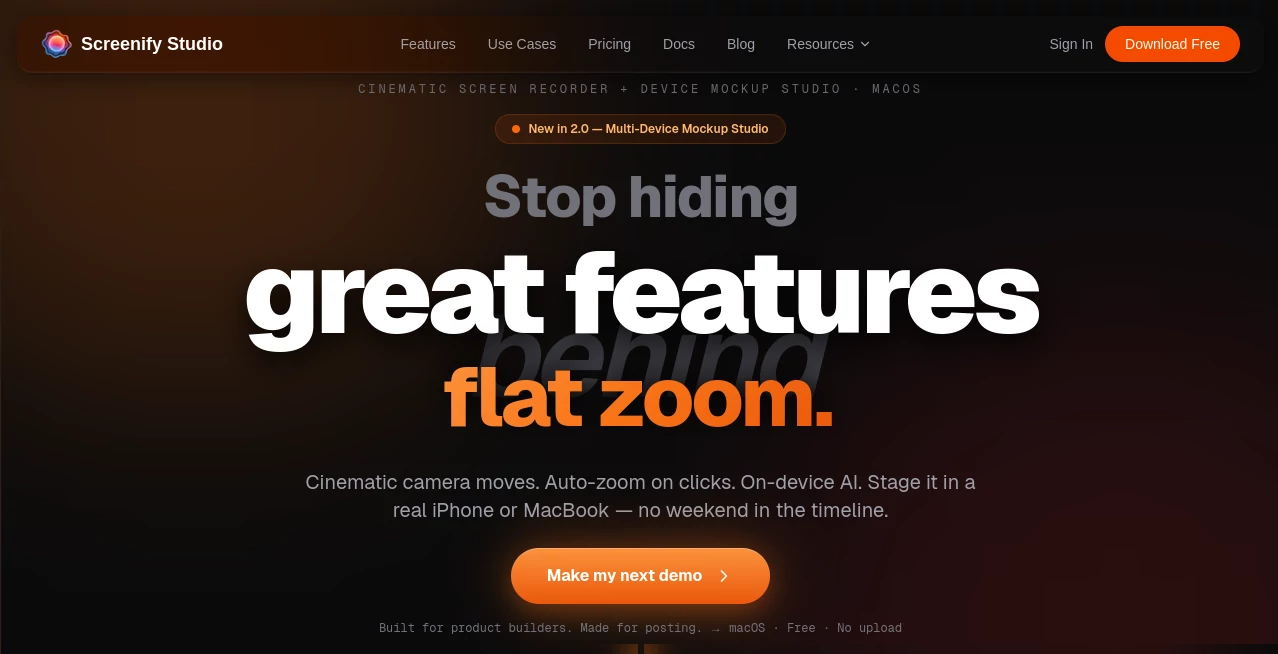
Screen recording is easy. Making a recording look polished enough to share with customers, prospects, or an audience is where the real work begins. Screenify Studio is a Mac-focused screen recording and production tool built around that problem, combining screen capture, cinematic camera movement, automatic zooming, captions, backgrounds, and editing in one workspace.
The product is designed particularly well for indie hackers, app developers, AI builders, solo founders, educators, and product teams that need attractive demos without spending hours inside a traditional video editor. Its approach is straightforward: record what you are building, let the software handle much of the visual polish, and export something that is ready to share.
One of its most interesting differences is the emphasis on local processing. Its AI features are designed to run on the Mac rather than requiring screen recordings to be uploaded to a remote service. That makes the workflow especially appealing for developers demonstrating private dashboards, unreleased products, customer data, or internal software.
Key Features
- 3D cinematic camera movements with more than 30 templates.
- Smart auto-zoom that responds to clicks, typing, and mouse activity.
- AI-generated captions and subtitles with word-level synchronization.
- AI background removal processed locally on compatible Macs.
- Multiple camera layouts including picture-in-picture, side-by-side, focused, screen-only, and camera-only modes.
- Animated callout effects combining zoom, dimming, border glow, and depth effects.
- Custom camera routes with timeline-based keyframes and movement paths.
- Native export optimized for Apple Silicon and Metal GPU acceleration.
- Support for recording product demos, tutorials, bug reports, onboarding videos, and development walkthroughs.
- A command-line workflow that can use AI to navigate a web application and create a recorded demo from a plain-English instruction.
User Interface
The interface is built around a studio-style editing workflow rather than simply presenting a record button and a collection of disconnected utilities. Screen recordings, camera footage, effects, layouts, and timeline adjustments can be handled in the same environment.
The editing experience is particularly useful when a recording needs more visual direction. Instead of manually creating every zoom, users can take advantage of automatic zoom behavior, camera routes, callouts, and predefined cinematic movements. For someone preparing a product launch video, for example, a simple screen capture can be turned into a more deliberate sequence that directs attention toward important parts of the interface.
The six camera layouts also make it easier to switch between showing the application, the presenter, or both. This is useful for tutorials and personal product updates where a face-cam introduction can transition into a focused product demonstration.
Accuracy & Performance
Performance is one of the product's strongest technical selling points. The application is built natively for Apple Silicon and uses Metal GPU acceleration for processing and exports. The website reports that its architecture avoids Chromium and keeps the application relatively lightweight.
Its captioning system uses Whisper and provides word-level synchronization, with the product reporting 98%+ caption accuracy. Captions can be previewed and styled rather than simply being added as plain text at the end of the editing process.
AI background removal is also designed for local processing, with the site reporting processing times of around 5–20 milliseconds per frame under its stated setup. Actual performance will naturally depend on the Mac model, recording resolution, and project complexity.
Capabilities
The software goes beyond conventional desktop screen recording. Its 3D camera system supports dolly, pan-tilt, orbit, and crane-style movements, with multi-keyframe editing for more controlled sequences. Users can also design custom camera paths instead of relying entirely on presets.
Smart Auto-Zoom is another practical feature. It can identify clicks, typing, and mouse dwell and use those interactions to determine where attention should move. That can save considerable editing time in software tutorials and product walkthroughs.
For web products, the command-line workflow adds another interesting layer. A user can point the recording workflow at a web application and provide a plain-English description of the journey they want to demonstrate. The system can then interact with the application and create a cinematic recording, including workflows that require authentication.
There is also support for real-device and simulator-based app demonstrations, making the product useful for developers who want their iPhone applications presented inside realistic device frames rather than as a flat desktop capture.
Security & Privacy
Privacy is a major part of the product's architecture. Its AI features are designed to run locally on the Mac, meaning screen recordings do not need to be uploaded simply to generate captions or remove a camera background. The software can also work offline for its local AI functionality.
This approach can be valuable for developers working with unreleased software, private dashboards, source-code demonstrations, or sensitive customer information. Keeping processing on the device reduces the need to send raw recordings to an external AI service.
There is an important distinction for users to understand: the higher Pro+ plan includes cloud storage, so anyone choosing that feature should review their preferred storage workflow and privacy requirements before using cloud functionality for sensitive material.
Use Cases
Product demos: Founders can turn a raw application walkthrough into a polished demonstration for a landing page, launch post, sales conversation, or product announcement.
Software tutorials: Developers, educators, and technical creators can combine screen capture, webcam footage, automatic zooming, captions, and callouts to make instructional videos easier to follow.
Build-in-public content: Solo founders can quickly create short clips showing a newly released feature without spending an entire afternoon editing every camera movement.
Bug reports: A developer can capture a reproducible problem while using callouts and zoom effects to make the relevant behavior immediately visible.
Onboarding: Teams can record walkthroughs for new employees or customers and use captions to make the resulting material easier to consume.
App Store previews: Developers can capture simulator or real-device content and present applications inside realistic device frames for short promotional videos.
Pros and Cons
- Pros: Strong cinematic presentation features, local AI processing, automatic zooming, extensive camera controls, native Apple Silicon performance, a usable free tier, and lifetime purchase options.
- Pros: Particularly well suited to product demos and developer-focused content rather than generic meeting recordings.
- Pros: AI captions, background removal, translation, and automated web demonstrations can reduce repetitive editing work.
- Cons: The current application is designed for macOS and is not yet a Windows or Linux solution.
- Cons: Some advanced AI functionality is reserved for paid plans.
- Cons: Users who need a conventional meeting recorder may find its product-demo-first approach less relevant.
Pricing Plans
The pricing structure is designed to give users a way to start without committing to a recurring subscription.
Free: The free plan costs $0 forever and includes unlimited recording, local 1080p exports, the editing suite, 3D effects, and callout effects. Free exports include a watermark, and shareable links are limited.
Pro: The Pro plan is listed at $149 as a one-time purchase, with an early-access price of $179 shown on the current site. It adds 4K exports without a watermark, local AI background removal, AI captions, AI translation in more than 50 languages, unlimited shareable links, support for three devices, and priority support. One year of updates is included, followed by an optional $39-per-year update plan.
Pro+: The Pro+ plan is listed at $249 as a one-time purchase, with an early-access price of $299 currently displayed. It includes the Pro features along with lifetime updates, support for up to five devices, 100 GB of cloud storage, and additional premium features.
Pricing and early-access offers can change, so prospective customers should verify the current plan details before purchasing.
How to Use It
Start by installing the Mac application and creating a new recording project. Select the screen, window, or application you want to capture and configure your microphone and camera if narration or face-cam footage is required.
Once recording begins, concentrate on demonstrating the product naturally instead of trying to perform every camera movement manually. After capturing the footage, use Smart Auto-Zoom, callouts, camera layouts, and cinematic movements to guide the viewer's attention.
If narration is included, generate captions and adjust their appearance and timing. Webcam footage can also be processed with background removal or replaced with an imported video when a more controlled presentation is needed.
Finally, arrange the clips and effects on the timeline, preview the result, and export it at the resolution and format appropriate for the destination. For a simple product announcement, a short 1080p clip may be enough; for polished promotional material, higher-resolution export can provide more flexibility.
Comparison with Similar Tools
The closest alternatives depend on what kind of recording you need. Traditional tools such as Loom are strongly associated with communication, asynchronous updates, and quick sharing, while this product takes a more production-oriented approach to screen content.
Screen Studio is a closer comparison for polished Mac screen recordings, particularly when automatic zooming and presentation quality are priorities. The major distinction here is the emphasis on 3D camera movement, local AI processing, and a free tier combined with lifetime purchase options.
Tella is another option for creators who want attractive video presentations, but the workflow and feature emphasis differ. For someone whose main objective is producing cinematic software demos rather than recording meetings, the specialized camera and editing features can make this approach more appealing.
The choice ultimately depends on the workflow. If quick communication is the priority, a lightweight asynchronous recorder may be enough. If the goal is to make a software product look polished and deliberate on screen, the additional production controls become much more valuable.
Conclusion
For developers, founders, and creators who are tired of spending more time editing a product demo than recording it, this tool offers a compelling alternative. Its combination of cinematic camera controls, Smart Auto-Zoom, local AI, captions, background removal, and native Mac performance gives screen recordings a much more intentional visual style.
The strongest reason to consider it is not any single AI feature. It is the way recording and presentation are brought together. A raw five-minute walkthrough can become a focused product story without requiring a separate editing workflow for every zoom, callout, caption, and camera movement.
Its Mac-only availability will naturally narrow the audience, but for Apple Silicon users building software, teaching technical concepts, or sharing products online, the combination of performance and presentation-focused features makes it worth exploring.
Frequently Asked Questions (FAQ)
Is it free to use?
Yes. There is a free plan with unlimited recording and local 1080p exports. Free exports include a watermark and some premium AI capabilities are not included.
Does it work on Windows or Linux?
Not currently. The application is currently designed for macOS, with Apple Silicon optimization being a central part of its architecture. Windows and Linux support are listed as future roadmap items.
Does it upload screen recordings to the cloud?
The AI processing for features such as captions and background removal is designed to run locally on the Mac. This allows users to process recordings without uploading them to an AI cloud service. A separate cloud-storage feature is available with the Pro+ plan.
Can it automatically zoom into clicks?
Yes. Smart Auto-Zoom can detect clicks, typing, and mouse dwell and automatically create zoom effects around important interactions.
Can I add captions automatically?
Yes. The caption system uses Whisper and supports word-level synchronization, styling, and real-time preview. The product states that its caption accuracy is 98% or higher.
Can I remove my webcam background?
Yes. AI Background Removal can remove the camera background and replace it with a blur, solid color, or custom image. The processing is designed to run locally using the Mac's Neural Engine.
Is there a lifetime purchase option?
Yes. The Pro and Pro+ plans are offered as one-time purchases. Pro includes one year of updates with an optional renewal afterward, while Pro+ includes lifetime updates according to the current pricing information.
Who is it best for?
It is particularly suitable for indie hackers, software developers, AI builders, founders, educators, technical creators, and product teams that need polished screen recordings for demos, tutorials, launch content, onboarding, or development updates.