TabLynk AI
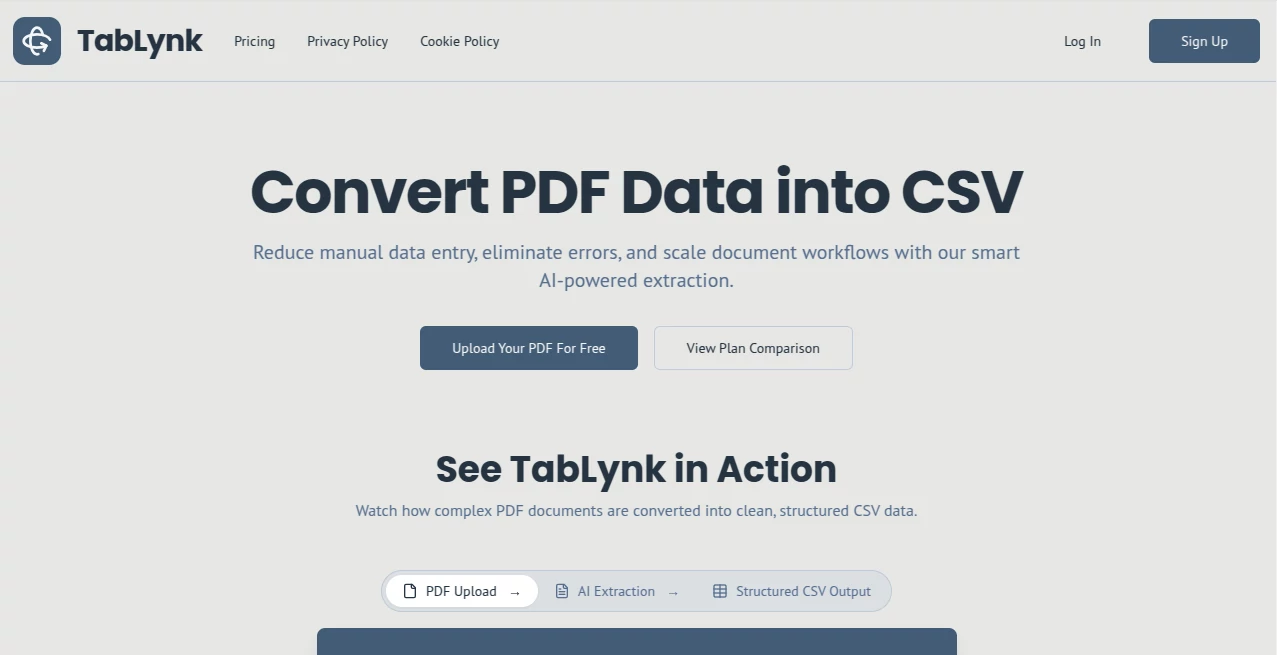
What is TabLynk AI?
Manually copying data from PDFs is one of those soul-crushing tasks that eats hours and introduces mistakes. You know the drill: squinting at tables, copying line by line, praying the formatting doesn’t break. This tool changes that completely. Drop in a PDF—invoice, report, manifest, whatever—and it hands back clean, structured CSV ready for spreadsheets or import. The difference is striking: what used to take 20–30 minutes per document now happens in seconds, with accuracy that feels almost too good to trust at first. I’ve watched accounting teams cut their data entry time dramatically after switching, and the relief on their faces says everything.
Introduction
Traditional OCR tools read text but often fail at understanding structure—headers, columns, relationships between values. TabLynk uses smarter AI that actually comprehends document layout, so it pulls tables and key fields correctly instead of dumping messy raw text. It’s built for real-world messy PDFs: multi-page documents, varied layouts, complex tables. For teams drowning in invoices, shipping docs, bank statements or medical reports, it turns a weekly headache into a background process. The best part? It’s simple enough that anyone can use it on day one, yet powerful enough for serious business workflows.
Key Features
User Interface
The experience is refreshingly straightforward. Upload your PDF (single or multiple pages), watch a quick preview of the pages, then let the AI work. Results appear with clear column mapping you can adjust with drag-and-drop if needed. Everything happens in one clean screen—no confusing dashboards or hidden menus. You can review extracted data side-by-side with the original PDF, make tweaks, and export instantly. It feels like having a very smart assistant who understands exactly what you need.
Accuracy & Performance
It consistently outperforms basic OCR because it understands context and relationships between headers and data. Tables come out properly structured, numbers stay accurate, and dates don’t get scrambled. Processing is fast even on multi-page documents, and the system improves with verification steps that catch anomalies. Teams report far fewer errors compared to manual entry or older tools, which means less double-checking and more confidence in the data.
Capabilities
It excels at table extraction but also pulls key fields intelligently. Supports invoices, shipping manifests, bank statements, medical reports, and more. You get clean CSV output ready for Excel, Google Sheets, or direct import into your systems. Features like custom mapping templates, anomaly detection, and historical logging make it suitable for both one-off tasks and recurring high-volume workflows. The three-step process (ingest → detect → validate/export) keeps things organized without overcomplicating the experience.
Security & Privacy
Documents are encrypted in transit, processed securely, and not stored longer than needed. The system is built with business use in mind—sensitive financial or medical data stays protected. For companies worried about sharing documents with third-party tools, the thoughtful security approach builds real confidence.
Use Cases
Accounting teams automate invoice processing, pulling vendor details, amounts, and dates directly into spreadsheets. Logistics companies extract data from bills of lading and shipping manifests without manual retyping. Healthcare administrators parse patient reports faster. Financial departments convert bank statements and audit logs efficiently. Any business that regularly receives data in PDF form can reclaim hours every week.
Pros and Cons
Pros:
- Dramatically reduces manual data entry time and errors.
- Understands document structure better than traditional OCR.
- Clean, ready-to-use CSV output with minimal cleanup needed.
- Simple workflow that non-technical team members can use.
- Scales well from occasional use to high daily volume.
Cons:
- Extremely complex or poorly scanned PDFs may still need minor manual adjustments.
- Best results come from documents with clear table structures.
Pricing Plans
It offers a practical free tier for light use so you can test real documents and see the quality yourself. Paid plans unlock higher volume, faster processing, advanced templates, and priority support. Pricing is sensible for the time it saves—most teams find it pays for itself quickly through reduced labor and fewer errors.
How to Use TabLynk
Upload your PDF (or several at once). The system analyzes the document and extracts tables and key fields automatically. Review the preview and make any quick column adjustments if needed. Validate the data, then download the clean CSV. For recurring documents, save custom mapping templates to make future extractions even faster. The entire process is designed to be quick and repeatable.
Comparison with Similar Tools
Basic OCR tools often produce messy text that still needs heavy manual cleanup. General document AI can be overkill or too expensive for straightforward table extraction. TabLynk focuses specifically on turning PDFs into usable structured data with a balance of accuracy, speed, and simplicity that many teams find ideal for daily operations. It’s not trying to be everything—it just does this one critical job exceptionally well.
Conclusion
Data trapped in PDFs slows everything down. This tool sets it free in a clean, usable format without the usual headaches. For any team that regularly handles invoices, reports, statements or similar documents, it’s one of those rare solutions that quietly makes work noticeably better. Less time copying, fewer errors, faster processes—and more energy for the work that actually matters.
Frequently Asked Questions (FAQ)
How accurate is the extraction?
Very high on well-structured documents. It understands context and relationships, not just text recognition.
Can I process multiple PDFs at once?
Yes, batch processing is supported for higher efficiency.
What file types are supported?
Primarily PDFs, with strong focus on documents containing tables and structured data.
Is my data kept private?
Yes—secure handling with encryption and no unnecessary long-term storage.
Do I need technical skills to use it?
No. The interface is designed for regular business users, not just developers.
AI Data Mining , AI Document Extraction , AI Documents Assistant , AI Productivity Tools .
These classifications represent its core capabilities and areas of application. For related tools, explore the linked categories above.

TabLynk AI Alternatives Product

Trimless for…

Yorph AI

Liftburst

LorePanic

Remove Handw…

Remove My Me…

AllInOneTools

ForthWrite

Coresite