
Veo Flow Automation
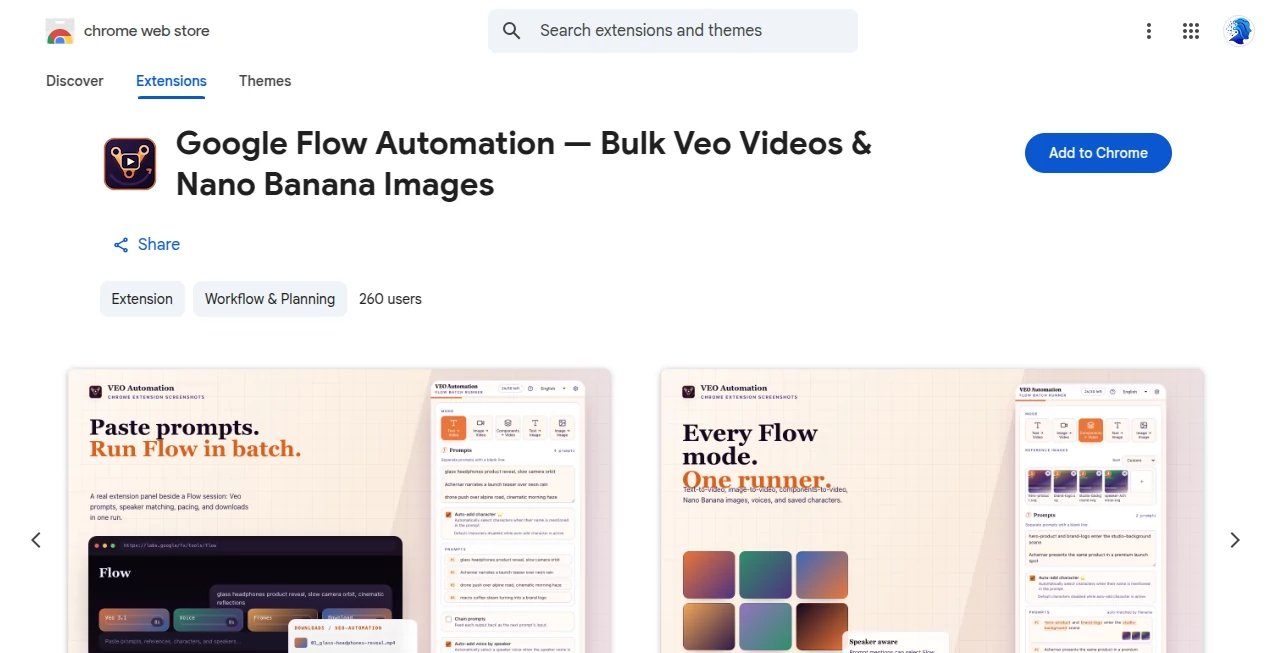
What is Veo Flow Automation?
VEO Automation is a browser extension designed for people who want to produce AI videos and images on Google Flow without repeating the same manual steps for every generation. Instead of entering prompts, configuring settings, waiting for results, and downloading files one by one, users can prepare a queue and let the extension handle the repetitive workflow.
This is particularly useful when a project requires dozens of clips or images. A creator producing short-form videos, a marketer testing multiple creative concepts, or an independent maker building a larger media library can prepare the prompts once and let the generation queue run in the background.
Key Features
- Batch processing for multiple prompts
- Automatic prompt submission and queue management
- Automatic downloading and file renaming
- Text to Video generation
- Frame to Video with first-frame or first-and-last-frame references
- Components to Video workflows
- Text to Image generation with Nano Banana
- Image to Image generation
- Chain mode for connected video sequences
- Voice and speaker selection where supported
- Character library support for consistent characters
- Configurable model, aspect ratio, duration, retries, delays, and download quality
- Live progress tracking and generation logs
User Interface
The interface is built around a browser side panel, keeping the automation controls next to Google Flow rather than forcing users to work through a separate dashboard. The workflow is straightforward: prepare prompts, select the generation mode and options, then start the queue.
This approach makes sense for batch work because the user can keep Google Flow open while monitoring the status of individual jobs. Progress information and logs also make it easier to see which prompts have completed and which ones may need attention.
Accuracy & Performance
Performance is mainly about removing unnecessary interaction rather than changing the underlying AI generation quality. The extension submits prompts to Google Flow, waits for generation to finish, retries when necessary, and moves through the queue automatically.
For larger batches, automatic pacing and retry controls are especially practical. Instead of repeatedly checking whether a clip has finished, users can leave the queue running and return to the completed files later. The chain mode is another useful touch for projects where separate clips need to feel visually connected.
Capabilities
The strongest part of the workflow is its range of generation options. Users can work with text prompts, reference frames, components, and image-based workflows rather than being limited to a single video-generation method.
Frame to Video can be useful for animating a prepared visual, while the first-and-last-frame workflow gives creators more control over how a sequence begins and ends. Character support can also help when a project requires recurring people or subjects across multiple generations.
For image production, batch Text to Image and Image to Image workflows make it possible to prepare a larger collection of visual concepts without manually repeating the same process for every prompt.
Security & Privacy
The extension is designed to operate directly with the user's Google Flow session. Its published privacy information states that prompts, generated videos, generated images, and imported reference files are processed locally rather than uploaded to the developer's servers. The extension also states that it does not collect browsing history, keystrokes, form contents, credentials, or advertising identifiers.
There is an important technical detail worth knowing before installation. Google Flow requires trusted browser input, so the extension uses Chrome's debugger interface to perform automated clicks and typing. Chrome may therefore display a browser message indicating that the extension is debugging the browser while automation is active. The developer describes this as necessary for reliable interaction with the Flow interface.
Use Cases
Content creators can use the tool to prepare large batches of short videos for social media, YouTube concepts, advertisements, or storytelling projects. Instead of spending time opening each generation and downloading the result, they can focus on improving prompts and reviewing the final material.
Marketing teams can also benefit when testing several creative directions. For example, a campaign might require twenty different product scenes with different visual descriptions. A prepared prompt queue makes that type of experiment much less tedious.
Another interesting use case is sequential storytelling. Chain mode can pass the last frame of one generation into the next prompt, helping creators construct connected clips rather than treating every video as an isolated generation.
Independent creators working on large visual libraries may find the automatic naming and downloading particularly convenient. Once the queue is configured, finished media can be organized automatically instead of being saved manually after every generation.
Pros and Cons
- Pros: Batch prompt processing, automatic downloads, multiple video and image modes, retry controls, chain workflows, character support, configurable generation settings, and live progress tracking.
- Pros: The side-panel workflow keeps the automation controls close to Google Flow and reduces repetitive browser interaction.
- Cons: The extension depends on Google Flow, so changes to Google's interface could affect automation behavior.
- Cons: Users should understand the debugger permission and the browser warning that can appear while automation is running.
- Cons: The extension does not replace the underlying generation service, so available models, account access, generation limits, and output capabilities ultimately depend on Google Flow.
Pricing Plans
The extension itself is presented as a free browser extension in its current product materials. There is no separate subscription price listed on the current Chrome Web Store listing. However, users still need access to Google Flow and should consider any limits or requirements associated with their Google account or Flow plan.
This makes the extension particularly appealing for users who already work inside Google Flow and simply want to remove the repetitive parts of a high-volume workflow.
How to Use VEO Automation
Getting started is relatively simple. First, install the browser extension and open Google Flow. Once the side panel is available, sign in to the Google account used with Flow.
Next, choose a generation mode such as Text to Video, Frame to Video, Components to Video, Text to Image, or Image to Image. Add the prompts you want to process and configure the available options, including model, aspect ratio, duration, retries, and download settings.
After starting the queue, the extension submits each job, waits for the result, and continues with the next item. Completed media can be downloaded and renamed automatically, allowing a large batch to progress without constant manual interaction.
Comparison with Similar Tools
Many AI video tools concentrate on generating a single video from a prompt. This extension takes a different approach by focusing on automation around Google Flow. The value is therefore less about replacing the underlying generation model and more about turning a repetitive creative workflow into a queue-based process.
Compared with manually operating Google Flow, the biggest advantage is obvious when the number of generations increases. Producing a handful of clips may not justify automation, but producing dozens of clips with different prompts, settings, voices, characters, and reference frames can quickly become repetitive.
It is also more flexible than a simple prompt runner because it supports both video and image workflows, reference-based generation, automatic downloads, retries, and connected sequences.
Conclusion
For anyone who already uses Google Flow and regularly creates AI media in volume, this extension offers a practical way to remove much of the repetitive browser work. Its combination of prompt queues, multiple generation modes, automatic downloads, retry handling, and workflow controls makes it particularly well suited to creators and marketers who need more than a few generations at a time.
The real benefit becomes apparent once a project grows. Instead of spending an afternoon clicking through the same generation and download sequence, users can prepare the creative instructions, start the queue, and spend their time reviewing ideas and refining the final content.
Frequently Asked Questions (FAQ)
What does the extension automate?
It automates repetitive Google Flow tasks such as submitting prompts, managing a generation queue, waiting for results, and downloading completed videos or images.
Can it generate both videos and images?
Yes. Supported workflows include Text to Video, Frame to Video, Components to Video, Text to Image, and Image to Image.
Can I process many prompts at once?
Yes. The extension is designed around batch queues, allowing users to prepare multiple prompts and process them sequentially.
Can I use reference images?
Yes. Frame-based video generation and image-based workflows allow reference visuals to be incorporated into the generation process.
Does it automatically download generated files?
Yes. Completed videos and images can be downloaded automatically, with file renaming and folder organization available as part of the workflow.
Does it work independently from Google Flow?
No. It is an automation layer for Google Flow rather than a standalone video-generation model. The underlying generation process takes place through the user's Google Flow session.
Is the extension affiliated with Google?
No. It is an independent third-party extension and is not affiliated with, endorsed by, or sponsored by Google.
Why does Chrome show a debugging message?
Google Flow requires trusted browser input. The extension uses Chrome's debugger interface to perform the automated interactions, which can cause Chrome to display a debugging notification while the automation is active.
Does the developer collect my prompts and generated media?
The published privacy information states that prompts, generated videos, images, and imported reference files remain on the user's machine and are not uploaded by the extension. Users should still review the current privacy policy before installation because extension behavior and policies can change over time.
AI Image to Video , AI Video Generator , AI Productivity Tools .
These classifications represent its core capabilities and areas of application. For related tools, explore the linked categories above.
Veo Flow Automation details
Website unavailable — View Alternatives
Pricing
- Free
Apps
- Chrome Extensions
Categories

Veo Flow Automation Alternatives Product

VeoNano

Image2

Seedance 2.0

GetVivix

Try OC Maker

FluxMov

Seedance 2.0

LTX 2.3

Minimax H3