


















AI Video Upscaler
What is AI Video Upscaler?
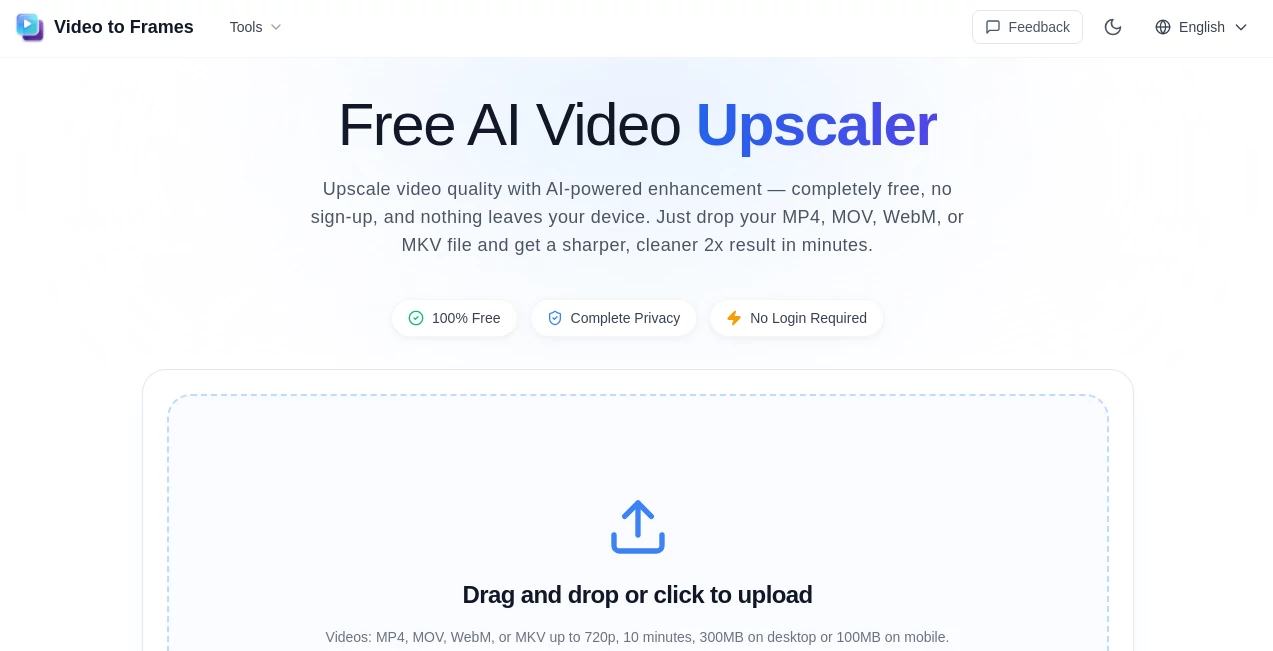
Video quality can make a noticeable difference, especially when an old recording looks soft, a screen recording needs more clarity, or a short social media clip feels too low-resolution. Video to Frames AI Video Upscaler offers a straightforward way to improve video quality without installing desktop software, creating an account, or sending personal files to a remote server.
The service runs directly in the browser and uses AI enhancement to upscale compatible videos by 2x. It is completely free, and the processing happens locally on the user's device. That combination makes it particularly appealing for people who want a quick quality boost without handing their media over to a cloud-based service.
Key Features
- Free 2x AI upscaling: Increase video resolution by 2x while enhancing edges, details, and visible clarity.
- Local browser processing: Video files stay on the user's device instead of being uploaded to a server.
- No account required: There is no registration or login step before using the tool.
- No watermark: Enhanced videos can be exported without an added watermark.
- Multiple video formats: MP4, MOV, WebM, and MKV files are supported.
- Before-and-after preview: Users can compare the original and enhanced result before exporting the final video.
- MP4 export: The enhanced result can be exported as an MP4 file.
- Browser-based workflow: There is no software package to download or install.
User Interface
The interface keeps the process pleasantly simple. Instead of navigating through a complicated collection of settings, users can drag and drop a video or select one from their device. The tool checks the file format, size, and resolution before processing begins.
The side-by-side preview is one of the more useful touches. Rather than blindly exporting a processed video, you can look at the original and enhanced versions together and decide whether the improvement is worth keeping. For someone working with a handful of short clips, that saves unnecessary trial and error.
Accuracy & Performance
The AI enhancement is designed to sharpen edges, restore visible details, and reduce some of the softness and noise associated with lower-resolution footage. The maximum upscale is 2x, so it is better viewed as a practical enhancement tool rather than a solution for turning severely damaged footage into pristine studio-quality video.
Performance depends heavily on the computer and browser being used because the processing takes place locally. Desktop Chrome and Edge are recommended for the best experience. Short clips are a sensible starting point if you want to see how quickly your particular system can process a video.
Supported videos can be up to 720p, 10 minutes long, and 300MB on desktop. On mobile devices, the file limit is 100MB. These limits make the tool especially suitable for short clips, social posts, demonstrations, tutorials, and everyday video cleanup rather than very large professional productions.
Capabilities
The strongest part of the tool is its focused approach. You do not need to learn a complicated editing application just to make a low-resolution clip look cleaner. Upload the footage, inspect the enhanced preview, and export the result when it looks right.
It can be useful for improving clips before publishing them on social networks, preparing product demonstrations, cleaning up screen recordings, or giving older animation and illustration footage a sharper appearance. It also works well as a quick quality check before moving a project into a more advanced editing workflow.
Security & Privacy
Privacy is a major part of the experience. The processing happens entirely inside the browser, meaning the uploaded video does not need to be transferred to a cloud server. This is particularly valuable when working with private recordings, internal demonstrations, client material, or other footage that you would rather keep on your own computer.
There is also no requirement to create an account. From a privacy perspective, the combination of local processing, no login, and no server upload makes the workflow considerably more comfortable for users who are cautious about sending media files to online services.
Use Cases
Social media clips: A low-resolution clip can look noticeably better after enhancement before being posted to platforms such as Instagram, TikTok, YouTube, or X.
Product demos and tutorials: Screen recordings and instructional videos can benefit from additional sharpness, particularly when text or interface elements need to remain easy to see.
Animation and illustrations: Short animated clips, fan-made projects, and illustration-based videos can benefit from cleaner edges and improved visual definition.
Older recordings: If you have a short video that looks dated because of its original resolution, a 2x upscale can provide a useful improvement without requiring a full editing suite.
Quick quality testing: The preview makes it practical to test a clip first and decide whether further editing is necessary.
Pros and Cons
- Pros: Completely free, no account required, no watermark, local processing, privacy-focused workflow, 2x AI enhancement, multiple video formats, and before-and-after preview.
- Cons: Video resolution is limited to 720p input, processing speed depends on the user's hardware, mobile uploads have a smaller size limit, and the tool is designed primarily for shorter clips.
Pricing Plans
There is no paid subscription or credit system for the AI video upscaling feature. The service is available completely free, with no login required and no hidden processing fees. Users can upscale compatible videos without paying for individual exports or monthly access.
That pricing model is particularly useful for occasional users. If you only need to improve a few clips from time to time, there is little reason to commit to a conventional subscription-based video enhancement service.
How to Use Video to Frames AI Video Upscaler
- Open the AI video upscaling page in a supported desktop browser.
- Drag and drop an MP4, MOV, WebM, or MKV file into the upload area, or select a video from your device.
- Wait for the local processing interface to prepare the video.
- Preview the original and enhanced versions side by side.
- Check whether the 2x enhancement provides the level of clarity you want.
- Export the improved video as an MP4 file.
No software installation, account creation, or cloud upload is required. For the smoothest experience, keeping the browser tab open until the export is complete is recommended.
Comparison with Similar Tools
Many online video upscalers are built around cloud processing, subscriptions, credits, or account-based workflows. This approach takes a different route by keeping the processing inside the browser and focusing on a simple 2x enhancement.
That makes it a particularly good choice when privacy and convenience matter more than having a huge collection of professional controls. A professional editor may still prefer a dedicated desktop application for advanced restoration, frame interpolation, color correction, or extensive resolution controls. For a quick enhancement, however, the lighter browser-based approach is much easier to get started with.
Another practical advantage is the ability to preview the result before exporting. You can quickly judge whether the enhancement actually helps your footage instead of committing time or money to a processing job without knowing what the result will look like.
Conclusion
For anyone who wants a simple way to improve short videos without uploading them to a third-party server, this AI upscaling tool is an appealing option. The 2x enhancement, local browser processing, free access, and lack of registration remove many of the usual barriers associated with online video enhancement.
It is not trying to replace a complete professional video restoration suite, and its input limits should be kept in mind. Instead, it does one job particularly well: giving compatible video clips a cleaner, sharper appearance through an uncomplicated browser workflow.
If your goal is to quickly improve a short recording before sharing, archiving, or editing it further, this is one of those tools that can save time without adding another piece of software to your workflow.
Frequently Asked Questions (FAQ)
Is the AI video upscaler free?
Yes. The service is completely free and does not require a subscription, credits, or an account.
Do I need to upload my video to a server?
No. Processing takes place locally in the browser, so the video does not need to be uploaded to a cloud server.
What video formats are supported?
Supported video formats include MP4, MOV, WebM, and MKV.
What is the maximum video size?
On desktop, videos can be up to 300MB, 10 minutes long, and 720p or below. Mobile devices have a 100MB limit.
How much can the video be upscaled?
The tool provides 2x AI enhancement. It is designed to improve clarity, sharpen edges, restore visible details, and clean up some noise rather than provide unlimited resolution scaling.
Does the exported video have a watermark?
No. The service states that its free AI video enhancement does not add a watermark to the output.
Which browser should I use?
Desktop Chrome and Edge are recommended because they provide the best support for the advanced browser capabilities used for local processing.
Can I use it on a phone?
Yes, mobile devices are supported, although the mobile upload limit is lower at 100MB. For larger clips and better processing performance, a desktop computer is preferable.
How long does processing take?
Processing time varies according to the video's length, resolution, and the performance of your device. Short clips are generally the best place to start when testing the workflow.
Does it require software installation?
No. The entire workflow is browser-based, so there is no desktop application or installation required.
These classifications represent its core capabilities and areas of application. For related tools, explore the linked categories above.
AI Video Upscaler details
Website unavailable — View Alternatives
Pricing
- Freemium
Apps
- Web App
Categories

AI Video Upscaler Alternatives Product
remove bg vi…

Logo Animati…

MaxArt AI

Video Upscal…

Remove Water…

Leonardo.ai

VIGGLE

RemoveVideoBG

WonderShare …
