Image Inverter
What is Image Inverter?
Image Inverter is a simple online solution for turning the colors of a picture into their exact opposites without opening a full photo-editing application. It is designed for those quick moments when you need a negative version of an image, want to experiment with complementary colors, or simply need to see a graphic from a different visual perspective.
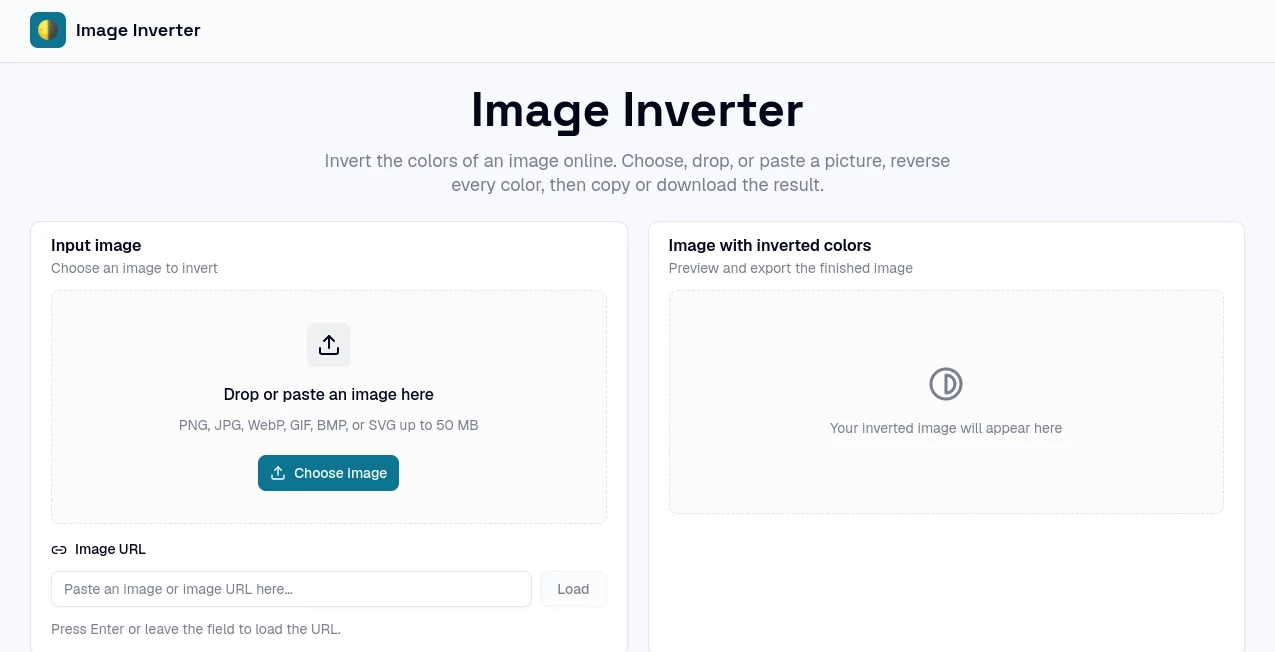
The workflow is refreshingly straightforward. Choose an image, drag and drop it into the workspace, paste one from your clipboard, or provide an image URL. After processing, the inverted version is displayed for inspection and can be copied or downloaded. There is no need to build a project, manage layers, or learn a complicated editing interface.
One particularly useful detail is that local files are processed directly in the browser rather than being uploaded to the service's server. For quick personal images, design experiments, classroom examples, and everyday editing tasks, that makes the process both convenient and reassuring.
Key Features
- Online image color inversion with a single action
- Drag-and-drop image input
- Clipboard image pasting
- Image URL loading
- Support for PNG, JPG, WebP, GIF, BMP, and SVG files
- Support for images up to 50 MB
- Preservation of original image dimensions
- Preservation of alpha transparency
- Zoom, fit, actual-size, and pan controls for inspection
- Copy the processed image to the clipboard
- Download options including PNG, JPG, BMP, and WebP
- No account required for the core workflow
- No watermark added to exported images
User Interface
The interface keeps the editing process focused on the task at hand. Instead of filling the screen with sliders, timelines, layers, and menus, it provides a clear area for selecting or dropping an image and a separate preview area for the result.
Users can inspect the original image before processing and examine the finished version at different zoom levels. The ability to fit an image, view it at its actual size, and pan around the preview is especially useful when checking smaller details or working with high-resolution graphics.
Accuracy & Performance
Color inversion is handled through a precise RGB calculation. Each red, green, and blue channel is reversed using the 255-minus-channel method. In practical terms, black becomes white, white becomes black, red becomes cyan, and orange becomes blue.
Because the operation focuses on reversing pixel colors rather than applying a collection of visual filters, the result is predictable. The original dimensions remain intact, and transparent areas can remain transparent. For a task where consistency matters more than a long list of editing effects, this focused approach works very well.
Capabilities
The tool covers more than a basic upload-and-download workflow. Images can be selected from a device, dragged into the page, pasted directly from the clipboard, or loaded using an image URL. Once processed, the negative version can be reviewed before exporting.
The supported input formats include PNG, JPG, WebP, GIF, BMP, and SVG, with files up to 50 MB accepted. The resulting image can be downloaded in several common formats, making it practical for design work, social content, presentations, educational material, and personal projects.
It is also useful for transparent graphics. For example, a transparent PNG logo can have its visible colors inverted while the transparent portions remain transparent, which can save time when preparing an alternate visual treatment.
Security & Privacy
Privacy is an important part of the workflow for local files. The website states that files selected from a user's device are processed in the browser and are not uploaded to its server. This is particularly helpful when someone wants to experiment with an image without sending the original file to an online processing service.
As with any online image workflow, users should still consider the nature of images they work with and use appropriate care when loading images from external URLs. For local files, browser-based processing provides a useful layer of convenience and privacy.
Use Cases
Design experiments: Designers can quickly test an opposite-color concept before moving into a larger design application. A dark logo, illustration, or graphic can instantly be viewed as its inverted counterpart.
Photography: Photographers can create a negative-style version of a portrait, landscape, product photo, or editorial image. It can also help when exploring unusual tonal relationships before developing a more elaborate visual treatment.
Social media content: Content creators can produce striking inverted images for posts, thumbnails, promotional graphics, or visual transitions without opening a heavyweight editor.
Education: Teachers and students can use color inversion to demonstrate complementary colors, RGB channels, image processing, and the difference between positive and negative imagery.
Transparent graphics: When working with transparent PNG artwork, color inversion can provide a fast way to create an alternate visual version while keeping the transparent areas intact.
Accessibility and visual comparison: An inverted version can sometimes make particular relationships between highlights, shadows, and colors easier to inspect. It can be useful as an additional visual comparison rather than a replacement for dedicated accessibility testing.
Pros and Cons
- Pros: Very simple workflow, local browser processing for device files, no account required, supports several common image formats, preserves image dimensions, maintains transparency, supports clipboard input, and offers convenient preview and export controls.
- Cons: The tool intentionally focuses on color inversion rather than providing a complete photo-editing environment. Users who need layers, retouching, detailed color grading, masking, or advanced effects will need a more comprehensive editor.
Pricing Plans
The core image-inversion workflow is available online without requiring a paid editing plan. Users can load an image, invert its colors, inspect the result, and export the finished file directly from the browser.
This makes it particularly appealing for occasional users. Someone who only needs to create a negative image once in a while does not have to subscribe to a full-featured creative suite simply to perform one straightforward operation.
How to Use the Tool
- Choose an image from your device, drag and drop it into the input area, paste an image from your clipboard, or enter an image URL.
- Check the input preview and use the available zoom or viewing controls if you want to inspect the image first.
- Select the option to invert the image colors.
- Review the resulting negative image.
- Copy the finished image to your clipboard or download it in a supported format such as PNG, JPG, BMP, or WebP.
For example, if you have a black-and-white graphic and want the opposite version for a light background, the entire process can be completed in just a few steps. There is no need to recreate the artwork manually or adjust individual color controls.
Comparison with Similar Tools
Many general-purpose photo editors can invert colors, but they often include dozens of additional controls that are unnecessary for a single conversion. A focused image inverter has an advantage when speed and simplicity are the priority.
The browser-based workflow is particularly convenient for one-off jobs. Users can bring in an image, perform the color reversal, inspect the result, and export it without setting up a project or navigating through multiple editing panels.
It also has a practical advantage for local files because processing takes place in the browser. For users who prefer not to upload a personal image merely to reverse its colors, this approach can be more comfortable than a conventional online editor that requires server-side processing.
Conclusion
For anyone who needs a fast and focused way to reverse image colors, this tool offers a pleasantly uncomplicated experience. Its strongest quality is knowing exactly what problem it is designed to solve and avoiding unnecessary complexity around it.
The combination of multiple input methods, local browser processing, predictable color inversion, transparency preservation, useful preview controls, and several export formats makes it a practical choice for designers, photographers, students, teachers, and content creators. When the job is simply to turn an image into its color-negative counterpart, a focused tool like this can be much more convenient than opening a full editing suite.
Frequently Asked Questions (FAQ)
How do I invert an image?
Select, drop, or paste an image into the input area and choose the image color inversion option. The processed version will then appear in the preview area.
Can I invert an image without uploading it to a server?
Yes. Local files are processed directly in the browser, so they do not need to be uploaded to the service's server for the inversion process.
What image formats are supported?
Supported input formats include PNG, JPG, WebP, GIF, BMP, and SVG. Images can be up to 50 MB in size.
Does color inversion remove transparency?
No. The color inversion process preserves alpha transparency, so transparent portions of supported images can remain transparent after processing.
Is an inverted image the same as a grayscale image?
No. Grayscale removes color information by converting an image into shades of gray. Color inversion reverses the RGB values, producing the opposite color for each visible pixel.
Can I download the inverted image?
Yes. After reviewing the result, the processed image can be downloaded in supported formats including PNG, JPG, BMP, and WebP.
Can I paste an image instead of selecting a file?
Yes. The workflow supports pasting an image from the clipboard, which can be useful when working with screenshots or images copied from another application.
Can I use an image URL?
Yes. An image URL can be entered into the provided field and loaded for processing.
Photo & Image Editor , Image .
These classifications represent its core capabilities and areas of application. For related tools, explore the linked categories above.

Image Inverter Alternatives Product
Krea2 Edit
NB2 Hub
Caricature A…

Upscale image

Text Remover…

Pixelfox AI

Before After…
Circle Crop …
Picsart