AI Image Eexpander | Imagestretcher
What is AI Image Eexpander | Imagestretcher?
Getting the right image ratio is often harder than taking the original photo. A landscape photograph may need to become a square social post, a portrait image may need to fit a wide banner, or a product shot may need extra space around it without cutting away important details. ImageStretcher solves this problem by using AI to extend the edges of an image rather than simply cropping, squeezing, or distorting what is already there.
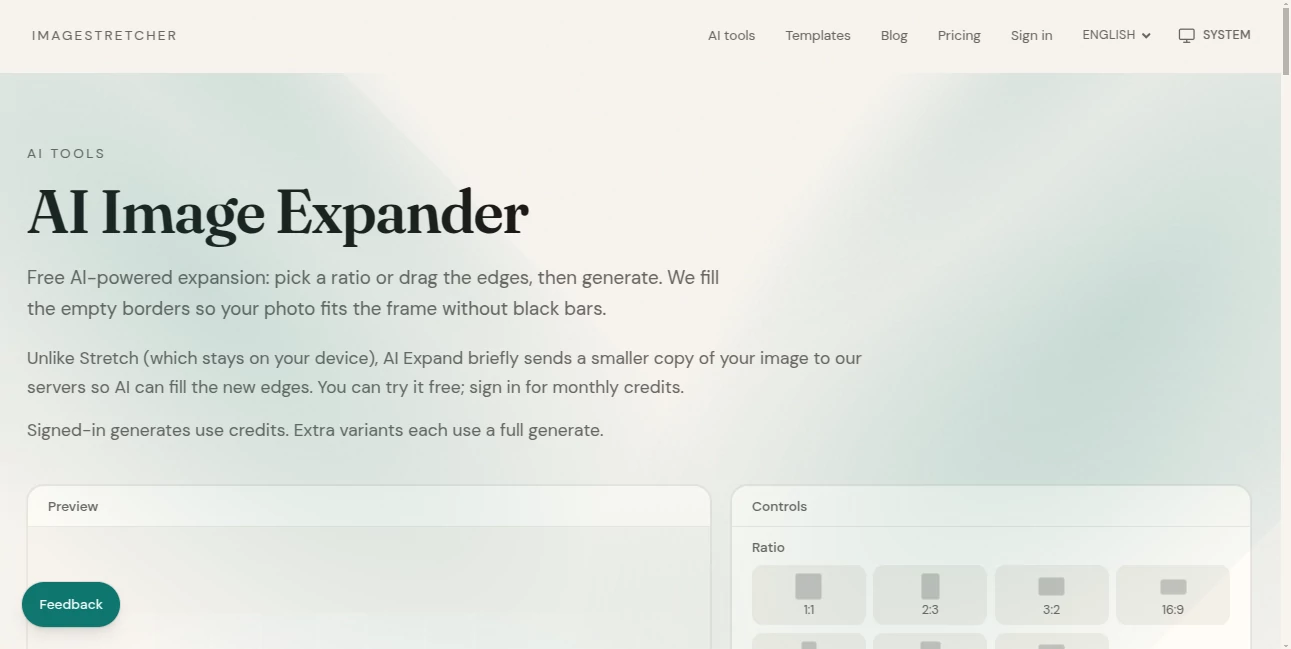
The experience is straightforward. Upload an image, choose a target ratio or adjust the frame manually, and let the AI create the missing areas around the original composition. An optional prompt and art-style setting give users additional control over how the newly generated space should look.
What makes the approach particularly useful is that the original subject does not have to be sacrificed just to meet a new canvas size. Instead, the surrounding environment can be continued naturally, whether that means extending a wall, sky, street, landscape, studio background, or another visual element.
Key Features
- AI-powered expansion that creates new content beyond the original image borders.
- Preset aspect ratios including 1:1, 2:3, 3:2, 16:9, 9:16, 3:4, and 4:3.
- Manual edge adjustment for more precise framing.
- Optional text prompts for guiding the generated surroundings.
- Art-style controls for influencing the appearance of the expansion.
- Multiple variants for comparing different generated results.
- PNG, JPEG, and WebP export options.
- JPEG and WebP quality controls for balancing image quality and file size.
User Interface
The interface keeps the main workflow focused on the image itself. After uploading a file, users can select a ratio or drag the edges of the frame to define where additional content is needed. A checkerboard area makes the intended expansion easy to understand before generation begins.
The optional prompt field is a useful touch for situations where a generic continuation is not enough. For example, someone extending a street photograph could describe a foggy continuation of the road, while a product photographer might want the surrounding studio background to continue naturally.
The overall workflow feels more like a focused image utility than a complicated design application. That is helpful when the only goal is to create extra space around an existing picture.
Accuracy & Performance
AI image expansion is most convincing when the surrounding scene has enough visual information for the model to continue. Simple backgrounds such as skies, walls, floors, landscapes, and studio settings are particularly well suited to this type of editing.
Results can vary depending on the source image and the amount of expansion requested. When the generated border does not look quite right, users can create another result and compare the available variants rather than being locked into the first attempt.
The tool also uses the closest supported shape when a manually adjusted frame does not exactly match one of its preset ratios, helping keep the workflow practical instead of forcing users to calculate dimensions themselves.
Capabilities
The main strength is its ability to add believable space without changing the central subject. This makes it different from a conventional image stretcher, where existing pixels are simply remapped and objects can become visibly distorted.
It is also useful when cropping would remove something important. A person's face, a product package, or the main subject of a photograph can remain in place while the AI builds additional surroundings around it.
Another practical advantage is format flexibility. Once the expanded image is ready, it can be exported as PNG, JPEG, or WebP, making it suitable for both high-quality graphics and situations where keeping the file size under control matters.
Security & Privacy
Privacy works differently depending on the operation. Before generation, the original image remains on the user's device. When AI expansion is requested, a smaller temporary copy is sent to the service so the AI can generate the new edges. According to the service, the expanded file is not retained on its servers after the process is completed.
This distinction is worth understanding, especially for users working with private photographs. The classic image tools on the same service can remain entirely local, while AI-powered operations require temporary server processing.
Use Cases
Social media content: A horizontal photograph can be expanded into a square post or vertical story format without cutting off the main subject.
Banners and cover images: Wide headers often require more horizontal space than the original photograph provides. AI expansion can continue the scene toward the sides while keeping the main subject positioned naturally.
Product photography: Marketplace listings frequently use fixed image proportions. Instead of cropping packaging, labels, or important product details, sellers can expand the surrounding background.
Print projects: Extra space around a photograph can be useful when preparing an image for a print layout. Background elements such as fabric, walls, or sky can be continued to create additional border area.
Presentations and thumbnails: A portrait or phone photograph may not naturally fit a 16:9 presentation slide or video thumbnail. Expanding the sides can create the required canvas while preserving the original subject.
Creative photography: Photographers can experiment with giving a composition more breathing room. A close-up portrait, for example, can be turned into a wider composition without having to recreate the photograph from scratch.
Pros and Cons
- Pros: Simple workflow, useful preset ratios, adjustable expansion area, optional prompts, multiple variants, and support for PNG, JPEG, and WebP.
- Pros: Helps preserve important subjects that would otherwise be lost through cropping.
- Pros: Can be tried without creating an account.
- Pros: Particularly effective for extending uncomplicated backgrounds and creating extra composition space.
- Cons: AI-generated edges can vary from one generation to another.
- Cons: Very complex scenes may require several attempts to achieve a convincing continuation.
- Cons: AI expansion requires temporary server processing, unlike the site's local stretching tools.
Pricing Plans
The AI expansion feature can be tried without an account, while registered users receive a monthly AI credit allowance. Each generation uses credits, and additional variants count as additional generations.
The Free plan costs $0 per month and includes the site's local image tools, along with a light monthly AI credit allowance for signed-in users. The Pro plan costs $12 per month when billed annually, with the page showing a regular price of $15 per month and a 20% annual saving. Pro is designed for users who work with AI image tools more frequently and includes a larger monthly credit allowance.
There is also a pay-as-you-go option starting at $5 for 300 credits. Purchased credits remain available and do not expire with the monthly credit refresh, making this option practical for occasional projects that do not justify a recurring subscription.
How to Use ImageStretcher
- Upload a PNG, JPEG, WebP, or another supported image.
- Select a preset aspect ratio such as 1:1, 16:9, or 9:16, or drag the frame edges manually.
- Use the optional prompt to describe how the surrounding area should continue.
- Select an art style and the desired number of variants when available.
- Click Generate and compare the resulting versions.
- Choose the result that fits the original composition best.
- Download the finished image as PNG, JPEG, or WebP.
Comparison with Similar Tools
Traditional cropping and AI expansion solve very different problems. Cropping removes part of an image, which can be useful when the composition simply needs to be tighter. AI expansion does the opposite: it creates additional content outside the existing frame.
Conventional stretching is different again. It changes the dimensions of existing pixels and can deliberately stretch people, objects, and backgrounds. That can be useful for certain jobs, but it is not the same as creating new visual information.
For a photograph that needs to become wider or taller while keeping its main subject intact, generative expansion is usually the more natural approach. The dedicated workflow here makes that particular task much faster than opening a full image editor and manually constructing the missing background.
Conclusion
AI image expansion is one of those editing techniques that becomes especially valuable when a perfectly good photograph simply does not fit the format required for the next project. Instead of accepting black bars, cutting away the subject, or distorting the original composition, users can create additional visual space around it.
The combination of preset ratios, manual framing, optional prompts, style controls, multiple variants, and flexible export formats makes the workflow approachable for both casual users and people preparing images for social media, marketplaces, presentations, and print.
For anyone who regularly finds themselves thinking “this image is great, but I need more space around it,” this is a practical solution worth keeping in the editing toolkit.
Frequently Asked Questions (FAQ)
What does AI image expansion do?
It creates new content outside the original borders of an image so the picture can fit a larger canvas or a different aspect ratio without simply cropping or stretching the existing pixels.
Can I expand an image to 16:9?
Yes. You can select 16:9 from the available ratios or adjust the frame manually before generating the expanded image.
Can I expand an image to a square?
Yes. The 1:1 ratio is available for turning landscape or portrait images into square compositions while allowing the AI to fill the additional space.
Can I guide the AI with a prompt?
Yes. An optional prompt can describe what should continue beyond the original frame, which can be helpful for scenes such as streets, landscapes, studio backgrounds, and other recognizable environments.
Do I need an account to try it?
No. The AI expansion feature can be tried without an account. Signing in provides a monthly credit allowance for continued use.
What image formats can I download?
The completed image can be exported as PNG, JPEG, or WebP. JPEG and WebP also provide quality controls for users who want to balance visual quality and file size.
Are my images stored on the server?
The AI workflow uses a temporary smaller copy of the image for processing, but the service states that the expanded file is not kept on its servers after the operation is complete.
Is AI expansion the same as stretching an image?
No. Stretching changes the dimensions of existing pixels, while AI expansion creates new visual content beyond the original borders. AI expansion is therefore better suited to adding believable space around a subject.
AI Photo & Image Generator , Photo & Image Editor , AI Background Generator , AI Image to Image .
These classifications represent its core capabilities and areas of application. For related tools, explore the linked categories above.
AI Image Eexpander | Imagestretcher details
Website unavailable — View Alternatives
Pricing
- Freemium
Apps
- Web App
Categories

AI Image Eexpander | Imagestretcher Alternatives Product

NanoEditor

Image to Pro…

Freepik

KKV AI

Krea2 Edit

AI Raphael

nana banana …
Photoshoot A…
BeadPattern