MyChatExport
What is MyChatExport?
MyChatExport is a practical Chrome extension for anyone who wants to keep a ChatGPT conversation outside the browser without relying on copy and paste. It lets users export the conversation they currently have open as either a Markdown file or a PDF, while preserving the order and much of the original formatting.
That sounds like a small convenience until you have a long conversation filled with code, tables, notes, research, or important decisions. Copying everything manually can be frustrating, and browser pages do not always keep the entire thread loaded at once. This tool takes a more direct approach by requesting the conversation and assembling the export inside the browser.
It is especially useful for developers saving debugging sessions, writers keeping research, students organizing study material, and professionals who need a readable copy of a useful AI conversation.
Key Features
- Export a complete ChatGPT conversation rather than only the portion currently visible on screen.
- Download conversations as Markdown for editing, documentation, or use in applications such as Obsidian and Notion.
- Create searchable PDFs using Chrome's own print engine.
- Keep messages in their original order.
- Preserve code blocks, tables, quotes, headings, and lists in the exported content.
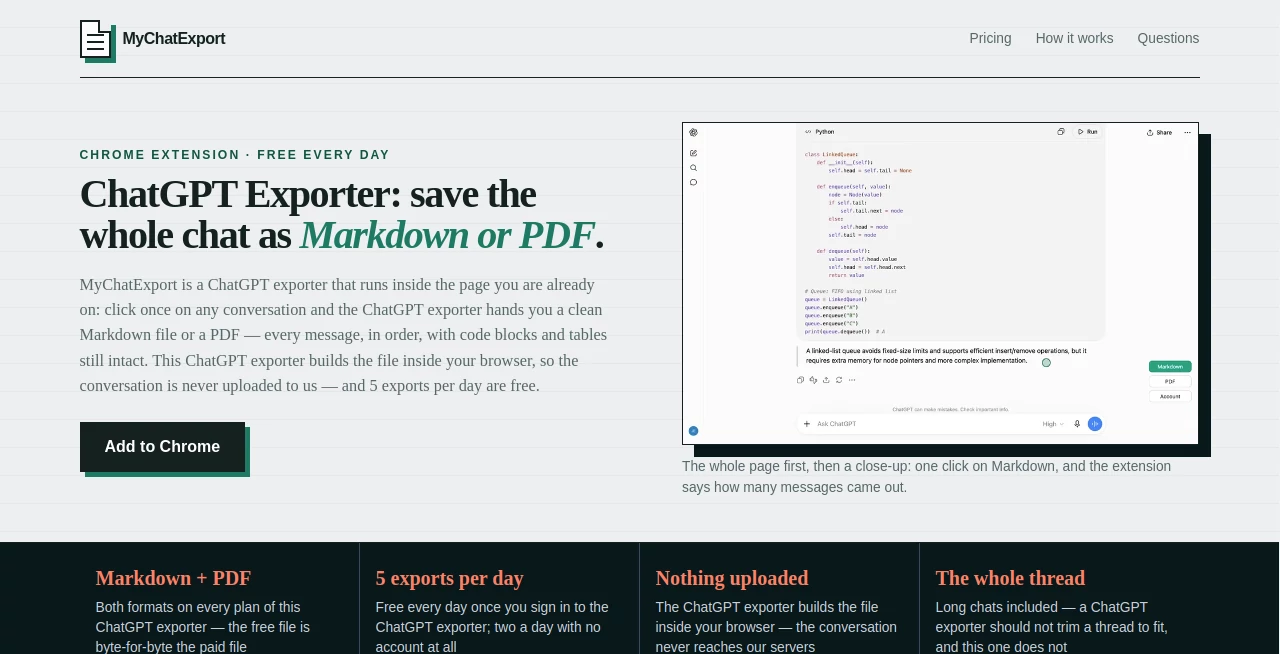
- Show the number of messages included after an export so users can immediately see whether the conversation was captured completely.
- Process conversation content locally inside the browser instead of uploading the transcript to the service's servers.
- Export only the conversation currently open rather than attempting to download an entire ChatGPT history.
User Interface
The interface is intentionally lightweight. Instead of replacing the ChatGPT experience with a complicated dashboard, the extension adds export controls to the page you are already using. The buttons remain out of the way of the conversation and input area, making the feature easy to find without changing the normal ChatGPT layout.
After choosing an export format, the extension also provides useful feedback about the result. Seeing a message count after a long export is a surprisingly valuable detail because it removes some of the uncertainty that comes with manually copying large conversations.
Accuracy & Performance
The biggest strength is its approach to long conversations. A browser window does not necessarily keep every message in a lengthy thread actively available on screen. A simple copy-and-paste workflow can therefore miss older parts without making it obvious.
This extension requests the conversation itself and assembles the transcript locally. It then reports how many messages were exported. For someone saving a lengthy coding discussion or research session, that extra confirmation can make the workflow much more dependable.
Markdown files are generated for immediate download, while PDF exports use Chrome's print functionality. The result is a normal searchable PDF rather than a document carrying an additional watermark or advertising banner.
Capabilities
The tool focuses on doing one job well: turning an individual ChatGPT conversation into a useful file. Markdown is particularly handy when the exported material needs to be edited, stored in a knowledge base, added to a repository, or moved into a note-taking application.
PDF is better suited to sharing, reading, printing, or keeping a polished snapshot of a conversation. Tables remain tables, code remains recognizable as code, and individual messages retain their attribution.
Another useful detail is that the exported document can use the conversation's own title as its heading and suggested filename, making saved conversations easier to identify later.
Security & Privacy
Privacy is one of the more important aspects of this approach. Conversation content is assembled inside the user's browser rather than being uploaded to the service's servers. According to the product's privacy information, account and license checks communicate with its extension service, but the conversation content itself is not included in those requests.
The extension is also deliberately limited to the conversation currently being viewed. It does not provide a bulk-download function for a user's entire ChatGPT history, which keeps its purpose focused and reduces the amount of account data it needs to handle.
Use Cases
Developers: Long debugging sessions can contain valuable code, explanations, error messages, and solutions. Exporting the complete thread makes it easier to keep that work for future reference.
Writers and researchers: A research conversation can be saved as Markdown and moved into a writing or knowledge-management workflow without rebuilding the content manually.
Students: Useful explanations and study conversations can be turned into PDFs for offline reading or stored alongside other course material.
Professionals: When an AI conversation contains planning notes, meeting preparation, technical guidance, or a detailed draft, a clean PDF can be easier to share and archive than a browser link.
Knowledge management: Markdown exports are particularly useful for people who maintain personal knowledge bases in tools such as Obsidian or Notion.
Pros and Cons
Pros:
- Exports the full conversation currently being viewed.
- Supports both Markdown and PDF.
- Keeps message order and important formatting.
- Useful message-count confirmation after exporting.
- Conversation processing happens inside the browser.
- No watermark or advertising banner is added to exported PDFs.
- Simple workflow with no complicated configuration.
- Offers free daily exports.
Cons:
- It is designed for one open conversation rather than bulk-exporting an entire chat history.
- Users who need unlimited exports must move beyond the free daily allowance.
- It is primarily designed around Chrome and ChatGPT rather than serving as a universal conversation archiving system.
- PDF creation relies on Chrome's print dialog, so saving a PDF requires one additional browser step.
Pricing Plans
The service follows a straightforward free-and-Pro model. Users can make up to five full exports per day after signing in, while users without an account can make two exports per day. This makes the free tier useful for occasional archiving without requiring a subscription.
The Pro plan removes the daily export limit. Importantly, the exported file itself is not artificially restricted on the free plan. The same export functionality is used regardless of whether the user is on the free or paid option.
For someone who saves conversations only occasionally, the free allowance may be enough. Heavy users who regularly archive multiple long conversations will get more value from the unlimited option.
How to Use It
Getting started is simple and does not require a complicated setup process.
- Install the Chrome extension from the Chrome Web Store.
- Open the ChatGPT conversation you want to save.
- Use the export controls that appear on the page.
- Choose Markdown or PDF.
- For Markdown, the file is downloaded directly.
- For PDF, Chrome opens its print dialog, where you can select the option to save the document as a PDF.
- Check the completion message and exported message count to confirm what was included.
Comparison with Similar Tools
There are several ways to save ChatGPT conversations, but each method serves a different purpose. ChatGPT's built-in data export is the better choice when the goal is to create a complete backup of an account's conversations. It is designed for account-level data export rather than quickly saving one useful discussion.
Manual copy and paste is still suitable for short conversations, but it becomes inconvenient when a thread is hundreds of messages long. It can also miss content that is no longer loaded in the visible page.
Browser-based export extensions offer a middle ground, and this particular approach is appealing because it concentrates on a single open conversation, provides both Markdown and PDF output, and gives users an explicit message count after the export.
For someone who simply wants to keep one important ChatGPT discussion in a readable format, that focused workflow can be considerably more convenient than creating a full account backup or manually assembling a document.
Conclusion
Saving an important AI conversation should not require scrolling through hundreds of messages and repeatedly copying sections into another document. This Chrome extension turns that otherwise tedious task into a quick export workflow while keeping the conversation useful after it leaves the browser.
The combination of Markdown and PDF support makes it flexible enough for both personal knowledge management and straightforward sharing. The local browser-based processing, message count confirmation, preservation of code and tables, and absence of PDF watermarks are also thoughtful touches.
It is not intended to replace ChatGPT's complete account backup feature, and it does not try to. Its strength is much narrower: when one conversation matters and you want it saved now, it provides a clean and practical way to keep it.
Frequently Asked Questions (FAQ)
Can I export a complete long ChatGPT conversation?
Yes. The extension is designed to retrieve the conversation itself rather than simply copying the messages currently visible on screen, allowing long threads to be exported more completely.
Can I export ChatGPT conversations as PDF?
Yes. PDF is one of the two available export formats. The PDF is created through Chrome's own print engine and can be saved normally.
Can I export conversations as Markdown?
Yes. Markdown is available alongside PDF and is particularly useful for documentation, note-taking applications, repositories, and knowledge bases.
Does the exported PDF contain a watermark?
No. The product states that its PDF exports do not add a watermark, footer, logo, or advertising banner.
Is my ChatGPT conversation uploaded to the service?
No. The conversation is assembled and written inside the browser. The service states that conversation content is not included in its account and license-check requests.
Can I export all of my ChatGPT conversations at once?
No. The extension intentionally focuses on the single conversation that is currently open. For a complete account backup, ChatGPT's own data export is the more appropriate option.
How many free exports are available?
Signed-in users can make five full exports per day for free. Users who do not create an account can make two exports per day.
What happens when I reach the free daily limit?
The Pro plan removes the daily export limit, making it more suitable for users who regularly save multiple conversations.
Does it preserve code and tables?
Yes. The exported conversation is designed to retain code blocks, tables, quotes, lists, and message order rather than flattening everything into plain text.
Is it useful for saving conversations in Obsidian or Notion?
Yes. Markdown exports are designed to be easy to move into note-taking and knowledge-management workflows, including applications such as Obsidian and Notion.
Does it export my entire ChatGPT history?
No. It only works with the individual conversation that you currently have open. This focused design separates it from ChatGPT's account-wide data export feature.
Other , AI PDF , AI Productivity Tools , AI Files Assistant .
These classifications represent its core capabilities and areas of application. For related tools, explore the linked categories above.
MyChatExport details
Website unavailable — View Alternatives
Pricing
- Freemium
Apps
- Chrome Extensions
Categories

MyChatExport Alternatives Product

Alloy

TwitterXVideo

JFIF to JPG …

Ovulation Ca…

PDFgear

HTMLSlides

IdeaHunter

The Audio St…

Airtable AI …