
nimblecut
What is nimblecut?
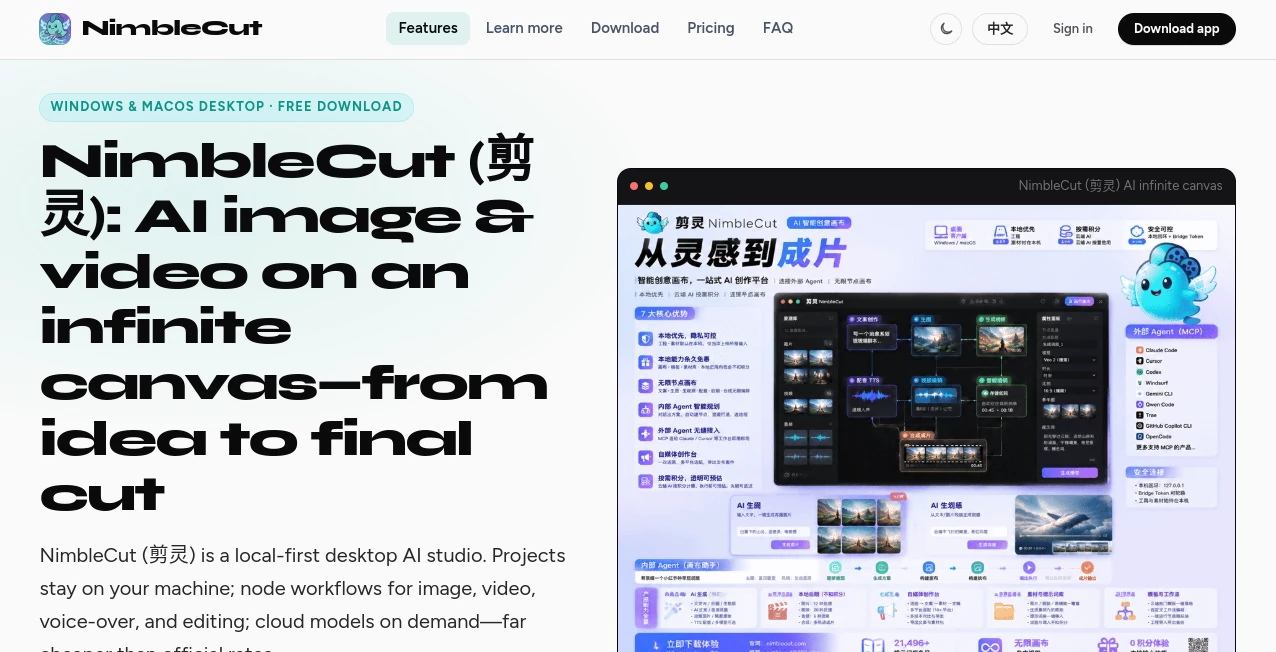
NimbleCut is a local-first desktop AI creation platform built for people who want more control over the entire content production process. Instead of jumping between separate websites for image generation, video creation, voiceover, and editing, creators can bring these steps together inside one expandable canvas.
The desktop application is available for Windows and macOS, with projects and source materials stored locally on the user's computer by default. AI generation can be added when needed through connected cloud models, while everyday editing and media management remain available without consuming generation credits.
This approach makes the platform particularly interesting for short-form video creators, e-commerce teams, brand designers, and content operators who produce material regularly rather than generating a single image once in a while. A creator can start with an idea, build a visual workflow, generate assets, arrange them, add narration, and prepare the final content without constantly switching tools.
Key Features
- Text-to-image and image-to-image generation for creative and commercial visuals.
- Text-to-video and image-to-video generation for short-form and promotional content.
- AI voiceover and script generation for video production.
- Node-based workflow canvas for connecting multiple creative steps.
- Built-in Agent that can create and connect workflow nodes from natural-language instructions.
- MCP support for connecting the creative workflow with external AI agents and development workspaces.
- Local storage for projects and media assets.
- Built-in templates and a library containing thousands of prompts.
- Batch template execution for repeated content production.
- Local video and image editing without consuming AI credits.
- Support for several external AI model providers and generation services.
User Interface
The interface is centered around an infinite canvas rather than a conventional single-purpose editor. This is useful when a project contains several connected stages because images, videos, audio, prompts, and processing steps can be arranged as part of a visual workflow.
The node-based approach may take a little time to understand if someone is accustomed to simple browser editors. Once the basic idea clicks, however, it becomes easier to see how a complete production process fits together. Templates can also reduce the amount of setup required for repetitive jobs.
Accuracy & Performance
Performance depends partly on the AI model selected for a particular generation task, since cloud generation can be routed through different providers. The platform supports services and models including Google Gemini and Veo, Volcengine and Ark, OpenAI-compatible gateways, xAI Grok, Kling, Vidu, Seedance, and Nano Banana, with available model IDs depending on the current configuration.
One practical advantage is that local editing does not require generation credits. Tasks such as trimming, combining, resizing, color adjustment, format conversion, audio editing, and media composition can be handled locally. That distinction can make a noticeable difference for users who work with large amounts of content.
Capabilities
The platform covers a broad part of the visual content workflow. A user can generate images from text, transform existing images, create videos from prompts or source images, generate voiceovers, write scripts, and continue editing the resulting assets on the desktop.
The built-in Agent adds another layer of automation. Instead of manually connecting every node, users can describe what they want in natural language and allow the system to construct the workflow. It can also be operated step by step when a creator wants to review the process before running it.
For users working with external AI development environments, MCP support can connect the workflow to tools such as Cursor, Codex, Claude Code, Trae, Windsurf, Gemini CLI, Qwen Code, GitHub Copilot CLI, and other compatible HTTP MCP agents.
Security & Privacy
The local-first architecture is one of the more important aspects of the platform. Projects and media are stored on the user's computer by default, and local editing does not require sending those assets to a remote editor.
There is an important distinction, though. When a user requests cloud-based AI generation, the relevant prompts and inputs are sent to the selected third-party model provider for processing. This means privacy depends not only on the desktop application but also on the policies and terms of the external AI service handling a particular request.
For sensitive projects, users should therefore understand which operations are local and which require cloud processing before uploading private material.
Use Cases
Short-form video creation: Creators can combine scripts, generated visuals, voiceovers, editing, and final assembly into a repeatable workflow for social platforms.
E-commerce content: Product images, promotional visuals, short advertisements, and supporting video assets can be produced from a centralized desktop workflow.
Brand and marketing teams: Teams can build reusable templates for recurring campaigns instead of rebuilding the same production process from scratch.
Content operations: People managing several social accounts can use batch execution and reusable workflows to produce variations of content more efficiently.
Creative experimentation: The infinite canvas makes it possible to test different image, video, audio, and prompt combinations without forcing every experiment into a linear editing timeline.
Pros and Cons
- Pros: Local-first workflow with projects and assets stored on the computer.
- Pros: Combines image generation, video generation, voiceover, scripting, and editing in one environment.
- Pros: Infinite canvas and node-based workflows are well suited to repeatable production processes.
- Pros: Built-in Agent can automate workflow construction from natural-language instructions.
- Pros: MCP support opens the workflow to a range of external AI agents.
- Pros: Local editing and media operations do not consume AI generation credits.
- Pros: Free local features are available without a monthly subscription.
- Cons: The desktop-first approach may not appeal to users who prefer browser-only tools.
- Cons: Advanced node workflows can require some learning before they become comfortable.
- Cons: Cloud generation costs vary according to usage and the selected model.
- Cons: Cloud AI requests are subject to the terms and content policies of the external providers.
Pricing Plans
The pricing model combines free local functionality with usage-based AI credits. The basic creation tier costs ¥0 per month and includes local editing, workflow canvas features, templates, asset management, and thousands of built-in prompts.
For cloud AI generation, users can purchase credits rather than committing to a recurring subscription. The current system uses a fixed rate of 100 credits for ¥1.
- Basic Creation: ¥0 per month, including the local creative and editing features.
- Light Use: ¥59 recharge with 5,900 credits, plus access to AI image generation, AI video generation, voiceover, script writing, and inpainting.
- Daily Creation: ¥599 recharge with 59,900 credits and the same core AI generation capabilities at a larger usage allowance.
- High-Frequency Production: ¥1,999 recharge with 199,900 credits for heavier production requirements.
Because the system is usage-based, the actual cost depends on what is generated and how frequently it is used. This can be attractive for occasional creators who do not want another monthly subscription, while high-volume teams should monitor their credit consumption closely.
How to Use It
Start by downloading the desktop application for Windows or macOS and opening a new project. From there, choose the type of content you want to create and begin building a workflow on the canvas.
- Install the desktop application on a supported Windows or macOS computer.
- Create a project and decide whether you want to start with an image, video, script, or another asset.
- Use natural-language instructions with the built-in Agent or build the workflow manually with nodes.
- Enter a prompt or upload the source material required for the selected generation task.
- Choose an appropriate AI generation model when cloud processing is required.
- Review the generated image, video, voice, or other asset.
- Continue editing locally using the available media tools.
- Save the finished project and export the final content for its intended platform.
Comparison with Similar Tools
Many AI creation platforms concentrate on one part of the process. Some are primarily image generators, others focus on video generation, and some are built around complex node-based experimentation. This platform takes a broader production-oriented approach by bringing generation, workflow automation, audio, and local editing into the same desktop environment.
Compared with browser-based AI generators, the local-first workflow offers more control over project storage and makes repeated desktop production more natural. Compared with highly technical node systems, its built-in Agent and templates can make workflow construction more approachable for creators who care more about finished content than experimentation with every underlying parameter.
The trade-off is equally clear: users looking for a very simple one-click web generator may find the desktop workflow more involved than necessary. The strongest fit is for people who want a reusable creative workspace rather than a single isolated generation tool.
Conclusion
For creators who are tired of piecing together separate AI services for images, videos, voiceovers, scripts, and editing, this desktop approach offers a practical alternative. Its biggest strength is not simply the number of AI features available. It is the way those features can be connected into repeatable workflows while projects remain locally managed.
The free local functionality also makes it easy to explore without immediately committing to a subscription. When cloud generation is needed, the credit-based model lets users pay according to actual usage. Add the infinite canvas, workflow automation, external Agent connections, and support for multiple AI providers, and the result is a capable environment for creators who produce content regularly.
It is especially worth considering for short-video creators, e-commerce businesses, visual marketing teams, and anyone who wants a more organized path from an initial idea to finished media.
Frequently Asked Questions (FAQ)
Is the platform free to use?
Yes. The basic local creation features are available for free. Cloud-based AI generation uses a credit system and requires additional balance depending on usage.
Which operating systems are supported?
The desktop application currently supports Windows and macOS.
Does it support AI video generation?
Yes. It supports both text-to-video and image-to-video generation through connected AI models.
Can projects be stored locally?
Yes. Projects and media assets are designed to remain on the user's computer by default. Cloud processing is only involved when the user initiates an AI generation task that requires an external model.
Does local editing consume AI credits?
No. Local operations such as video cutting, combining, resizing, color adjustment, format conversion, image editing, and audio processing are available without consuming AI generation credits.
Can it connect to external AI agents?
Yes. MCP support allows compatible external agents and AI development environments to interact with the creative workflow.
How does the credit system work?
The current pricing system uses 100 credits for ¥1. Users purchase credits and are charged according to the AI operations they perform rather than paying a fixed monthly fee for cloud generation.
What happens if an AI generation fails?
When a generation fails because of technical problems such as network errors, service timeouts, or model availability issues, the consumed credits are automatically returned. Requests rejected by an upstream model because of its content-safety rules may not qualify for a refund.
AI Image to Video , AI Video Generator , AI Video Editor , AI Text to Video .
These classifications represent its core capabilities and areas of application. For related tools, explore the linked categories above.
nimblecut details
Website unavailable — View Alternatives
Pricing
- Freemium
Apps
- Windows App
- Mac App
Categories

nimblecut Alternatives Product

Seedance 2.0…

seedance 2

Seedance 2 V…

Seedance 2.5…

Gemini Omni …

Fiddl.art

AudioVideoGe…

Sora 2

Happy Horse