















Online Whiteboard
Verified Blue CheckMark
Verified Blue CheckMark products are featured above free or unverified listings.
This badge indicates authenticity and builds trust, giving your product higher visibility across the platform.
Upgrade to get verified
Verified Blue CheckMark products are featured above free or unverified listings. This badge indicates authenticity and builds trust, giving your product higher visibility across the platform.
Upgrade to get verified
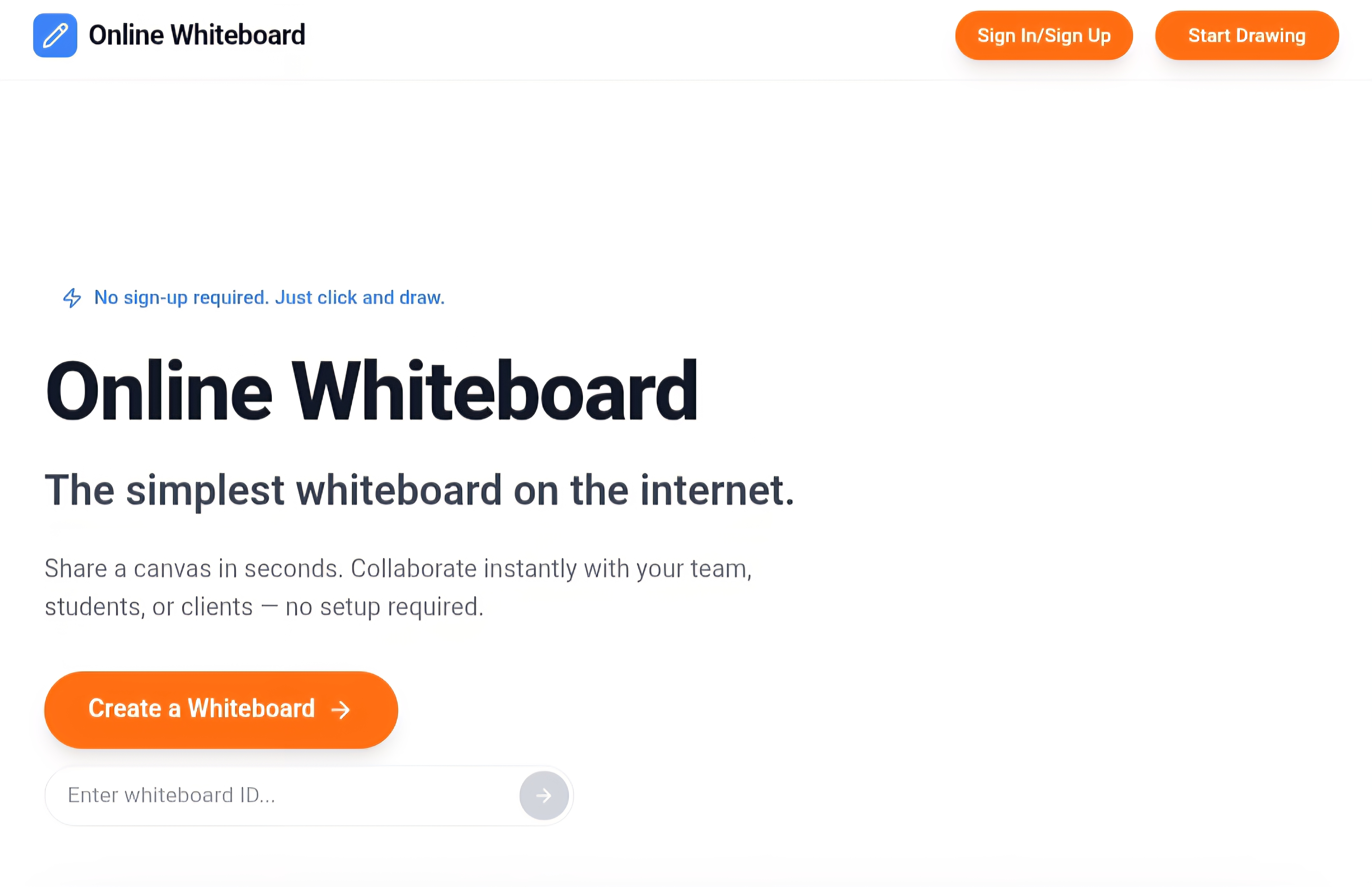
What is Online Whiteboard?
There’s something special about gathering around a whiteboard—ideas flow faster, everyone can contribute, and you can see thoughts come to life in real time. This tool brings that same energy online, letting teams, students, and creatives sketch, brainstorm, and collaborate from anywhere without the usual friction. I’ve used it with remote colleagues to map out project plans and with friends to plan weekend trips, and it always feels surprisingly natural. No complicated setup, just a clean space where ideas can spread freely.
Introduction
Traditional whiteboards are great until someone has to work from home or the team is spread across cities. This platform recreates the familiar experience in your browser, with smooth drawing tools, sticky notes, shapes, and real-time updates that make everyone feel like they’re in the same room. It’s become a daily companion for remote teams, teachers running interactive classes, designers sharing wireframes, and anyone who thinks better when they can draw it out. The best part? It stays out of your way so the focus stays on the ideas, not the technology.
Key Features
User Interface
The board opens instantly with a clean, spacious canvas. Tools for drawing, text, sticky notes, shapes, and arrows sit neatly on the side, easy to reach but never intrusive. You can zoom, pan, and move elements effortlessly. Multiple people can draw at the same time without lag or conflict, and you can see cursors and names so you know exactly who is adding what. It feels familiar if you’ve ever used a physical whiteboard, yet it works beautifully on laptops, tablets, and even phones.
Accuracy & Performance
Drawing feels responsive and precise, with smooth lines and minimal lag even when several people are active. Changes appear instantly for everyone, and the board handles large, complex sessions without slowing down. Text remains crisp when zoomed, and elements snap neatly when you want alignment. It’s reliable enough that you can run hour-long workshops or brainstorming sessions without worrying about technical hiccups.
Capabilities
You get freehand drawing, shapes, text boxes, sticky notes, image uploads, templates for common diagrams, and easy export options (PNG, PDF, SVG). Real-time collaboration supports unlimited participants, with permissions to control who can edit or just view. It also includes basic mind-mapping and flowchart tools, making it versatile for everything from quick sketches to structured planning sessions. The simplicity hides how powerful it becomes once a team starts using it regularly.
Security & Privacy
Boards can be password-protected or set to private, and you control exactly who gets access via shareable links. Data is handled securely, and you can delete boards when the project is done. For companies and educators working with sensitive information, the straightforward privacy controls provide peace of mind without complicated settings.
Use Cases
Remote product teams sketch wireframes and user flows together during sprint planning. Teachers turn lessons interactive by letting students draw answers in real time. Marketing teams brainstorm campaign ideas with sticky notes and mind maps. Freelance designers review concepts with clients on a shared board. Friends planning a group trip map out the itinerary visually. It fits naturally into any situation where visual thinking and collaboration make the work better and faster.
Pros and Cons
Pros:
- Extremely easy to start—no account needed for quick boards.
- Real-time collaboration feels smooth and natural.
- Clean, distraction-free interface that focuses on ideas.
- Works well across devices, including tablets for natural drawing.
- Free tier is generous for individuals and small teams.
Cons:
- Advanced templates and unlimited storage require a paid plan.
- Lacks some specialized diagramming features found in dedicated tools.
- Very large boards with dozens of users can occasionally feel crowded.
Pricing Plans
The free plan covers most everyday needs with unlimited boards and real-time collaboration. Paid plans add more storage, advanced templates, custom branding, and priority support. Pricing is straightforward and reasonable—many small teams find the paid tier pays for itself quickly through improved productivity and fewer meetings.
How to Use Online Whiteboard
Go to the site and start a new board instantly (no login required for quick use). Invite others by sharing the link. Use the toolbar to draw, add text, place sticky notes, or upload images. Everyone can contribute simultaneously—watch ideas appear live. When you’re done, export as PDF, PNG, or SVG, or save the board for later. For recurring meetings, create a permanent board and reuse it week after week. The whole experience is intuitive enough that most people figure it out in under a minute.
Comparison with Similar Tools
Some collaboration platforms feel bloated with too many features, while others are too basic and laggy. This one hits a sweet spot—simple enough for quick sessions yet powerful enough for serious work. It prioritizes speed and clarity over endless toolbars, making it more approachable than heavyweight alternatives and more capable than bare-bones drawing apps. For teams that value flow and simplicity, it often becomes the default choice.
Conclusion
Great ideas rarely happen in isolation. They grow when people can see them, build on them, and shape them together. This online whiteboard makes that collaboration feel natural again, even when everyone is miles apart. It brings back the joy of visual thinking without the hassle of scheduling rooms or fighting with clunky software. Whether you’re planning a project, teaching a class, or just brainstorming with friends, it turns scattered thoughts into shared clarity. In a remote-first world, it’s one of those quiet tools that makes work feel more human.
Frequently Asked Questions (FAQ)
Do I need to create an account?
No—you can start a board instantly as a guest. Signing up unlocks saving and easier sharing.
How many people can join one board?
Practically unlimited for most teams; it handles dozens of active users smoothly.
Can I export my work?
Yes—PDF, PNG, and SVG exports are available with one click.
Is it good for teaching?
Absolutely—many teachers use it for interactive lessons and student collaboration.
What devices does it work on?
It runs smoothly on laptops, tablets, and even phones, with natural drawing on touch devices.