
AI Image Upscaler
What is AI Image Upscaler?
UpScaler.tools is an AI-powered image upscaling platform designed for people who need to make small or low-resolution images larger while keeping details looking natural. It supports JPG, PNG, and WebP files up to 10 MB and offers enlargement options from 2x all the way to 10x.
The service is particularly useful when an image looks good but does not have enough resolution for its intended use. Whether it is an old photograph, product image, illustration, portrait, scan, or social media graphic, the goal is to produce a larger version without making the result look excessively artificial.
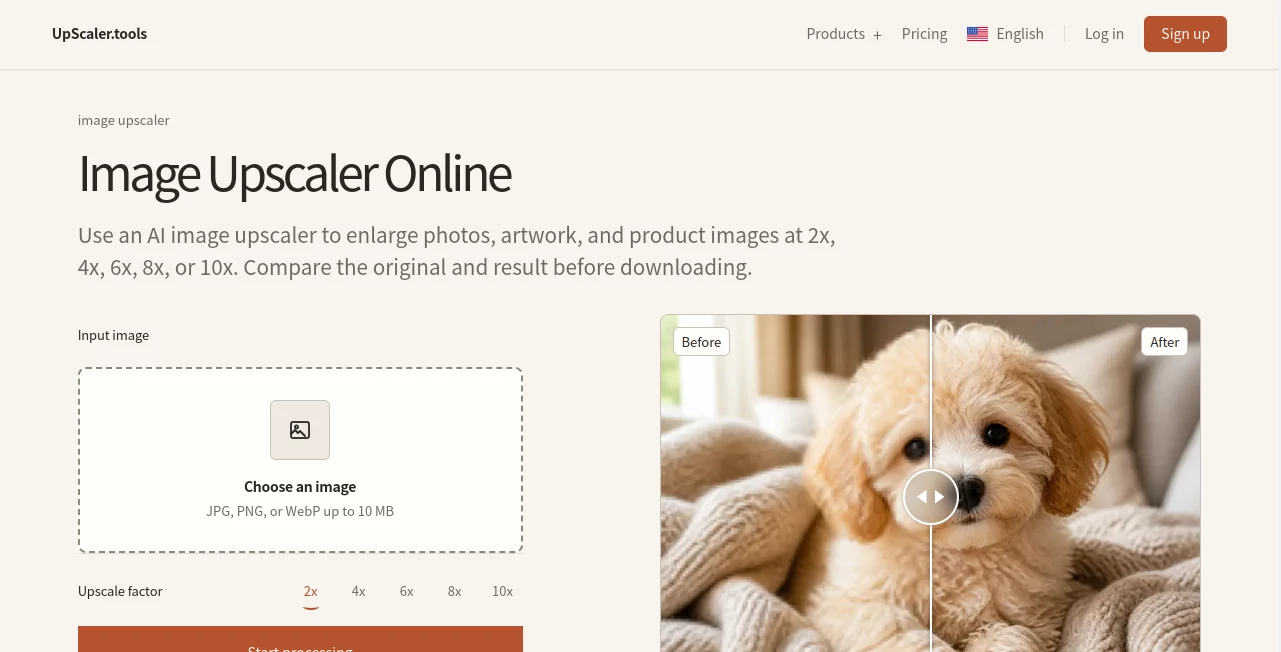
One of the nicest touches is the before-and-after comparison. Instead of simply downloading a processed file and hoping for the best, users can inspect the difference first and decide whether the result is suitable for their needs.
Key Features
- AI-powered image upscaling with 2x, 4x, 6x, 8x, and 10x enlargement options.
- Support for JPG, PNG, and WebP images up to 10 MB.
- Before-and-after comparison for inspecting changes before downloading.
- Detail-aware processing designed to refine edges and textures.
- Additional image tools for enhancement, background removal, face blurring, and background blurring.
- AI image enlargement for photographs, products, scans, artwork, and illustrations.
- A focused workflow that keeps the path from uploading an image to reviewing the result straightforward.
User Interface
The interface keeps things refreshingly simple. Users select an image, choose the desired enlargement factor, and start processing. There are no complicated editing panels competing for attention.
The before-and-after slider is especially practical because it gives users a direct way to inspect the result. For someone preparing a product photo or restoring an older image, being able to compare the source and processed version before saving can make the workflow much more comfortable.
Accuracy & Performance
Image upscaling is not simply about making dimensions larger. When an image is enlarged, missing visual information has to be estimated. The platform analyzes edges, textures, and tonal transitions to reconstruct a larger version while attempting to preserve the character of the original.
The available enlargement levels give users control over how much additional resolution they need. A 2x increase may be enough for a web image, while a 4x, 6x, 8x, or 10x enlargement can be more appropriate when substantially more working space is required.
Results naturally depend on the quality and content of the original image. A heavily compressed or extremely small source cannot magically contain information that was never captured, but AI-based reconstruction can still make many everyday images considerably more usable.
Capabilities
The main workflow focuses on enlarging images, but the wider toolkit is useful when an image needs more than increased dimensions. Users can also work with image enhancement, background removal, face blur, background blur, and AI image enlargement.
This makes the service useful for several stages of a visual workflow. For example, a product photograph might first need unwanted background elements removed, while an old family photo might benefit more from enhancement and enlargement.
The supported image types also cover a broad range of everyday material, including portraits, landscapes, product photography, scans, illustrations, and images created for digital content.
Security & Privacy
The platform presents its workflow with a privacy-minded approach and keeps the image-processing experience focused and understandable. Users can review their image and its processed version before deciding to download the result.
As with any online image-processing service, users should still consider the sensitivity of the files they upload. Personal, confidential, or commercially sensitive images should always be handled according to the user's own privacy requirements and the service's current privacy terms.
Use Cases
Old photographs: Small or aging photos can be enlarged to create a more useful digital copy while retaining recognizable details.
Product photography: Online sellers can create larger product visuals when the original image is not large enough for a particular marketplace, website section, or promotional layout.
Social media content: Images that look acceptable on a phone may need more resolution when reused in larger layouts or high-density displays.
Artwork and illustrations: Digital artists can enlarge existing artwork when they need additional working space for a design or presentation.
Scanned images: Documents and scanned visual material can sometimes benefit from additional resolution when the original scan is relatively small.
Portraits: Profile photographs and personal images can be enlarged while maintaining a natural appearance rather than simply stretching the original pixels.
Pros and Cons
Pros
- Supports enlargement from 2x to 10x.
- Simple and approachable interface.
- Before-and-after comparison makes results easy to inspect.
- Supports JPG, PNG, and WebP files up to 10 MB.
- Designed for several image types, including portraits, products, landscapes, scans, and illustrations.
- Includes additional image-processing tools beyond upscaling.
- Paid plans provide access to the broader image toolkit.
Cons
- Processing is still dependent on the quality of the original image.
- Higher enlargement factors may not be necessary for everyday web images.
- Users with occasional needs may find a recurring credit plan less attractive than a one-off workflow.
Pricing Plans
The platform uses a credit-based subscription model with monthly and annual billing options. Paid credits remain available until they are used, while included recurring credits follow their 30-day cycle.
- Starter: $9.99 per month for 50 credits.
- Premium: $25.00 per month for 500 credits, with priority processing.
- Premium Plus: $39.00 per month for 1,000 credits, with priority processing.
Annual plans are also available, with the published annual prices being $69 for Starter, $180 for Premium, and $280 for Premium Plus. Annual subscriptions are charged once per year while credits are added monthly.
Each completed image upscale, enhancement, enlargement, background removal, face blur, or background blur uses one credit. If processing fails, the reserved credit is automatically returned.
How to Use UpScaler.tools
Using the image upscaling workflow takes only a few straightforward steps.
- Select a JPG, PNG, or WebP image up to 10 MB.
- Choose the enlargement level you need: 2x, 4x, 6x, 8x, or 10x.
- Start the processing.
- Compare the original and enlarged versions using the before-and-after preview.
- Download the result when the quality meets your requirements.
For the best outcome, start with the cleanest source image available. If you only need a modest increase in dimensions, there is usually little reason to jump immediately to the highest enlargement setting.
Comparison with Similar Tools
Many image upscalers concentrate almost entirely on increasing resolution. This platform takes a slightly broader approach by placing upscaling alongside several practical image utilities, including enhancement, background removal, face blur, and background blur.
Another distinction is the range of enlargement choices. Instead of offering only a single enlargement setting, users can select from 2x, 4x, 6x, 8x, and 10x depending on the intended result.
The before-and-after comparison also makes evaluation easier. Rather than judging the output only after downloading it, users can inspect changes in texture, edges, and overall clarity as part of the workflow.
Conclusion
For anyone who regularly works with images that are simply too small for their intended purpose, this is a practical solution worth considering. The combination of AI-assisted enlargement, multiple scaling levels, visual comparison, and additional image tools makes the workflow more versatile than a basic resize utility.
Its straightforward design is another strong point. You do not need to understand image-processing terminology to get started. Upload an image, select the desired scale, review the result, and decide whether it is ready to use.
It is not a substitute for having a high-quality original photograph, but when the source is limited, the ability to intelligently reconstruct edges and textures can make a meaningful difference. For product visuals, portraits, old photos, illustrations, scans, and everyday digital content, it offers a convenient way to get more usable resolution from existing images.
Frequently Asked Questions (FAQ)
What is an AI image upscaler?
An AI image upscaler enlarges a smaller image while estimating missing visual information around edges, textures, and tonal transitions. The aim is to create a larger image that remains visually faithful to the original.
What image formats are supported?
The platform supports JPG, PNG, and WebP files, with an upload limit of 10 MB per image.
How much can an image be enlarged?
Users can choose between 2x, 4x, 6x, 8x, and 10x enlargement.
Can I compare the original and processed image?
Yes. The before-and-after comparison allows users to inspect how details, textures, and clarity have changed before downloading the processed image.
How many credits does an image use?
Each completed upscale, enhancement, enlargement, background removal, face blur, or background blur uses one credit. Failed processing returns the reserved credit automatically.
Are annual plans available?
Yes. Annual subscriptions are available and are charged once per year, while the plan's included credits are added monthly. The annual options offer savings compared with paying month by month.
What types of images work well with AI upscaling?
Portraits, landscapes, product photos, scans, illustrations, social media images, and other visuals that need additional resolution are suitable candidates.
Does a higher enlargement factor always produce a better image?
Not necessarily. The ideal setting depends on the original dimensions and the final purpose. A moderate 2x or 4x enlargement may be preferable when only a little extra resolution is required, while larger factors are useful when substantially more image space is needed.
Are additional image tools available?
Yes. The wider toolkit includes image enhancement, AI image enlargement, background removal, face blurring, and background blurring, giving users options for handling common image-editing tasks in the same environment.
AI Photo & Image Generator , Photo & Image Editor .
These classifications represent its core capabilities and areas of application. For related tools, explore the linked categories above.
AI Image Upscaler details
Website unavailable — View Alternatives
Pricing
- Free
Apps
- Web App
Categories

AI Image Upscaler Alternatives Product

Z-Image

GPT Image 2

GPT Image 1.5

Banana AI

RichlyAI

Lexica AI

Chibi Art

Max Studio AI

Kapwing