
Eney
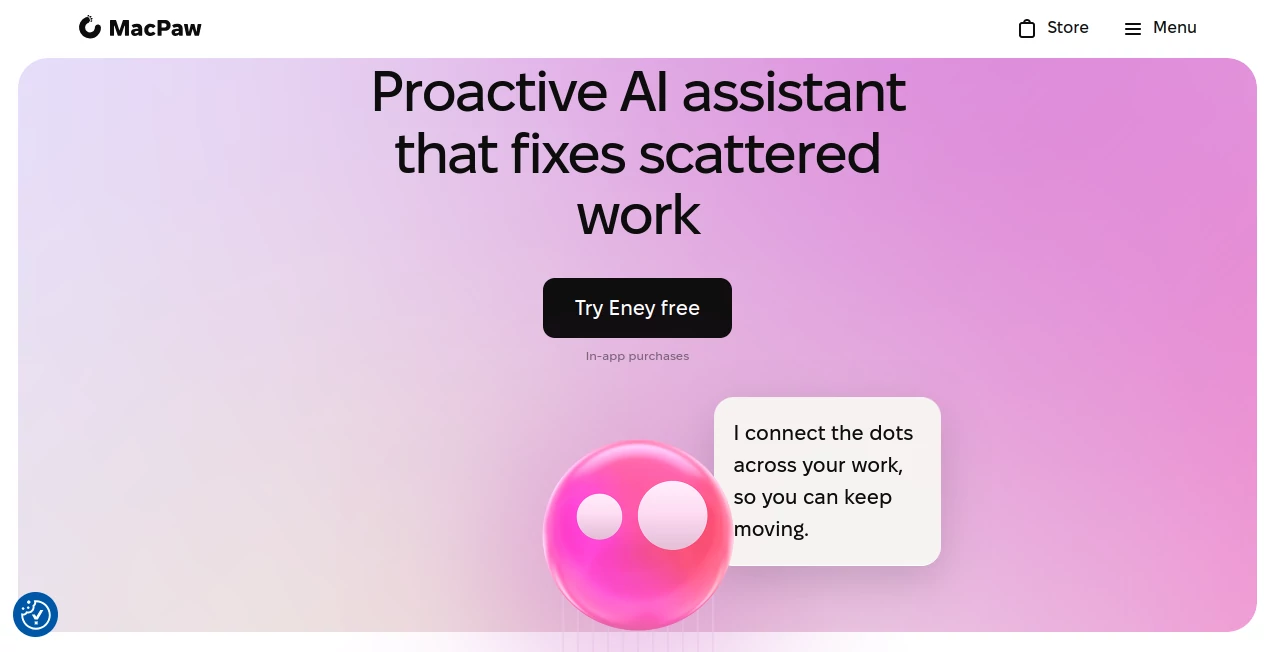
What is Eney?
Eney is a proactive AI assistant for Mac designed to make everyday computer work feel less fragmented. Instead of asking users to move between different applications, search through files, or manually complete a series of small actions, it understands natural-language requests and helps carry out the work across the apps and services already in use.
The idea is particularly appealing for people whose day is filled with small digital tasks. A typical morning might involve checking unread messages, reviewing a calendar, finding a document, updating a task, preparing meeting notes, and replying to an email. Individually, none of these jobs is difficult. Together, they create a surprising amount of friction. This assistant aims to reduce that friction by bringing these actions into a more connected workflow.
Rather than functioning only as a question-and-answer chatbot, it is built around practical skills. It can break more complicated requests into smaller actions, work with connected applications, suggest useful next steps, and handle routine operations while keeping the user in control.
Key Features
- Natural-language interaction without requiring scripts or complicated commands.
- Proactive suggestions that surface tasks and information that may need attention.
- Multi-step task execution for workflows that involve several actions.
- Meeting assistance with note-taking and summarized information.
- Email and messaging support for drafting, reviewing, and handling quick replies.
- Connections with services such as Notion, Linear, and Google Docs.
- File and document assistance, including file discovery and document editing.
- PDF operations such as splitting documents and converting Word files to PDF.
- Image operations including cropping, flipping, optimization, and annotation.
- Basic video operations such as trimming.
- QR-code handling and other practical desktop tasks.
- A growing collection of skills designed around everyday Mac workflows.
User Interface
The interface is built around a conversational approach, which makes the learning curve relatively gentle. Instead of hunting through menus to locate the right command, users can describe what they want in ordinary language. This is useful when the desired outcome involves several different applications.
For example, someone preparing for a busy workday could ask the assistant to help organize tasks, locate a document, or prepare information from a meeting. The appeal is not simply that fewer clicks are required. It is that the user can concentrate on the result rather than remembering which application contains each individual function.
Accuracy & Performance
Performance benefits from a hybrid approach that combines local processing with cloud-based inference. According to the product's technical documentation, simpler operations such as certain calendar, file, and text tasks can be handled on the device, while more complex requests may be routed through a secure cloud backend.
This architecture gives the experience an interesting balance between responsiveness, privacy, and access to more capable AI models when a task requires additional reasoning. The system also uses contextual information to make requests more relevant, rather than treating every prompt as an isolated conversation.
As with any AI-powered task automation system, results can vary depending on the request, connected application, and complexity of the workflow. The product is also still evolving, so users should view it as a developing assistant rather than a finished replacement for every desktop application.
Capabilities
The strongest aspect of this assistant is the range of practical work it can bring together. It can work with emails, notes, messages, meetings, files, documents, images, videos, and connected productivity services.
Its connector-based approach is particularly useful for people who already rely on several applications. Information can be found in services such as Notion, Linear, and Google Docs, while new tasks can be created or existing information updated without constantly switching windows.
File handling is another useful area. The assistant can locate files in Google Drive, create and edit Google Docs, split PDFs, and convert Word documents to PDF. For visual work, it can perform smaller image and video operations that would normally require opening a dedicated application.
The skill system also gives the product room to expand. Its documentation describes skills as specific actions the assistant can perform, with support spanning dozens of applications and hundreds of skills. New capabilities are intended to be added over time.
Security & Privacy
Privacy is an important part of the product's design. Access to information such as calendars, notes, and email is based on user permission rather than unrestricted access to personal data.
The underlying architecture also uses both on-device and cloud processing. The privacy documentation states that requests may be processed through trusted third-party AI providers, including Anthropic, Google, and OpenAI. These providers process data on behalf of the service, while the published privacy policy explains how information is handled.
The service also states that, by default, its third-party language-model providers do not train their models on user data. Some logs and metadata may be temporarily retained for service quality and abuse prevention. Users who plan to connect sensitive work accounts should still review the current privacy documentation and permissions before enabling integrations.
Use Cases
- Daily productivity: Organize tasks, surface important information, and reduce repetitive desktop work.
- Meetings: Take meeting notes and produce cleaner summaries after calls.
- Email management: Draft messages, find unread emails, and prepare quick replies.
- Project management: Work with connected services such as Linear and keep project information updated.
- Document workflows: Locate files, edit documents, split PDFs, and convert document formats.
- Research and information retrieval: Find relevant information across connected files and services without manually searching each application.
- Creative tasks: Make quick image adjustments, annotate images, trim videos, and handle QR codes.
- Mac automation: Simplify repetitive actions that would otherwise require switching between multiple applications.
Pros and Cons
Pros
- Natural conversational interaction makes everyday tasks easier to describe.
- Designed to work across multiple applications instead of operating in isolation.
- Useful combination of productivity, file, document, email, and meeting capabilities.
- Proactive suggestions can help users notice tasks that might otherwise be forgotten.
- Hybrid local and cloud architecture can provide a balance between privacy and advanced processing.
- Growing skill ecosystem gives the product room to become more capable over time.
- Designed specifically for Apple Silicon Macs running macOS 14 or later.
Cons
- It is focused on the Mac ecosystem, so Windows and Linux users cannot use it as their primary desktop assistant.
- Some advanced capabilities and integrations may change as the product continues to develop.
- Cloud processing is still used for more complex requests.
- Users who want complete control over every individual application action may prefer conventional manual workflows.
- Heavy users may need a paid credit bundle after using their included free credits.
Pricing Plans
The service currently provides free credits with every account, with additional monthly credit bundles available for users who need more capacity. The current published plans are designed around different levels of usage.
- Starter: 15,000 credits for $18 USD per month, plus applicable tax.
- Boost: 30,000 credits for $36 USD per month, plus applicable tax. This plan is positioned for daily work.
- Power: 50,000 credits for $60 USD per month, plus applicable tax, aimed at demanding workloads.
The product is also available as a preview through Setapp. Pricing and availability can change as the service develops, so users should check the current offering before subscribing.
How to Use It
- Install the application on a compatible Apple Silicon Mac running macOS 14 or later.
- Open the assistant and describe the task you want to complete in natural language.
- Give permission only to the apps and information required for the task.
- Let the assistant identify the relevant skill or sequence of actions.
- Review the proposed or completed actions and remain in control of sensitive operations.
- Connect supported services when you want to work with information stored outside the Mac.
- Use the built-in feedback options or community channels to suggest new skills and improvements.
A good way to start is with small, concrete requests. Instead of trying to automate an entire workday immediately, begin with something such as finding a document, preparing a short email, summarizing meeting notes, or updating a task. Once the workflow feels reliable, more involved requests become easier to explore.
Comparison with Similar Tools
Traditional AI chat assistants are excellent at answering questions, generating text, and explaining information, but they often leave the final action to the user. Desktop automation tools can perform actions, yet they may require predefined workflows, scripts, or detailed configuration.
This approach sits somewhere between those two models. It combines conversational AI with practical task execution, allowing a user to describe an outcome instead of manually specifying every step. Its focus on Mac applications and connected services is also an important distinction.
For someone who mainly wants an AI chatbot for writing and research, a conventional conversational assistant may be sufficient. For someone who spends much of the day moving between files, emails, meetings, documents, and productivity applications, the action-oriented design can be considerably more useful.
Conclusion
This AI assistant takes an appealing approach to desktop productivity: instead of adding another application that users have to manage, it tries to become a layer connecting the applications they already use.
The combination of natural-language commands, proactive suggestions, multi-step workflows, connectors, file handling, meeting support, and Mac-native processing makes it particularly interesting for professionals and creators who spend a large part of their day working on a Mac.
It is worth remembering that the product is still evolving. That is also part of its appeal. Its growing skill system and integration model suggest a product designed to expand beyond a fixed collection of AI commands. For Mac users looking to reduce repetitive digital work without giving up control, it is a compelling tool to explore.
Frequently Asked Questions (FAQ)
What is this AI assistant used for?
It is designed to help Mac users complete everyday digital tasks across applications. It can assist with meetings, emails, documents, files, tasks, images, videos, and connected productivity services.
Does it work on Windows?
No. The current system requirements specify an Apple Silicon Mac running macOS 14 or later.
Can it work with other applications?
Yes. Its connector and skill system is designed to work with multiple applications and services, including Notion, Linear, and Google Docs. The supported ecosystem is expected to grow over time.
Can it take actions instead of only answering questions?
Yes. A central part of its design is task execution. It can break certain requests into smaller actions and carry them out, while keeping the user in control of the process.
Is it free to use?
Every account includes free credits. Users who need additional capacity can purchase monthly credit bundles, with current plans ranging from 15,000 to 50,000 credits.
How does it handle privacy?
Access to information is based on permissions granted by the user. The architecture can process simpler tasks locally while routing more complex requests through a secure cloud backend. Its published privacy information also explains the use of third-party AI providers for language-model processing.
What operating system does it support?
The current requirements are Apple Silicon hardware and macOS 14 or higher. The supported language listed by the product is English.
Can users request new skills?
Yes. Users can suggest new capabilities and vote on requested features through the product's community channels. This gives the user community a role in shaping future skills and integrations.
AI Workflow Management , AI Productivity Tools , AI Meeting Assistant , AI Notes Assistant .
These classifications represent its core capabilities and areas of application. For related tools, explore the linked categories above.

Eney Alternatives Product

Trimless for…

Jamy.ai | Au…

Arobis AI Vi…

CtrlOps

GPT Image 2 …

NotebookVault

Firefox

Khuram Youraj

onuml