
















What is Pavleur?
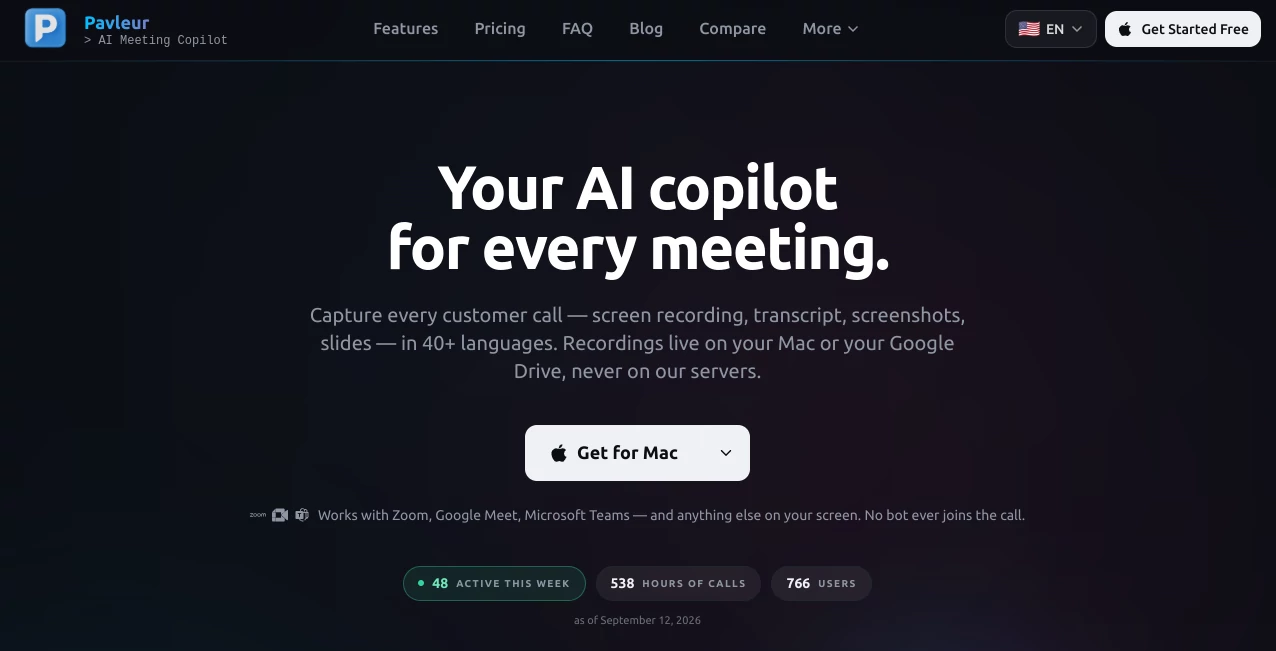
Pavleur is an AI meeting copilot built for people who want to stay focused on the conversation instead of constantly switching between listening, taking notes, capturing slides, and remembering follow-up tasks. It runs locally on a Mac and works alongside Zoom, Google Meet, Microsoft Teams, and other applications without joining the meeting as another participant.
What makes the approach particularly useful is that a customer call can become more than a simple audio recording. Screen recordings, transcripts, screenshots, shared slides, attachments, decisions, and action items can be brought together into a single customer page. For sales teams, consultants, managers, and anyone handling frequent calls, this can make the information from a meeting much easier to revisit later.
Key Features
User Interface
The interface is designed to stay in the background rather than becoming another distraction during a call. A translucent overlay provides access to assistance while allowing the conversation to remain the main focus. Users can hide the overlay with a keyboard shortcut when they need an unobstructed workspace.
Another practical detail is that the overlay does not appear in the customer's view when the screen is shared. This makes the experience feel more like a private assistant running alongside the meeting than a visible meeting participant.
Accuracy & Performance
Transcription is available in more than 40 languages, with live speaker-detected language switching. The service reports approximately 95% transcription accuracy, while also handling conversations where participants change languages during the same call.
The searchable transcript is timestamped, making it easier to return to a specific part of a discussion instead of replaying an entire recording. For a long customer conversation, being able to search for a decision, product name, or technical detail can save considerable time.
Capabilities
- Screen recording combined with call audio
- Live, searchable meeting transcripts
- Support for more than 40 languages
- Live language switching during multilingual conversations
- Automatic capture of useful screenshots from screen sharing
- Automatic attachment of slides, PDFs, and shared links
- AI extraction of decisions and action items
- Structured one-page meeting recaps
- Search across words spoken during calls
- Customer-focused call archives
- Integration with Zoom, Google Meet, Microsoft Teams, and other on-screen applications
Security & Privacy
Privacy is one of the strongest parts of the product's positioning. Recordings are not stored on the company's servers. They remain on the user's Mac or can be stored in the user's own Google Drive.
The service states that stored recordings use AES-256 encryption with per-file keys, are excluded from AI model training, are not sold or shared, and can be exported or deleted. This local-first approach can be especially attractive for professionals who are uncomfortable with meeting recordings being uploaded to a third-party platform.
Another important distinction is that the application does not join meetings as a bot. There is no additional participant appearing in the attendee list, which keeps the workflow considerably less intrusive than traditional meeting assistants that enter calls automatically.
Use Cases
Customer calls are a natural fit. A salesperson can finish a conversation with the transcript, important screenshots, shared documents, decisions, and next actions already organized rather than relying on scattered notes.
It can also be useful for product managers and engineering teams. Imagine a planning call where someone shares a roadmap, discusses a technical decision, and promises to send a document later. Instead of relying on memory, the important pieces can remain together in the call archive.
Consultants and agencies can benefit from the same workflow when managing several clients. Searching previous conversations can make it much easier to answer questions such as what was agreed, which deadline was mentioned, or which version of a proposal was discussed.
Multilingual teams are another strong use case. A conversation can move between languages during a call, while the transcription follows the language being spoken rather than forcing the entire meeting into English.
Pros and Cons
- Pros: Runs locally on Mac without joining meetings as a bot.
- Pros: Supports more than 40 languages and live language switching.
- Pros: Combines recordings, transcripts, screenshots, slides, and attachments.
- Pros: Extracts decisions and action items from conversations.
- Pros: Searchable transcripts make previous conversations easier to revisit.
- Pros: Recordings can remain on the user's Mac or Google Drive.
- Cons: The current product is designed around Mac users.
- Cons: The free plan is limited to 10 calls per month.
- Cons: Advanced multilingual and search capabilities require the Pro plan.
Pricing Plans
The Free plan costs $0 and does not require a credit card. It includes screen recording, transcripts, screenshots, local or Google Drive storage, English transcription, and a one-page recap for up to 10 calls per month.
The Pro plan costs $37.50 per month and removes the call limit. It adds more than 40 languages, live code-switching, AI-extracted decisions and action items, automatic attachment handling, searchable call history, and one-click customer archive exports.
There is also a Pro Lifetime option currently listed at $449 as a one-time payment. It includes the Pro feature set, future Pro features, and access to a founding-customer Slack channel.
How to Use the Tool
- Install the Mac application and set up your account.
- Choose where recordings should be stored, such as your Mac or Google Drive.
- Start the application before a customer call or meeting.
- Use the on-screen assistant when you need help during the conversation.
- Let the application capture the transcript, screen content, and relevant meeting material.
- After the call, review the transcript and generated recap.
- Use the extracted decisions and action items to organize follow-ups.
- Search the transcript later when you need to recover a specific detail from the conversation.
Comparison with Similar Tools
Traditional meeting assistants often work by sending a bot into the call. That approach can be convenient, but it also makes the assistant visible to other participants and may raise additional privacy questions. This product takes a different route by running locally on the user's Mac without appearing as a meeting attendee.
Compared with tools such as Otter, Fireflies, Granola, and Krisp, the emphasis here is not only on transcription or meeting notes. The workflow brings together the conversation, screen recording, screenshots, shared files, decisions, and customer context in one place. This can be particularly useful for customer-facing work where the visual material shown during a call is just as important as what was said.
The right choice ultimately depends on how a team works. Someone who only needs basic transcription may prefer a simpler service, while professionals who want a private meeting workspace with richer call context may find the local approach more compelling.
Conclusion
For professionals who spend a large part of their week in customer calls, meetings, and online conversations, the real value of an AI meeting assistant is not simply producing another transcript. The more useful outcome is having a reliable record of what happened, what was shown, what was decided, and what needs to happen next.
The combination of local processing, multilingual transcription, searchable conversations, screen capture, automatic recaps, and structured action items gives this tool a practical role in everyday meeting workflows. The free plan also provides an easy way to test the core experience before committing to a paid plan.
Frequently Asked Questions (FAQ)
Does the tool join online meetings as a bot?
No. It runs locally on a Mac and does not join the call as a participant.
Which meeting platforms does it support?
It works with Zoom, Google Meet, Microsoft Teams, and other applications displayed on the user's screen.
How many languages are supported?
More than 40 languages are supported, including live speaker-detected language switching.
Where are recordings stored?
Recordings can be stored locally on the user's Mac or in the user's own Google Drive. The service states that recordings are not stored on its servers.
Is the data used to train AI models?
The service states that user data is excluded from model training and that recordings are not sold or shared.
Is there a free plan?
Yes. The Free plan supports up to 10 calls per month and includes recording, transcription, screenshots, English transcription, and a one-page recap.
What does the Pro plan add?
The Pro plan provides unlimited calls, more than 40 languages, live language switching, extracted decisions and action items, automatic attachment handling, searchable call history, and customer archive exports.
Is there a lifetime plan?
Yes. A Pro Lifetime option is available as a one-time purchase and includes the Pro feature set along with future Pro features.
Can the meeting assistant be hidden during screen sharing?
Yes. The on-screen overlay is designed not to appear in the customer's view when the user shares their screen.
Is this useful for multilingual customer calls?
Yes. Live speaker-detected language switching allows the transcript to follow conversations that move between supported languages during the same call.