
ScreenHelp
What is ScreenHelp?
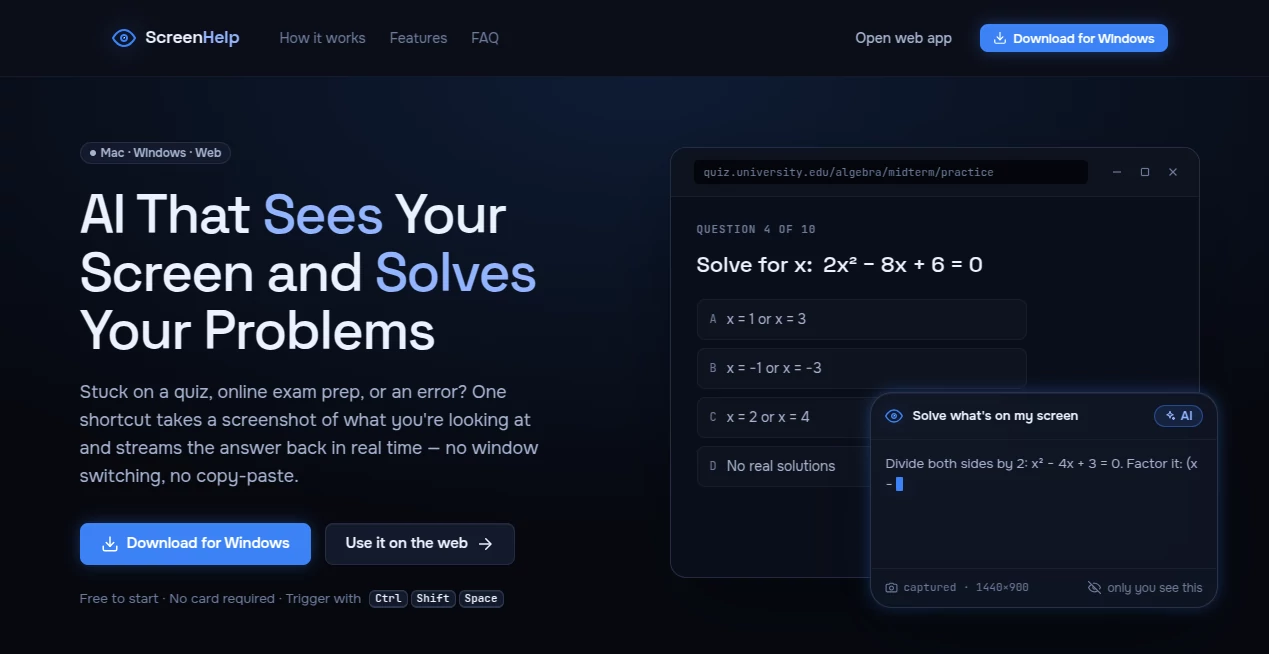
ScreenHelp is an AI-powered screen assistant designed to provide instant answers by analyzing what appears on your screen. Whether you're troubleshooting a coding error, reviewing study materials, working with spreadsheets, or trying to understand unfamiliar content, a simple keyboard shortcut captures the current screen and returns an AI-generated response within seconds. Unlike traditional AI assistants that require copying text or switching between applications, this solution keeps users focused on their workflow while delivering contextual assistance in real time.
Available on Windows, Mac, and the web, the platform combines screen recognition with conversational AI to simplify everyday digital tasks. Its invisible overlay and customizable shortcuts make it particularly convenient for professionals, developers, students, and anyone who frequently works across multiple applications. The result is a smoother workflow where answers arrive exactly when they are needed without interrupting productivity. The desktop version also includes persistent chat history and context-aware conversations, making follow-up questions feel natural and efficient.
Key Features
User Interface
The interface is intentionally lightweight and distraction-free. Users trigger assistance with a configurable keyboard shortcut, while responses appear in a private overlay that stays separate from the active application. There is no need to constantly switch browser tabs or manually upload screenshots. Everything happens within a streamlined workflow that feels like a natural extension of the desktop experience.
Accuracy & Performance
The platform uses AI vision technology to understand screenshots and generate relevant responses in real time. Answers are typically delivered within a few seconds, allowing users to maintain momentum while solving problems. Context from previous interactions can also be retained during conversations, improving the quality of follow-up explanations and reducing repetitive prompts.
Capabilities
The assistant can analyze quizzes, coding errors, spreadsheets, documents, online forms, presentations, study materials, and many other on-screen elements. Users can create custom prompts that automatically accompany every screenshot, allowing the AI to respond according to specific instructions. This flexibility makes the tool suitable for technical work, education, research, and everyday productivity.
Security & Privacy
Privacy is a notable aspect of the platform. Screens are only captured after users activate the shortcut, ensuring nothing is monitored continuously. During screen sharing sessions on popular meeting platforms, the desktop overlay remains invisible to viewers and recordings, allowing users to receive assistance privately. This approach gives users greater control over when and how screen content is processed.
Use Cases
Students can quickly understand difficult questions or review educational material without leaving their learning environment. Software developers can analyze compiler errors, debug code, and receive implementation suggestions instantly. Office professionals benefit from spreadsheet analysis, document explanations, and form assistance. Researchers can summarize complex information displayed on screen, while customer support teams can receive contextual guidance during live workflows. Even casual users may appreciate instant explanations for unfamiliar software interfaces or online content.
Pros and Cons
Pros
- Real-time AI assistance directly from screen captures.
- Supports Windows, Mac, and modern web browsers.
- Invisible overlay during screen sharing sessions.
- Fast responses with customizable keyboard shortcuts.
- Context-aware conversations with follow-up questions.
- Custom prompts improve workflow efficiency.
- Free plan available for new users.
Cons
- Free usage is limited to a fixed number of monthly responses.
- Desktop-specific features require installing the application.
- Internet connectivity is necessary for AI processing.
Pricing Plans
A free plan includes access to all core features with up to 30 AI responses each month, making it easy for new users to evaluate the service. Paid subscription plans are available for individuals who require higher usage limits and more frequent AI assistance.
How to Use ScreenHelp
Install the desktop application or launch the web version, then sign in to your account. Configure your preferred keyboard shortcut and, if desired, create custom prompts for recurring tasks. Whenever you need assistance, press the shortcut to capture your current screen. The AI analyzes the screenshot and streams an answer into a private overlay. Continue asking follow-up questions within the chat interface for deeper explanations or additional guidance.
Comparison with Similar Tools
Unlike conventional AI chatbots that require users to manually copy text or upload images, this platform focuses on instant screen awareness. Compared with browser-based assistants, it offers desktop shortcuts, contextual memory, and an invisible overlay that integrates naturally into daily workflows. While general AI assistants excel at broad conversations, this solution provides faster contextual assistance by understanding exactly what users are viewing on their screens.
Conclusion
For anyone looking to reduce interruptions while working, studying, or solving technical problems, this AI screen assistant delivers an efficient and thoughtfully designed experience. Its combination of screen recognition, real-time responses, customizable prompts, and privacy-focused design creates a workflow that feels remarkably natural. Instead of disrupting concentration, it quietly provides the information users need exactly when they need it, making everyday digital tasks significantly easier.
Frequently Asked Questions (FAQ)
1. Does the assistant continuously monitor my screen?
No. Screenshots are only captured after you manually activate the keyboard shortcut.
2. Is there a free version available?
Yes. The free plan includes all core features with 30 AI responses per month.
3. Which operating systems are supported?
The service supports Windows, macOS, and modern web browsers.
4. Can it help with programming tasks?
Yes. It can analyze coding errors, explain problems, and provide contextual programming assistance.
5. Does it work during screen sharing?
Yes. The desktop overlay remains invisible during supported screen sharing sessions, so only the user can view AI responses.
AI Productivity Tools , AI Education Assistant , AI Meeting Assistant , AI Developer Tools .
These classifications represent its core capabilities and areas of application. For related tools, explore the linked categories above.
ScreenHelp details
Website unavailable — View Alternatives
Pricing
- Free
Apps
- Web App
- Windows App
Categories

ScreenHelp Alternatives Product

PatentFig AI

PDF Inspector

Miro

Hintder AI

Llamaroo

OLVA

freellm

Kaamfu
Gemini Omni