
ScreenSnap Pro
What is ScreenSnap Pro?
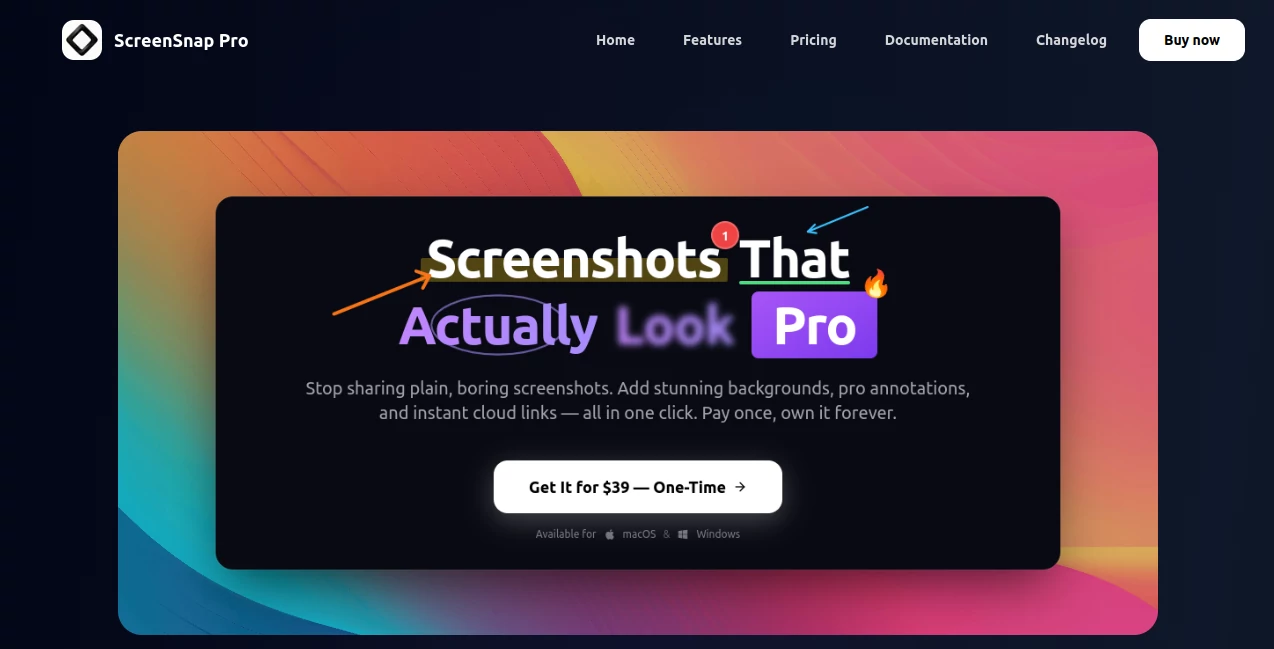
ScreenSnap Pro is a desktop screenshot and screen recording solution designed for people who want more than a basic screen capture. Instead of taking a screenshot, opening another application to annotate it, and then finding a separate service for sharing, it brings capture, editing, recording, styling, and sharing into one workflow.
The application is available for both macOS and Windows and focuses heavily on making screenshots look polished without turning the process into a complicated design task. It can capture an area, window, or full screen, then let you add annotations, backgrounds, shadows, padding, rounded corners, and other finishing touches.
It is particularly appealing for developers, designers, product teams, educators, marketers, and anyone who regularly needs to explain something visually. A bug report can be marked up in seconds, a product screenshot can be turned into presentation-ready imagery, and a short walkthrough can be recorded without switching between several applications.
Key Features
- Area, window, and full-screen screenshot capture
- Screen recording with webcam, microphone, and system audio
- Video and GIF export options
- 15 annotation tools including arrows, shapes, text, blur, spotlight, callouts, counters, and freehand drawing
- More than 500 gradient backgrounds and additional styling options
- Padding, rounded corners, shadows, and aspect-ratio controls
- Instant cloud sharing through short links
- OCR for extracting text from screenshots and images
- Full-page website capture
- Pin screenshots on the desktop for reference
- Built-in color picker and zoom controls
- Reusable presets for frequently used screenshot styles
User Interface
The interface is built around speed rather than a long list of menus. After capturing something, the result can appear immediately in an overlay where it can be previewed, edited, dragged into another application, or sent to the editor for more detailed work.
The editing experience is especially useful when the goal is communication. Instead of manually designing a screenshot, you can point to an important section with an arrow, hide sensitive information with blur or pixelation, add explanatory text, and finish the image with a background and shadow.
For people who take screenshots throughout the day, small workflow details matter. Quick access, keyboard shortcuts, presets, and pinned images help reduce the number of repetitive steps between capturing something and actually using it.
Accuracy & Performance
Performance is one of the application's stronger practical points. Recent updates have focused on capture responsiveness, recording reliability, and smoother handling of pinned screenshots. The developer's changelog also shows continued work on video exports, zoom regions, shortcuts, and compatibility improvements.
Website capture is another useful capability because it can produce a clean full-page image from a URL without requiring the user to manually scroll and stitch multiple screenshots together. For documentation and product pages, that can save a surprising amount of time.
The built-in OCR is useful when a screenshot contains text that needs to be copied rather than manually retyped. This makes the application more than a simple image capture utility and gives it a practical role in everyday research and documentation workflows.
Capabilities
The feature set covers the complete path from capture to presentation. Screenshots can be enhanced with gradients, custom images, transparent backgrounds, padding, shadows, and rounded corners. Annotation tools make it possible to turn an ordinary capture into a clear visual explanation.
Screen recording adds another layer for people who need to demonstrate a process. You can capture a full screen, window, or selected region, include a webcam, and record microphone or system audio. Recordings can then be exported as video or lightweight GIFs.
For developers, the combination of annotations, blur, screen recording, OCR, and sharing is particularly practical. A reproducible bug can be captured, highlighted, and sent to a teammate without preparing a separate report from scratch.
Security & Privacy
Privacy is handled with a useful distinction between local work and optional cloud sharing. The application can be used without relying on cloud sharing, while users who want quick links can upload selected screenshots and share them through generated links.
Shared screenshots are protected with signed links, while the cloud service is presented as an optional part of the workflow rather than something required for basic screenshot editing. This gives users more control over when an image leaves their computer.
Use Cases
- Software development: Capture bugs, highlight interface problems, blur sensitive information, and send annotated evidence to a development team.
- Product design: Present polished interface screenshots with professional backgrounds, spacing, shadows, and annotations.
- Marketing: Turn product screenshots into attractive visual assets for landing pages, presentations, social posts, and promotional material.
- Customer support: Explain solutions visually by marking the exact buttons, menus, or settings a customer needs to use.
- Education: Create annotated tutorials and visual instructions without building every image manually in a design application.
- Product demonstrations: Record workflows with screen, webcam, and audio, then produce a cleaner presentation-ready video.
- Documentation: Capture software interfaces, websites, and workflows while keeping the important information easy to understand.
Pros and Cons
Pros
- Works on both macOS and Windows
- Combines screenshots, annotations, recording, styling, and sharing
- One-time purchase rather than a recurring subscription
- 15 dedicated annotation tools
- More than 500 gradient backgrounds
- Supports webcam, microphone, and system audio recording
- Includes OCR and full-page website capture
- Cloud sharing is optional
- Useful for both quick captures and polished visual content
Cons
- The desktop application is more focused on screenshots and visual communication than advanced professional image editing.
- Users looking only for occasional basic screenshots may not need its broader feature set.
- Cloud sharing is an additional service layer rather than a requirement for local workflows.
Pricing Plans
The pricing model is refreshingly simple. There are no multiple feature tiers or recurring subscription levels. The application is offered for a one-time payment of $39, which includes the full feature set and lifetime updates.
The purchase also includes two separate licenses, with each license usable on two computers. This makes the offer particularly interesting for someone who works on both a desktop and laptop or wants to share a second license with a colleague, friend, or family member.
A 30-day money-back guarantee is also offered, giving new users an opportunity to test the workflow before fully committing to the purchase.
How to Use It
- Install the desktop application on macOS or Windows.
- Choose the desired capture mode, such as an area, window, or full screen.
- Capture the content you want to explain, document, or share.
- Use the editor to add arrows, text, shapes, blur, highlights, callouts, or other annotations.
- Improve the presentation with a background, padding, rounded corners, and shadows.
- For demonstrations, switch to screen recording and choose your preferred audio and webcam options.
- Export the finished result as an image, video, or GIF depending on the project.
- If needed, create a cloud sharing link and send it through email, Slack, Discord, documentation, or another platform.
Comparison with Similar Tools
Basic screenshot utilities are excellent when the only requirement is capturing part of a screen. The difference becomes noticeable when the screenshot needs to communicate something clearly or look polished enough for a customer, presentation, documentation page, or marketing campaign.
Traditional screenshot applications may require separate tools for annotations, screen recording, visual styling, and sharing. This solution takes a more consolidated approach by putting those tasks into one workflow. Compared with subscription-based screenshot applications, its one-time pricing can also be attractive for users who expect to keep the software for several years.
It will not replace a full professional image editor or a dedicated advanced video production suite. That is not really its purpose. Its strength is the middle ground: fast enough for everyday captures while offering enough presentation and recording features to produce professional-looking results.
Conclusion
For anyone who regularly communicates through screenshots, the difference between a basic capture and a well-presented visual can be significant. Good annotations remove ambiguity, thoughtful framing makes a product look better, and quick sharing keeps conversations moving.
This application brings those pieces together without forcing users into a complicated creative workflow or an ongoing subscription. The combination of screenshot capture, professional annotations, backgrounds, recording, OCR, website capture, and optional cloud sharing makes it a versatile choice for developers, designers, marketers, educators, and creators.
The $39 lifetime model also makes the product easy to understand: pay once, use the complete application, and continue receiving updates. For people who take screenshots every day rather than once in a while, that straightforward approach can make it a particularly worthwhile addition to the desktop toolkit.
Frequently Asked Questions (FAQ)
Does it work on Windows and Mac?
Yes. The desktop application is available for both Windows and macOS.
Does it require a subscription?
No. The application uses a one-time purchase model rather than a recurring subscription. The current price is $39 and includes lifetime updates.
Can I record my screen?
Yes. Screen recording supports full-screen, window, and region capture, with options for webcam, microphone, and system audio. Recordings can be exported as video or GIF.
Can I annotate screenshots?
Yes. The annotation system includes arrows, shapes, lines, text, blur, pixelation, spotlight, callouts, counters, emoji, highlighting, and freehand drawing.
Can I extract text from a screenshot?
Yes. Built-in OCR can recognize and extract text from screenshots, images, PDFs, and other visual content.
Can I capture an entire website?
Yes. You can provide a URL and create a clean full-page website screenshot without manually scrolling through the page.
Does it have cloud sharing?
Yes. Selected screenshots can be uploaded to generate shareable links. Cloud sharing is optional, so the application can also be used without it.
Is it suitable for creating product demonstrations?
Yes. Screen recording, webcam support, audio capture, zoom effects, backgrounds, and video editing features make it suitable for product walkthroughs, tutorials, demonstrations, and bug reports.
AI Recording , Photo & Image Editor , Other , AI Video Recording .
These classifications represent its core capabilities and areas of application. For related tools, explore the linked categories above.
ScreenSnap Pro details
Website unavailable — View Alternatives
Pricing
- Freemium
Apps
- Web App
Categories

ScreenSnap Pro Alternatives Product

Muse Voice
PhotextAI

TonesMatch

AI Picture G…
Image To Ima…
AltHunt

KOOX AI

Imagens App
Blur & Unblu…