
Background Remover Video
What is Background Remover Video?
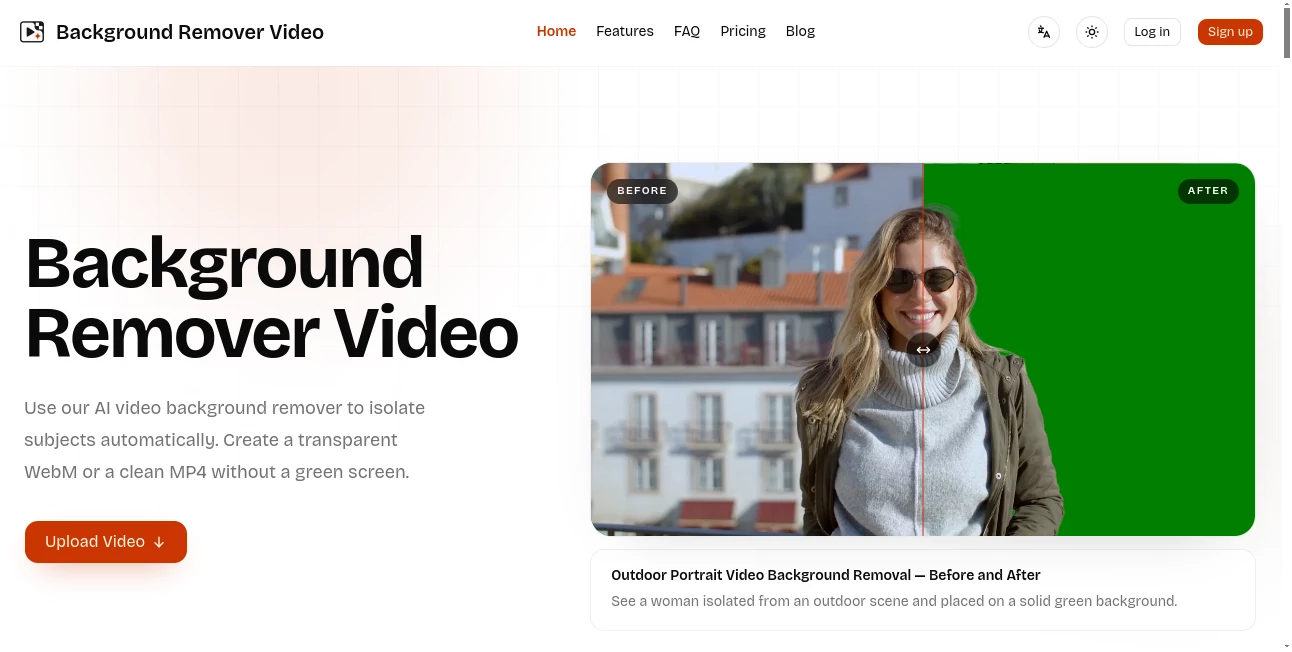
Removing a background from a video used to mean setting up a green screen, dealing with uneven lighting, or spending a long time masking subjects frame by frame. Background Remover Video takes a much simpler approach by using AI to detect the main subject and separate it from the surrounding scene automatically.
The tool is designed for creators, marketers, educators, online sellers, and video editors who need clean footage without rebuilding the original recording. A normal video can be uploaded, the desired background can be selected, and the processed result can be exported in a format suitable for the next stage of a project.
It supports common formats including MP4, MOV, WebM, M4V, and GIF, while source footage can be uploaded at resolutions up to 4K. For people who regularly work with talking-head videos, product demonstrations, tutorials, or social content, this can remove one of the more tedious parts of video preparation.
Key Features
- AI-powered video background removal without requiring a green screen.
- Support for MP4, MOV, WebM, M4V, and GIF uploads.
- Processing for footage up to 4K resolution.
- Transparent video backgrounds for compositing workflows.
- Ten solid background colors for quick background replacement.
- Multiple export options across MP4, MOV, WebM, MKV, and GIF.
- Original audio can be preserved during processing.
- Automatic subject framing can center the main subject.
- Long-form video processing for webinars, courses, and tutorials.
- Watermark-free exports.
- Credits are charged according to video duration rather than requiring a recurring subscription.
User Interface
The workflow is deliberately straightforward. Users can drag and drop a video or browse for a file, then choose how the background should be handled and select their preferred output settings. The interface exposes practical controls such as background color, output format, audio preservation, and automatic subject cropping without making the process feel like a traditional video-editing application.
This simplicity is especially useful when the goal is not to edit an entire production but simply to prepare one piece of footage. Someone working on a product clip, for example, can upload the recording and focus on the background replacement rather than learning a complicated masking workflow.
Accuracy & Performance
The AI is built to identify people and separate them from their surroundings, including footage with fine hair details and movement. Maintaining a clean edge while a person moves is one of the difficult parts of background removal, so motion-aware subject detection is particularly useful for talking-head recordings and other moving footage.
The service also supports processing at up to 4K resolution and can handle longer videos asynchronously. Instead of forcing users to split a webinar, course, or tutorial into small clips, longer footage can be submitted as a complete video and checked again after processing.
As with any automated background-removal technology, results can vary depending on the source footage. Clear subject separation, good lighting, and a reasonably visible subject generally give AI segmentation a better starting point.
Capabilities
The tool goes beyond simply making a background transparent. Users can keep a transparent result or replace the original scene with one of ten solid colors. This gives the same source video several possible uses, from compositing the subject into another production to creating a straightforward branded or presentation-style clip.
There are also nine export options covering MP4, MOV, WebM, MKV, and GIF. Original audio can be retained, while automatic subject framing can help center the detected subject when a tighter composition is preferred.
Another useful capability is asynchronous processing. This is particularly practical for longer recordings because users do not need to remain on the processing screen while the system works through the footage.
Security & Privacy
Uploaded files are treated as private and are scheduled for automatic deletion after seven days. Processed results are also kept in the processing history for seven days, giving users time to return and download their work.
This short retention period can be useful for people who want temporary processing rather than maintaining a permanent media library on the platform. For confidential commercial footage, users should still review the service's current privacy policy and terms before uploading sensitive material.
Use Cases
Content creators: Talking-head videos and social clips can be cleaned up without recording against a green screen. A creator can replace a distracting room or outdoor scene with a simple background or use transparency for further editing.
Online sellers: Product demonstrations can be given a cleaner visual presentation without reshooting the footage. This is useful when the original recording is good but the surrounding environment is not.
Educators: Teachers and course creators can isolate presenters in tutorials, lessons, and recorded classes. Long-form processing also makes the workflow suitable for extended educational footage.
Marketing teams: A single recorded clip can become several campaign assets by placing the subject against different backgrounds for advertisements, landing pages, or social media content.
Video editors: Transparent WebM output can be useful for compositing, while solid-background exports can be more convenient when a finished clip is needed quickly.
Remote teams: Product demos, announcements, and internal video updates can be cleaned up while retaining the original audio track.
Pros and Cons
Pros:
- No green screen is required.
- Supports common video and animated image formats.
- Can process footage at up to 4K resolution.
- Handles longer videos asynchronously.
- Offers transparent and solid-color backgrounds.
- Original audio can be preserved.
- Exports are watermark-free.
- Credits do not expire.
- Pay-as-you-go pricing avoids a mandatory recurring subscription.
Cons:
- Processing uses credits based on video duration.
- Results can depend on lighting, subject visibility, and scene complexity.
- Processed files are only retained for a limited period.
- Users looking for a complete professional video editor may need additional editing software.
Pricing Plans
The pricing model is based on one-time credit packs rather than subscriptions. One credit represents one started second of video, so users pay according to the amount of footage they need to process.
The Quick Try plan costs $5.99 and includes 240 credits, enough for up to four minutes of video. It includes up to 4K processing, watermark-free output, all background options, multiple export formats, audio preservation, and credits that never expire.
The Starter plan costs $9.99 and provides 480 credits for up to eight minutes of processing. It is positioned for social clips and occasional projects.
The Creator plan costs $29.99 and includes 1,800 credits for up to 30 minutes of video. It is aimed at creators who process footage more regularly.
The Studio plan costs $99.99 and includes 6,600 credits for up to 110 minutes. It is intended for teams and higher-volume production workflows.
All plans include the same core processing features, including 4K processing, watermark-free results, background choices, export formats, and audio preservation. If processing fails, the used credits are automatically returned.
How to Use Background Remover Video
Start by uploading an MP4, MOV, WebM, M4V, or GIF file. Source footage can be uploaded at up to 4K resolution, and the system automatically determines the video's duration and corresponding credit requirement.
Next, choose whether you want a transparent background or one of the available solid colors. You can also select the output format, decide whether to preserve the original audio, and enable automatic subject framing if you want the main subject centered automatically.
Once the settings are selected, submit the video for processing. The AI works asynchronously, which means longer videos can continue processing while you move on to other tasks.
When processing is complete, download the finished video in the selected format. Results remain available in the processing history for seven days.
Comparison with Similar Tools
Traditional green-screen workflows offer excellent control, but they require suitable recording conditions and additional editing work. Manual masking provides even more control but can become extremely time-consuming when the subject moves throughout a long video.
General-purpose video editors may include background-removal features alongside trimming, transitions, effects, and color correction. However, users who only need to separate a subject from its background may find a dedicated service more convenient because the workflow is focused on one task.
The main distinction here is the combination of AI background removal, long-form processing, 4K support, transparent output, multiple export formats, and pay-as-you-go credits. For someone who already has finished footage and simply needs the background changed, that focused workflow can save considerable preparation time.
Conclusion
For creators who regularly find themselves staring at a perfectly usable video with one major problem—the background—an automated solution can make a real difference. This service turns what can be a tedious editing task into a short upload-and-process workflow.
Its support for moving subjects, fine hair details, long-form footage, 4K processing, transparent output, and several export formats makes it useful beyond simple social-media clips. The pay-as-you-go model is another practical advantage for people who do not want to commit to another monthly subscription.
Whether the goal is to prepare a product demonstration, clean up a talking-head recording, create course material, or generate footage for a marketing campaign, the tool provides a focused way to separate subjects from their original environments and get the resulting video ready for the next stage.
Frequently Asked Questions (FAQ)
Can I remove a video background without a green screen?
Yes. The AI is designed to detect and isolate subjects from ordinary footage, so a traditional chroma-key green screen is not required.
Which video formats are supported?
You can upload MP4, MOV, WebM, M4V, and GIF files.
Can I create a transparent video?
Yes. A transparent background is available as an output option, which can be particularly useful for compositing the subject into another video or design.
Does it support 4K video?
Yes. The service supports processing at up to 4K resolution.
Will the original audio be preserved?
Yes. Original audio can be preserved during processing, giving users the option to keep the video's existing soundtrack or dialogue.
Can I process a long video?
Yes. The platform supports longer footage and processes it asynchronously, making it suitable for webinars, recorded courses, tutorials, and other extended videos.
Is there a watermark on exported videos?
No. The available credit packs include watermark-free processing.
How are credits calculated?
One credit is used for each started second of video. The required credits are determined automatically from the video's duration.
Do unused credits expire?
No. The listed credit packs state that credits never expire.
How long are uploaded and processed files stored?
Files and processing results are scheduled for automatic deletion after seven days.
Can I change the removed background to a color?
Yes. In addition to transparency, you can choose from ten solid background colors.
Can I keep the original aspect ratio?
Yes. The service is designed to retain clear details and the original aspect ratio during high-resolution processing.
These classifications represent its core capabilities and areas of application. For related tools, explore the linked categories above.
Background Remover Video details
Website unavailable — View Alternatives
Pricing
- Free
Apps
- Web App
Categories

Background Remover Video Alternatives Product

MikeSullyToo…

JSON to Video

WonderShare …

Happyhorse 1…

VideoLens

AI Motion Co…

brainrotkit

GenVideo AI

Banana 2 Edi…