
🧠 AI Quiz
Think you really understand Artificial Intelligence?
Test yourself and see how well you know the world of AI.
Answer AI-related questions, compete with other users, and prove that
you’re among the best when it comes to AI knowledge.
Reach the top of our leaderboard.


















Premiere Assistant

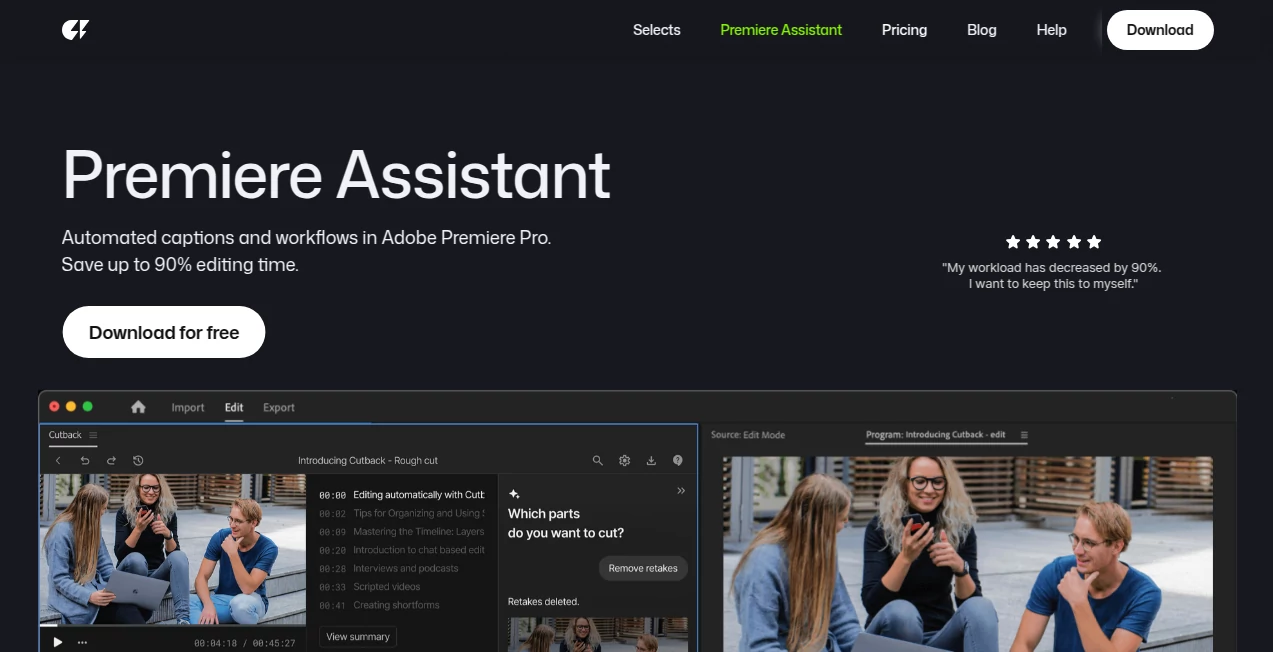
What is Premiere Assistant?
Editing in Premiere can feel like sculpting with a chainsaw—lots of power, but precision takes forever. This extension quietly changes that. It lives right inside your timeline, watching your cuts, suggesting trims, filling jump cuts with smooth B-roll, and even proposing pacing adjustments that actually feel musical. I’ve had editors who normally spend hours on basic assembly say things like “it just knew where the breath should be.” It doesn’t replace your judgment; it amplifies it, turning good edits into ones that feel effortless and intentional.
Introduction
Most AI video tools live outside your NLE, forcing you to export, process, re-import, and pray the timing still works. This one skips all of that. It’s a native Premiere panel that reads your sequence in real time, understands dialogue rhythm, visual continuity, and emotional beats, then offers intelligent suggestions or automated fixes you can accept with one click. For anyone who’s ever stared at a rough cut wondering “where do I even start tightening this?”, it’s like having a second brain that already knows the story you’re trying to tell. Creators who’ve used it talk about cutting their assembly time in half while ending up with tighter, more polished sequences. That kind of time back is rare and deeply appreciated.
Key Features
User Interface
It lives as a tidy Premiere panel—dock it wherever you like. The layout is clean: timeline overview at the top, suggested edits in the middle, quick-accept buttons below. Color-coded highlights show problem areas (long pauses, jumpy cuts, mismatched eye-lines), and hovering reveals exactly what it recommends. No modal windows stealing focus, no cryptic icons—just clear, glanceable guidance that integrates so naturally it feels like Adobe built it themselves.
Accuracy & Performance
It reads speech cadence, visual flow, and emotional intent with surprising nuance—knows when a cut is too tight, when silence is working, when a reaction shot is missing. Suggestions land fast (near real-time on decent hardware), and applying them is instant—no re-rendering lag. In practice, it rarely proposes something that feels “off”; most edits are either spot-on or very close, saving hours of manual nudging.
Capabilities
Auto-trim silence & filler words, smart jump-cut filler with B-roll suggestions, pacing analysis with recommended hold/trim lengths, eye-trace continuity checks, dialogue-driven cut suggestions, multi-cam auto-sync assistance, rough-cut assembly from transcript, and one-click application of approved changes. It works with your existing media—no forced re-transcoding. The more context you give it (full sequence, markers, B-roll bin), the smarter it gets.
Security & Privacy
All processing happens locally on your machine—no cloud uploads of your footage. Your project, media, and timeline stay exactly where they are. For documentary filmmakers, corporate video teams, or anyone handling sensitive content, that local-first approach is non-negotiable—and it delivers without compromise.
Use Cases
A YouTuber with 40-minute raw vlogs uses silence removal and jump-cut filler to drop edit time from days to hours while keeping the energy high. A wedding filmmaker gets intelligent reaction-shot suggestions that make highlight reels feel emotionally complete. A corporate trainer turns talking-head interviews into polished modules by following pacing and continuity recommendations. An indie doc director uses it to quickly assemble rough cuts from 50+ hours of footage, letting them focus on story instead of grunt work. Wherever narrative rhythm matters, it quietly elevates the result.
Pros and Cons
Pros:
- Feels like a native Premiere feature—seamless integration, zero workflow friction.
- Saves massive time on tedious first-assembly tasks.
- Suggestions are thoughtful and story-aware, not just mechanical cuts.
- Completely local processing—no footage ever leaves your computer.
- Continuously improving via updates without changing your workflow.
Cons:
- Requires a reasonably powerful machine for real-time performance on 4K/8K timelines.
- Best with clean audio and decent coverage; garbage in still produces less helpful suggestions.
- Advanced multi-cam and complex narrative understanding still maturing.
Pricing Plans
Free tier includes core silence removal and basic trim suggestions—enough to feel the difference on short projects. Pro plan unlocks full feature set: smart B-roll filler, continuity checks, pacing analysis, multi-shot suggestions, priority updates, and unlimited timeline length. Pricing is modest—many editors say it pays for itself after one long-form project. Annual billing saves significantly, and there’s a generous trial period to test on real work.
How to Use Premiere Assistant
Install from the Adobe Exchange panel inside Premiere. Open your sequence, dock the extension panel, and let it analyze (one click). Watch as it highlights pauses, jump cuts, and pacing issues with color-coded markers. Hover over suggestions to see proposed trims/fills, then click Accept to apply instantly. Use the “Generate Options” button for alternative assemblies if you’re stuck. Refine manually, regenerate suggestions as needed, and export. The workflow stays inside Premiere—nothing extra to learn or manage.
Comparison with Similar Tools
Cloud-based AI editors require exporting/importing, risk compression artifacts, and often feel disconnected from your timeline. Desktop-only assistants usually focus on one task (silence removal, color match) without understanding narrative flow. This one combines story awareness, timeline-native operation, and local privacy in a way few others do. It’s less about replacing your editing instincts and more about handling the boring parts so you can stay in the creative ones.
Conclusion
Great editing isn’t about how many cuts you make—it’s about how well those cuts serve the story. This extension quietly takes care of the mechanical heavy lifting so you can focus on feel, rhythm, and emotion. When your rough cut suddenly looks and sounds like it’s already halfway to finished, you realize how much mental bandwidth was being stolen by repetitive tasks. For anyone who edits for a living or as a passion, that reclaimed time and energy is priceless.
Frequently Asked Questions (FAQ)
Does it work on 4K/8K timelines?
Yes—performance scales with your hardware; stronger GPUs handle higher-res real-time better.
Do I need to export my media?
No—everything happens inside Premiere using your existing timeline and assets.
Can it handle multi-cam or nested sequences?
Basic multi-cam support is there; nested sequences are analyzed as flattened footage.
Is my footage uploaded anywhere?
Never—100% local processing, zero cloud dependency.
How much time does it actually save?
Many editors report 40–70% faster rough cuts, especially on dialogue-heavy projects.
AI Animated Video , AI Video Generator , AI Video Editor , AI Video Enhancer .
These classifications represent its core capabilities and areas of application. For related tools, explore the linked categories above.
Premiere Assistant details
This tool is no longer available on submitaitools.org; find alternatives on Alternative to Premiere Assistant.
Pricing
- Free
Apps
- Web Tools
Categories

Premiere Assistant Alternatives Product

Seedance 2.0…

ai seedance …

Veo4

VO4 AI

Sora 2 AI

MixHub AI

Seedance 2.0…

Seedance 2.0

seedance 2