🧠 AI Quiz
Think you really understand Artificial Intelligence?
Test yourself and see how well you know the world of AI.
Answer AI-related questions, compete with other users, and prove that
you’re among the best when it comes to AI knowledge.
Reach the top of our leaderboard.


















PDF to MD
What is PDF to MD?
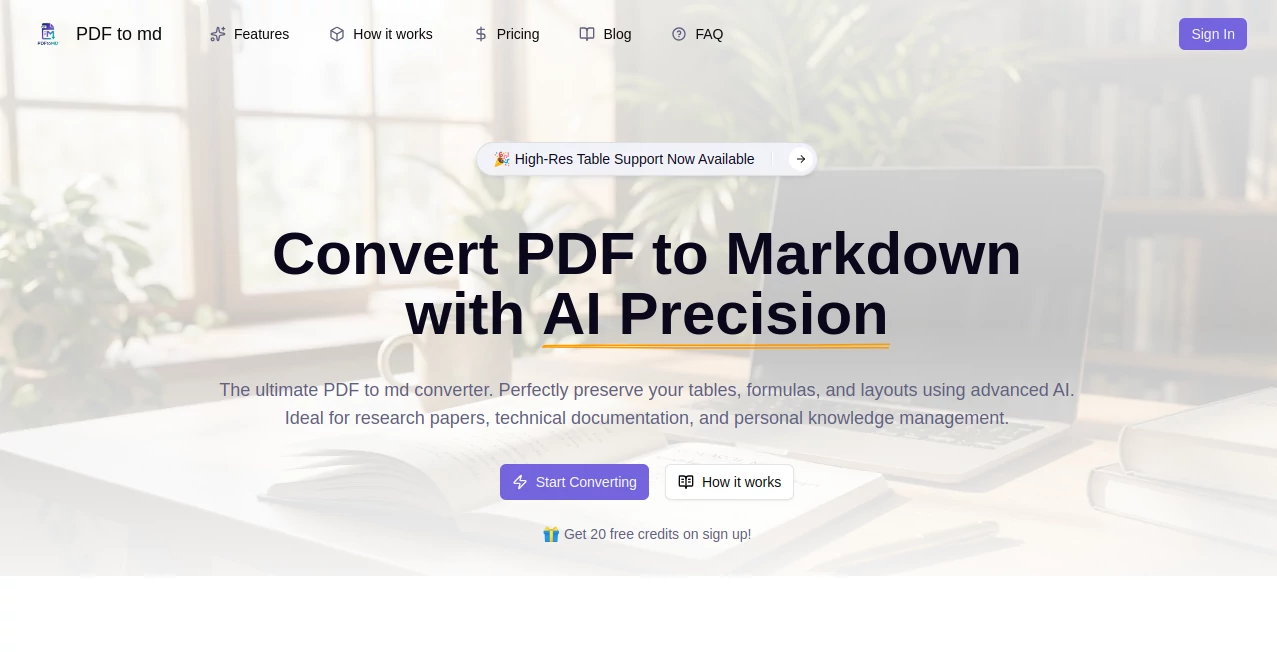
There are few things more frustrating than opening a PDF full of useful content only to realize you can’t easily copy, edit, or repurpose it. You highlight text, paste it somewhere, and suddenly it’s a jumbled mess of line breaks, weird spacing, and lost formatting. This tool quietly solves that everyday annoyance. Upload almost any PDF—reports, articles, scanned notes, research papers—and it hands back remarkably clean Markdown that keeps headings, lists, tables, code blocks, and even basic images in place. I’ve used it to turn dense 50-page whitepapers into notes I could actually work with, and the time saved felt almost unfair.
Introduction
PDFs are everywhere, but they’re terrible for editing, searching, or feeding into other tools. Markdown, on the other hand, is loved precisely because it’s lightweight, readable, and plays nicely with almost every note-taking app, CMS, and static site generator. This platform bridges that gap with surprising accuracy. It doesn’t just extract text—it understands document structure: detects headings by size and position, preserves bullet lists and numbered steps, intelligently handles tables, and keeps inline code and links intact. What could have taken an hour of manual cleanup often takes under a minute. For writers, researchers, developers, students—anyone who regularly fights with locked-down PDFs—this feels like a small but genuine quality-of-life upgrade.
Key Features
User Interface
The page is blissfully minimal: drag your PDF or click to upload, wait a few seconds, and you’re presented with side-by-side views—original PDF on the left, clean Markdown on the right. Copy button for the whole file or selected sections, download option, and a dark mode toggle that actually looks good. No sign-up required for basic use, no ads crowding the screen. It’s one of those tools you use once and immediately bookmark because it respects your time.
Accuracy & Performance
The conversion quality is consistently impressive. Headings stay headings, tables turn into proper Markdown tables (not messy tab-separated disasters), code blocks retain indentation and language hints when detectable, and bullet/numbered lists rarely break. Multi-column layouts are handled intelligently—most of the time it linearizes them sensibly. Even scanned PDFs with decent OCR quality come through readable. Processing usually finishes in 5–20 seconds depending on length, and large documents (100+ pages) still complete without choking. It’s not flawless on extremely complex layouts, but it outperforms almost every free alternative I’ve tried.
Capabilities
Handles text PDFs, scanned/image-based PDFs (via built-in OCR), academic papers with citations and footnotes, technical docs with code snippets, ebooks, reports, resumes, invoices—pretty much anything that lives in PDF form. Outputs clean, GitHub-flavored Markdown with frontmatter support, proper escaping, and optional image extraction. You can choose to preserve or ignore certain elements (headers/footers, page numbers), and there’s a “minimal” mode for stripping everything down to pure content. It’s surprisingly versatile for such a focused tool.
Security & Privacy
Files are processed in memory and deleted from servers immediately after conversion—no permanent storage, no logging of content. No account creation required for core use means no profile tied to your documents. For sensitive reports, legal docs, or personal notes, that zero-retention approach is genuinely reassuring. HTTPS everywhere, and the team clearly prioritizes not becoming another vector for leaked data.
Use Cases
A researcher pulls key sections from 200-page academic PDFs into Obsidian for note-linking without hours of reformatting. A developer converts vendor API docs from PDF to Markdown so they can fork, annotate, and keep in the repo. A student turns textbook chapters into searchable, highlightable notes in their preferred app. A content marketer extracts competitor whitepapers into structured text for quick analysis. Anyone who regularly needs to liberate content trapped in PDFs finds their workflow suddenly lighter and faster.
Pros and Cons
Pros:
- Exceptionally clean Markdown output—rarely needs manual cleanup.
- Handles tables, code blocks, lists, and headings better than most free converters.
- Fast, even on longer documents.
- No sign-up or data retention for basic use—privacy-first by default.
- Free tier is generous enough for regular personal use.
Cons:
- Very complex multi-column layouts or heavy vector graphics can occasionally confuse it.
- OCR quality depends on the scan; very poor scans still produce messy text.
- Advanced features (batch processing, custom templates) require paid plan.
Pricing Plans
Free tier offers unlimited small-to-medium conversions with generous daily limits—enough for most individual users. Pro plan removes limits, adds batch upload, priority processing, higher OCR accuracy, and API access for automation. Pricing is modest and month-to-month, so you can subscribe during heavy research periods and cancel when the project ends. Many users say the Pro tier pays for itself after one large document batch.
How to Use PDF to MD
Drag your PDF into the upload area or click to browse. Wait a few seconds while it processes. Scroll through the side-by-side preview to check accuracy. Click “Copy Markdown” for the full output or select sections if you only need parts. Download as .md file if preferred. For scanned documents, the built-in OCR kicks in automatically. If the result isn’t perfect, tweak upload settings (OCR mode, layout detection) and try again—most documents only need one or two attempts.
Comparison with Similar Tools
Many PDF-to-text converters spit out plain walls of text with broken formatting. Others preserve layout but produce bloated HTML or proprietary formats. This one focuses squarely on clean, usable Markdown—the format most people actually want for notes, blogs, wikis, and code. Where free online tools often watermark, throttle, or quietly store your files, this one prioritizes speed, privacy, and output quality. It’s become the default choice for anyone who values editable, future-proof text over pretty-but-useless exports.
Conclusion
PDFs are great for sharing immutable documents, terrible for working with content. This tool finally makes escaping that prison simple and reliable. When you can turn a locked 80-page report into structured, searchable Markdown in under a minute, your whole workflow changes. It’s not glamorous, but it’s genuinely useful—the kind of utility you quietly thank every time you use it. For students, researchers, developers, writers, or anyone who regularly wrestles with PDFs, it quickly becomes indispensable.
Frequently Asked Questions (FAQ)
How accurate is the OCR for scanned PDFs?
Very good on clear scans; modern printed documents come through cleanly. Older or low-quality scans may need minor manual fixes.
Does it preserve tables properly?
Yes—most tables convert to clean Markdown tables. Very complex or merged-cell tables sometimes need light cleanup.
Can I process multiple PDFs at once?
Free tier is single-file; Pro plan unlocks batch upload for dozens or hundreds at once.
Is my uploaded PDF stored anywhere?
No—processed in memory and deleted immediately after conversion. No long-term storage.
What if the conversion isn’t perfect?
Try again with different settings (e.g., force OCR or change layout mode). Most documents only need one or two tries.
AI Transcriber , AI PDF , AI Document Extraction , AI Documents Assistant .
These classifications represent its core capabilities and areas of application. For related tools, explore the linked categories above.
PDF to MD details
Pricing
- Free
Apps
- Web Tools
Categories

PDF to MD Alternatives Product
Transcribe A…

TO MD

TopPDF
Sourcetable
AI OCR
Fill PDF fro…

UPDF AI

Watermark in…

Rename files…