
🧠 AI Quiz
Think you really understand Artificial Intelligence?
Test yourself and see how well you know the world of AI.
Answer AI-related questions, compete with other users, and prove that
you’re among the best when it comes to AI knowledge.
Reach the top of our leaderboard.

















PDF to Video
What is PDF to Video?
Turning a static PDF into something people actually watch used to mean hours of manual work—copying text, recording voiceover, adding transitions, syncing everything. This tool quietly removes all that friction. You upload a PDF (report, presentation, ebook, whitepaper, whatever), choose a few simple settings, and it creates a polished video with smooth page transitions, natural narration, and visuals that keep viewers engaged. I’ve seen marketers take a 20-page report and turn it into a shareable video that gets far more attention than the original file ever did. It’s one of those rare tools that feels like it was built by someone who’s actually had to present boring documents before.
Introduction
PDFs are everywhere—reports, proposals, guides, research papers—but they’re not exactly thrilling to consume. People skim, skip, or ignore them. Converting them into video makes the content more accessible, memorable, and shareable. This platform makes that conversion fast, clean, and surprisingly effective. It doesn’t just flip pages; it adds pacing, voice, and visual flow that turns dry documents into mini-presentations people actually finish watching. For creators, educators, marketers, and businesses, it’s a practical way to breathe new life into existing content without starting from scratch.
Key Features
User Interface
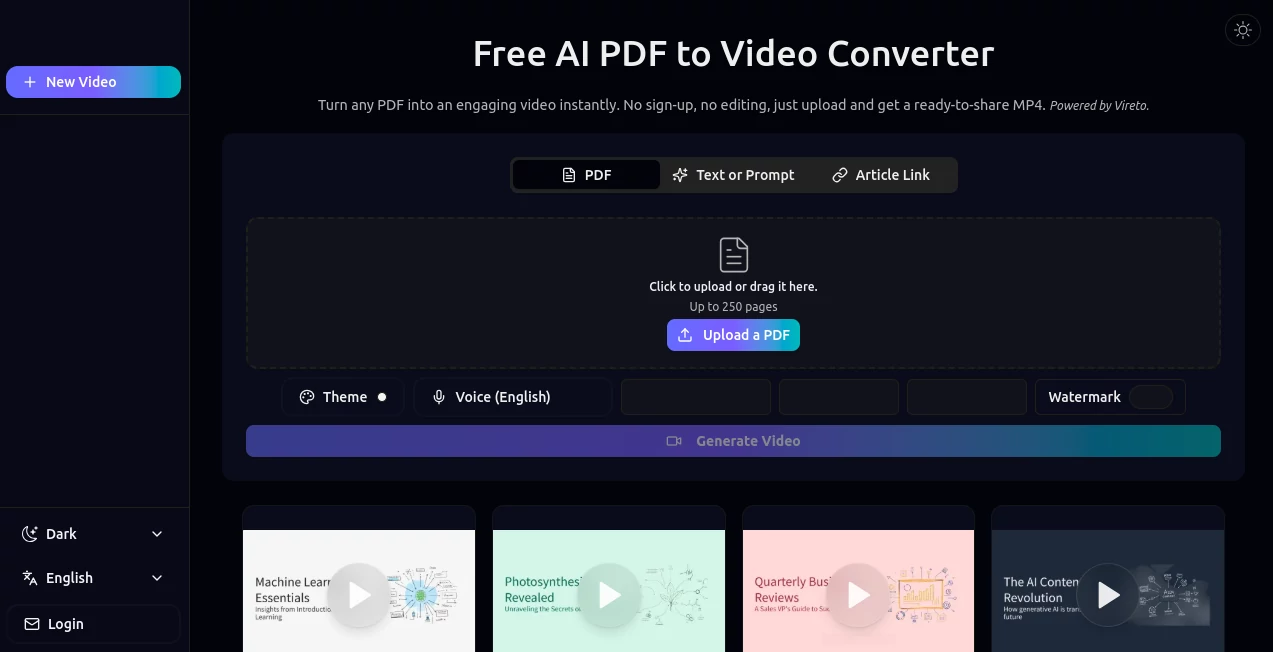
The interface is refreshingly straightforward. Drag your PDF in, pick a narration style or upload your own audio, choose transition speed and visual style, then hit generate. A live preview shows how pages will flow with timing and effects. No complicated timeline editing or layer management—just the essentials done well. It’s the kind of tool where you can go from upload to finished video in under five minutes, even if you’re not tech-savvy.
Accuracy & Performance
It reads PDF content accurately—text, images, layout—and converts it into a coherent video without mangling formatting or missing key sections. Narration sounds natural (you can use AI voice or your own), transitions feel smooth rather than robotic, and the pacing matches real human reading speed. Processing is quick even for longer documents, and the output quality holds up for both web sharing and professional use.
Capabilities
Supports multi-page PDFs of any length, multiple narration options (AI voices in various languages/accents or custom audio upload), customizable transitions and pacing, visual enhancements (zoom, pan, highlight important sections), background music layering, and export in common video formats. It handles everything from simple reports to dense whitepapers, turning them into engaging narrated videos that work well on social media, websites, or internal training platforms.
Security & Privacy
Your PDFs are processed securely and not stored after conversion unless you choose to save the project. No unnecessary data collection, and the tool respects the confidentiality of business or personal documents. That peace of mind matters when you’re converting sensitive reports or client materials.
Use Cases
A consultant turns a 15-page proposal into a professional video walkthrough that clients actually watch instead of skimming. An educator converts lecture notes and research papers into short explanatory videos for students. A marketing team repurposes quarterly reports into LinkedIn-friendly content that gets higher engagement than static PDFs. A small business owner turns product manuals into simple how-to videos for customers. Wherever information sits trapped in a PDF, this tool sets it free in a format people prefer.
Pros and Cons
Pros:
- Extremely fast—PDF to finished video in minutes instead of hours.
- Natural narration and smooth transitions make videos feel professional.
- Works on any PDF length and complexity.
- No steep learning curve; perfect for non-video editors.
- Great for repurposing existing content without starting over.
Cons:
- Very design-heavy or graphically complex PDFs may need minor manual tweaks.
- Custom voice cloning or advanced editing features are limited in the base version.
- Longer documents can take more time to process on free tier.
Pricing Plans
Free tier lets you convert several PDFs per month with basic features—enough to test the quality on important documents. Paid plans unlock unlimited conversions, higher quality exports, custom voice options, background music library, and priority processing. Pricing is straightforward and scales with usage, making it accessible for individuals and small teams while offering real value for heavier users.
How to Use PDF to Video
Upload your PDF by dragging it in or clicking the upload button. Choose narration style (AI voice or upload your own audio), select transition speed, and pick any visual enhancements. Preview the video to check pacing and flow. Make small adjustments if needed, then export in your preferred format. For multiple documents, paid users can batch process. The entire workflow is designed to be quick and intuitive, so you spend time on content, not on editing software.
Comparison with Similar Tools
Many PDF converters simply turn pages into slideshows with robotic voiceover. This one adds thoughtful pacing, natural narration, and visual flow that actually holds attention. Where other tools feel mechanical, the results here feel closer to a real presentation. It strikes a nice balance between automation and quality, making it more practical for real-world use than purely technical converters or overly complex video editors.
Conclusion
PDFs are useful, but videos get watched. This tool bridges that gap elegantly, turning static documents into engaging, shareable content without forcing you to become a video editor. It respects your time and your existing material while delivering results that look and sound professional. For anyone who creates, shares, or teaches with PDFs, it’s a simple upgrade that makes a surprisingly big difference in how your message lands.
Frequently Asked Questions (FAQ)
How long does conversion take?
Most PDFs become videos in 1–5 minutes, depending on length and complexity.
Can I use my own voice?
Yes—upload custom audio for fully personalized narration.
Is the output high quality enough for professional use?
Absolutely—exports are clean and suitable for websites, social media, and client presentations.
Do I need video editing skills?
Not at all. The tool handles transitions, timing, and visuals automatically.
What file formats can I export?
Common video formats like MP4, ready for any platform or editor.
AI Documents Assistant , AI Content Generator , AI Video Generator , AI Text to Video .
These classifications represent its core capabilities and areas of application. For related tools, explore the linked categories above.
PDF to Video details
Pricing
- Free
Apps
- Web Tools
Categories

PDF to Video Alternatives Product
GLM-OCR Onli…

seedance2
Seedance2 Vi…

Seedream 6.0

Fast Wan
seedance 2
Kling 3.0 Vi…

Flow Veo 3
Veo 3.2 AI V…