
🧠 AI Quiz
Think you really understand Artificial Intelligence?
Test yourself and see how well you know the world of AI.
Answer AI-related questions, compete with other users, and prove that
you’re among the best when it comes to AI knowledge.
Reach the top of our leaderboard.


















Rename files Ai
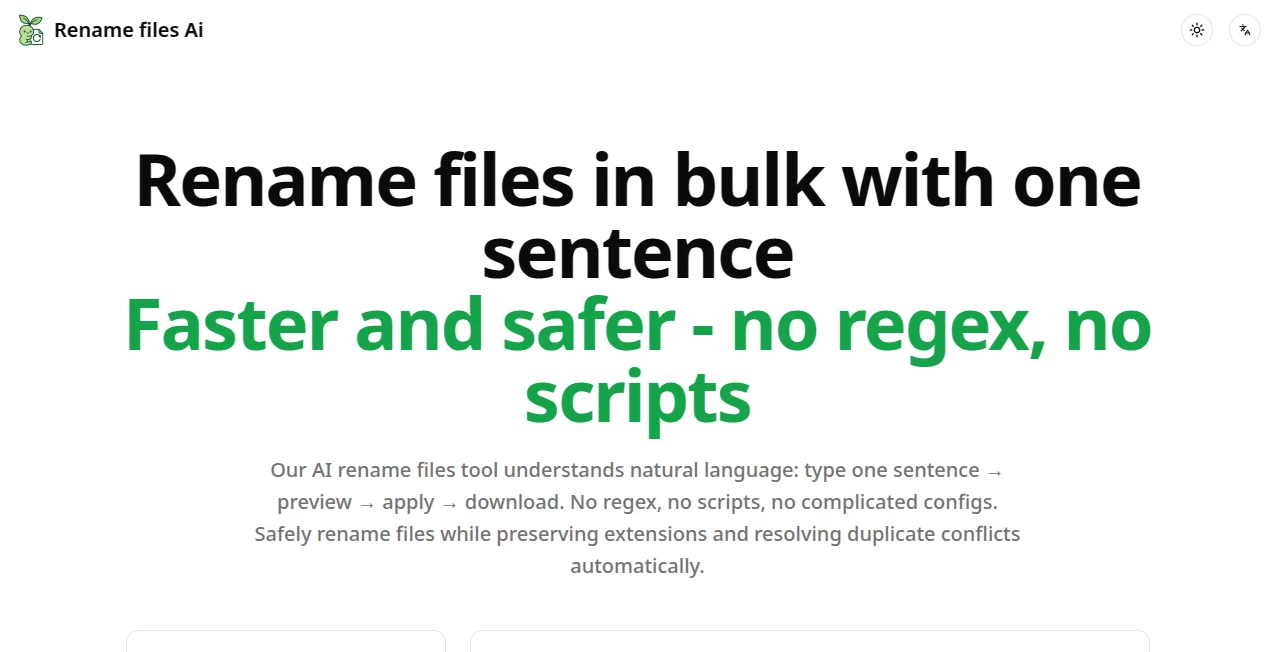
What is Rename files Ai?
Think about those moments when your downloads folder looks like a war zone—screenshots named IMG_4567, invoices with random numbers, or design files with dates that make no sense anymore. This little browser tool changes all that in a flash. You drop a bunch of files in, type something simple like "lowercase everything, turn spaces into hyphens, pad numbers with zeros," and it shows you exactly what the new names will be before touching a thing. I've tried it myself on a messy photo dump from a trip, and in under a minute, everything was neatly organized—dates at the front, consistent separators, no more guessing what file is what. It's the kind of relief you didn't know you needed until it's there.
Introduction
Sorting through hundreds of files shouldn't feel like archaeology. This platform takes the pain out of renaming by letting you describe what you want in plain English—no regex nightmares, no scripts to write, just natural instructions. It handles thousands of files at once, shows a clear before-and-after preview, and only renames when you're happy. I remember cleaning up a client's asset folder last month; what used to take hours of manual work was done in minutes, and the results were perfect—every file named consistently for their team. It's straightforward, safe, and surprisingly smart about edge cases like duplicate names or non-English characters.
Key Features
User Interface
The layout is dead simple: a big drag-and-drop zone greets you, then a single text box for your instructions. Hit generate, and the preview appears side by side—original names on the left, proposed changes on the right, with every adjustment visible instantly. Buttons for common tweaks (lowercase, hyphens, zero-padding) sit right there as one-click recipes. It's the kind of design that makes you feel smart instead of frustrated—no buried menus, just everything you need in plain sight.
Accuracy & Performance
It gets the rules right almost every time, translating your words into precise changes without weird surprises. Even with thousands of files, it processes fast—preview ready in seconds, apply in a blink. I threw 800 invoice PDFs at it once; it spotted dates, moved them to the front, and added vendor prefixes perfectly on the first try. No crashes, no slowdowns, just clean execution every time.
Capabilities
From basic case changes and delimiter swaps to advanced tricks like zero-padding numbers, reordering parts of the name, or converting Chinese characters to Pinyin—it covers a lot of ground. It automatically handles duplicates with suffixes, preserves extensions, and lets you limit length or remove emojis. Export a CSV of all changes if you want a record, or download the renamed batch directly. It's flexible enough for photos, invoices, design assets, or code files—whatever mess you're dealing with.
Security & Privacy
Everything happens in your browser—files never leave your machine until you choose to download them. It doesn't read contents, only names, so there's zero risk of sensitive data exposure. That peace of mind is huge, especially for work files or client stuff. No cloud uploads, no servers holding your documents—just local processing that keeps your privacy intact.
Use Cases
Photographers tidy up camera rolls by date and sequence in seconds. Accountants rename invoice batches with dates upfront and vendor codes for easy searching. Designers apply brand naming conventions across hundreds of assets without manual edits. Students organize lecture notes or project files with consistent prefixes. Anyone with a cluttered downloads folder can clean house fast—it's perfect for turning chaos into order without wasting a whole afternoon.
Pros and Cons
Pros:
- Dead simple to use—plain English instructions replace complicated rules.
- Full preview before applying means no nasty surprises.
- Handles thousands of files quickly and safely.
- Runs locally in the browser—zero privacy worries.
Cons:
- Very long filenames might need manual splitting first.
- No desktop app (yet), so it's browser-only.
Pricing Plans
It's completely free to use—no sign-ups, no limits, no hidden catches. Everything works right in your browser, no account needed. That alone makes it stand out; you get powerful batch renaming without paying a dime or handing over your files.
How to Use RenameFilesAI
Drag your files or folder in, or click to select them. Type what you want: "lowercase, replace spaces with hyphens, pad numbers with zeros." Hit generate to see the preview—check that everything looks good. If you need tweaks, adjust your instruction and regenerate. When you're happy, click apply and download the renamed files. It's that straightforward—takes longer to read this than to actually do it.
Comparison with Similar Tools
Most renamers force you into regex or dropdown menus that feel like solving puzzles. This one lets you just describe what you want in normal words and handles the rest. Others often require installation or uploads to servers; here everything stays local and free. It's lighter, faster, and way more intuitive—perfect if you hate overcomplicated tools.
Conclusion
This tool quietly solves one of those small-but-constant annoyances in digital life: messy file names. It turns hours of tedious renaming into minutes of effortless organization, and does it all for free, safely in your browser. If you've ever groaned at a folder full of IMG_1234.jpg files, give this a try—you'll wonder why you ever did it any other way.
Frequently Asked Questions (FAQ)
Does it change file contents?
No, only names—contents stay untouched.
How many files can it handle?
Thousands at once, no problem.
Does it work with non-English characters?
Yes, including Pinyin conversion for Chinese.
Is there a limit?
None—it's completely free and unlimited.
Can I undo changes?
Preview first, and keep originals until you're sure.
AI Documents Assistant , AI Files Assistant .
These classifications represent its core capabilities and areas of application. For related tools, explore the linked categories above.
Rename files Ai details
Pricing
- Free
Apps
- Web Tools
Categories

Rename files Ai Alternatives Product

TO MD

Meet Submind

Watermark in…

Flowmata AI

JSON to Excel

Presenti AI

Sourcetable

Sora Waterma…

GLM-OCR Onli…
