
🧠 AI Quiz
Think you really understand Artificial Intelligence?
Test yourself and see how well you know the world of AI.
Answer AI-related questions, compete with other users, and prove that
you’re among the best when it comes to AI knowledge.
Reach the top of our leaderboard.


















Reports.Camera

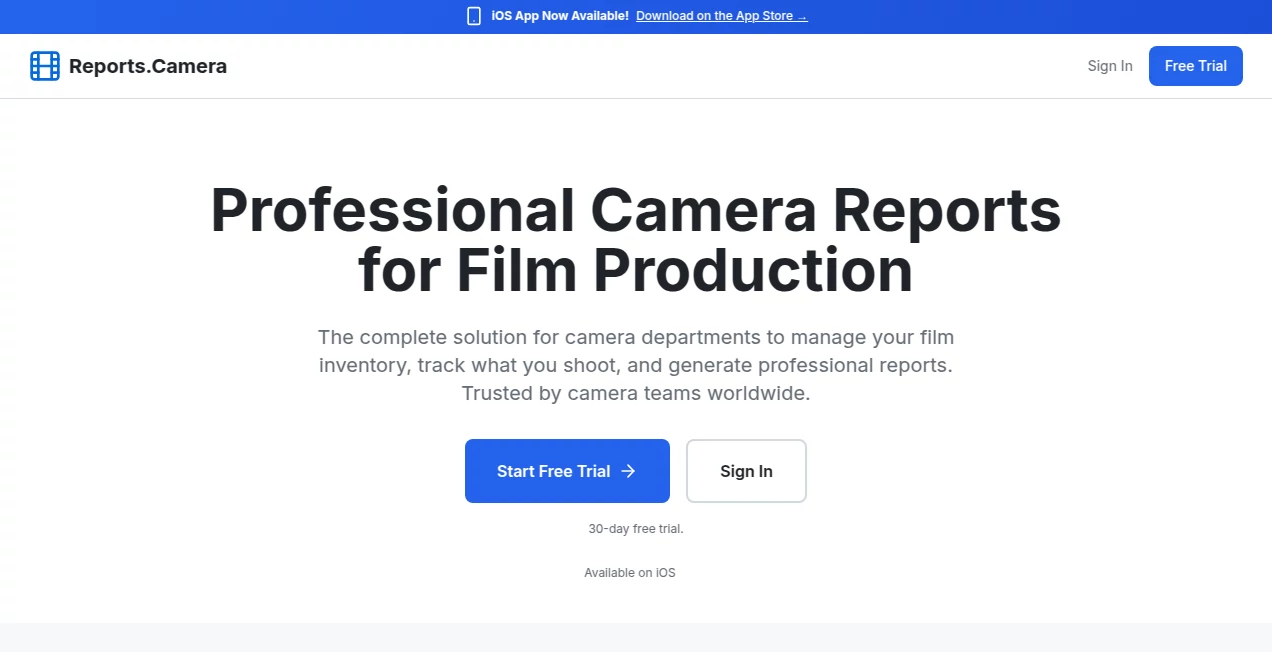
What is Reports.Camera?
Nothing slows down a sprint like a vague bug report: “it’s broken on mobile,” “something looks off,” “can you fix the thing?” This tool ends that frustration in seconds. Click a button, capture exactly what you see—full page, viewport, or selected area—add voice notes or text, draw arrows if needed, and send it straight to the team with all context attached. Developers get pixel-perfect screenshots, device info, console logs, and even a short video clip of the interaction if you want. I’ve seen teams go from “I’ll reproduce it later” to “fixed in the next commit” because the report contained everything they needed upfront. It’s one of those rare tools that actually reduces back-and-forth instead of adding another layer of communication.
Introduction
Modern product teams ship fast, but feedback loops often crawl. A designer spots a visual glitch, a QA tester finds an edge-case issue, a customer success rep hears “the button is weird”—and the message gets lost in translation by the time it reaches engineering. This platform closes that gap elegantly. One click captures the full state of the page (visual + technical), lets you annotate or narrate what’s wrong, and delivers a structured, shareable report that lands in Slack, email, Jira, Linear, or wherever your team lives. It’s become the quiet backbone for teams who value speed and clarity over endless “can you send a screenshot?” threads. The difference in resolution time is noticeable after just one sprint.
Key Features
User Interface
The extension is wonderfully restrained. Click the icon, choose capture type (full page, visible area, element, or screen recording), and everything happens in a compact overlay. Draw tools, text boxes, blur sensitive areas, and voice memo recording are right there—no digging through menus. The preview lets you review before sending, and the send dialog offers one-click integration with your team’s tools. It feels like the extension was built by someone who’s been on the receiving end of bad bug reports and refused to let the UX add any friction.
Accuracy & Performance
Captures are pixel-accurate—even long-scrolling pages render fully without seams or cutoffs. Device metadata (browser, OS, viewport size, screen resolution) attaches automatically. Console errors, network requests, and DOM state are grabbed when relevant. Voice recordings sync perfectly with the capture timeline. The whole process—from click to delivered report—is consistently under 10 seconds, even on slower connections. Reliability is high; it rarely fails to grab the exact state you’re seeing.
Capabilities
Full-page captures, element highlighting, multi-tab support, screen recording with audio, annotation tools (arrows, text, blur), voice narration, automatic technical metadata, one-click sharing to Slack/Jira/Linear/GitHub/Email/Trello, team inbox for incoming reports, and private/public link generation. It works across Chrome, Edge, and soon Firefox, capturing everything from responsive web apps to complex dashboards without breaking layout.
Security & Privacy
No data is stored on servers unless you explicitly share a public link. Captures are sent directly to your chosen destination (Slack channel, ticket, email) or stay local. Sensitive areas can be blurred before sending. Enterprise plans offer on-premise options and SOC 2 compliance. For teams handling customer data or internal tools, the minimal server footprint and direct delivery feel appropriately cautious.
Use Cases
A frontend developer gets a one-click report from design showing a misaligned button on mobile—fixed before standup. QA files detailed bug reports with video narration, reducing “steps to reproduce” confusion. Customer support captures client issues live during calls and attaches them to tickets instantly. Product managers annotate competitor sites during research and share findings with one link. Remote teams use it daily to keep visual alignment across time zones. Wherever clarity matters more than words alone, it shines.
Pros and Cons
Pros:
- Captures everything a developer actually needs—visual + technical context in one go.
- Voice narration adds nuance that screenshots alone can’t convey.
- Integrations feel native (Slack threads, Jira comments, Linear tasks).
- Lightning-fast workflow—report from discovery to delivery in under 30 seconds.
- Free tier is genuinely useful for individuals and small teams.
Cons:
- Screen recording length is capped on free plan (paid removes limit).
- No native mobile capture yet (web-only via desktop browser).
- Advanced team features (central inbox, analytics) require paid plans.
Pricing Plans
Free plan covers individuals and small teams with unlimited basic captures, voice notes, and integrations—more than enough for most daily use. Pro unlocks longer recordings, team inbox, advanced integrations, and priority support. Enterprise adds SSO, on-premise options, audit logs, and custom branding. Pricing is reasonable—many teams say the Pro plan pays for itself after a single sprint where fewer clarification tickets mean faster shipping.
How to Use Reports.Camera
Install the extension, pin it for quick access. Spot an issue, click the icon, choose capture type (full page, viewport, element, or record). Annotate with arrows/text/blur, record a quick voice explanation if needed, preview, then send directly to Slack, Jira, Linear, email, or copy a shareable link. That’s it—context-rich report delivered in seconds. For recurring issues, save templates or use the team inbox (paid) to centralize incoming feedback.
Comparison with Similar Tools
Traditional screenshot tools capture visuals but miss technical context and narration. Bug-reporting apps add fields and steps but slow the reporter down. This one combines the best of both worlds: instant capture with rich metadata, voice, annotations, and seamless delivery to your existing workflow. It’s less about replacing your ticketing system and more about making every bug report dramatically more useful from the first second.
Conclusion
Speed in feedback is speed in shipping. When every team member can send crystal-clear, context-rich reports without breaking flow, the whole development loop tightens. This tool doesn’t add process—it removes friction. For teams that value velocity and clarity equally, it quietly becomes indispensable. The days of “can you send more info?” should be numbered; here’s a way to make sure they are.
Frequently Asked Questions (FAQ)
Does it require any browser permissions?
Only standard capture permissions—no full access to your browsing history or tabs.
Can it capture console errors automatically?
Yes—when enabled, it grabs recent console logs and network activity related to the page.
What if I need to blur sensitive info?
Built-in blur tool lets you obscure before sending—simple and effective.
Does it work on mobile?
Currently desktop browser only; mobile support is in active development.
How private are the reports?
Reports are sent directly to your chosen destination—no middleman storage unless you generate a public link.
Other .
These classifications represent its core capabilities and areas of application. For related tools, explore the linked categories above.
Reports.Camera details
This tool is no longer available on submitaitools.org; find alternatives on Alternative to Reports.Camera.
Pricing
- Free
Apps
- Web Tools
- iOS Apps
Categories

Reports.Camera Alternatives Product

BSA calculat…

Suno top

pixel flow g…

Pokemon Frie…

Al Maze Gene…

Hall Of Tarot

royaldle

AI For Devel…

Bulletin
