
🧠 AI Quiz
Think you really understand Artificial Intelligence?
Test yourself and see how well you know the world of AI.
Answer AI-related questions, compete with other users, and prove that
you’re among the best when it comes to AI knowledge.
Reach the top of our leaderboard.

















SnapToWindow
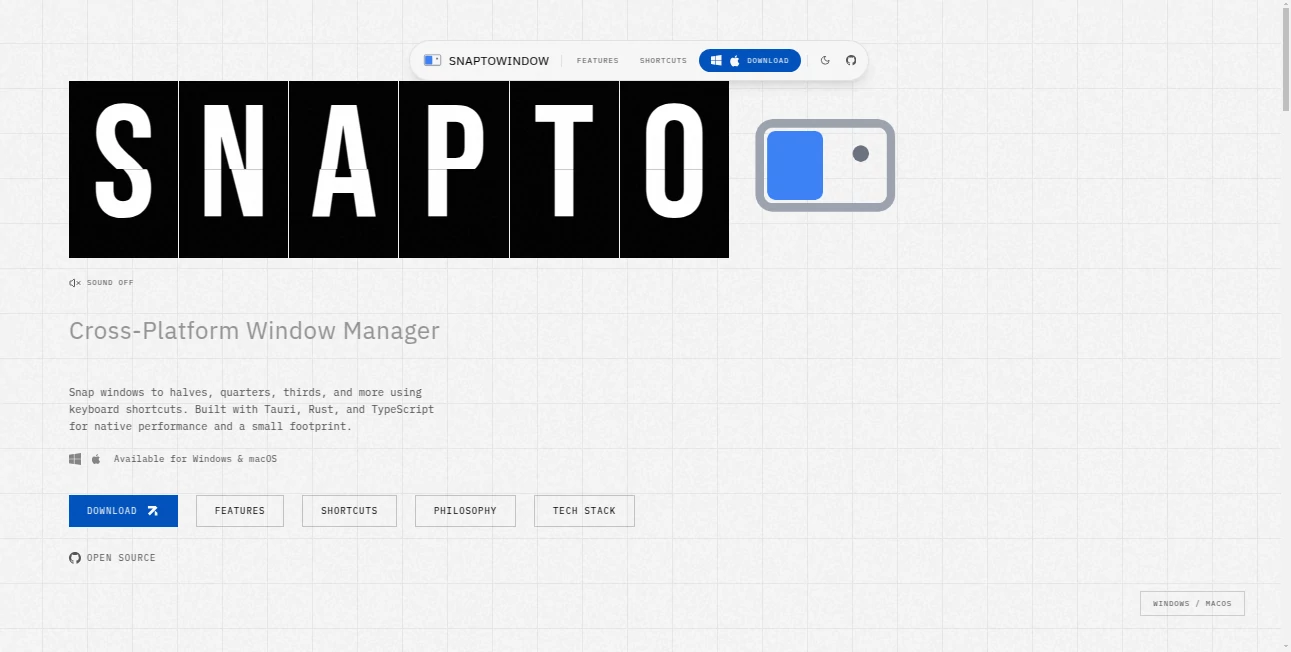
What is SnapToWindow?
Ever dragged a window to the edge of your screen and wished it would just snap perfectly where you wanted—half screen, quarter screen, or even a custom size—without fighting the built-in snap or installing a heavy utility? This little app does exactly that, and it does it so smoothly you almost forget it wasn’t always there. I started using it during a crunch project with three monitors and multiple apps open; suddenly rearranging everything felt effortless instead of annoying. The difference is night and day—windows land exactly where you intend, every time, with zero hesitation.
Introduction
Modern desktops give you basic snap features, but they’re often clunky, limited, or inconsistent across apps. This tool takes window management from “good enough” to genuinely delightful. One hotkey or drag gesture, and any window snaps to left, right, top, bottom, corners, or custom zones you define. No bloat, no subscription traps, just a lightweight helper that works quietly in the background and makes multi-monitor life (or even single-screen multitasking) feel ten times smoother. It’s the kind of utility you install once and wonder how you ever lived without.
Key Features
User Interface
The settings window is clean and to the point—no overwhelming tabs or cryptic icons. Enable/disable snapping, choose hotkeys, define custom zones with simple sliders or percentages, pick animation style (or turn it off), and you’re done. The on-screen snap guide appears only when you need it—subtle, non-intrusive lines that show exactly where the window will land. It never fights with your workflow; it enhances it.
Accuracy & Performance
Snapping is pixel-perfect and instant—no lag, no overshoot. It respects app minimum sizes, remembers your last-used layout per app if you want, and handles high-DPI screens flawlessly. Multi-monitor setups are fully supported; drag across displays and it snaps correctly every time. Resource usage is negligible—runs light even on older machines. In practice, it just works, every single time.
Capabilities
Full edge snapping (left/right/top/bottom), corner snapping (quarter tiles), custom zone creation (e.g., 30/70 split, vertical thirds), per-app rules, hotkey overrides, multi-monitor awareness, drag-to-snap with customizable trigger distance, and optional visual guides/animations. It works system-wide—browsers, IDEs, media players, design tools, everything. You can even chain snaps (drag to left, then up for top-left quarter) with smooth transitions.
Security & Privacy
No internet access required, no telemetry by default, no account needed. It runs locally, never phones home, never collects data. For anyone cautious about background apps, that zero-network, zero-tracking approach is a big green flag. It’s as private as a native OS feature.
Use Cases
A developer keeps code editor snapped left, docs right, and terminal bottom quarter—switches layouts with one hotkey when debugging. A video editor snaps timeline full-width, preview top-right, effects panel left-third—everything in reach without endless dragging. A remote worker on one screen snaps Slack left, browser center, notes right—stays organized during long calls. A designer snaps Photoshop full, reference images cornered, color picker floating—faster iteration, less frustration. Wherever you juggle windows, it makes the chaos feel controlled.
Pros and Cons
Pros:
- Snapping feels buttery smooth and exactly predictable.
- Custom zones let you create layouts your OS never dreamed of.
- Per-app memory saves your preferred setups automatically.
- Lightweight—barely noticeable in Task Manager.
- One-time purchase, no subscription creep.
Cons:
- Learning custom hotkeys takes a few days to feel natural.
- Very edge-case apps with custom window chrome may need tweaks.
- No cloud sync of layouts (though most users don’t need it).
Pricing Plans
One-time purchase unlocks everything—lifetime updates included. No tiers, no subscriptions, no feature gating. The price sits comfortably between “impulse buy” and “serious tool investment.” Many users say they’ve gotten their money back in time saved within the first week of heavy multitasking. Occasional discounts appear for early supporters or bundle deals, but the core offer stays straightforward and honest.
How to Use SnapToWindow
Install, run, and start dragging windows to screen edges—watch them snap to halves, quarters, or your custom zones. Set up hotkeys for instant layouts (Win+Left for left half, Win+Ctrl+Up for top-left quarter, etc.). Create custom zones in settings (e.g., 60% left, 40% right) and assign them to hotkeys or drag triggers. Tweak animation speed or turn it off. Enable per-app memory if you want different defaults for Chrome vs VS Code vs Photoshop. That’s it—your desktop becomes infinitely more organized from the first drag.
Comparison with Similar Tools
Built-in Windows Snap and macOS Split View are limited to halves or quarters and feel rigid. PowerToys FancyZones is powerful but heavier and requires more setup. Other paid snap tools often add bloat or subscriptions. This one keeps it lightweight, focused, and polished—more intuitive than most free options, more affordable and less intrusive than the big utilities. It wins on speed, simplicity, and that “just works” feeling.
Conclusion
Window management sounds boring until you realize how much mental energy it steals every day. This tool gives that energy back—quietly, reliably, and with a surprising amount of delight. Once you’ve used it for a week, going back to default snapping feels like stepping into the past. For anyone who lives in multiple apps, multiple monitors, or just wants their desktop to feel like an extension of their brain instead of a fight, it’s one of those rare utilities that quietly changes everything.
Frequently Asked Questions (FAQ)
Does it conflict with Windows Snap?
No—it overrides gracefully or works alongside; you can disable built-in snap if desired.
Can I use it on multiple monitors?
Yes—full multi-monitor support, snaps correctly across displays.
What if I have ultrawide or strange resolutions?
Custom zones handle any resolution perfectly; many users with 21:9 or triple-monitor setups swear by it.
Is there a Mac version?
Not yet—Windows-first, but Mac version is in active development per roadmap.
Can I disable animations?
Yes—one toggle in settings; many power users turn them off for instant snaps.
AI Workflow Management , AI Productivity Tools .
These classifications represent its core capabilities and areas of application. For related tools, explore the linked categories above.
SnapToWindow details
This tool is no longer available on submitaitools.org; find alternatives on Alternative to SnapToWindow.
Pricing
- Free
Apps
- Web Tools
- Windows Tools
- Mac Apps
Categories

SnapToWindow Alternatives Product

Embedful

YouMind

TutuoAI

Kaamfu

TypingFirst
Jamy.ai | Au…

Yorph AI

Notion

Motion
