
🧠 AI Quiz
Think you really understand Artificial Intelligence?
Test yourself and see how well you know the world of AI.
Answer AI-related questions, compete with other users, and prove that
you’re among the best when it comes to AI knowledge.
Reach the top of our leaderboard.


















UXMagic AI

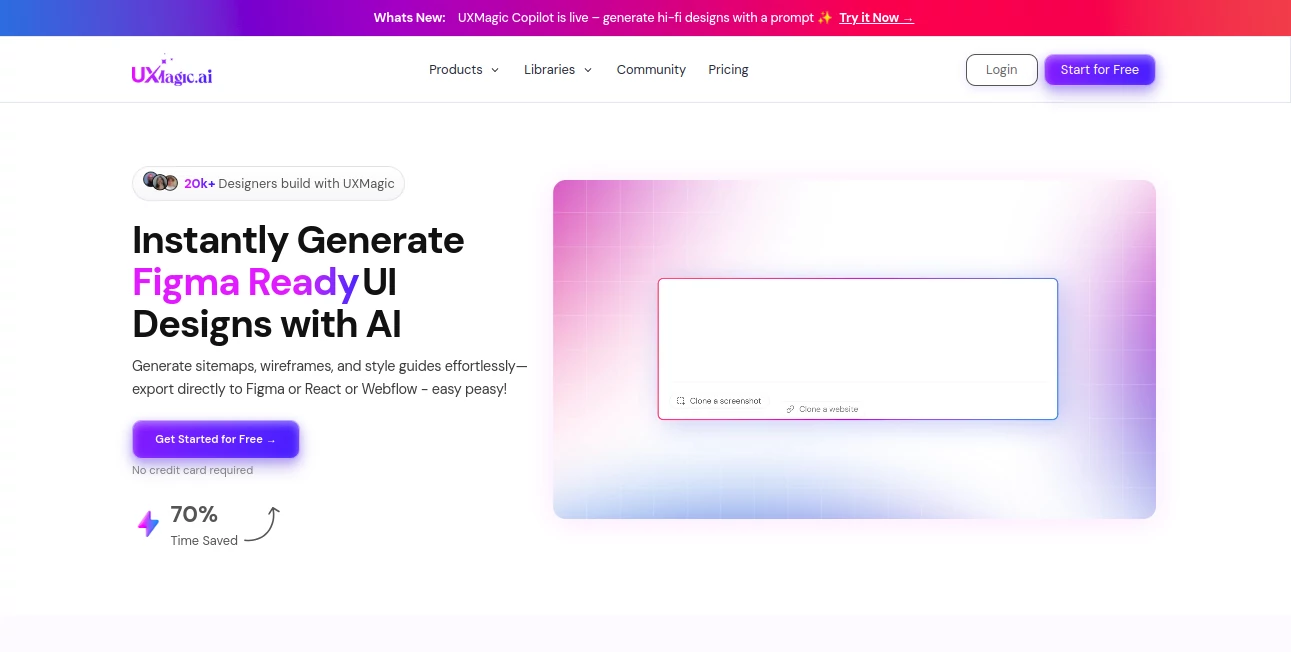
What is UXMagic AI?
UXMagic steps in as a clever sidekick for anyone wrestling with the blank canvas of design, turning a rough sketch or quick note into polished layouts that look ready for the spotlight. This platform feels like having a tireless collaborator who gets your vision without the back-and-forth, churning out wireframes and full mocks that save the day when deadlines loom. Designers and dreamers alike have found it a breath of fresh air, easing the grind so they can chase those bigger sparks of inspiration.
Introduction
UXMagic came together from the shared gripes of folks knee-deep in design sprints, where hours slip away on basic setups that should feel second nature. It launched quietly but caught on fast, drawing in a crowd of solo creators and team players who needed a nudge past the starting line. Over the past couple years, it's woven itself into workflows, with users swapping stories of how a midday prompt led to a client win by evening. What hooks people is that seamless shift from hazy idea to tangible output, making the whole process less like climbing a hill and more like gliding down one, all while keeping the creative fire stoked.
Key Features
User Interface
The dashboard greets you with a welcoming blank slate, where a central prompt box invites your thoughts or uploads without any clutter getting in the way. Options for export pop up right after generation, laid out in a sidebar that's easy to scan, and the preview window lets you spin and zoom with simple gestures. It's the kind of setup that fades into the background, letting you focus on tweaking rather than troubleshooting, even if you're juggling it on a tablet during a coffee run.
Accuracy & Performance
Feed it a straightforward description, and it often nails the layout in ways that surprise, aligning elements with an eye for flow that cuts down on revisions. Turnarounds are snappy, wrapping most jobs in under a minute, though busier inputs might take a beat longer without ever feeling sluggish. Those who've run it through real paces note how it shines on early drafts, giving solid foundations that hold up well under later polishes, even if the occasional output needs a gentle nudge to hit perfection.
Capabilities
From mapping out site flows to sketching component libraries, it handles the full arc of early design, pulling in styles from your uploads or links to keep things consistent. You can layer on specifics like color schemes or spacing rules, and it spits out files ready for popular tools, bridging the gap from concept to code without missing a step. It's particularly handy for batching ideas, turning a single session into a stack of variants that spark fresh angles you might not have chased otherwise.
Security & Privacy
Your sketches and prompts stay locked down with solid backend guards, especially geared toward teams handling sensitive client briefs, ensuring nothing slips out during the process. It follows best practices for data handling, giving you controls over what gets saved or shared, so you can collaborate without the constant what-ifs. That peace of mind lets you experiment freely, knowing the rough edges remain just between you and the tool until you're set to show.
Use Cases
Freelancers whip up client pitches from napkin notes, landing gigs with visuals that wow before the first call. Startups test app flows from user stories, iterating fast to nail the user hook without full mockups. Agencies streamline handoffs to devs, exporting clean files that cut misreads and speed builds. Even non-design folks, like product leads, jot quick layouts to align teams, turning vague vibes into shared snapshots that keep everyone on the same page.
Pros and Cons
Pros:
- Chops design time way down, freeing headspace for the good stuff.
- Exports play nice with everyday tools, no extra conversions needed.
- Welcomes beginners while giving pros a solid starting boost.
- Handles a range of inputs, from words to rough drawings.
Cons:
- Some results land solid but not showstoppers, calling for tweaks.
- Deeper custom fits might evolve with future updates.
- Relies on clear prompts to avoid off-track outputs.
Pricing Plans
You can dive in free to get a feel for the basics, perfect for one-off tests or light explorations. From there, it steps up to affordable tiers that unlock more generations and advanced exports, keeping things straightforward without surprise fees. The model scales nicely for solo users up to bigger outfits, with easy upgrades that match your growing needs, all backed by a no-fuss start that lets you build confidence before committing.
How to Use UXMagic
Sign up quick—no card needed—and head to the generator with your idea in hand, whether it's a typed scene or a snapped sketch. Let it process, then browse the options that pop up, picking one to refine with simple sliders for layout or vibe. Hit export to send it straight to your workspace, and save the session for later rounds. It's that loop of prompt, preview, polish that keeps things moving, turning a spark into a spread in no time.
Comparison with Similar Tools
Unlike broader creative suites that spread thin across mediums, UXMagic zeros in on UI flows, delivering tighter results for design-focused tasks, though those might offer more for general graphics. Against manual wireframing apps, it skips the drag-and-drop drag, trading some fine control for speed, but could lag behind for pixel-pushers who crave every knob. It stands out for the prompt-to-prototype crowd, blending ease with enough depth to feel like a real teammate in the toolkit.
Conclusion
UXMagic wraps up the early design hustle in a neat, efficient bow, handing creators a shortcut that feels more like an extension of their own hand than a separate step. It nudges the field forward by making those first visuals less of a chore and more of a joy, opening up room for bolder experiments. As workflows keep evolving, this one's poised to stay a staple, proving that a touch of smarts can turn good ideas into great interfaces without skipping a beat.
Frequently Asked Questions (FAQ)
Can beginners get solid results?
Absolutely—start with simple descriptions, and it builds from there, growing with your comfort.
What formats does it export to?
Figma files, code snippets, and more, all tuned for smooth handoffs.
How does it handle team setups?
Syncs with shared systems, keeping everyone aligned without extra emails.
Is there a limit on free use?
Enough to test the waters, with clear paths to expand as needed.
What if an output isn't quite right?
Tweak the prompt or regenerate—small shifts often unlock the perfect fit.
AI Landing Page Builder , AI No-Code & Low-Code , AI Design Assistant , AI Website Designer .
These classifications represent its core capabilities and areas of application. For related tools, explore the linked categories above.
UXMagic AI details
This tool is no longer available on submitaitools.org; find alternatives on Alternative to UXMagic AI.
Pricing
- Free
Apps
- Web Tools
Categories

UXMagic AI Alternatives Product

Perchance AI

Bolt AI

JustCopy.ai

Pixelied

Beacons

FigForm

Somnio

Jujutsu Zero…

CatDoes