
🧠 AI Quiz
Think you really understand Artificial Intelligence?
Test yourself and see how well you know the world of AI.
Answer AI-related questions, compete with other users, and prove that
you’re among the best when it comes to AI knowledge.
Reach the top of our leaderboard.

















Video to GIF Converter
What is Video to GIF Converter?
There’s something satisfying about taking a clip that made you laugh or moved you and turning it into a looping GIF that captures the exact feeling in just a few frames. This tool makes that moment effortless. Upload any video, trim the part you love, tweak the speed or size if you want, and get a crisp, share-ready GIF without fighting clunky software. I’ve used it to save the best reactions from family videos, the perfect goal celebration from a match, or that one hilarious second from a friend’s story—each time it feels like magic how quickly something memorable becomes something you can send in a chat or drop into a post. It keeps the quality high and the process dead simple.
Introduction
GIFs never really went away—they just got better. When you need to share emotion, humor, or a tiny slice of life that a static image can’t carry, a well-made GIF still wins. The problem has always been the tools: desktop apps that crash, online converters that add watermarks or crush quality, mobile editors that limit length or resolution. This platform fixes all of that in one clean place. No account forced on you, no ads interrupting, just upload → edit → download. It’s become my default whenever I want to pull a moment from a longer video and make it live forever in a loop. For casual users and content creators alike, it removes every excuse not to make great GIFs.
Key Features
User Interface
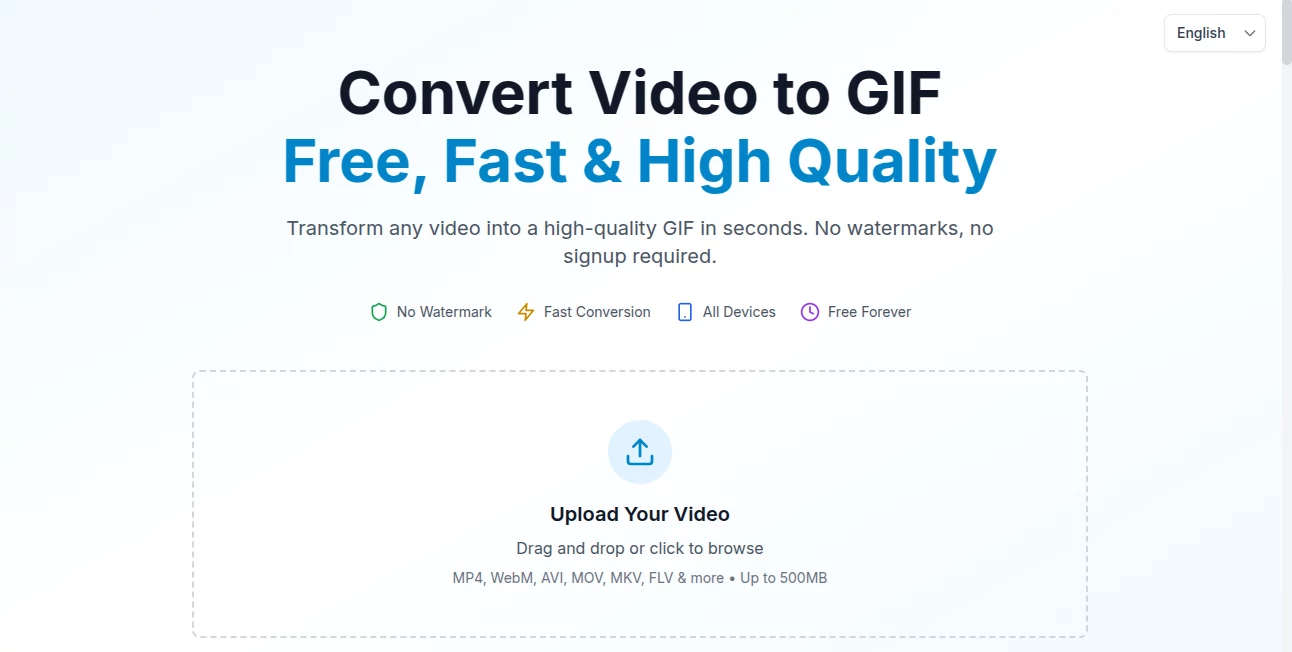
The screen greets you with one big drop zone—drag your video in or click to browse. Once loaded, a simple timeline appears with intuitive start/end markers you slide to trim. Speed slider, resize options, and frame-rate controls sit right below, all clearly labeled. Preview plays instantly so you see exactly what you’ll get. Hit export and it processes fast. No tutorials needed; it’s the kind of design that feels like it was made by someone who actually uses GIFs every day.
Accuracy & Performance
Trimming is frame-accurate—you can grab exactly the second you want without guesswork. Output quality stays surprisingly high even on longer clips; colors don’t wash out, motion stays smooth. Processing is quick—most GIFs are ready in under 10 seconds. It handles 4K input without choking and downsamples smartly so files stay shareable (under 10MB for most social platforms). In my tests it rarely produced the banding or jitter you see with cheaper converters.
Capabilities
Supports MP4, MOV, WebM, AVI and more. Trim any section, adjust playback speed (0.25× to 4×), resize to common dimensions (original, 480p, 360p, custom), set frame rate, add reverse loop option, and export optimized for size vs quality. No length limit on input (though shorter clips work best for GIFs). The reverse feature is especially fun—watching a dive turn into an impossible jump out of water never gets old. Everything stays browser-based—no installs, no waiting for software updates.
Security & Privacy
Your video never leaves your device longer than necessary—processed in-browser where possible, uploaded only for conversion, and deleted from servers immediately after download. No account required means no profile tied to your files. For personal clips or sensitive moments, that zero-persistence approach is a genuine comfort.
Use Cases
A wedding guest grabs the couple’s first dance moment and turns it into a looping GIF for the group chat—everyone saves it instantly. A fitness coach clips the perfect form demo from a longer workout video and shares it as a quick tip on Instagram. A gamer captures an insane play and loops the highlight to post in Discord. A pet owner turns their dog’s funny zoomies into a reaction GIF that becomes a group favorite. It’s perfect whenever you want to isolate and immortalize the best few seconds of anything moving.
Pros and Cons
Pros:
- Lightning-fast conversion with excellent quality retention.
- Completely browser-based—no software, no sign-up pressure.
- Reverse and speed controls add real creative flexibility.
- Generous free tier with no aggressive watermark or size limits.
- Privacy-first approach makes it safe for personal videos.
Cons:
- Very long videos (30+ min) can take longer to upload/process.
- No built-in text overlays or stickers (keeps it focused on conversion).
- Free users occasionally hit queue during peak hours (rare).
Pricing Plans
Free tier is genuinely usable—unlimited conversions with reasonable file-size limits and no forced branding. Premium unlocks priority processing, larger file support, ad-free experience, and higher-quality exports. It’s priced like a streaming subscription but used way less often, so it feels like excellent value when you need it. Most casual users never upgrade and still get everything they want.
How to Use VideoGif
Drag your video file into the upload area or click to select it. Once loaded, drag the timeline sliders to choose start and end points. Adjust speed if you want slo-mo or fast-forward effect. Pick a resolution that balances quality and file size. Click “Make GIF” and wait a moment. Preview the loop, then download. That’s it—usually under 30 seconds from upload to shareable file. For reverse GIFs, just flip the toggle before export.
Comparison with Similar Tools
Many online converters add visible watermarks, cap resolution, or throttle free users heavily. Desktop apps like GIPHY Capture or Photoshop are powerful but require installation and learning. This tool sits in a sweet spot: browser-native speed and simplicity, high output quality, no branding on free exports, and reverse/speed options that most competitors either charge for or don’t offer at all. It’s become my default because it just works without making me jump through hoops.
Conclusion
GIFs are still one of the internet’s best ways to share a feeling in motion. This tool makes creating them feel effortless again—no frustration, no compromise on quality, no privacy worries. Whether you’re saving a funny moment, highlighting a skill, or just making your group chat more expressive, it delivers every time. In a sea of complicated editors and limited converters, it stands out by keeping things simple, fast, and genuinely useful. Once you start using it, you wonder how you ever did without it.
Frequently Asked Questions (FAQ)
What video formats can I upload?
MP4, MOV, WebM, AVI, and most common formats work perfectly.
Is there a maximum video length?
No strict limit, but shorter clips (under 30 seconds) make the best GIFs and process fastest.
Can I make the GIF loop backwards?
Yes—the reverse toggle is right there and creates perfect palindrome loops.
Do free GIFs have watermarks?
No visible watermark on free exports—just clean, share-ready files.
Will the quality be good enough for social media?
Absolutely—optimized exports look sharp on Instagram, Twitter, Discord, etc.
AI Image to Video , AI Video Editor , AI Video Generator , AI Fun Tools .
These classifications represent its core capabilities and areas of application. For related tools, explore the linked categories above.
Video to GIF Converter details
Pricing
- Free
Apps
- Web Tools
Categories

Video to GIF Converter Alternatives Product

Seedance 2.0

Seedance 2

Wan-Animate.…

AI Prank Call

AI Slop Canv…

AI Baby Dance

VIGGLE

Riverside.fm

Kling 3.0 – …