
🧠 AI Quiz
Think you really understand Artificial Intelligence?
Test yourself and see how well you know the world of AI.
Answer AI-related questions, compete with other users, and prove that
you’re among the best when it comes to AI knowledge.
Reach the top of our leaderboard.

















EaseMaker
What is EaseMaker?
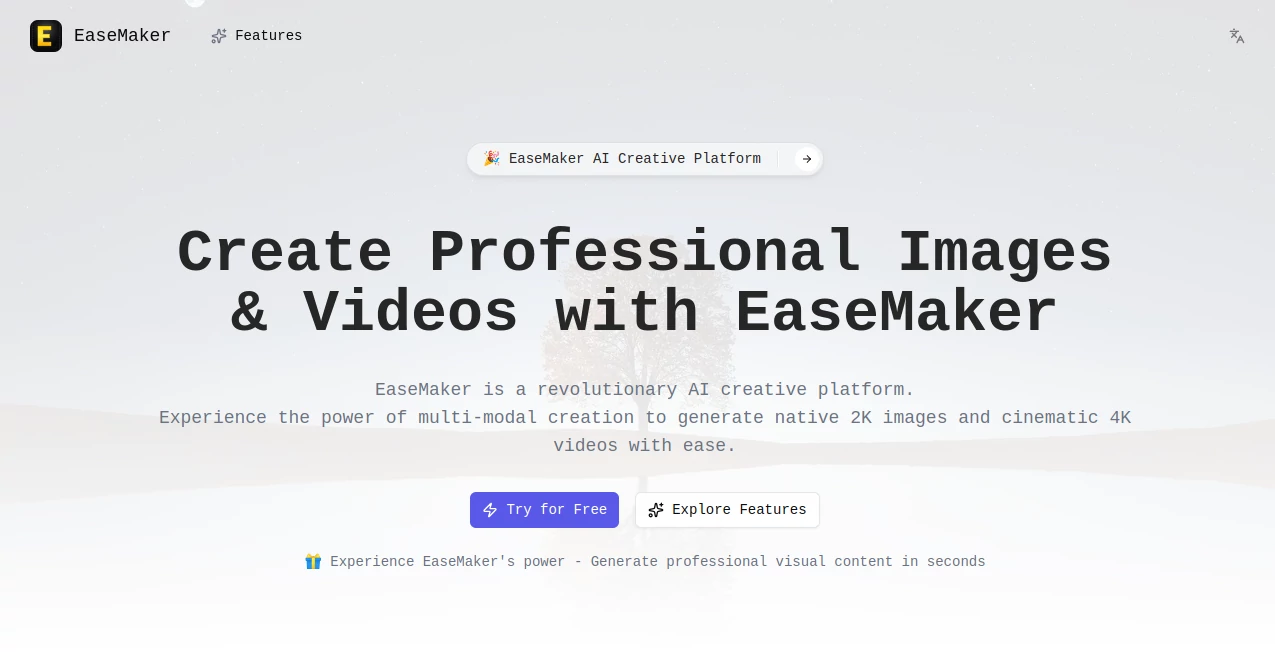
Sometimes you just need a clean graphic, a sharp social media post, or a simple presentation slide, but opening heavy design software feels like too much effort. This tool takes that friction away. You describe what you want in plain words, upload a rough sketch or reference if you have one, and it delivers polished, professional-looking visuals in moments. I’ve watched busy marketers and small business owners go from staring at a blank canvas to sharing something that actually looks good—without learning layers, paths, or export settings. It feels like having a patient designer friend who never complains about last-minute changes.
Introduction
Design used to be reserved for people with years of practice or expensive subscriptions. EaseMaker opens the door wider by letting everyday creators—teachers, entrepreneurs, content makers, students—produce attractive images, banners, posters, and social graphics quickly and confidently. The AI understands context, layout, and visual hierarchy, so the results rarely look “AI-generated” in that obvious way. Instead, they feel thoughtful and on-brand. It’s become a quiet favorite for people who need visuals that work but don’t have hours (or the skills) to create them the traditional way.
Key Features
User Interface
The workspace is calm and inviting. A prominent prompt box sits front and center where you can type your idea or describe the mood you’re after. You can upload reference images, choose aspect ratios, or pick from helpful templates. Controls are minimal but effective—no overwhelming toolbars or hidden panels. Everything you need is visible, and the preview updates quickly so you can refine without losing your train of thought. It’s one of those rare tools where beginners feel capable right away.
Accuracy & Performance
It listens carefully to your instructions and translates them into clean compositions with good balance, readable text, and appropriate styling. Colors, fonts, and layout feel intentional rather than random. Generation speed is fast enough to keep momentum—most ideas turn into finished visuals in under 30 seconds. The consistency across different prompts is impressive; it rarely produces the weird artifacts or off-brand results that still plague many design AIs.
Capabilities
You can create social media graphics, presentation slides, posters, banners, logos concepts, product mockups, infographics, and more. It supports text overlays with smart font pairing, background variations, style references, and multiple aspect ratios for different platforms. The output is high-resolution and ready to download or edit further if needed. It’s particularly strong at matching brand guidelines when you give it a reference image or color palette.
Security & Privacy
Your prompts and uploaded references are handled privately during generation. No unnecessary storage of your creative work, and no training on user data without clear consent. For business users creating client assets or personal brands protecting their ideas, that respectful approach builds real confidence.
Use Cases
A small café owner creates weekly Instagram posts that look cohesive and professional without hiring a designer. A teacher prepares eye-catching lesson slides that keep students engaged. A solopreneur quickly makes product announcement banners that match her brand. A content creator generates consistent thumbnails and cover images for YouTube or blog posts. It shines anywhere visuals matter but time or budget is limited.
Pros and Cons
Pros:
- Turns vague ideas into polished visuals remarkably fast.
- Results look thoughtful and on-brand, not generic.
- Simple interface that doesn’t intimidate non-designers.
- Good balance between creative control and automation.
- Free tier lets you test real projects without commitment.
Cons:
- Highly complex or very specific commercial illustrations may still need manual finishing.
- Free daily limits can feel restrictive for heavy daily users.
- Advanced customization options live in higher plans.
Pricing Plans
The free tier gives you several quality generations per day—enough to handle occasional needs or test the tool on your own projects. Paid plans remove limits, unlock higher resolutions, priority generation, and more style options. Pricing stays reasonable for the time and professional appearance it saves, especially for freelancers and small teams who rely on consistent visuals.
How to Use EaseMaker
Start by typing a clear description of what you need (“modern Instagram post for a coffee shop promoting morning specials, warm tones, minimalist style”). Optionally upload a logo or reference image for better brand match. Choose the format (square, story, banner, etc.). Hit generate and review the results. Use the built-in editor to tweak text, colors, or layout if needed, then download. For repeat projects, you can save templates or style preferences to make future creations even faster.
Comparison with Similar Tools
Many design AIs either produce overly generic results or require too much back-and-forth to get something usable. This one strikes a better balance: faster output with more intentional composition and style control. It feels less like a toy and more like a practical creative partner—especially valuable for users who need reliable visuals without deep design experience.
Conclusion
Good design shouldn’t be gated behind expensive software or years of practice. EaseMaker brings approachable, high-quality visual creation to more people by removing the usual friction and intimidation. It helps ideas look as good as they deserve, whether you’re building a brand, teaching a class, or simply sharing something beautiful online. In a world that moves fast, having a tool that lets you create polished visuals quickly is a genuine advantage—and this one delivers it with surprising grace.
Frequently Asked Questions (FAQ)
How detailed should my prompt be?
The clearer the better, but even short descriptions often produce solid results. Adding style references or mood words helps refine the output.
Can I upload my own logo or brand colors?
Yes—uploading references significantly improves brand consistency.
Is there a limit on free use?
Yes, a daily quota on the free tier; paid plans remove restrictions.
Are the generated images commercial-use ready?
Paid plans generally include commercial rights; always check current terms for your specific use case.
Can I edit the generated images further?
Yes—download and refine in your favorite editor, or use built-in adjustment options where available.
AI Image to Image , AI Design Generator , AI Graphic Design , AI Design Assistant .
These classifications represent its core capabilities and areas of application. For related tools, explore the linked categories above.
EaseMaker details
Pricing
- Free
Apps
- Web Tools
Categories

EaseMaker Alternatives Product

Seedream 5.0

Ai Home Desi…

Seedream 5.0
Roblox Man F…

AIImageEdit

insMind

VIGGLE
Tryonr
Flux 2 Klein
