

















LinkedIn Speak Translator
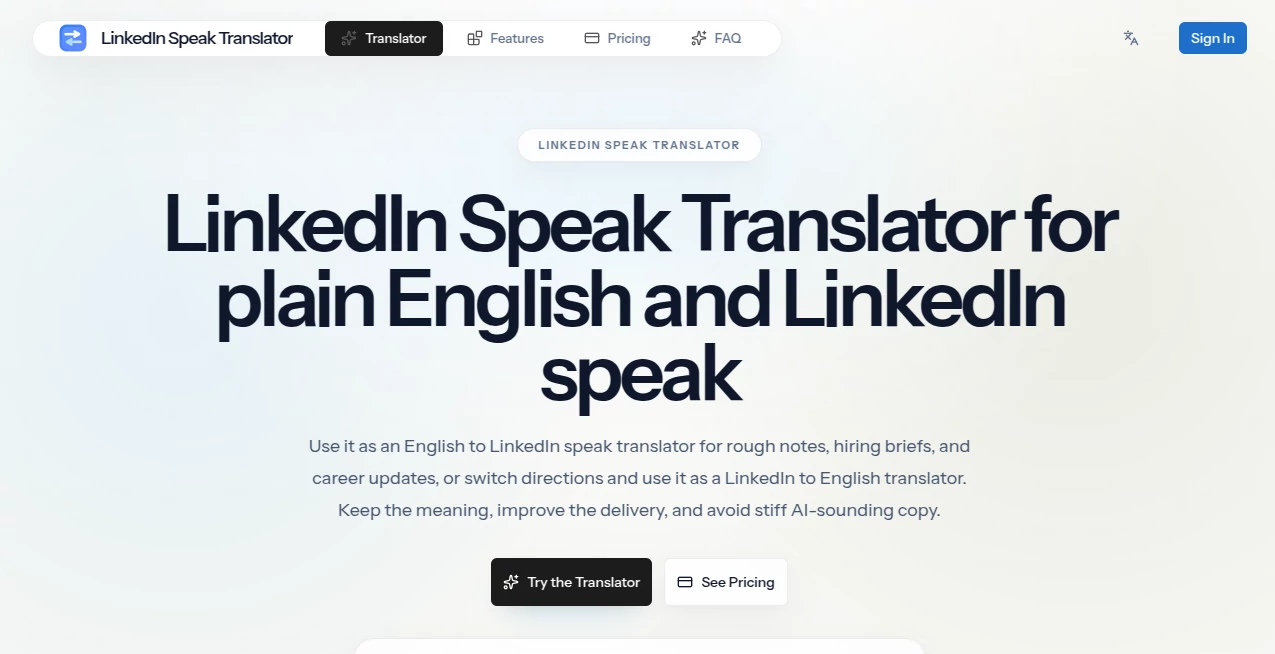
What is LinkedIn Speak Translator?
Have you ever read a LinkedIn post and felt like you needed a decoder ring just to understand what someone is actually saying? You know the type. “Excited to announce that I’m leveraging synergies across cross-functional teams to pivot our core competencies.” It sounds impressive, but what does it really mean? Honestly, half the time, it means someone had a regular Tuesday.
This is where things get interesting. There is a tool that cuts through all that noise. It takes the fluffy, over-polished, buzzword-filled language of corporate LinkedIn and translates it into plain, honest English. No more guessing whether your boss just quit or got promoted. No more reading a ten-paragraph post about “personal growth” that is really about burning dinner. This translator gives you the real story, and it does it with a sense of humor that makes you actually want to use it.
I’ve spent the last few weeks playing around with this thing, running the most ridiculous sentences I could think of through it, and honestly, I haven’t laughed this hard at a productivity tool in years. But beyond the jokes, there is a serious side to it. For anyone who spends time on LinkedIn—whether you are job hunting, recruiting, or just trying to keep up with your industry—this tool saves you time and headaches. It helps you communicate like a human being again, not a corporate robot.
Key Features
What makes this tool stand out from the endless sea of AI writing assistants out there? It is not trying to write your posts for you. It is trying to help you understand everyone else’s. And it does that through a few really smart features that actually work.
User Interface
The first thing you will notice is how simple the whole setup is. You open the page, and you are greeted with a box that looks a lot like Google Translate. On one side, you paste the corporate nonsense you just read. On the other side, the plain English version appears instantly. There are no confusing menus, no sign-up pop-ups begging for your email, and no paywalls blocking the basic features. You just type, paste, or even speak your text, and the magic happens right in front of you.
I handed this to a colleague who is not very tech-savvy, and she figured it out in about ten seconds. That is the mark of a good tool. It does not need a tutorial or a user manual. You look at it, you get it, and you start using it immediately. The design is clean, the fonts are readable, and the whole experience feels fast. There is none of that laggy, “loading...” nonsense that kills your flow.
Accuracy & Performance
Here is where this tool really surprised me. I expected a gimmick—something that would just replace random words with other random words. But the translations are eerily accurate. I tested it with real posts from my own feed. You know the ones: “Thrilled to announce that after a season of personal discovery, I am embarking on a new journey to realign my professional trajectory with my core values.”
The tool translated that to: “I quit my job.”
Spot on. It caught the nuance. It understood that “season of personal discovery” is just corporate speak for “I needed a break.” It also works in reverse. If you have to write a post that sounds professional but you want to make sure you are not accidentally saying something ridiculous, you can run your draft through the translator to see what it actually sounds like. The performance is fast, usually taking less than a second to process even long paragraphs. It handles slang, sarcasm, and even inside jokes better than I expected.
Capabilities
Beyond just translating text, this tool has a few tricks up its sleeve that make it genuinely useful for daily work. First, it recognizes context. If you paste in a phrase about “circling back” or “taking this offline,” it knows those are meeting clichés and translates them appropriately. Second, it has a pretty robust vocabulary database. It catches obscure jargon from specific industries like tech, finance, and marketing. I threw some real estate jargon at it—“strategic offloading of primary residential assets”—and it correctly identified that as “selling my house.”
Another capability I appreciate is that it works both ways. You can translate corporate speak into English, but you can also take a simple, honest sentence and turn it into LinkedIn-speak if you need to sound more professional for a post or a message. Need to tell your network that you got laid off without sounding desperate? Run “I lost my job” through the translator, and it will give you a polished, optimistic version that focuses on “new opportunities” and “gratitude for past experiences.” It is like having a PR person in your pocket.
Security & Privacy
In an age where every tool seems to be collecting your data and selling it to advertisers, it is refreshing to find one that takes privacy seriously. The tool does not store your translations permanently. You paste something in, it processes it, and then it is gone. There are no accounts to create, no personal information to hand over, and no tracking cookies following you around the web afterward. You can use it anonymously, which is important if you are translating sensitive work-related content or internal company jargon that you do not want floating around the internet. I tested this by translating a few mock internal memos, closing the browser, and coming back later. Nothing was saved. No history, no cache, no evidence. That is how it should be.
Use Cases
You might be wondering, “Do I really need a tool like this?” The answer is probably yes, even if you do not realize it yet. Here are a few situations where this translator becomes indispensable.
- Job Seekers: You are scrolling through job descriptions that say things like “seeking a rock star ninja to disrupt the paradigm.” This tool translates that nonsense into “we want someone to work long hours for average pay.” Suddenly, you know which jobs to avoid.
- Recruiters and HR Professionals: You have to read hundreds of cover letters and LinkedIn messages every week. Most of them are filled with buzzwords like “synergy,” “leverage,” and “growth hacking.” Run them through the translator to see what candidates are actually saying about their skills and experience. It saves hours of reading between the lines.
- Managers and Team Leads: You have an employee who sends you long, confusing messages filled with corporate jargon instead of just telling you what is wrong. Paste their message into the translator to get the plain English version. “I am currently navigating some bandwidth constraints regarding the deliverables” becomes “I am overwhelmed and need help.” That is useful information.
- Anyone Who Wants to Write Better: Before you post that update about your team’s latest project, run it through the reverse translator. See how it sounds when stripped of all the fluff. If the plain English version is boring or confusing, your original post needs work. It is a fantastic editing tool.
- Just for Fun: Honestly, sometimes you just need a laugh. Type in something ridiculous like “I accidentally replied all to an email chain” and see what comes out. The tool has a great sense of humor baked into its AI, and the results are often hilarious.
Pros and Cons
No tool is perfect, and it is important to be honest about where this one shines and where it stumbles. Overall, the positives far outweigh the negatives, but here is a balanced look.
Pros:
- Saves time by quickly decoding confusing corporate language.
- Completely free to use for basic translations, no credit card required.
- Works both ways: corporate to English and English to corporate.
- Requires no account or personal information to start using it.
- Handles industry-specific jargon better than most generic translators.
- Fast, responsive, and works on any device with a browser.
Cons:
- Some very niche or highly technical jargon may still confuse it occasionally.
- It works best with English right now; support for other languages is limited.
- The humorous translations can sometimes be too silly for serious professional use.
- Advanced features like bulk translation or API access are not available in the free version.
Pricing Plans
Here is the best part. You do not need to take out a second mortgage to use this thing. The tool operates on a freemium model that actually makes sense. The free tier gives you access to the core translation features, both directions, with a reasonable daily limit. For most people—even heavy LinkedIn users—the free version is probably enough. You can translate dozens of posts per day without hitting any walls.
If you are a power user, like a recruiter who needs to process hundreds of messages or a content creator who writes multiple posts per day, there is a paid upgrade. It costs just $9.90 per unit, which typically means a month of unlimited access. That price is incredibly competitive compared to other AI writing or translation tools, which often charge $20 or $30 per month. With the paid plan, you get unlimited translations, priority processing (so it is even faster), and access to any new features that get added down the line. You also get rid of any minor usage restrictions that exist on the free plan. For less than the cost of two coffee shop lattes, you can save yourself hours of frustration every week. It is one of those rare purchases that pays for itself almost immediately.
How to Use LinkedIn Speak Translator
Using this tool is almost embarrassingly easy, but let me walk you through it step by step so you can start decoding corporate nonsense in the next sixty seconds.
- Step One: Open your browser and navigate to the tool’s website. You will see a clean, two-column interface immediately. No searching through menus or clicking through landing pages.
- Step Two: Choose your translation direction. There is a button or toggle that lets you switch between “Corporate to English” and “English to Corporate.” Pick whichever one you need.
- Step Three: Paste your text into the left-hand box. This could be a LinkedIn post you copied from your feed, a message from a colleague, a job description, or even just a random sentence you want to test.
- Step Four: Wait about half a second. The translation appears instantly on the right side. No need to click a “Translate” button, though some versions have one just in case. It usually happens as you type or paste.
- Step Five: Read the plain English version and have a good laugh, or copy the corporate version to use in your own post. You can then click a copy button to grab the text and paste it wherever you need it, whether that is a comment box, an email, or your own LinkedIn update.
- Step Six: If you want to go deeper, try adjusting the intensity. Some versions of the tool have a slider that lets you control how aggressive the translation is, from “subtle professional refinement” to “full corporate satire.” Play around with it to find the setting that works best for your needs.
Comparison with Similar Tools
There are other AI writing assistants out there. You have probably heard of Jasper, Copy.ai, or even ChatGPT. But those tools are built to generate new content, not to decode existing content. They can write you a LinkedIn post from scratch, but they cannot tell you what someone else’s post actually means. That is a completely different problem, and this tool solves it elegantly.
Kagi offers a similar feature as part of its premium search engine, and it is quite good. But Kagi requires a paid subscription starting at $5 per month just to access the search engine, and the translator is more of a fun side project for them. You have to dig for it. This dedicated translator puts the feature front and center, and the free tier is much more generous. Another comparison might be generic translation tools like Google Translate. Those are great for converting Spanish to French, but they are terrible at understanding corporate jargon. They translate words literally, missing all the cultural and contextual meaning. “Leverage our core competencies” becomes a confusing literal mess instead of the simple “use our skills” that this tool provides. For the specific task of translating LinkedIn-speak into human language, nothing else on the market does it as well or as affordably.
Conclusion
Look, LinkedIn has become unavoidable. Whether you love it or hate it, it is where professional life happens online. But the constant performative positivity and the endless buzzwords can be exhausting. You should not need a PhD in corporate communication just to figure out if your former coworker actually got a promotion or just changed their desk location.
This translator fixes that. It gives you back your time and your sanity. It lets you see through the fluff and understand what people are really saying. And it does it all for free, with a sense of humor that makes the whole experience enjoyable rather than frustrating. I have recommended this tool to everyone on my team, and they all came back the next day thanking me. That rarely happens with productivity tools. Usually, you try something once and forget about it. This one, I keep coming back to, multiple times a week, because it keeps saving me from headaches. Give it a shot. Run your own LinkedIn feed through it. I promise you will be surprised by what you have been missing.
Frequently Asked Questions (FAQ)
Is this tool really free?
Yes, the basic translation features are completely free. You can translate a generous amount of text every day without paying anything. There is a paid upgrade for unlimited access and priority processing, but most users never need it.
Does it work on mobile phones?
Absolutely. The website is fully responsive, meaning it works perfectly on your phone’s browser. You can copy a post from the LinkedIn mobile app, switch over to your browser, paste it in, and get the translation in seconds.
Can it translate other languages besides English?
Right now, the core functionality works best with English. The tool is designed to understand English corporate jargon and English plain speech. If you paste in another language, it might try to translate it, but the results will not be as accurate. Stick to English for the best experience.
Will the tool save my translations or share them with anyone?
No. Privacy is a key feature. The tool does not store your translations permanently, and it does not share your data with advertisers or third parties. You do not even need to create an account, so there is nothing to link back to you.
Can I use this to write my own LinkedIn posts?
Yes, and that is actually one of the most popular use cases. Write a simple, honest sentence about what you want to say. Then switch the tool to “English to Corporate” mode and paste your sentence in. The tool will give you a polished, professional-sounding version that you can copy directly into LinkedIn. It saves you from having to come up with all the buzzwords yourself.