
🧠 AI Quiz
Think you really understand Artificial Intelligence?
Test yourself and see how well you know the world of AI.
Answer AI-related questions, compete with other users, and prove that
you’re among the best when it comes to AI knowledge.
Reach the top of our leaderboard.


















Macuse

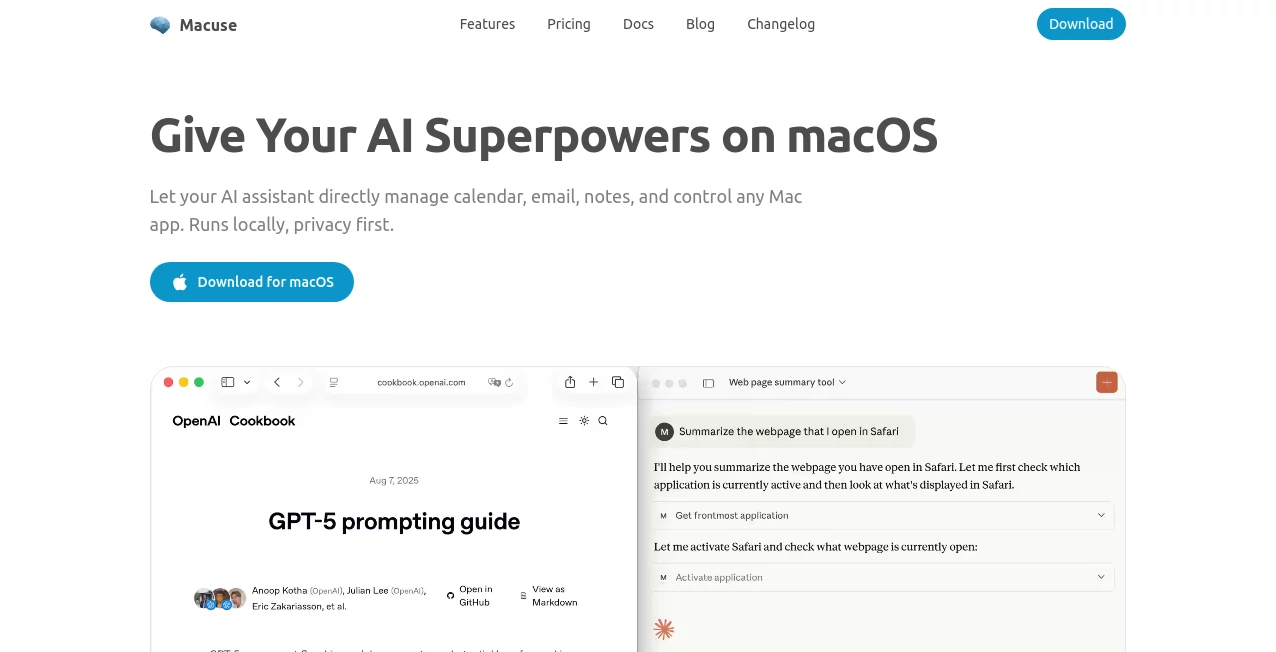
What is Macuse?
Owning a Mac feels like having a beautifully designed sports car—sleek, powerful, capable of so much more than most people ever ask it to do. But unless you know the right shortcuts, hidden gestures, and automation tricks, a lot of that potential stays locked away. This platform quietly changes that. It’s a living guide that surfaces the exact commands, workflows, and little-known features you need right when you need them. I’ve caught myself using it daily now—not because I’m learning Mac for the first time, but because it reminds me of the elegant ways the system can work for me instead of the other way around. It turns “I wish I could do this faster” into “oh, I can do this right now.”
Introduction
Most Mac users know the basics—Command+C, Command+V, maybe a couple trackpad swipes. But the real magic lives in the hundreds of lesser-known shortcuts, menu bar tricks, Automator flows, AppleScript snippets, and system preferences that can shave minutes (or hours) off daily tasks. This tool makes discovering and mastering those hidden gems feel effortless and even enjoyable. It’s part cheat-sheet, part teacher, part personal productivity coach—always ready with the perfect tip for the moment. Whether you’re a creative pro juggling apps, a developer chaining commands, or just someone tired of repetitive clicking, it quietly elevates your daily Mac experience from good to genuinely enjoyable.
Key Features
User Interface
The design is deliberately calm and focused—no flashy animations or overwhelming menus. A clean search bar greets you at the top; type what you want to do (“resize all images,” “quickly switch between windows,” “automate file renaming”) and it surfaces the most relevant shortcuts, gestures, or workflows instantly. Each entry is concise yet complete, with keyboard icons, trackpad diagrams, and step-by-step visuals that make adoption instant. It’s the kind of interface that disappears once you’ve learned the trick—exactly what a great productivity tool should do.
Accuracy & Performance
Every shortcut, gesture, and automation suggestion is meticulously verified against the current macOS version. No outdated commands, no broken workflows. Search is lightning-fast even with hundreds of entries indexed, and results are ranked by relevance to your exact phrasing. It stays up-to-date automatically, so when Apple drops a new OS version with fresh shortcuts, the guide reflects them almost immediately. That reliability builds quiet confidence—you know the tip you just learned will actually work.
Capabilities
Comprehensive shortcut database covering keyboard, trackpad, mouse, menu bar, and system-wide commands. Built-in automation recipes using Shortcuts.app, Automator, and AppleScript. App-specific tips for popular tools (Final Cut, Logic, Photoshop, VS Code, etc.). Gesture guides, window management tricks, file-system shortcuts, accessibility features, terminal aliases, and hidden preferences. Search understands natural language (“how do I tile windows side by side?”) and suggests the fastest path. It’s a living reference that grows with macOS and user needs.
Security & Privacy
No data collection beyond basic analytics (anonymous usage stats only). No login required for core features. No tracking of your searches or workflows. Everything runs locally in the browser or as an optional lightweight app. For power users who value privacy, that clean separation between tool and personal data feels essential.
Use Cases
A video editor learns one new Final Cut Pro shortcut each day and cuts project turnaround time noticeably. A developer chains terminal commands into a single keystroke and stops losing time to repetitive typing. A designer discovers trackpad gestures that speed up Photoshop workflows and finishes client revisions faster. A student uses window management tricks to juggle research tabs, notes, and writing without constant clicking. It fits seamlessly into any Mac routine where speed and flow matter.
Pros and Cons
Pros:
- Discoverability is exceptional—search feels like talking to someone who knows every Mac trick.
- Up-to-date with the latest macOS releases, so nothing breaks after an update.
- Short, clear explanations with visuals that make adoption instant.
- Covers everything from basic productivity to deep power-user workflows.
- Free access to core content—no paywall for the essentials.
Cons:
- Some very niche or third-party app shortcuts require community contributions to stay current.
- Advanced automation recipes sometimes need minor tweaks depending on your macOS version.
Pricing Plans
Core shortcut database, search, and basic guides are completely free forever. Premium unlocks advanced automation templates, app-specific deep dives, offline access, personalized shortcut recommendations, and priority updates for new macOS features. Pricing is modest—less than a single coffee subscription for most users—and many say the time saved in a single week covers the cost for a full year.
How to Use It
Visit the site (or open the optional app), type what you want to do in natural language (“quickly duplicate a layer in Photoshop,” “tile two windows side by side,” “rename files in batch”). Browse the results—each one shows the exact keystroke, gesture, or workflow with a visual diagram. Click to copy the command or pin it for later. Try it immediately. Over time, favorite useful ones or explore by category (window management, text editing, file system, etc.). It’s designed so you learn one useful thing per session and naturally build a faster workflow.
Comparison with Similar Tools
Cheat-sheet sites often list hundreds of shortcuts with no context or search. macOS built-in help is buried and slow. Community forums take time to sift through. This tool combines fast, natural-language search with clear, up-to-date, visual explanations in one focused place. It’s less a reference dump and more a personal productivity coach that actually understands what you’re trying to do.
Conclusion
A great Mac is only as powerful as the person using it knows how to unlock. This platform quietly hands you the keys to everything the system can do—without making you feel like you need to become a power user overnight. One shortcut at a time, it turns everyday friction into flow, repetitive clicks into single keystrokes, and good workflows into great ones. If you spend hours a day on your Mac, this is the kind of companion that pays dividends every single time you sit down. It’s not about doing more; it’s about doing what matters faster and with less effort. That’s a gift worth having.
Frequently Asked Questions (FAQ)
Does it work on every macOS version?
Yes—covers Ventura through the latest Sonoma and Sequoia releases, with ongoing updates for new shortcuts and features.
Do I need to install anything?
No—works entirely in-browser. Optional lightweight app for offline access and faster search is available.
Can I request missing shortcuts?
Yes—community suggestions are reviewed and added regularly; just use the feedback form.
Is it only for power users?
No—starts with everyday basics and scales up to advanced automation as you need it.
Is there a mobile version?
Web version works great on iPad; full mobile app is in development.
AI Workflow Management , AI Productivity Tools .
These classifications represent its core capabilities and areas of application. For related tools, explore the linked categories above.
Macuse details
This tool is no longer available on submitaitools.org; find alternatives on Alternative to Macuse.
Pricing
- Free
Apps
- Web Tools
- Mac Apps
Categories

Macuse Alternatives Product

Nifty

ClawBridge

LaunchBoard

ace.me

Zapier

ChatGPT

SlideStorm AI

Automaited

TopPDF
