
🧠 AI Quiz
Think you really understand Artificial Intelligence?
Test yourself and see how well you know the world of AI.
Answer AI-related questions, compete with other users, and prove that
you’re among the best when it comes to AI knowledge.
Reach the top of our leaderboard.

















Time

What is Time?
There’s something quietly satisfying about glancing up at your screen and instantly knowing what time it is in three different cities—without opening an app, switching tabs, or squinting at tiny phone widgets. This little menu bar companion makes that moment effortless and, honestly, kind of delightful. You set your locations once, pick a clean look that matches your desktop vibe, and from then on it just lives up there—always readable, never in the way. I’ve had it running for months now and I catch myself smiling every time I see the soft glow of Tokyo time next to London while I’m working late. It’s small, but it removes a tiny daily friction in a way that feels surprisingly meaningful.
Introduction
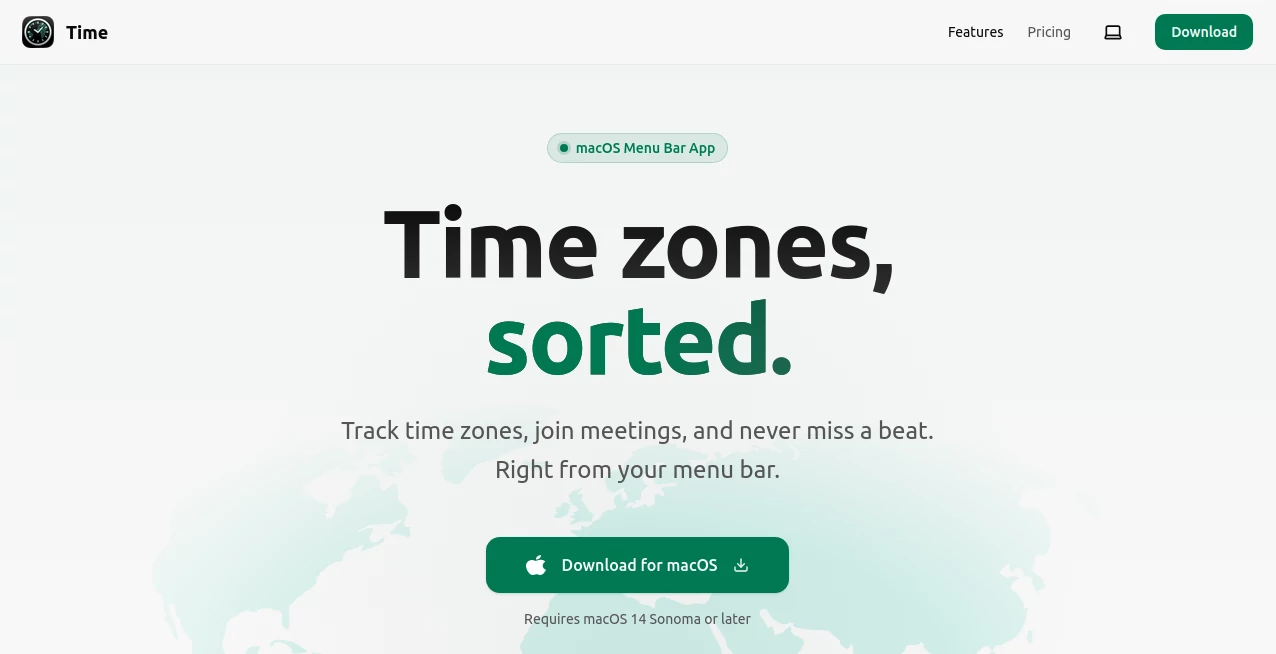
Most world clocks hide in notification centers, live in browser tabs you forget to close, or live on your phone under layers of apps. This tool brings the information exactly where your eyes already go dozens of times a day: the menu bar. It’s built for people who work across time zones—freelancers with clients in Europe, remote teams spread over continents, digital nomads juggling home and road life. The beauty is in the execution: elegant typography, subtle animations, deep customization, and rock-solid reliability. Once you start using it, the default macOS clock feels almost comically basic by comparison.
Key Features
User Interface
It sits unobtrusively in the menu bar—compact by default, but expandable with a click or hover to show all your cities in a clean column. You configure everything from a simple preferences window: add/remove cities, reorder them, choose 12/24-hour format, decide whether seconds tick, pick fonts, colors, even background opacity. The design language is calm and modern—nothing flashy, just thoughtful details like sunrise/sunset indicators and subtle daylight color shifts. It feels like it was made by someone who hates visual clutter as much as you do.
Accuracy & Performance
Time sync is flawless—pulls from system clock and adjusts for DST automatically, no manual tweaks needed. It handles obscure time zones and half-hour offsets correctly (looking at you, India and Nepal). CPU usage is negligible even with 10+ cities displayed. No beachballing, no random refreshes, no drift. In months of use I’ve never once seen it show the wrong time, which is more than I can say for some built-in macOS features.
Capabilities
Unlimited cities (practical limit is menu bar space), multiple display formats (analog, digital, relative time “in 3h”), sunrise/sunset times, custom fonts and colors per city, optional seconds display, compact vs expanded view, global keyboard shortcut to show/hide, and support for light/dark mode auto-switching. It can show relative time (“in 2h 15m”) which is incredibly useful when scheduling across zones. Everything is configurable down to tiny details—exactly the level of control power users want without overwhelming casual users.
Security & Privacy
No network calls unless you enable optional features like weather integration. No analytics tracking, no telemetry sent home, no account required. It’s a pure local app—your city list and preferences stay on your Mac. For privacy-conscious users who don’t want another cloud-syncing utility, that standalone nature is a big plus.
Use Cases
A freelance designer coordinates with clients in New York, Berlin, and Bali—glances at the menu bar and instantly knows who’s awake and who’s asleep. A remote engineering lead tracks team members across San Francisco, London, and Tokyo without opening Slack or a calendar. A digital nomad moving between Lisbon and Chiang Mai keeps home time visible to stay connected with family. A podcaster schedules guest calls across continents and never double-books because the relative times are always visible. It quietly becomes part of the daily rhythm for anyone whose life spans multiple time zones.
Pros and Cons
Pros:
- Beautiful, readable typography and subtle animations that feel premium.
- Deep customization without complexity—fonts, colors, formats, everything.
- Rock-solid time accuracy and automatic DST handling.
- Zero performance impact—runs light even with many cities.
- One-time purchase with lifetime updates—no subscription creep.
Cons:
- Mac-only (no Windows or Linux version yet).
- Advanced features like weather or calendar integration require separate setup.
- Menu bar real estate can get tight with 8+ cities (though compact mode helps).
Pricing Plans
One-time purchase unlocks the full app—no subscriptions, no tiers, no hidden fees. Price sits in the sweet spot: affordable enough for casual use, premium enough to signal serious quality. Lifetime free updates are included, so you pay once and keep getting refinements as macOS evolves. For the daily utility it provides, most users say it’s one of the best-value utilities on their Mac.
How to Use Menu Bar Time
Download and install (standard macOS app). Open preferences, add your first city via search (type “Tokyo” and it finds it instantly). Adjust display format, font, color if desired. Add more cities, drag to reorder. Close prefs—the menu bar updates immediately. Hover or click to expand for full list. Set a global hotkey if you want quick show/hide. That’s it—set once, enjoy forever. Takes under two minutes to configure, then it just works.
Comparison with Similar Tools
Built-in macOS world clock lives in the notification center and feels clunky by comparison. Browser extensions require an open tab and eat screen space. Other menu bar clocks often look dated or lack deep customization. This one combines elegant design, thoughtful features, and rock-solid reliability in a way few others manage. It’s less about adding another app and more about making time zone awareness feel natural and beautiful.
Conclusion
Great tools disappear into your workflow—they solve a problem so cleanly you almost forget they’re there, until you use someone else’s computer and suddenly miss them. This is one of those tools. It takes a daily friction (checking multiple time zones) and turns it into a small moment of delight. For remote workers, global teams, travelers, or anyone whose day spans continents, it becomes quietly indispensable. Simple, elegant, reliable—and once you have it, you wonder how you ever lived without it.
Frequently Asked Questions (FAQ)
Does it handle daylight saving time automatically?
Yes—pulls from system time zone database, adjusts instantly when DST changes.
How many cities can I add?
As many as fit comfortably in your menu bar—compact mode helps squeeze more.
Can I change the font or color per city?
Yes—full per-city customization including font family, size, weight, and color.
Is there a Windows version?
Not yet—currently Mac-only, with strong demand for cross-platform expansion.
Does it show relative time (“in 3h”)?
Yes—one of the display modes shows time difference from your local zone.
AI Life Assistant , AI Productivity Tools .
These classifications represent its core capabilities and areas of application. For related tools, explore the linked categories above.
Time details
This tool is no longer available on submitaitools.org; find alternatives on Alternative to Time.
Pricing
- Free
Apps
- Web Tools
Categories

Time Alternatives Product

What The Food

MemoTune
Futurwise

Keepmind

Pinpoint Ans…

Slackactivity

GameClick.io

InPage AI

Coresite
