















Seed3D 2.0
What is Seed3D 2.0?
Let’s be honest for a second. Making good 3D models the old way? It’s a pain. You spend hours—sometimes days—just trying to get the shape right. And don’t even get me started on texturing. But what if you could skip all that? What if you could take a regular picture and get a detailed, fully textured 3D model back in just a few minutes?
That’s exactly what this tool is built for. It doesn’t matter if you’ve never touched Blender in your life or if you’re a seasoned game developer. This platform takes the heavy lifting off your shoulders. You just focus on the creative part. The AI handles the complex geometry, the materials, and even the lighting behavior. I’ve seen people create assets for their indie games during a coffee break. Seriously. It’s that fast.
And here’s the kicker: this isn’t some toy that spits out messy, unusable blobs. We’re talking about models with clean topology. Models that actually look like what you asked for. Models you can drop straight into Unity or Unreal Engine without wanting to tear your hair out. If you’ve been burned by other AI 3D tools before, trust me—this one feels different.
Key Features
So what actually makes this thing worth your time? Let me break down the engine under the hood. The developers behind it (yes, the same folks who brought us some wild AI breakthroughs) really thought about the problems real creators face every day. They didn’t just build a cool demo. They built a workhorse.
User Interface
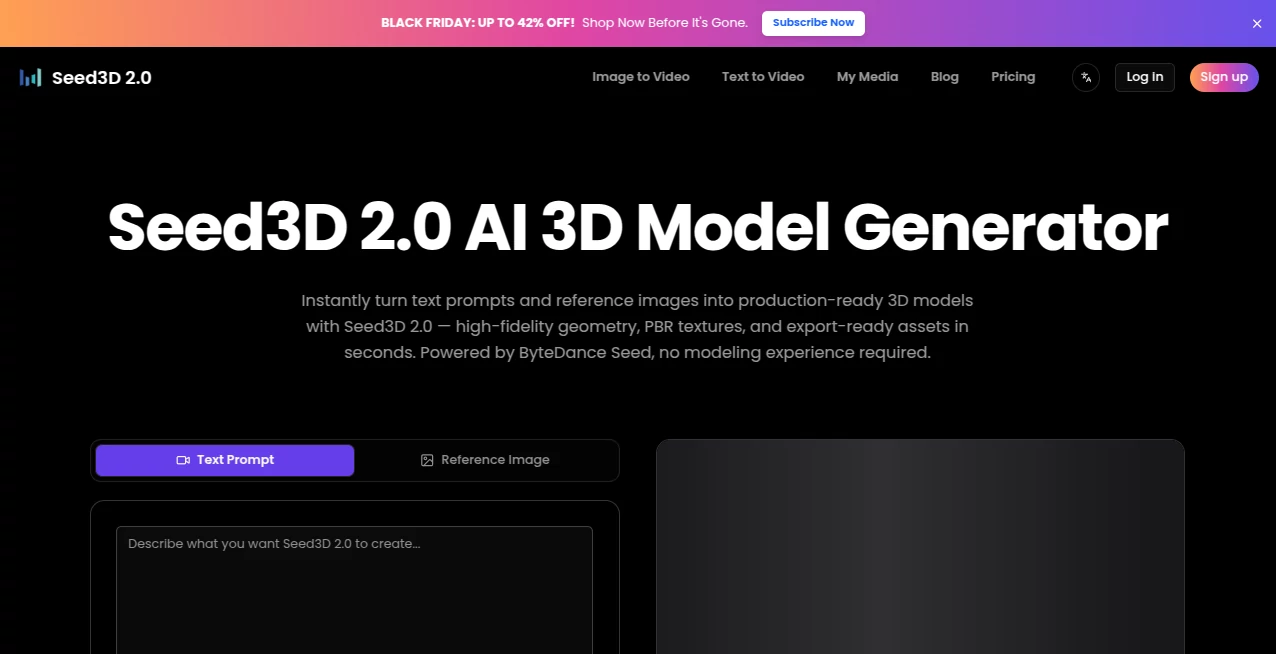
You know that feeling when you open professional 3D software and immediately regret your life choices? Yeah, you won’t find that here. The dashboard is clean, minimal, and honestly kind of boring to look at—and that’s a huge compliment. Boring means it works. No flashing buttons. No confusing jargon.
You basically have two main options: upload an image or paste a text prompt. Hit "generate," and you’re off to the races. If you can upload a photo to Facebook, you can use this tool. The 3D viewer lets you spin your model around, zoom in on the details, and download it in whatever format you need. It feels more like a photo editor than a 3D suite, which is exactly what most of us want.
Accuracy & Performance
Here is where things get interesting. Older tools often messed up the basic shape. You’d ask for a chair and get something that looked like melted cheese. This platform uses a clever two-step process. First, a big AI figures out the rough shape and where everything goes. Then, a second system comes in to add the sharp edges, the thin parts, and all those little details that make an object look real.
In blind tests with professional modelers, folks preferred these results over six other major tools out there . That’s not just marketing fluff. I’ve seen the comparisons myself. The way it handles complex structures—like the legs of a table or the spokes of a wheel—is seriously impressive. You get clean geometry that doesn’t look like it was chewed up and spit out.
Capabilities
But shapes are only half the story, right? Textures are what sell the illusion. And this thing handles PBR (that’s Physically Based Rendering for the nerds out there) like a champ. It figures out what’s metal, what’s plastic, and what’s fabric. It even gets tiny text and logos right most of the time, which is something most AI models absolutely butcher .
One of my favorite tricks is how it handles lighting. Instead of just painting colors onto the model, it understands that metal should be shiny and bricks should be rough. You can drop these assets into a game engine, and they just work with the lights you’ve already set up. Plus, you can export in all the usual suspects: GLB, FBX, OBJ, and STL for 3D printing.
Security & Privacy
Nobody wants their secret project leaked online because some AI tool scraped their uploads. While the specific privacy policies are always worth reading for yourself, platforms like this generally offer clear tiers. If you are just testing the waters on the free plan, your stuff is usually in a public gallery. That’s fine for practice.
But if you are building a commercial game or a product for a client, you will want a paid plan. Those plans usually lock your models away in a private vault. You own the output. The AI doesn’t get to train on your work. Always check the box that says "private" before you hit generate.
Use Cases
Who is actually buying this? Honestly, almost anyone who touches visuals. I’ve seen indie devs use it to prototype enemy characters. They generate a base model, drop it into Unity, and start animating it within an hour. That used to take a week.
E-commerce folks are getting in on it too. Instead of hiring a photographer to shoot a product from fifty angles, they snap a few pictures, generate a 3D model, and let customers spin the product around on the website. It’s way cheaper and looks way cooler.
And for the educators and content creators out there? This is a goldmine. Need a 3D diagram of a gear system for a YouTube video? Just type it in. Need a historical artifact for a VR classroom? Upload a photo from a museum website. The barrier to entry is basically gone.
Pros and Cons
Pros:
- Speed: We are talking minutes, not hours. It respects your time.
- Texture Quality: The PBR workflow is top-notch. Metals look like metals.
- Geometry: Sharp edges and thin walls actually render correctly. No more melted blobs.
- Formats: GLB, FBX, OBJ, STL… they basically support everything you need.
Cons:
- Rigging Limits: If you need a fully rigged character with bones ready to animate, you might still need to do some manual work or use a secondary tool .
- Complex Scenes: It does one object at a time really well. If you want a whole city block, you will have to generate things piece by piece and assemble them yourself.
- Free Tier Watermarks: The free stuff usually ends up in the public gallery. Keep that in mind before you upload your million-dollar idea.
Pricing Plans
You won’t need a second mortgage to play with this. Most platforms like this run on a credit system. The free tier usually gives you a few hundred credits a month—enough to test it out and see if you like it. Generations might take a bit longer in the queue, but the quality is usually the same.
Once you move to a paid plan (usually starting around $10 to $20 a month), things speed up. You get private generations, which is a must for commercial work. You also get higher resolution textures and faster processing times. If you are running a studio, there are usually enterprise plans with API access so you can hook this straight into your production pipeline .
How to Use This Platform
Step one: Head to the website and sign up. It takes an email and a password. Two seconds. Step two: Look for the big upload button. You can either type a description or drag in a photo. If you use a photo, make sure the object is clear and well-lit. The AI is smart, but it’s not a mind reader. Step three: Click generate. Go grab a coffee. Come back. Step four: Use the 3D viewer to spin your model around. If you like it, hit download. Pick your file type. Done. That’s literally it.
Comparison with Similar Tools
You have options out there. Tripo AI is a solid competitor. It’s fast and has great plugins for Blender. But sometimes the geometry feels a bit soft around the edges. Another one is Meshy, which is popular for its texturing. But this particular tool—Seed3D 2.0—shines when it comes to hard surface accuracy and physical realism. It’s also backed by some serious engineering talent, meaning it updates fast. If you care about sharp industrial design and accurate lighting, this is the one to beat.
Conclusion
Look, AI isn’t here to take your job. It’s here to take the boring parts of your job. This tool lets you skip the hours of blocking out shapes and messing with UV maps. You just feed it an idea, and it gives you a solid starting point—or sometimes, a finished asset. It’s fast, it’s affordable, and the results are shockingly good. If you make games, sell products online, or just love messing around with 3D art, you owe it to yourself to give this a shot. Go upload a picture of your desk chair and see what happens. You might be surprised.
Frequently Asked Questions (FAQ)
Do I need a powerful computer to run this?
Nope. It all runs in the cloud. Your laptop just needs a web browser. The AI servers do all the heavy lifting.
Can I sell the models I make?
Yes, but read the fine print on your plan. Free plans usually require you to share the model publicly or give credit. Paid plans usually give you full commercial rights.
What if the AI messes up the hands or face?
It happens, though less often than before. You can usually tweak your prompt or try a different input image. For fine details like faces, the tech is getting better, but a little manual touch-up in Blender might still be needed for perfection.
Does it work for 3D printing?
Absolutely. Export your file as an STL, load it into your slicer, and hit print. Make sure you check if the model is watertight (no holes), but the geometry is usually solid enough for a good print.