














Create Fillable PDF Forms Online
What is Create Fillable PDF Forms Online?
Let's be real for a second. We've all been there. You receive a PDF that looks like a form, but it's just a flat piece of paper trapped inside your screen. No clickable boxes, no place to type, nothing. You either print it out like it's 1995, fill it with a pen, and scan it back, or you waste twenty minutes fighting with clumsy editing software. There has to be a better way, right?
That's exactly where this tool steps in. I stumbled upon it last month while trying to send a contract to a client, and honestly, I haven't looked back since. The whole idea is painfully simple: you upload any PDF, and within seconds, it becomes a fully interactive, fillable document. No design degree needed. No watching hours of YouTube tutorials. Just drag, drop, and done. Whether you're running a small business, working in HR, handling legal paperwork, or just need to send a clean application form, this thing takes the headache out of the process.
What really caught my attention was how naturally it works. You're not wrestling with complicated menus or hidden settings. The interface feels like it was made for actual humans, not software engineers. And if you already have a PDF with existing fields, it recognizes them immediately. If you're starting from scratch, you can build a form from zero just as easily. No more asking people to "please type their answers in red text" or other ridiculous workarounds.
Key Features
Let's break down what actually makes this service worth your time. I've tested plenty of PDF tools over the years, and most of them promise the moon but deliver a rock. This one is different because it focuses on the one thing that matters: getting the job done without frustration.
User Interface
The first thing you'll notice is how clean everything looks. No flashing ads, no "upgrade now" popups screaming in your face every five seconds. You're greeted with a straightforward dashboard that basically says "upload your file or start fresh." That's it. I appreciate when a tool respects my time and doesn't try to sell me a subscription before I've even tried the basic features.
Adding fields to your document is as simple as clicking a button and dragging it where you need it. Want a text box? Drag it in. Need a checkbox for terms and conditions? Drop it there. Signature field? Two clicks away. You can resize everything, move things around, and see exactly how it will look to the person filling it out. There's no guessing game. What you see is genuinely what you get.
I also like that you can customize properties for each field. Make something required so people can't skip it. Set character limits. Add instructional text that appears when someone hovers over a box. These little touches make the difference between a form that confuses people and one that guides them smoothly from start to finish.
Accuracy & Performance
Here's where a lot of PDF tools fall flat. You upload a document, and the software completely messes up the layout. Text shifts. Images move. Suddenly your beautiful invoice looks like a ransom note. This tool handles that problem surprisingly well. When you upload an existing PDF, it preserves the original formatting. The fields you add sit exactly where you put them, and the underlying document stays intact.
Performance is snappy too. I uploaded a 20-page government form the other day, and the tool processed it in maybe three seconds. Adding fields across all those pages took a few minutes of clicking, but the software never lagged or crashed. Everything saved properly the first time. No "error occurred" messages. No losing hours of work because the autosave feature failed.
For anyone handling client documents or time-sensitive paperwork, that reliability matters. You don't want to explain to a customer that their contract is delayed because the PDF tool decided to have a tantrum.
Capabilities
You can start from complete scratch if you want. Build a blank form with whatever fields you need: text inputs, checkboxes, radio buttons, dropdown lists, signature lines, date pickers, you name it. Or you can upload an existing document and add interactive fields on top of it. That second option is huge for businesses that already have branded invoices, applications, or contracts in PDF format. You don't need to redesign anything. Just layer the fillable pieces on top of what you already have.
The tool supports all the standard field types you'd expect. Text fields for names and addresses. Checkboxes for selections. Signature fields so people can sign digitally without printing a single page. You can even set up calculations if you're building something like an order form or quote template. Add up line items automatically, apply taxes, show totals. No manual math required from the person filling it out.
Once your form is ready, you can share it directly or embed it on a website. People open it in any PDF reader, fill in the blanks, and send it back. No special software required on their end. That's the beauty of it. You do the hard work once, and everyone else just clicks and types.
Security & Privacy
I know what you're thinking. "If I upload sensitive documents to an online tool, who has access to them?" Fair question. Nobody wants their client contracts, employee applications, or legal agreements floating around on some random server. The platform handles files securely, and uploads are encrypted during transmission. You're not leaving your documents exposed while they're being processed.
That said, for absolutely critical or confidential paperwork, you probably want to check their specific data retention policies. Most online PDF tools automatically delete uploaded files after a certain period, but it's always smart to verify. The general rule I follow: if it's truly top-secret, handle it locally. For everyday business forms, this is more than secure enough.
Use Cases
Who actually needs a tool like this? More people than you might think. Here are some real-world situations where it saves the day.
Small business owners are probably the biggest winners. You send invoices, contracts, client intake forms, order requests, and probably a dozen other documents every single week. Turning those static PDFs into fillable forms means clients can complete and return them in two minutes instead of twenty. Less back-and-forth over email. Fewer "how do I edit this?" questions in your inbox.
HR professionals and hiring managers deal with mountains of paperwork. Applications, background check authorizations, offer letters, tax forms, direct deposit setups. Every single one of those documents works better as an interactive form. New hires can fill everything out digitally before their first day. No printing, no scanning, no chasing people down for missing signatures.
Teachers and educators use this constantly. Permission slips, course evaluations, homework submission forms, parent-teacher conference signups. Sending home a fillable PDF means parents can complete it on their phone or computer and email it back instantly. No "I lost the paper" excuses.
Legal professionals and real estate agents deal with contracts that change constantly. Having fillable templates saves hours of manual editing. Change a client name, update a date, adjust a price, and send it out. The other party fills their sections digitally, signs, and done.
Nonprofits and community organizations run on volunteer coordination and event planning. Registration forms, waiver agreements, donation pledges, volunteer applications. Interactive forms streamline everything from signups to reporting.
Pros and Cons
Let's keep this honest. No tool is perfect, and you deserve to know both the good and the not-so-good before committing your time to it.
The good stuff: The learning curve is almost nonexistent. You can build your first fillable form within five minutes of opening the site. The drag-and-drop system actually works without glitching. Your original document formatting stays exactly how you designed it. You don't need to download or install anything since it's all browser-based. And the output files work on any device with a standard PDF reader, which means basically everything.
The not-so-good stuff: Advanced features like complex calculations or conditional logic (showing or hiding fields based on previous answers) might be limited compared to dedicated form builders. If you need really sophisticated forms with branching questions and dynamic fields, you might need a more specialized tool. Also, because it's an online service, you'll need an internet connection to create your forms. That's usually fine, but worth mentioning if you work offline frequently.
For the vast majority of people creating standard fillable PDFs, the pros heavily outweigh the cons. It's one of those tools that just works without demanding you become a power user first.
Pricing Plans
Nobody likes surprise fees. The good news is the tool offers a solid free tier to get started. You can test out the core features, build a few forms, and see if the workflow clicks with you before spending a single dollar. That's the right way to do it.
For heavier usage, paid plans unlock additional features like bulk processing, removing any watermarks, accessing more field types, and probably higher document limits. Specific pricing details are available directly on the site since promotions change occasionally. But the general approach is fair: pay nothing to try it, pay reasonably when you need more.
Compared to alternatives like Adobe Acrobat Pro which costs a small fortune annually, this tool is refreshingly affordable. You're not paying for a thousand features you'll never use. You're paying specifically for the ability to create fillable PDFs quickly and without headaches.
How to Use Create Fillable PDFs
Getting started takes maybe sixty seconds. Here's the step-by-step.
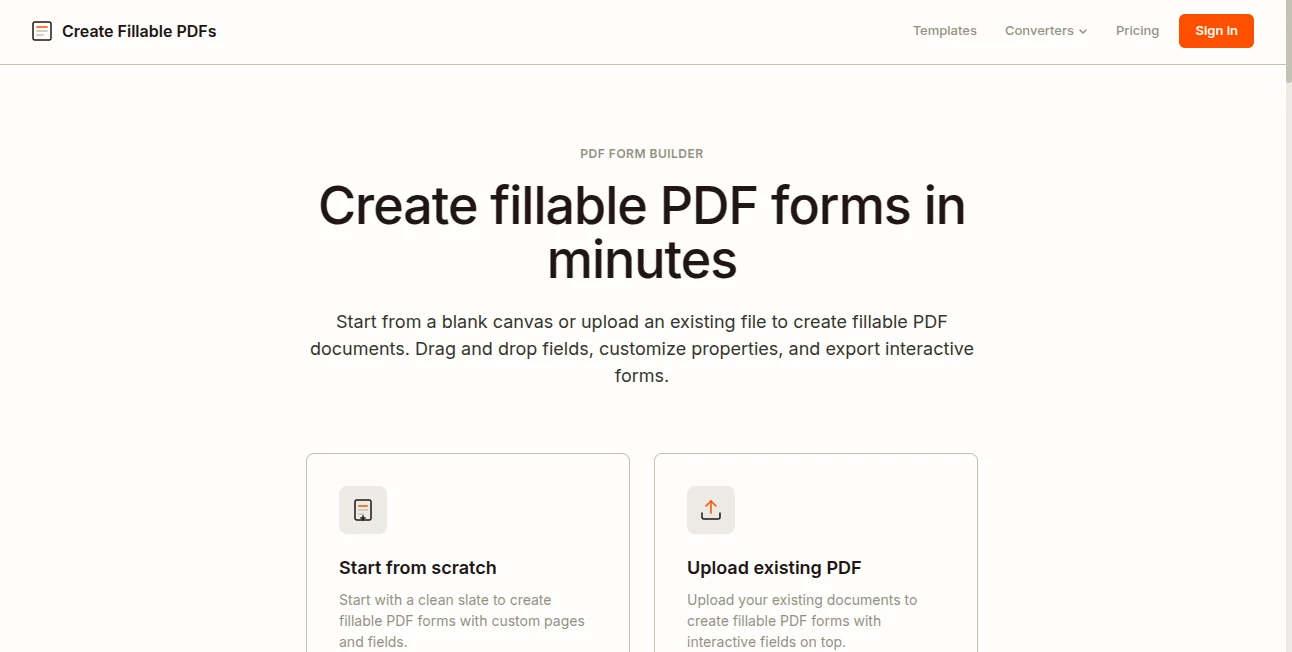
First, head to the website. You'll see a clear option to upload a PDF or start a blank form. If you already have a document, drag and drop it into the upload area. The system processes it almost immediately.
Next, look at the toolbar. You'll see icons for different field types: text boxes, checkboxes, signature fields, date pickers, dropdown menus, and more. Click whichever one you need, then click anywhere on your document to place it. Drag the edges to resize. Move it around until it sits perfectly where you want it.
For each field you add, you can customize properties. Make it required so people can't skip it. Add a label or instruction text. Set character limits for things like phone numbers or IDs. These small details make your form professional and user-friendly.
Once you've added all your fields, preview the result. Click through the form yourself. Make sure everything works the way you expect. Type in the text boxes. Check some boxes. Sign the signature field. If something feels off, go back and adjust it.
Finally, save and download your finished PDF. Send it to anyone. They'll open it in their browser, PDF reader, or even on their phone. Every field you added will be interactive. They type, check, sign, and send it back. That's it. No confusion. No "how do I edit this?" emails.
If you're making forms regularly, save templates so you don't start from scratch every time. Build a master contract template, a client intake form, or an invoice layout once, then duplicate and tweak as needed.
Comparison with Similar Tools
You've probably heard of Adobe Acrobat Pro, DocuSign, or Jotform. Each has its strengths, but here's how this tool stacks up.
Adobe Acrobat Pro is the heavyweight champion, no question. It does everything PDF-related under the sun. But it also costs several hundred dollars per year, the interface is bloated, and you'll never use ninety percent of the features. If you just need fillable forms, paying for Acrobat is like buying a fighter jet to drive to the grocery store. This tool gives you exactly what you need without the bloat or the price tag.
DocuSign focuses heavily on legally binding signatures and document workflows. It's fantastic for that specific purpose, but it's overkill for simple fillable forms. Plus, it gets expensive fast once you send more than a handful of documents monthly. This tool is more general-purpose and affordable for everyday use.
Jotform and Google Forms are great for web-based surveys and data collection, but they don't output standard PDFs that people can fill offline. You're locked into their platform. With this tool, you get a universal PDF file that works anywhere, on any device, without requiring an account or an internet connection from the person filling it.
For the specific job of converting static PDFs into interactive, fillable documents, this tool hits the sweet spot. It's simpler than Acrobat, cheaper than DocuSign, and more flexible than web-only form builders.
Conclusion
Look, paperwork is never fun. But it doesn't have to be painful either. Turning static PDFs into fillable forms is one of those small changes that saves you hours over the course of a month. No more printing and scanning. No more asking people to edit files they don't know how to edit. No more messy workarounds that make you look unprofessional.
This tool delivers on its promise. It's fast, intuitive, and doesn't waste your time with unnecessary complexity. Whether you're sending one contract or managing hundreds of client forms, it makes the whole process smoother. Try it with a simple document first. You'll probably build your first fillable PDF in under five minutes. And once you see how easy it is, you'll wonder why you ever did paperwork the hard way.
Frequently Asked Questions (FAQ)
Can I use this without creating an account?
Most basic features are available without signing up, but creating a free account saves your work and gives you access to more advanced options. It's worth the thirty seconds it takes.
Will people need special software to fill out my forms?
Nope. Any standard PDF reader works, including the ones built into web browsers and phones. Adobe Reader, Preview on Mac, even Chrome's built-in PDF viewer handles fillable forms just fine.
Can I add signature fields?
Absolutely. Signature fields are one of the standard options. People can draw their signature, type it, or upload an image of their signature.
What happens to my uploaded files?
Documents are processed securely and typically removed from servers after you download your finished form. Check the privacy policy for exact retention details, but standard practice is automatic deletion.
Does it work on mobile phones?
The form creation tool works best on a computer with a larger screen and mouse for dragging fields. But the forms you create can be filled out perfectly on any mobile device using any PDF app.
Can I edit a form after I've already sent it?
You can edit the original template anytime. But forms already sent to people are static copies. For contracts or applications where you expect changes, save the editable version separately so you can revise it later.
Is there a limit on how many forms I can make?
Free tiers usually have some limits. Paid plans remove those restrictions. Check the pricing page for current numbers, as they occasionally update.