












AI Pixel Animation Generator
What is AI Pixel Animation Generator?
Remember the first time you saw a pixel character come to life on an old arcade screen? That magic never really left us. It just got smarter. These days, you don't need to be a game developer or spend weeks frame-by-frame animating just to see your ideas move. There's a new wave of tools that take your static images and give them that retro charm with smooth, natural motion. And honestly? Some of them are almost frighteningly good at capturing the little details—the way someone blinks, the bounce in a character's step, or the flicker of a torch in a dungeon. I've been testing a bunch of these platforms lately, and one experience really stood out. It felt less like using software and more like having a tiny animator living inside my computer, just waiting for instructions. You feed it a picture, type out what you want to happen, and within seconds, you're watching a pixel version of that image walk, run, or dance across your screen. No keyframes, no rigging, no headaches. Just pure creative flow.
Key Features
What makes a pixel animator worth your time? It's not just about turning an image into a video. It's about how much control you have over the final result, and how natural the motion feels. A bad tool will give you stiff, robotic movement that looks like a cheap filter from 2010. A great tool makes you forget the animation was generated by AI in the first place. The platform we're looking at today falls into that second category. It's built around a few core ideas that set it apart from the noise. Let's break down what's actually happening under the hood, and why it matters for your projects.
User Interface
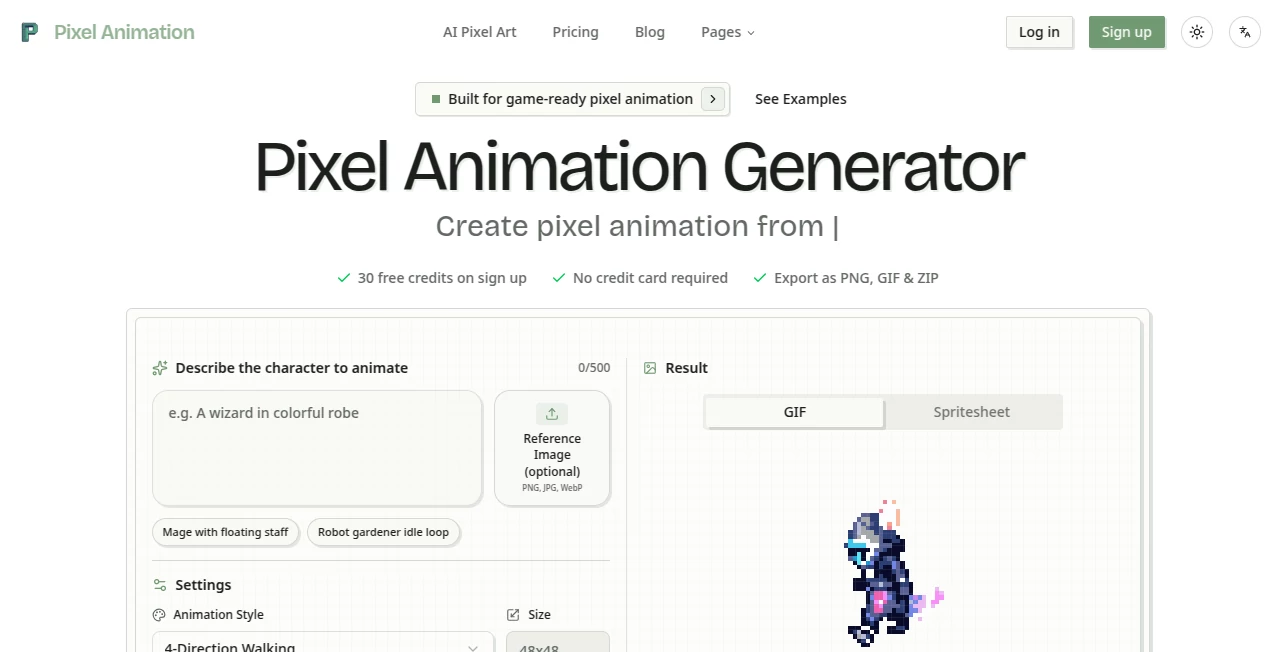
You know that feeling when you open a professional video editor and immediately want to close it? This isn't that. The interface is refreshingly straightforward. You land on the page, and there's basically a big box waiting for your image. No confusing timelines, no layers panel that stretches to infinity. You upload your picture—maybe a character you drew, a photo of a friend, or even a random portrait you found online—and then you describe the movement in plain English. Want the character to wave their hand? Just type "wave hand." Want them to look surprised? Type "eyes widen." The AI handles the rest. I've seen people with zero animation experience create shareable clips in under two minutes. That's the real power here. It lowers the barrier so much that the only limit becomes your imagination, not your technical skill.
Accuracy & Performance
Here's where things get interesting. Most image-to-video tools struggle with one big problem: they change the person's face or distort the body. You upload a picture of yourself, and the AI returns a video of someone who looks vaguely like your cousin. That's frustrating. But this tool seems to put a lot of emphasis on preserving the original features. The face stays intact. The clothes stay the same. The background elements don't morph into weird, blob-like shapes. In terms of performance, the generation speed is surprisingly fast. We're talking maybe 20 to 30 seconds for a short clip. And the motion? It's fluid. Characters don't jerk around like they're having a seizure. Instead, the AI adds subtle weight and momentum to their actions. A wave feels like a wave, not a robotic arm swinging back and forth.
Capabilities
Beyond just animating a single person, this tool can handle groups. Upload a photo with two or three people, and you can prompt all of them to move simultaneously. One person waves, another sits down, a dog runs across the background. It's capable of managing multiple subjects without losing track of who is who. Another capability worth mentioning is the emotional range. The AI understands prompts like "smile warmly" or "look sad" or "act confused." It adjusts the facial expressions accordingly, which adds a whole new layer of storytelling potential. You're not just making characters move; you're making them act. That's a huge leap forward from older tools that only understood broad actions like "walk" or "jump."
Security & Privacy
Nobody wants their personal photos ending up in some training dataset without permission. The platform makes it clear that your uploads are processed for the sole purpose of generating your video. Once you're done, you can delete everything. There's no hidden clause about them owning the rights to your face or your art. For content creators and businesses dealing with sensitive visuals, that's a non-negotiable requirement. It's nice to see a tool that respects boundaries instead of trying to squeeze every drop of data out of you for their own benefit.
Use Cases
Who actually needs this? Well, almost anyone creating visual content these days. Social media managers are using it to turn boring team photos into engaging short clips for Instagram Reels. Indie game developers are animating character sprites without hiring a dedicated animator. Marketers are creating retro-style ads that stop the scroll because they look different from the polished, hyper-realistic stuff everyone else is posting. Even teachers have found a use. Imagine showing a history class an animated version of a historical figure, bringing the past to life in a way that a static image never could. And then there's the personal side. People are animating old family photos, seeing their grandparents smile and wave in a way that feels almost like watching a home video. It's powerful stuff.
Here are some practical scenarios where this tool shines:
- Social Media Content: Stand out on TikTok, Instagram, and YouTube with pixel art animations that capture attention immediately.
- Gaming Assets: Create animated character portraits or enemy sprites for indie games without learning complex animation software.
- Digital Art & NFTs: Turn static pixel art pieces into animated editions, adding value and uniqueness to your collection.
- Event Invitations: Send out animated pixel art invitations that guests will actually remember and share.
- Marketing Campaigns: Build retro-themed ads that resonate with millennials and Gen Z who grew up loving 8-bit and 16-bit aesthetics.
Pros and Cons
Let's be real for a second. No tool is perfect. I've used enough AI generators to know that hype often outruns reality. So here's an honest breakdown of what works really well and where there's still room for improvement. This should help you decide if it's the right fit for your workflow or if you'd be better off waiting for the next update.
- Pros: Extremely easy to use, even for complete beginners. Preserves facial features and original image details remarkably well. Fast generation times, usually under a minute. Supports group animations with multiple characters. Understands emotional prompts like "smile" or "look surprised." No need for frame-by-frame editing. Works entirely in the browser, no downloads required.
- Cons: Limited to shorter clip lengths (typically 3 to 6 seconds). Can sometimes misinterpret complex prompts with multiple actions. Requires a clear, well-lit source image for best results. Heavily stylized images may not animate as smoothly as realistic photos. Advanced users might want more manual control over the animation process.
Pricing Plans
Money matters, especially if you're planning on generating dozens or hundreds of videos. The platform uses a credit-based system, which is pretty standard for AI tools these days. You buy a pack of credits, and each video generation costs a certain number of credits depending on the length and quality. There is a free tier available, but it comes with watermarks and limited generation speed. For professionals who need clean, watermark-free output and faster processing, the paid plans are the way to go. Monthly subscriptions usually offer the best value if you're generating regularly. Pay-as-you-go options exist for casual users who only need a handful of videos per month. Always check the official site for the most current pricing, as these things change frequently. But generally speaking, it's affordable enough for individual creators and small teams, without the enterprise-level price tags that make you choke on your coffee.
How to Use PixelAnimation.io
Getting started takes about five minutes, even if you've never touched an animation tool before. Here's the step-by-step process that I've found works best. Pay attention to the tips about image selection, because that's where most people mess up. A good source image is the difference between a video that looks magical and one that looks like a glitchy mess.
Step 1: Prepare Your Image – Choose a clear, well-lit photo where the subject's face and upper body are visible. Frontal shots work best. Avoid heavy shadows, messy backgrounds, or anything that obscures the face. The AI needs to see the features clearly to animate them properly.
Step 2: Upload and Prompt – Go to the website and upload your prepared image. Then type your prompt into the text box. Be specific. Instead of saying "move," say "wave right hand slowly." Instead of "happy," say "smile warmly and nod head." The more detail you provide, the better the result.
Step 3: Generate and Review – Hit the generate button and wait about 20-30 seconds. Watch the result carefully. Does it match what you asked for? If not, tweak your prompt and try again. Sometimes minor wording changes make a huge difference.
Step 4: Download and Share – Once you're happy with the video, download it to your device. Most formats work for social media, including MP4 and GIF. Share it directly or drop it into another editing tool for further enhancements.
Comparison with Similar Tools
The AI animation space is getting crowded. You've got Dreamina, which focuses heavily on text-to-pixel video and offers decent free options. Then there's WaveSpeedAI, which is more developer-focused with a robust API for integrating pixel animation into other apps. Kapwing offers a pixel generator inside their larger editing suite, which is great if you already use them for video editing. And Snowpixel is a full media toolkit that does video, music, and 3D objects all in one place. So where does this tool fit? It's more specialized. While the others try to do everything, this one does one thing really well: turning your specific image into an animated pixel video with natural motion. If you want a Swiss Army knife, go with Kapwing or Snowpixel. If you want the sharpest blade for this particular job, this is your tool. It's also significantly easier to use than most competitors, with a cleaner interface and fewer confusing options. For beginners and social media creators, that simplicity is a major advantage.
Conclusion
We're living through a weird moment in creative technology. Tools that used to require years of training are now accessible to anyone with a web browser. Pixel animation is no exception. This platform won't replace professional animators who spend months on masterpieces. But it will give you the power to bring your ideas to life in seconds, without learning a single shortcut key. For content creators, small business owners, and anyone who just loves the nostalgic look of pixel art, it's a genuine game-changer. The motion is smooth, the facial preservation is impressive, and the learning curve is practically flat. Give it a shot with one of your old photos or a character you drew years ago. You might be surprised at how much life is still waiting to be animated.
Frequently Asked Questions (FAQ)
Can I use this tool for free? Yes, there is a free tier available, but generated videos will include a watermark. Paid plans remove the watermark and offer faster processing speeds.
What kind of images work best? Clear, well-lit photos with the subject facing the camera. Frontal upper body shots deliver the most expressive results. Group photos work too, as long as everyone is clearly visible.
How long are the generated videos? Most clips range from 3 to 6 seconds. This is typical for AI video generators and works perfectly for social media loops and GIFs.
Can I animate group photos with multiple people? Absolutely. The AI can handle multiple subjects in a single image and animate them simultaneously based on your prompt instructions.
Do I own the videos I create? Yes, you retain full rights to your generated content. The platform does not claim ownership over your creations.
Is there an API available for developers? At the time of writing, the focus is on the web interface. Check the official website for the latest updates on API availability if you need programmatic access.
Why does my video look weird? Usually, it's the source image. Avoid blurry photos, extreme angles, or images where the face is partially covered. Also, keep your prompt simple at first. "Wave hand" is better than "wave hand while turning around and winking." Start basic, then add complexity once you see what works.